
Interacting with a Quote ( as a Customer )
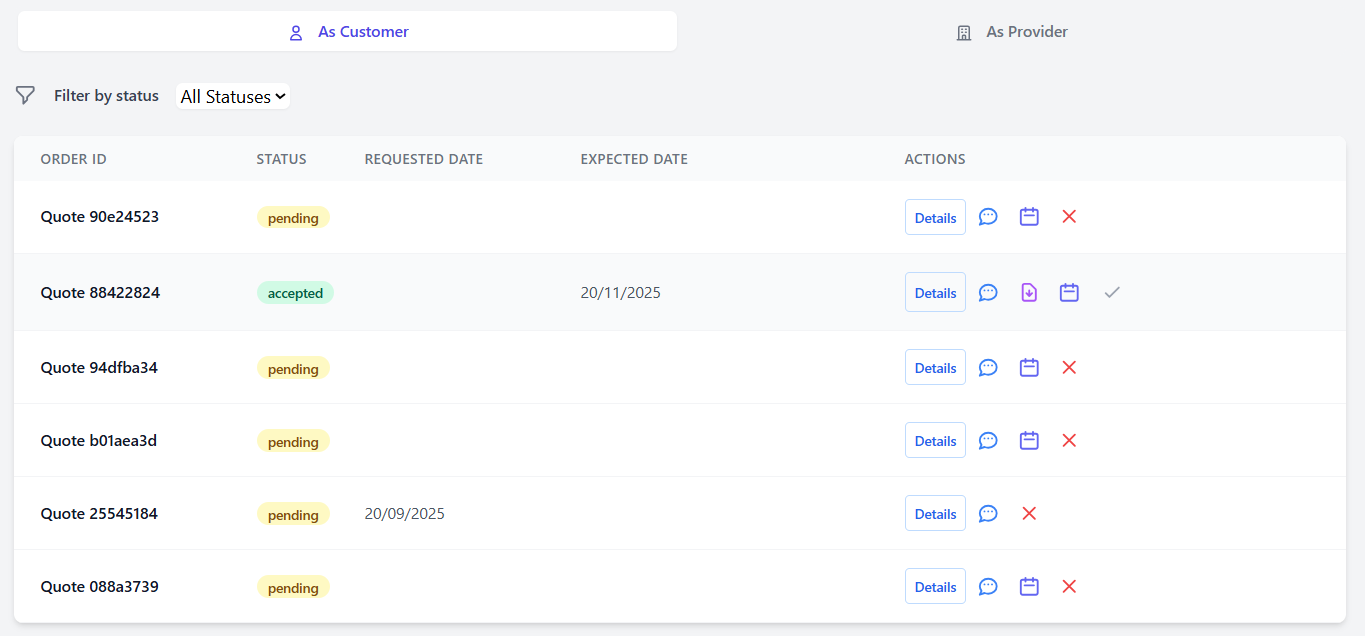
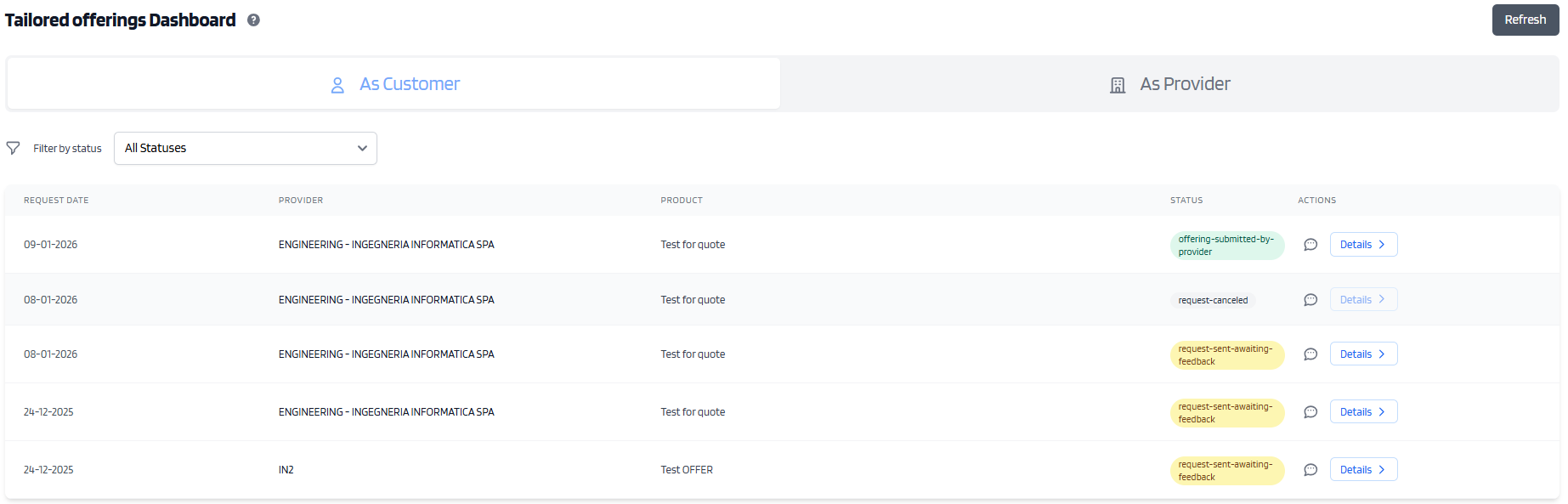
This is a view of the dashboard as a customer
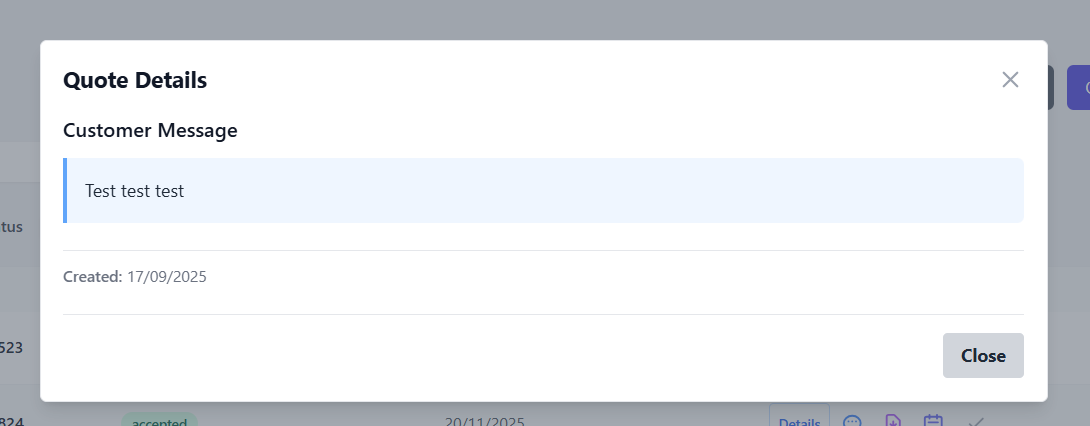
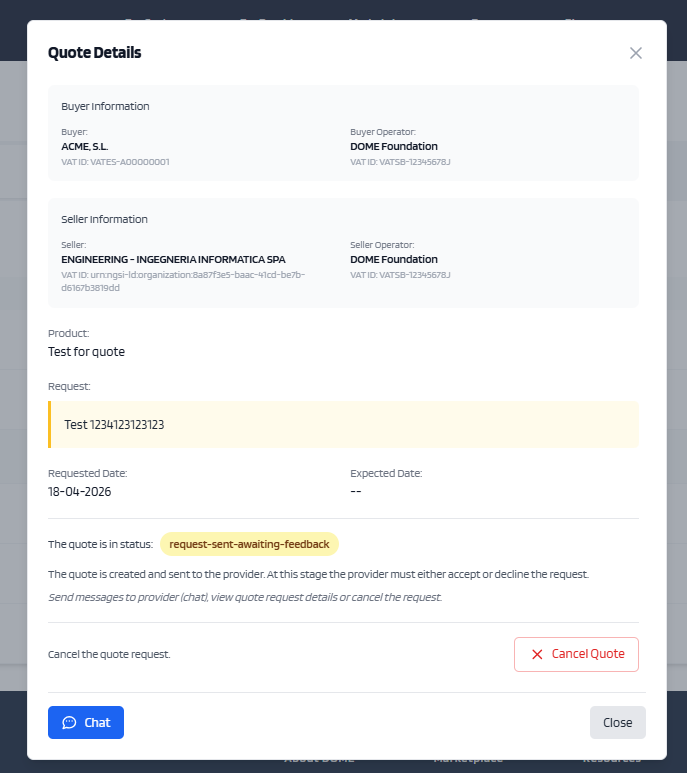
TheIn "Details"this button will letview you can see whatvarious youfields
Request haveDate requested.
Provider - the Denomination of the provider
Product - Denomination of the product sold
Status - The status of the request
Chat bubble - access to the 1on1 chat
Details - Access to the details of the quest and advanced actions
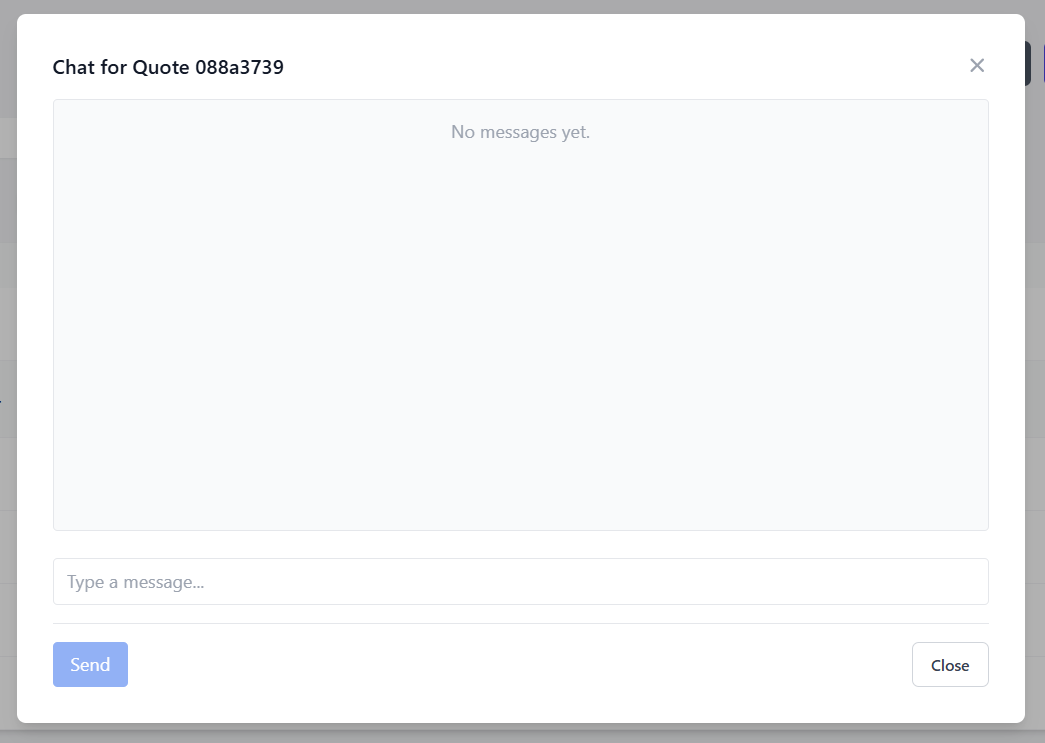
The chat bubble will let you access the chat for the related quote and send messages to the provider
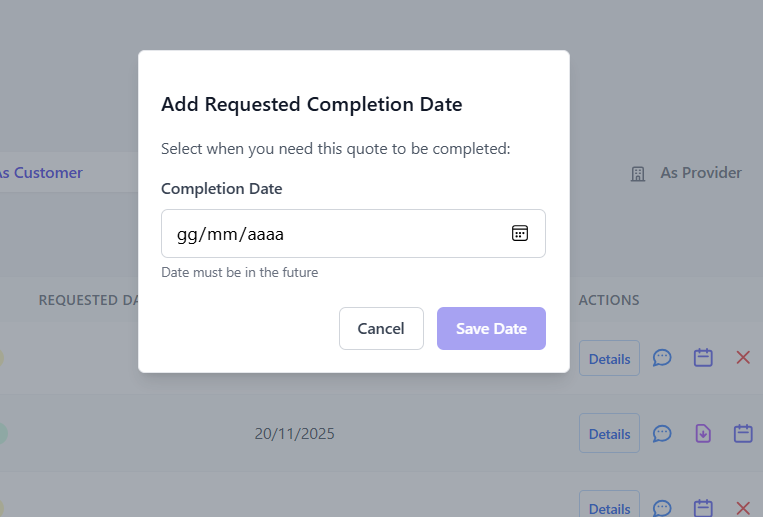
Once the provider has uploaded the PDF document, and the quote is in approved, the quote has new interactions
Clicking the purple icon, will let you download the PDF File to view it

Then clicking the Green Checkmark, will let the Provider know that you accept their proposal and this will formally end the transaction

At any moment, clicking the Red Cross will cancel the quote, and will interrupt any negotiation on it.
All actions on the quote will be disabled.
Any details regarding the transactions or products should be asked and specified using the chat functionality