
Interacting with a Quote ( as a Customer )
This is a view of the dashboard as a customer
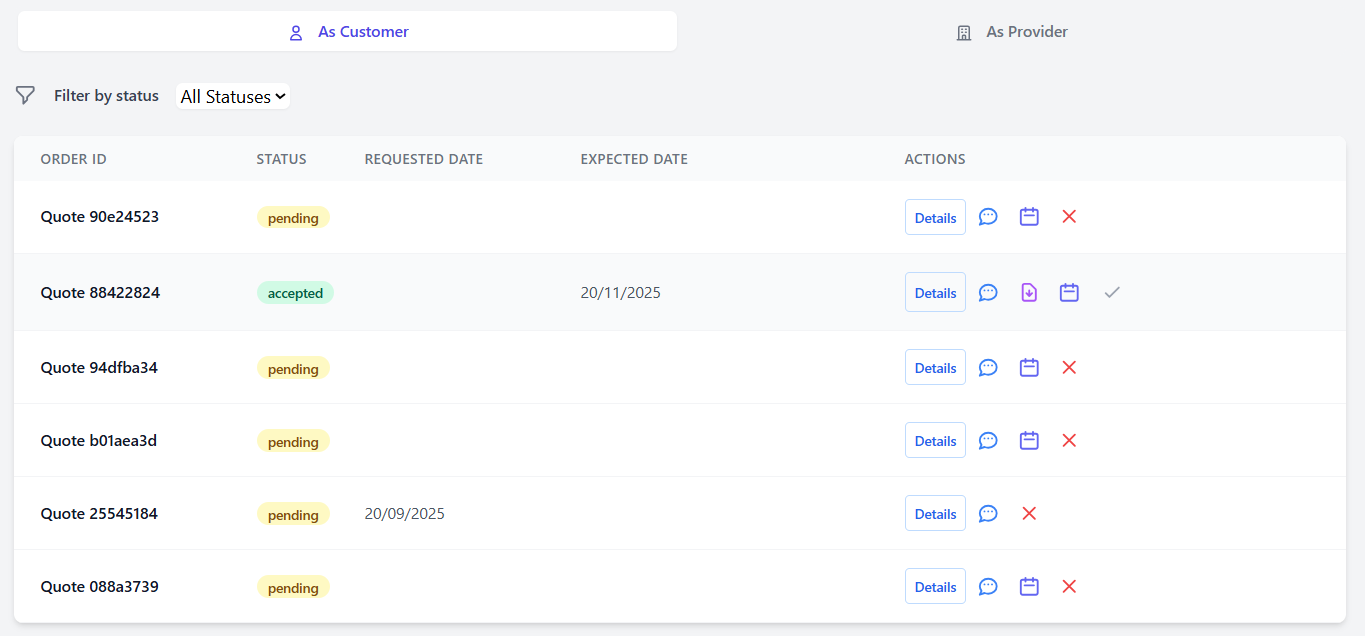
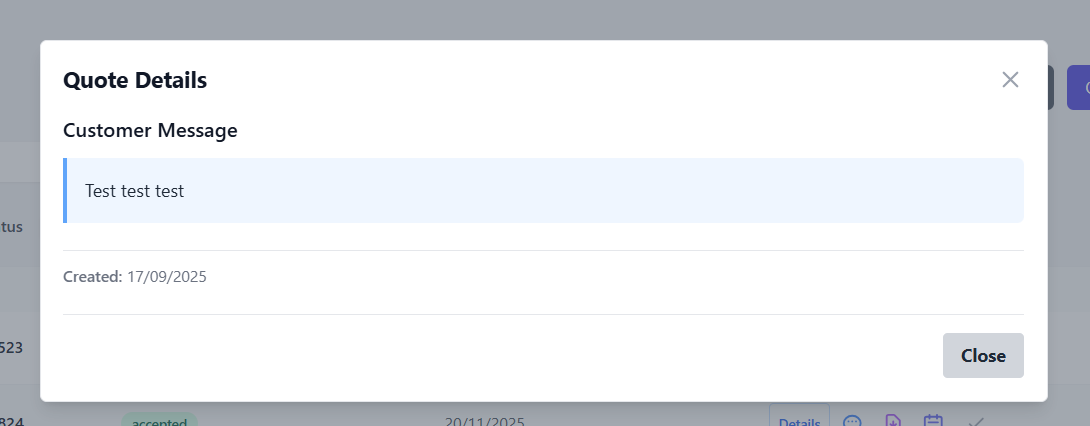
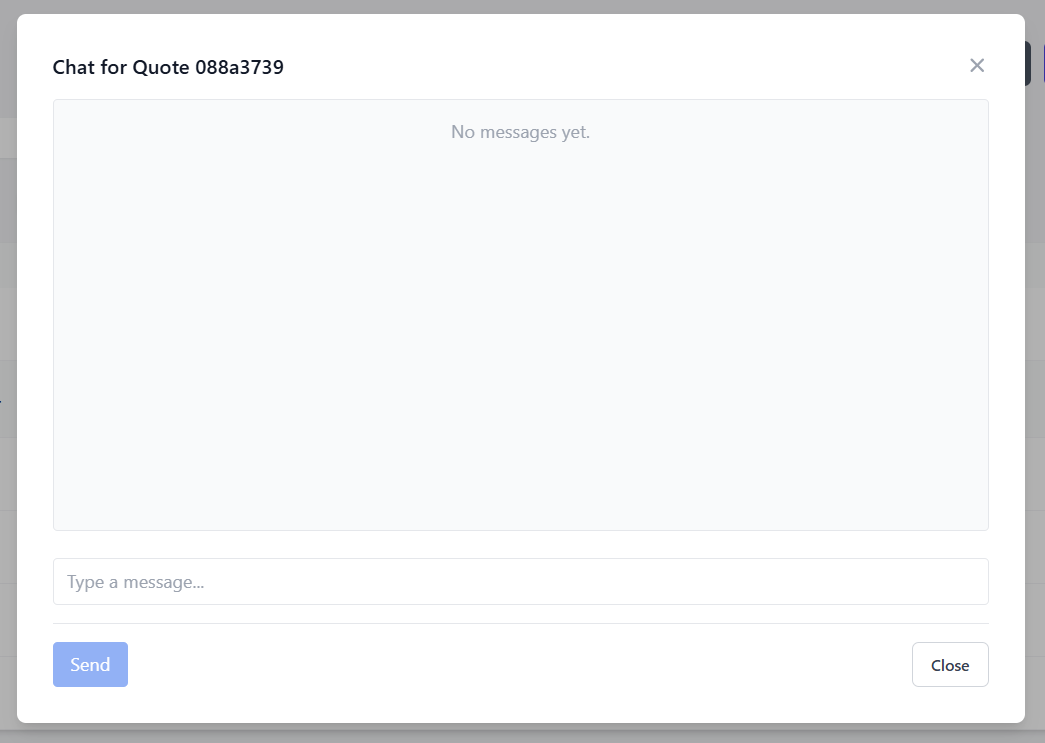
The chat bubble will let you access the chat for the related quote and send messages to the provider
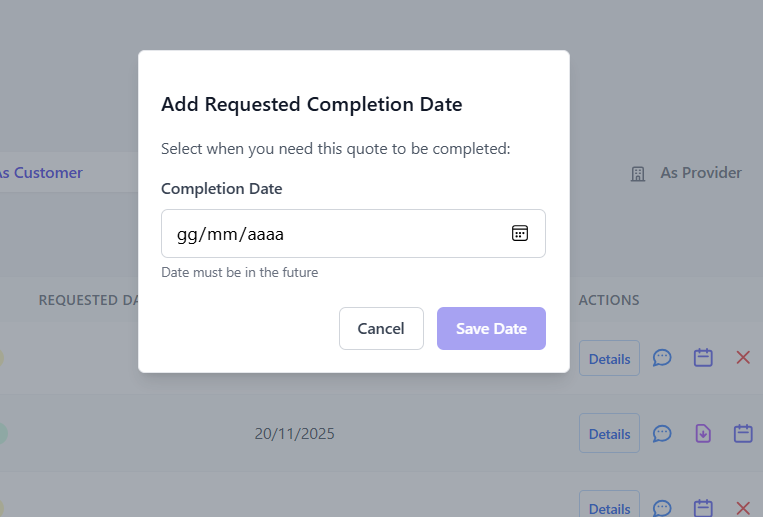
Once the provider has uploaded the PDF document, and the quote is in approved, the quote has new interactions
Clicking the purple icon, will let you download the PDF File to view it

Then clicking the Green Checkmark, will let the Provider know that you accept their proposal and this will formally end the transaction

At this point the provider will communicate when the Tailored product is ready so you can purchase it