
How to create a new Tender

On the top right of the Dashboard, you can find the button "Create Tender"
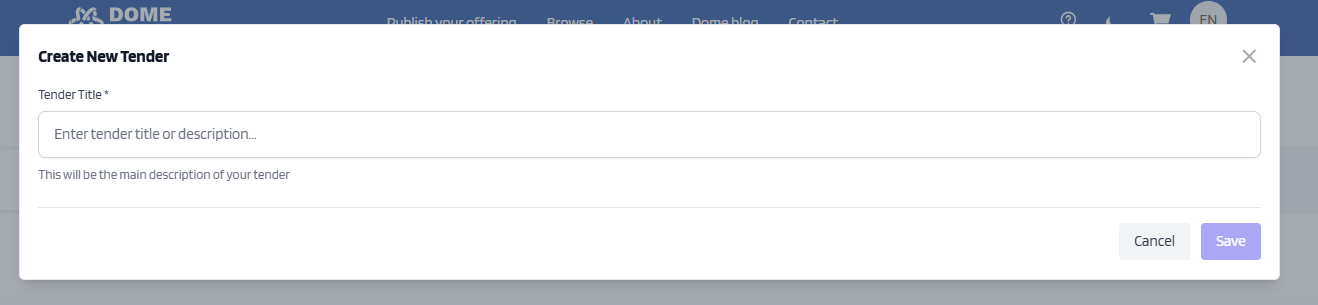
This will open a window with the first step for the creation of the Tender
To proceed in the creation, enter a title and description, click save and that will move you to the next step.
In the next step set up the start date, the end date and upload the PDF file with the request.
Click "Set" after filling every input.
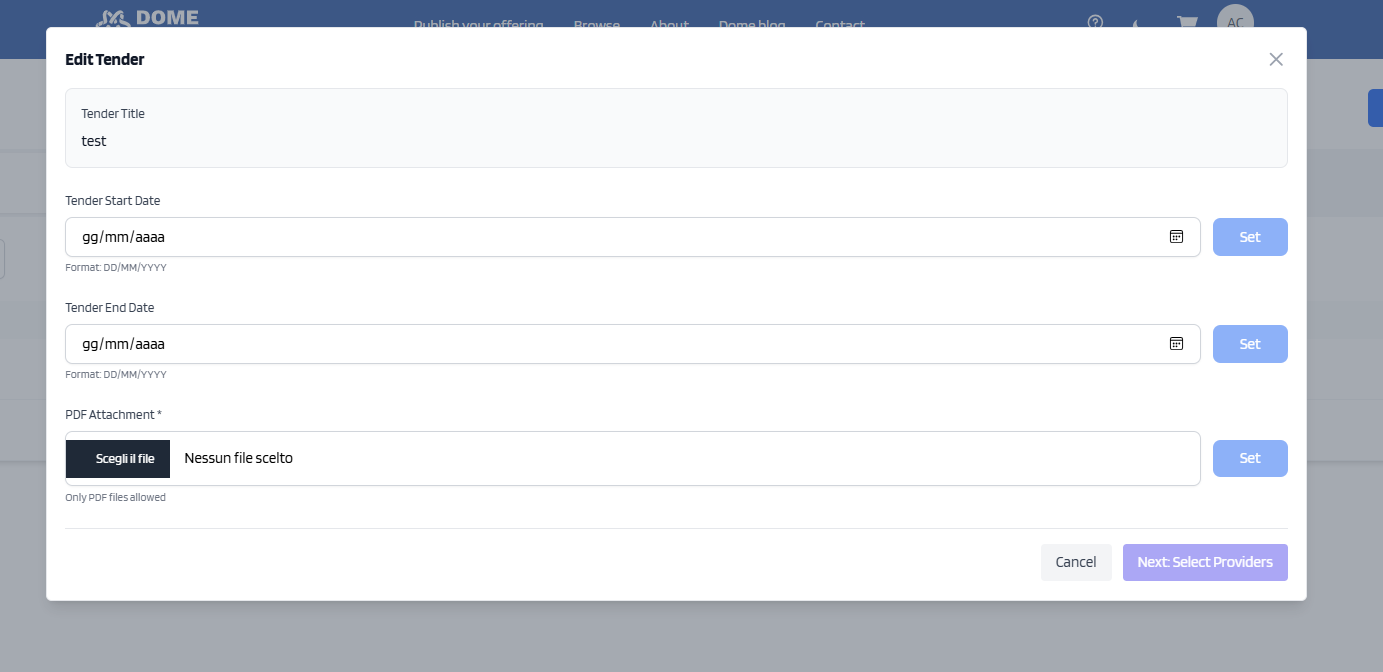
After everything is set, the button Next will be available and is going to be the screen to select providers
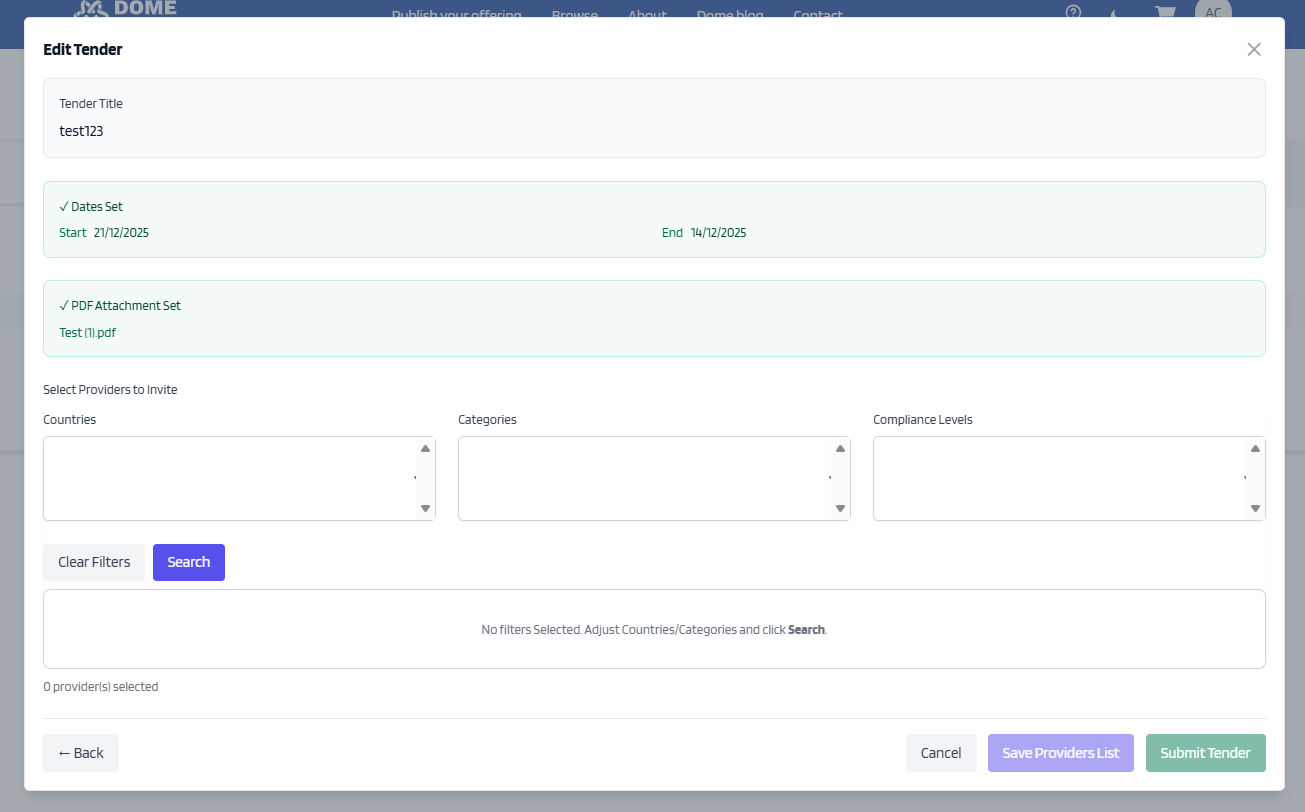
In the first rows you can see a summary of the previous steps.
In this window you can invite providers after searching them using various criteria.
Once you invite a provider, they appear in the list of invited providers above.
Clicking the red X will remove them from the list.
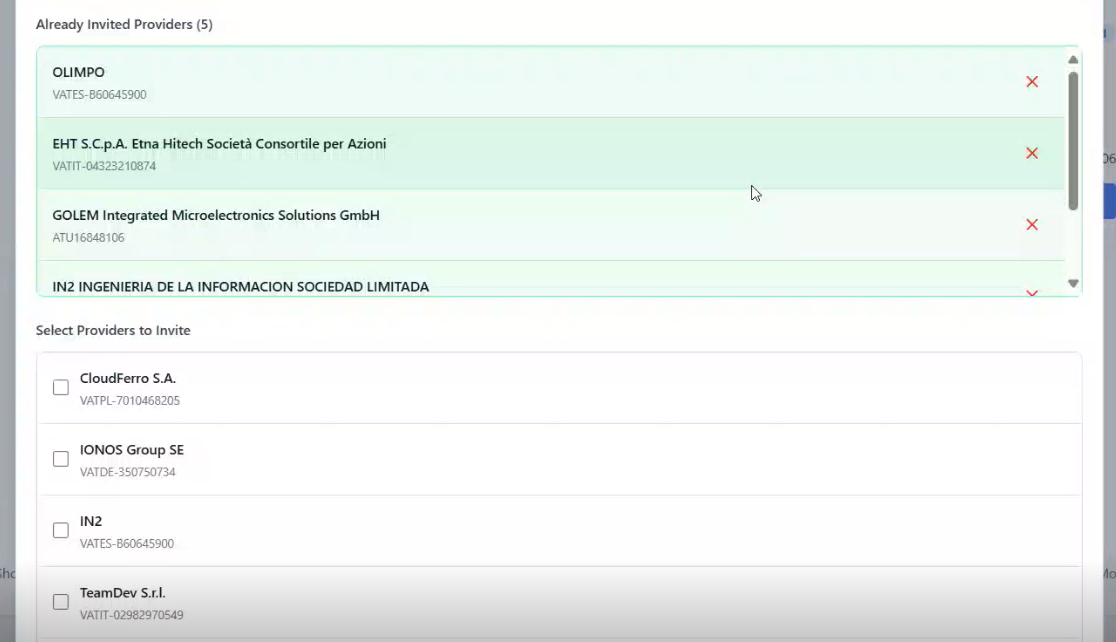
After you are satisfied with the selection, you can first Save the Provider list, then you can move the tender in Pre-Launch clicking Submit tender, this action is final.
After the tender is created, you can find it in your dashboard