
Interacting with a Quote ( as a Provider )
This is a view of the Quote Dashboard as a Provider
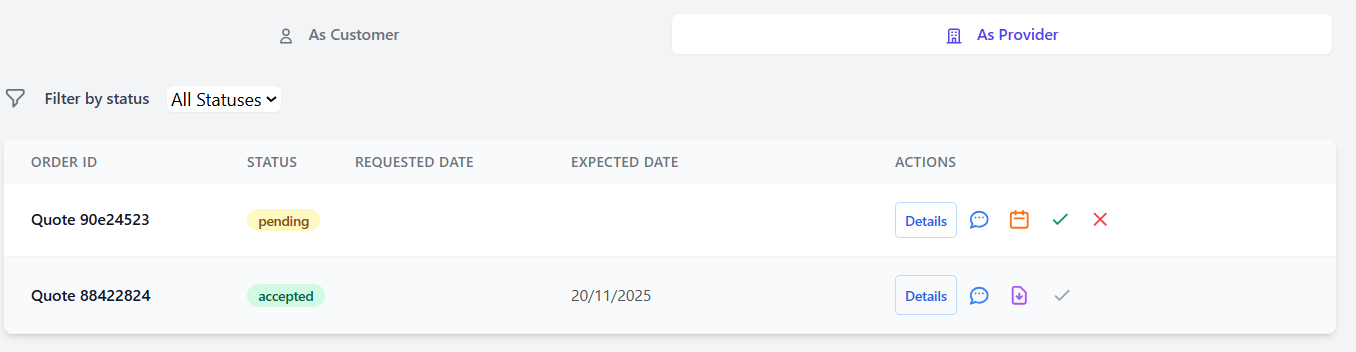
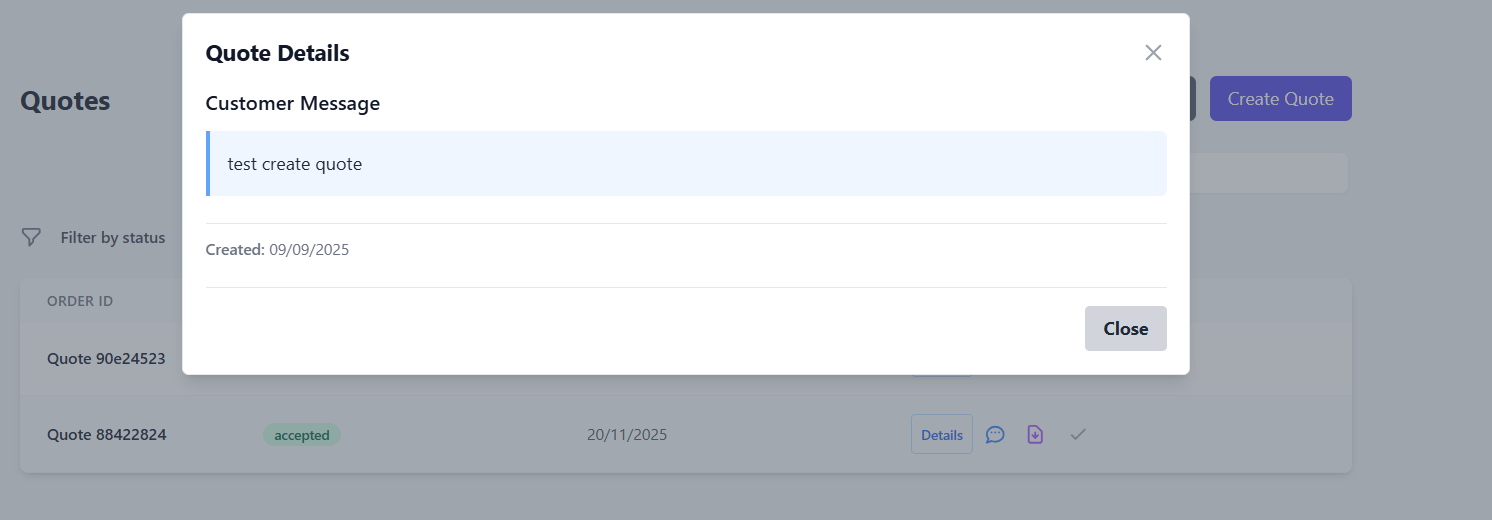
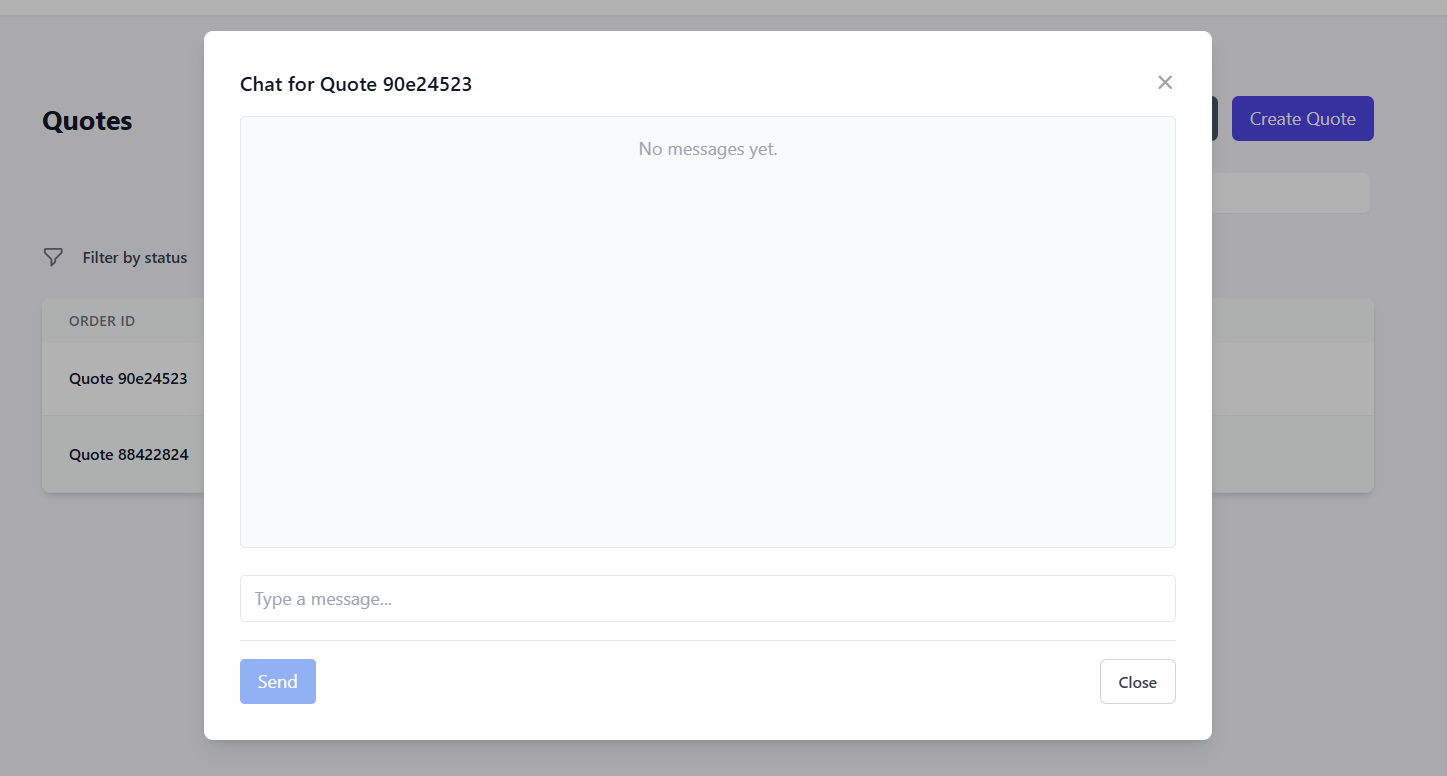
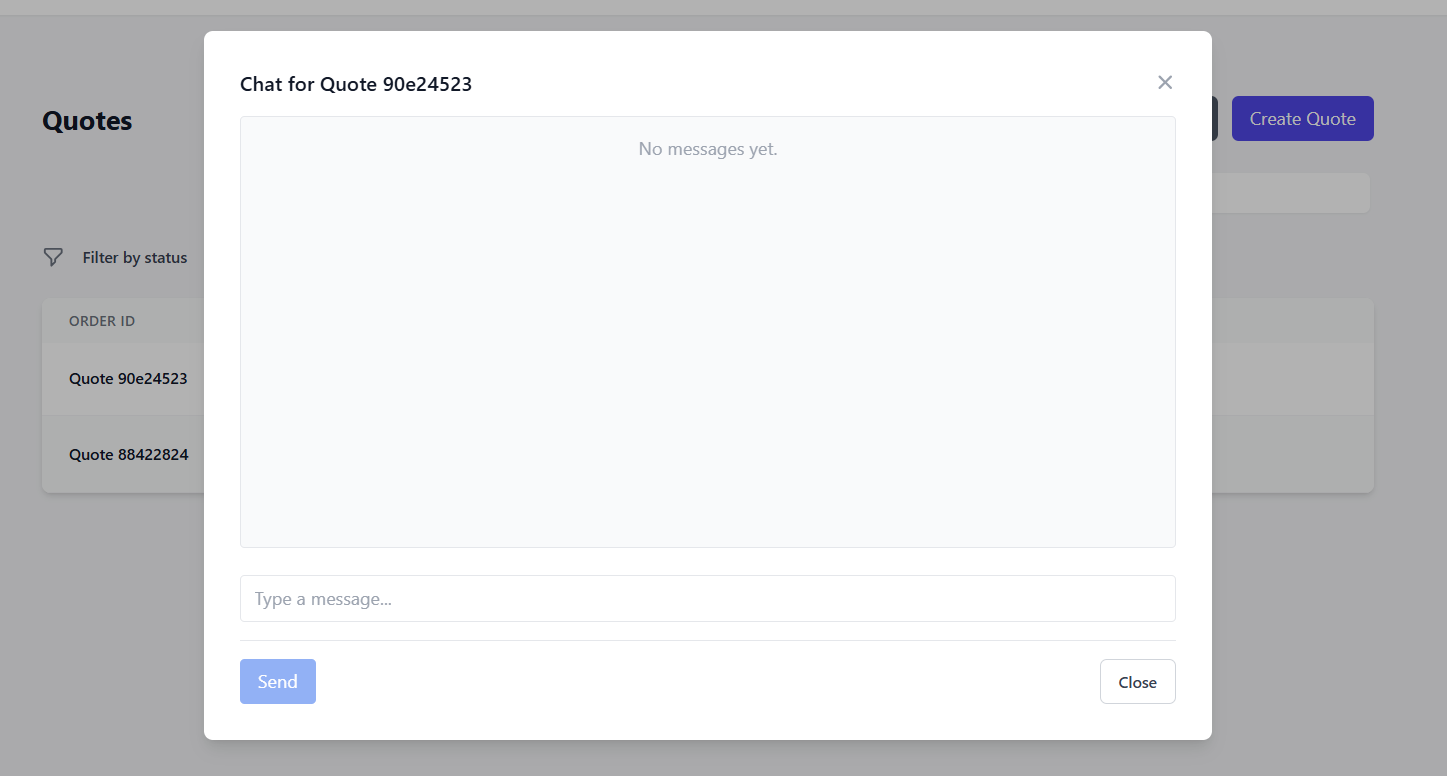
The chat bubble will let you access the chat for the related quote and send messages to the provider
Clicking the green checkmark will let you "Accept" the request from the customer, meaning that you confirm that you will work on it.
This will also move the status of the quote to "In Progress"
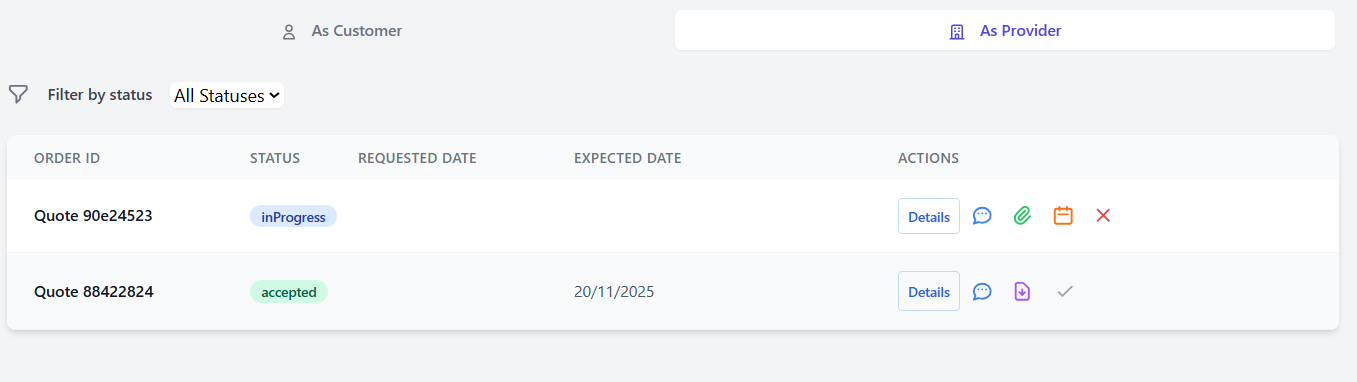
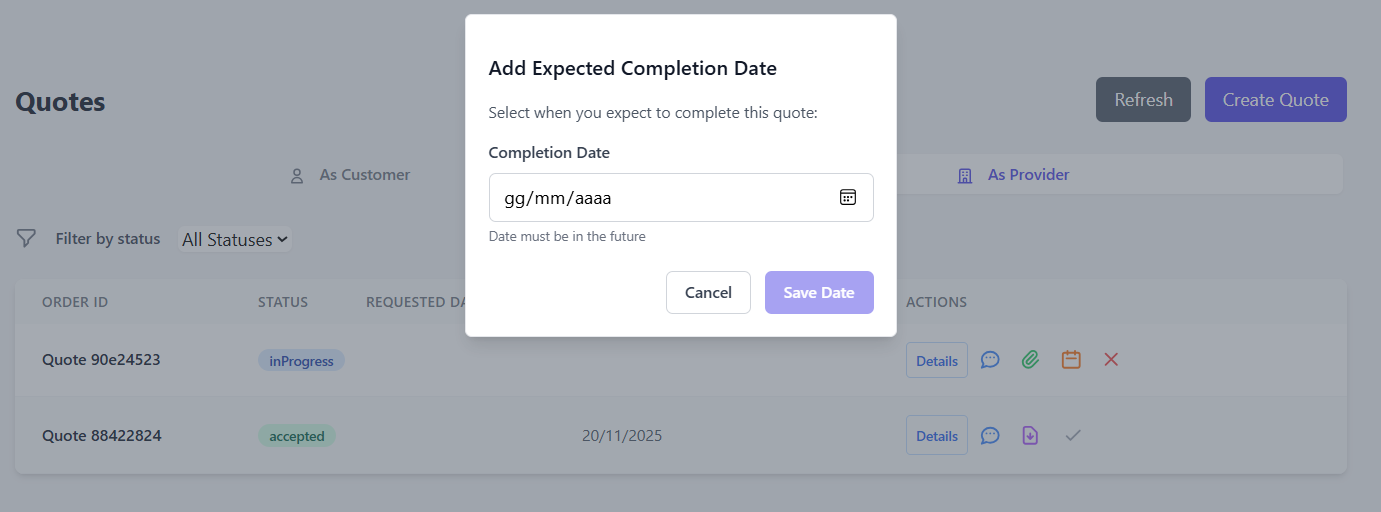
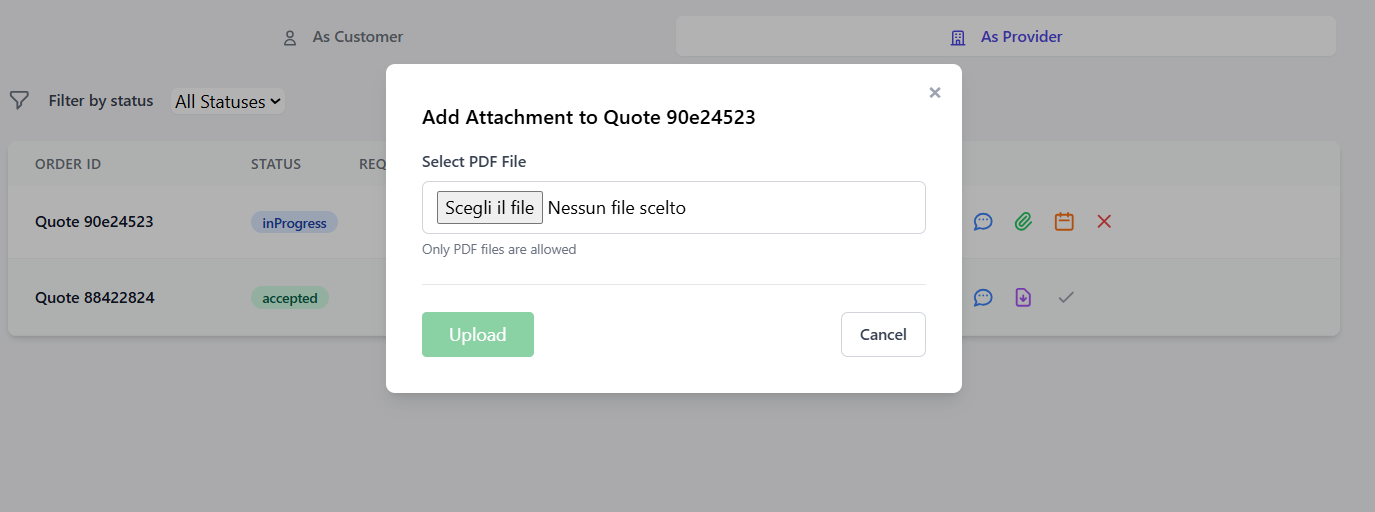
Clicking the Green Clip icon, will let you add the PDF attachment to the quote with your proposal.
This will also change the status of the quote to "Approved"
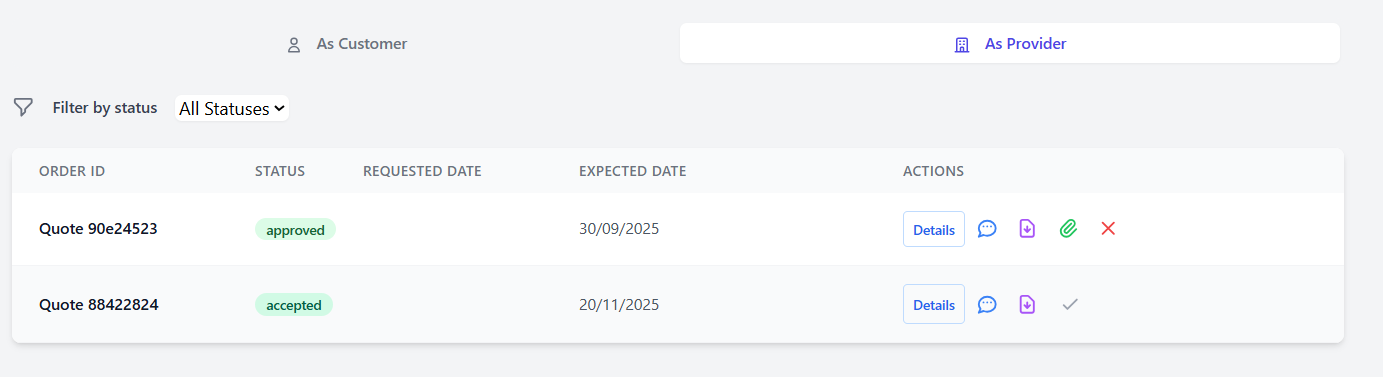
Now as a provider you only have to wait for the customer to accept your proposal.
If an agreement is not immediately reached and the request from the customer changes, if you agree to the new terms of the customer and you need to upload a new PDF document with the changes agreed, simply press again the Green Clip, the new document that you upload will overwrite the old one
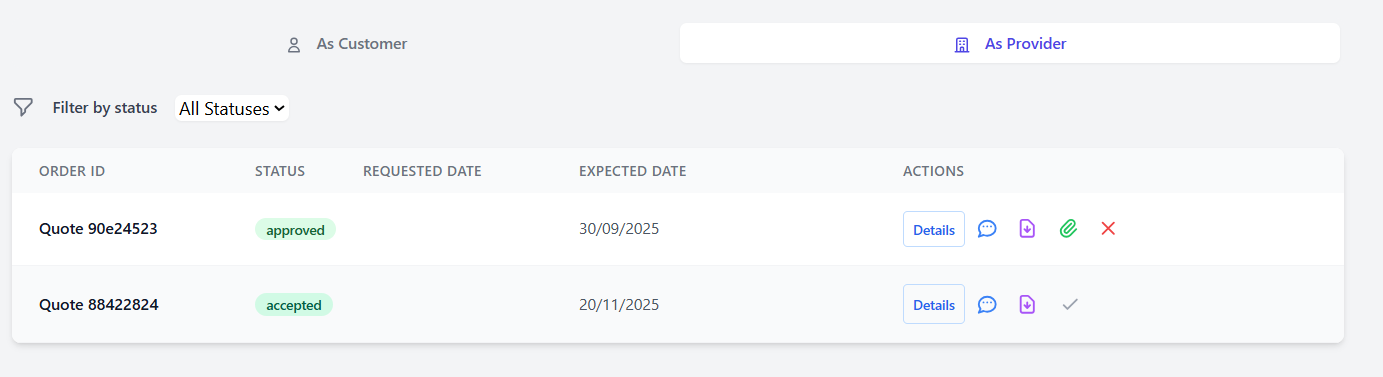
At any moment, clicking the Red Cross will cancel the quote, and will interrupt any negotiation on it.
All actions on the quote will be disabled.