
How to check your orders and invoices
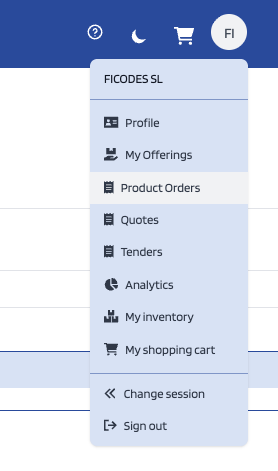
If you access to the product orders section available by clicking on Product Orders on the user's menu.
On this page you can check the orders related with the products that you've bought and the products that you've sold (the view is changed by clicking on "As Customer" and "As Provider" buttons shown at the top of the page).
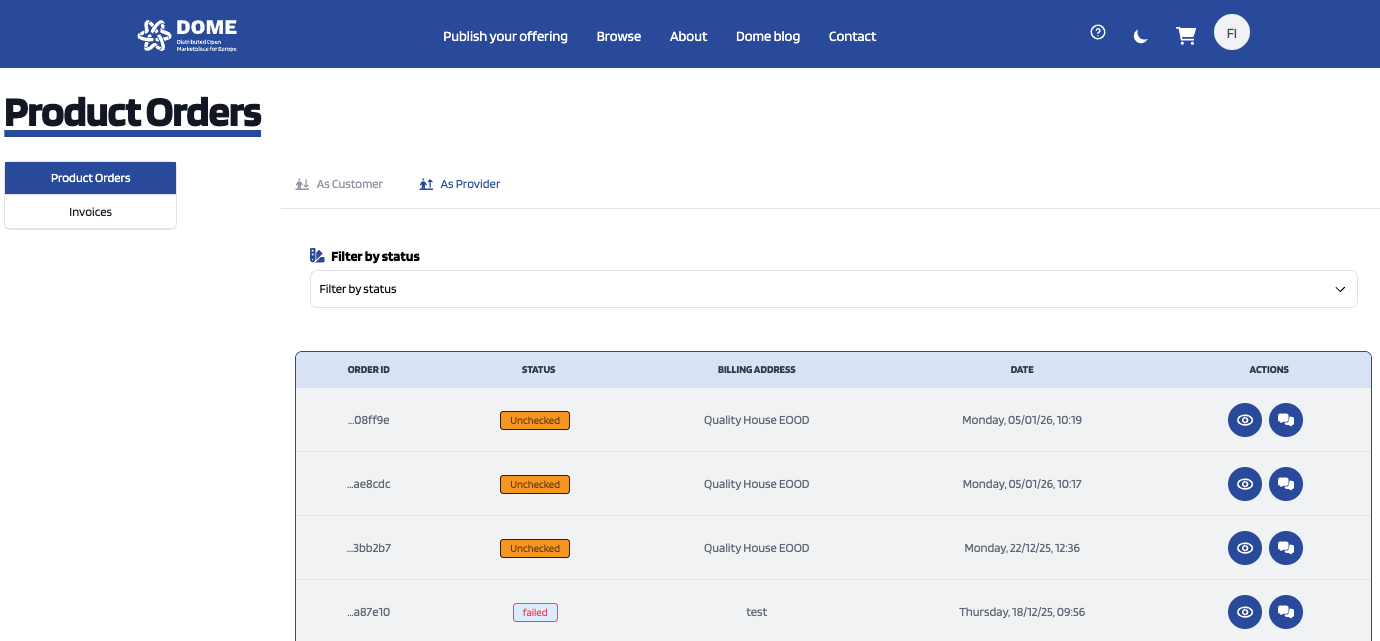
If you click on the "eye" button you can check the details of the order.
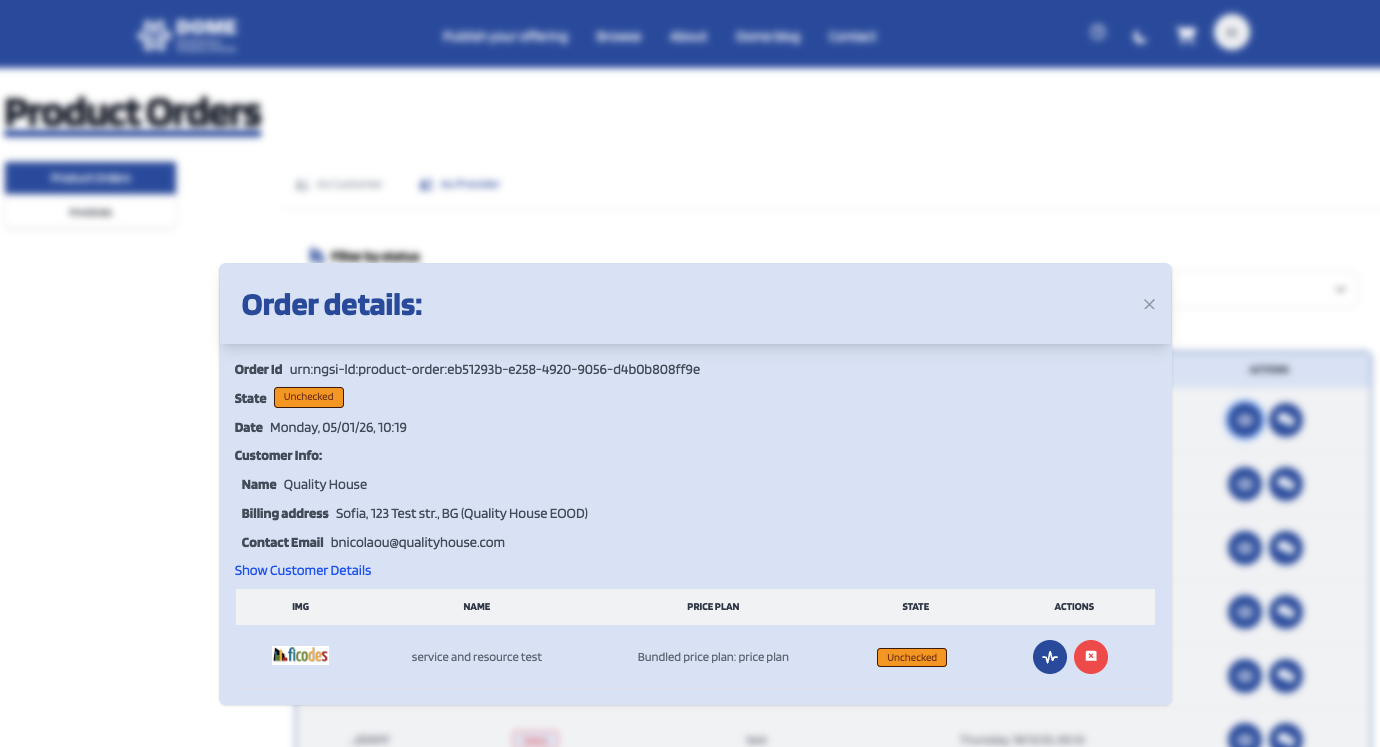
On this details if you click on "Show Customer Details" you'll be redirected to the buyer organization's page with their information.
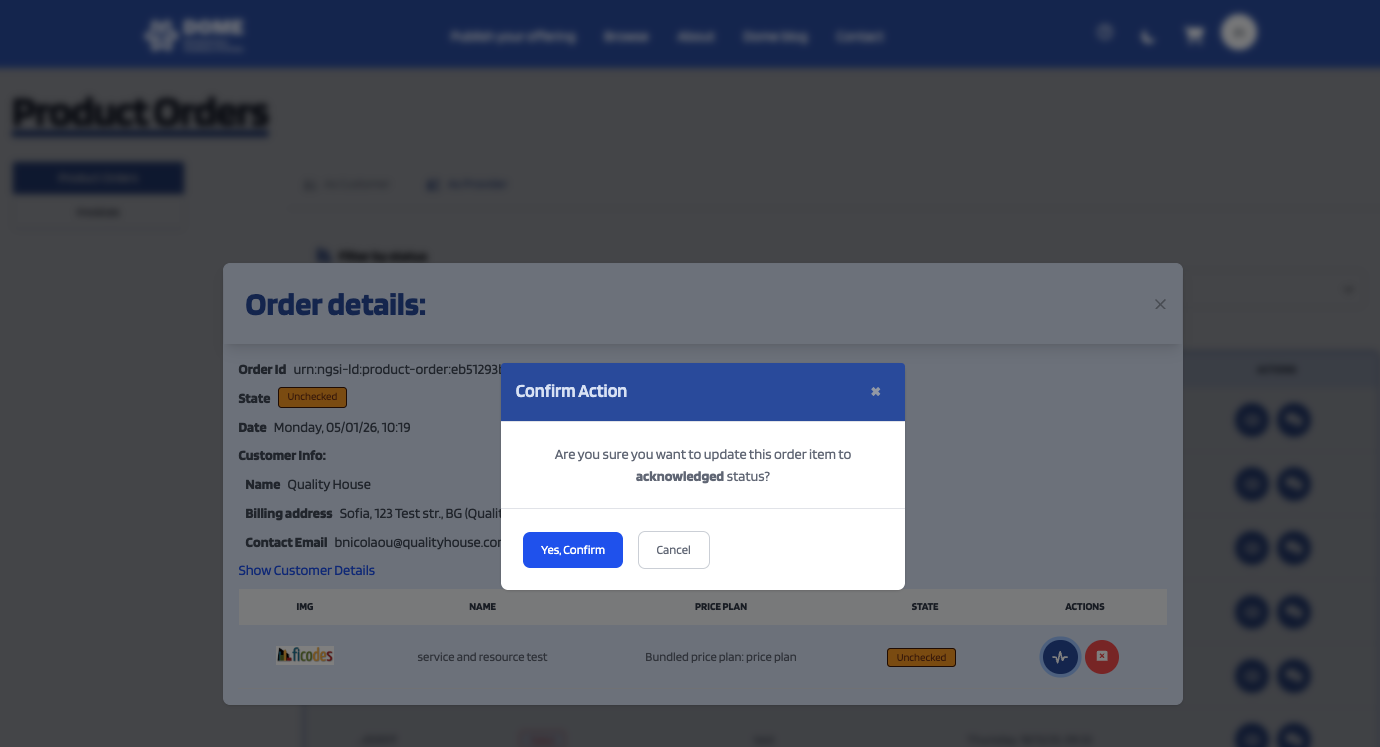
If you're a provider you can make the order transit from unchecked status to acknowledged status, just to make clear that you've checked this order and are willing to accept i, by clicking on the blue button under the action button. If you don't want to accept the order you can transit to cancelled status by clicking on the red button.
Whenever you do that a confirmation popup will show.
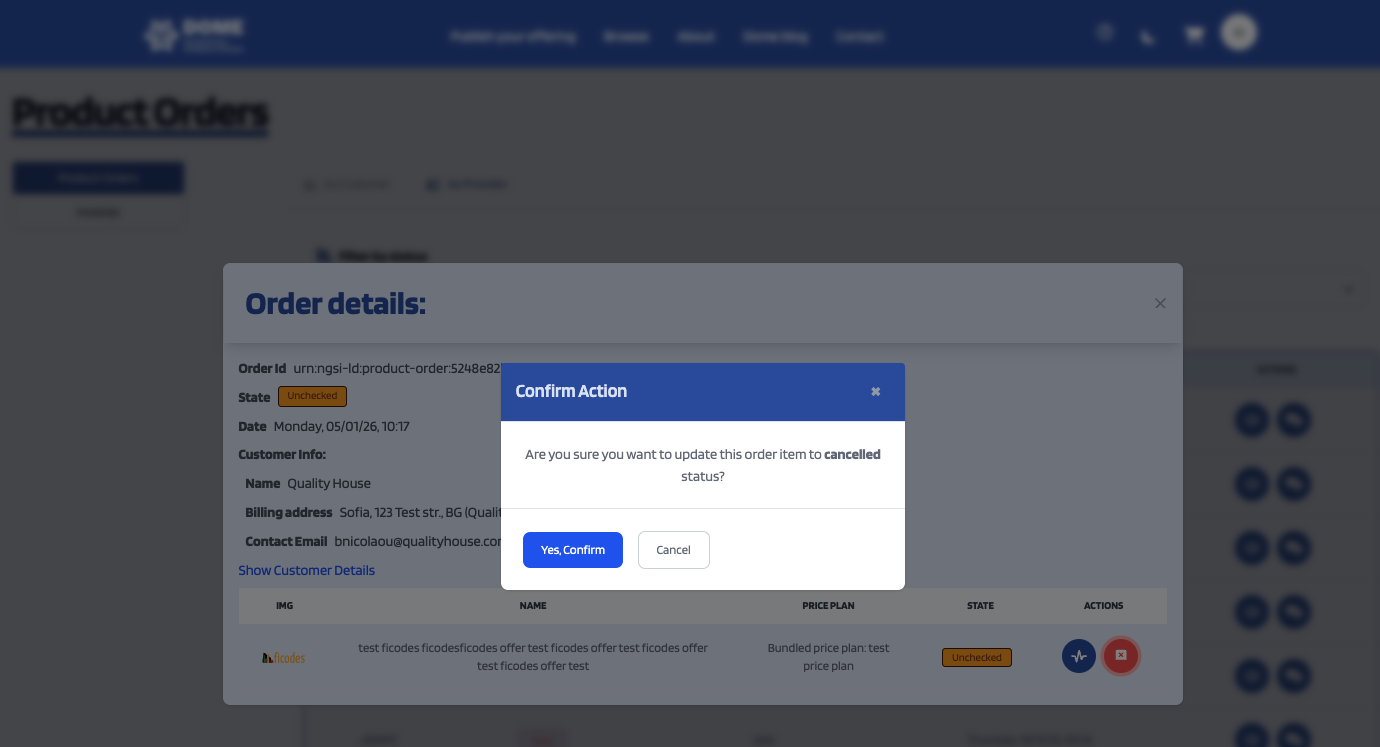
If you either en up confirming the order or cancelling it you'll see its status updated on the order list.
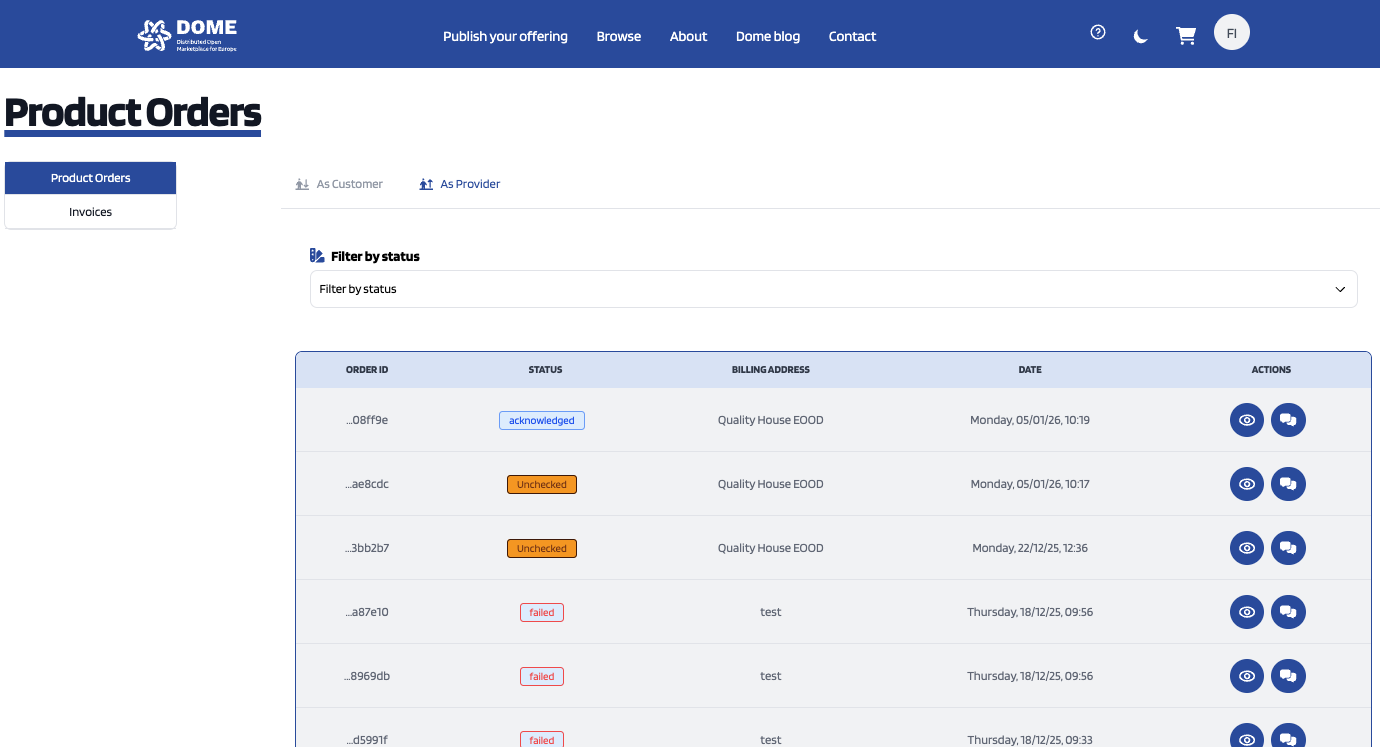
If you set its status to acknowledged confirming the order you can transit to other status after it in order to completed the transaction and completely sell the product.
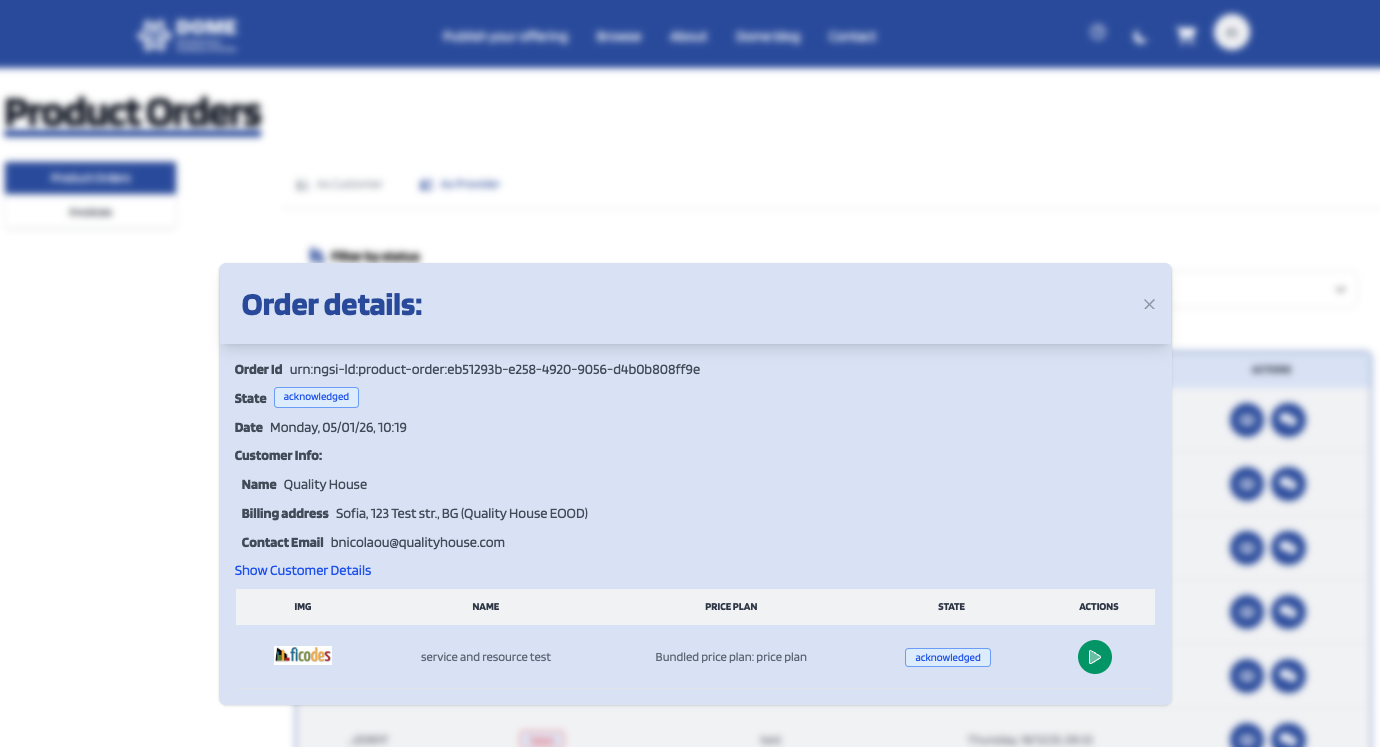
After this status change if you check the order's details you can start the order process by clicking on the green play button under the actions column.
If you do so you'll see a popup message to confirm if you're sure of this action.
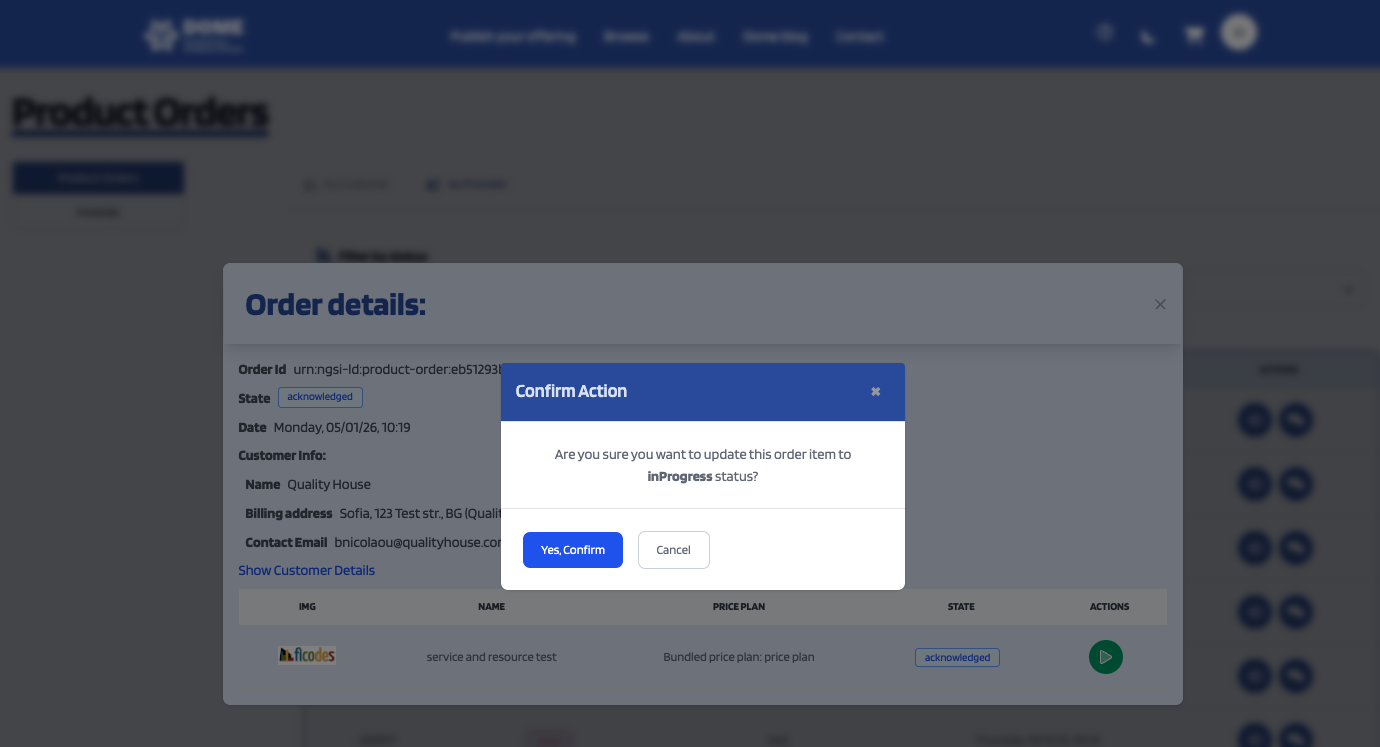
If you decided to confirm this action you'll see the order's status updated to inProgress. After this you can transit to Completed or Failed status. If everything is fine you can complete the order by clicking on the green check button, if not you can click on the red button and set the order status to failed.
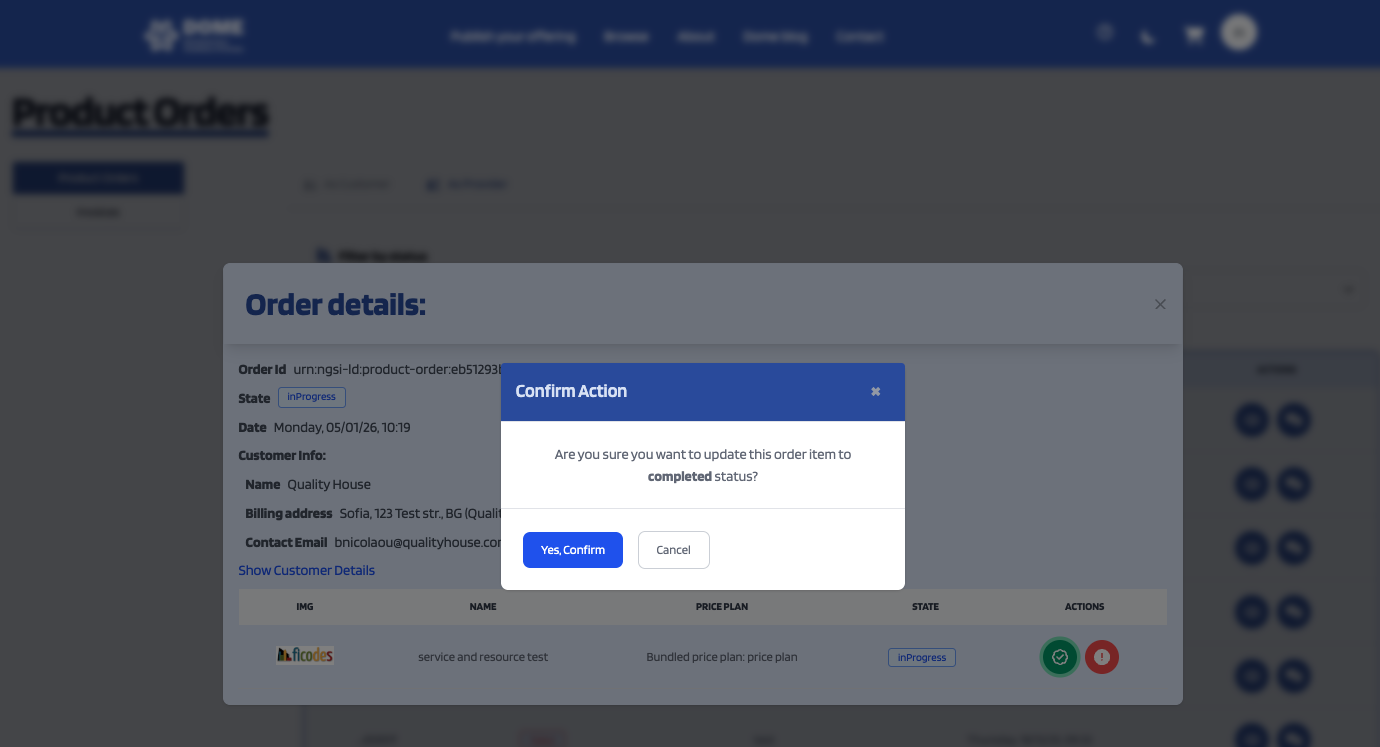
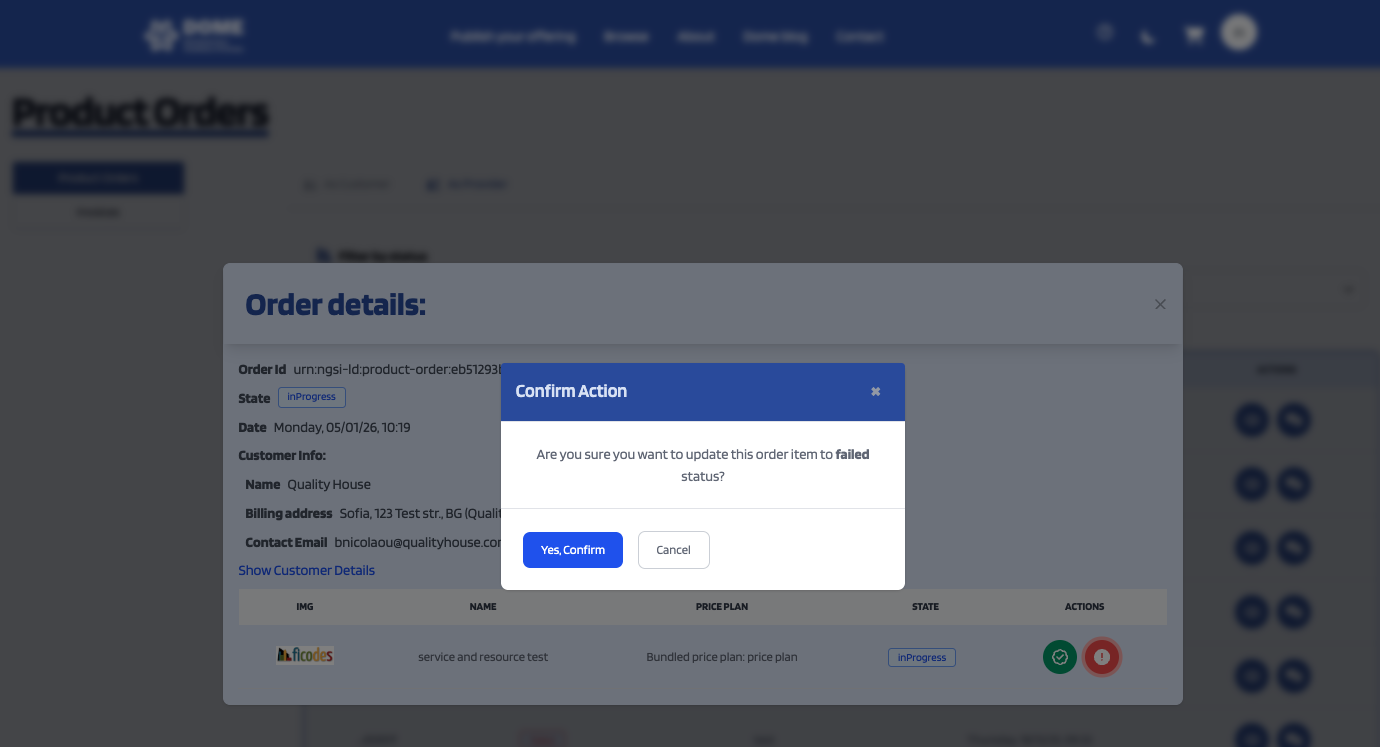
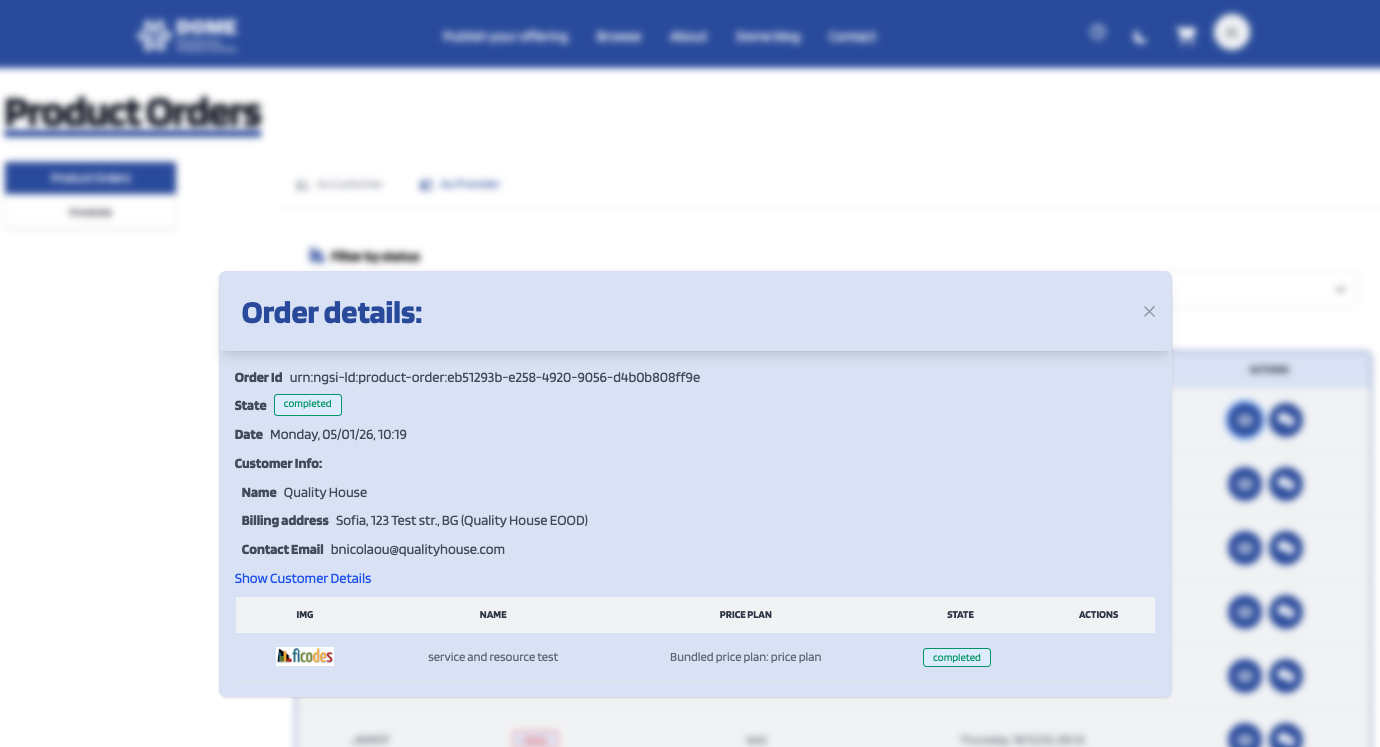
Whenever you end this steps the order will show up as completed.
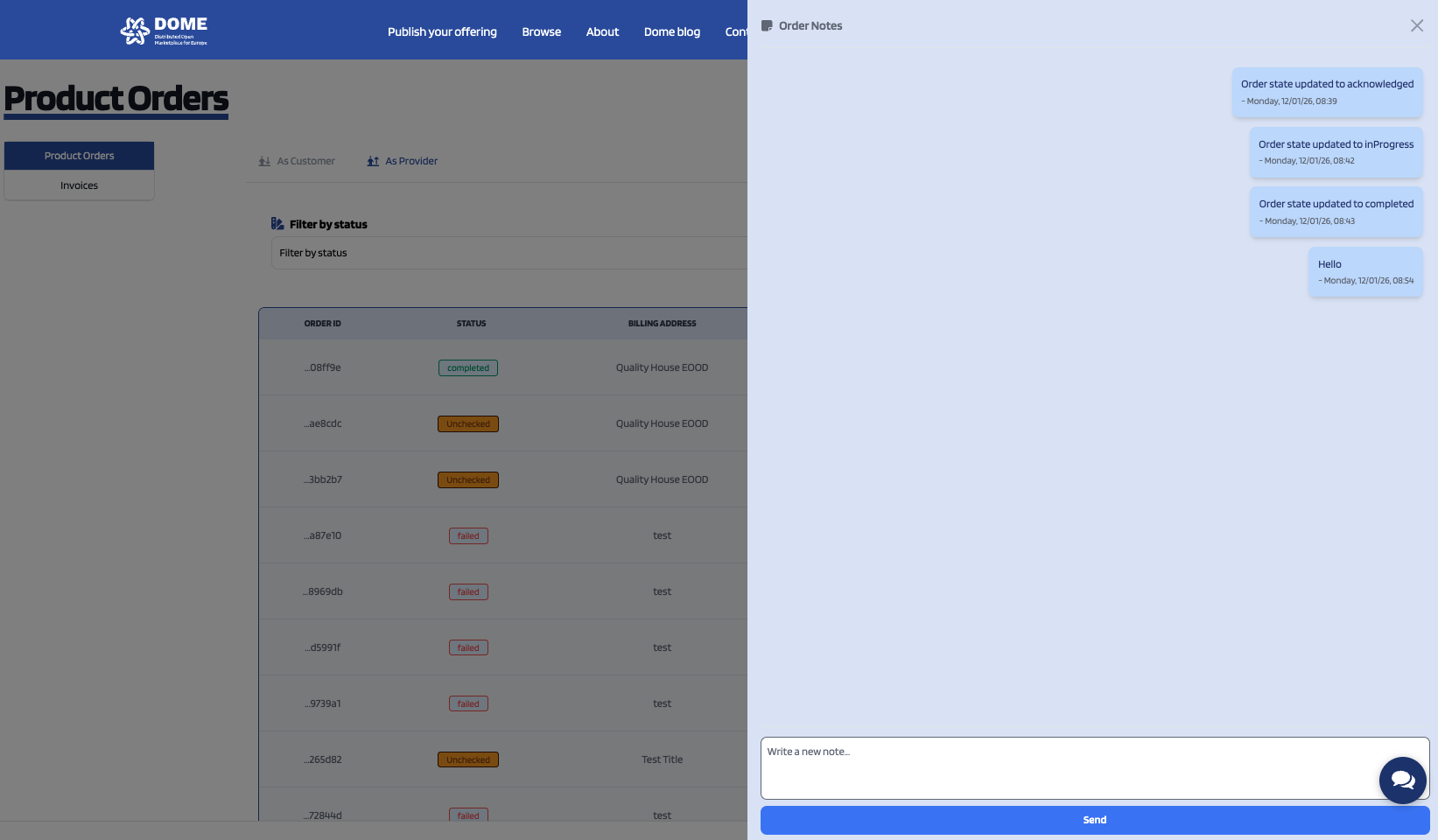
On this section there is a chat where both provider and customer can send messages and speak with eachother.
You can also find a filter you ease the search of orders as there is in other page sections. You can perform this filter clicking on "Filter by status" and checking the status that you want to show up.
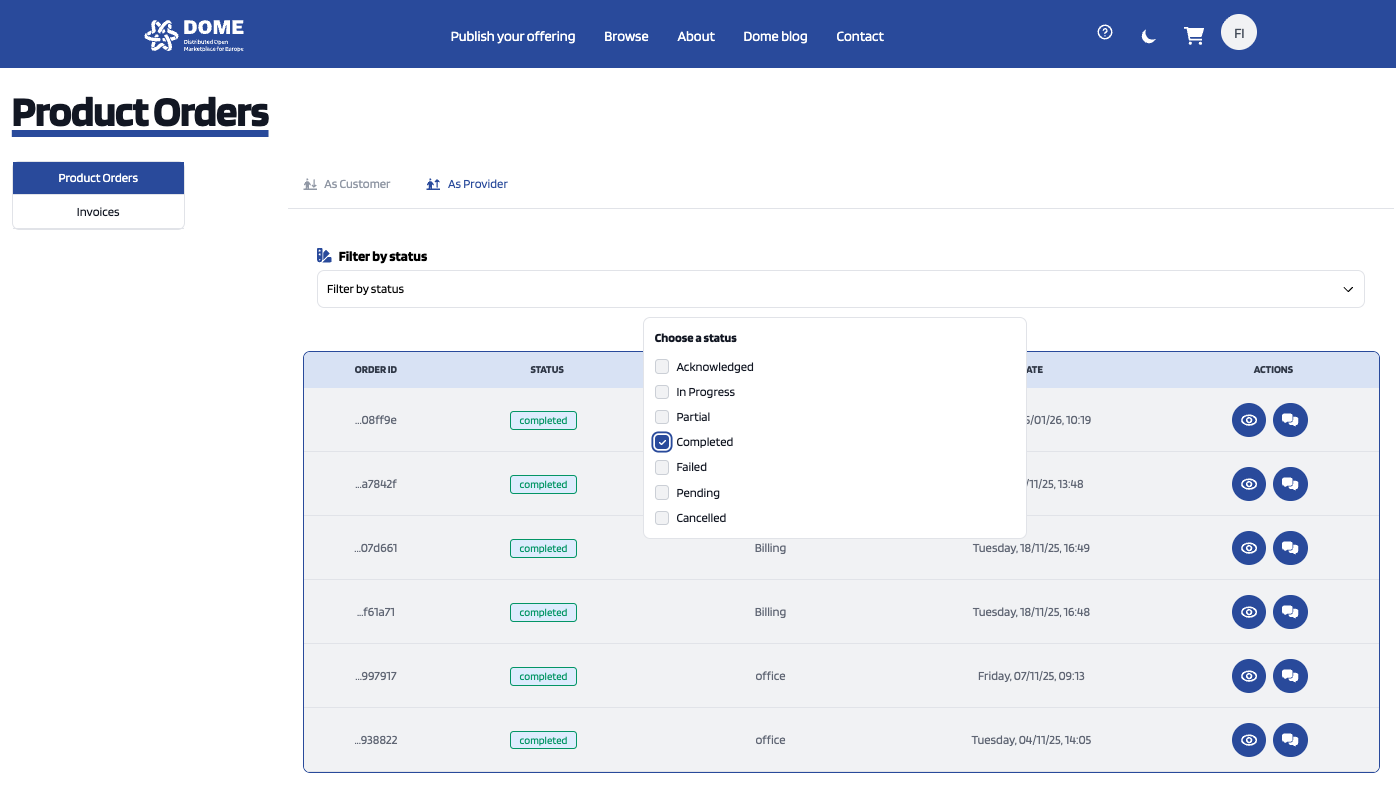
You can change to the "Invoices" section inside this page and check every invoice related with your user as customer or provider. The same way as it is in the product orders section, you can change and check the invoice section filtered as customer or provider clicking on the As customer and As Provider buttons.
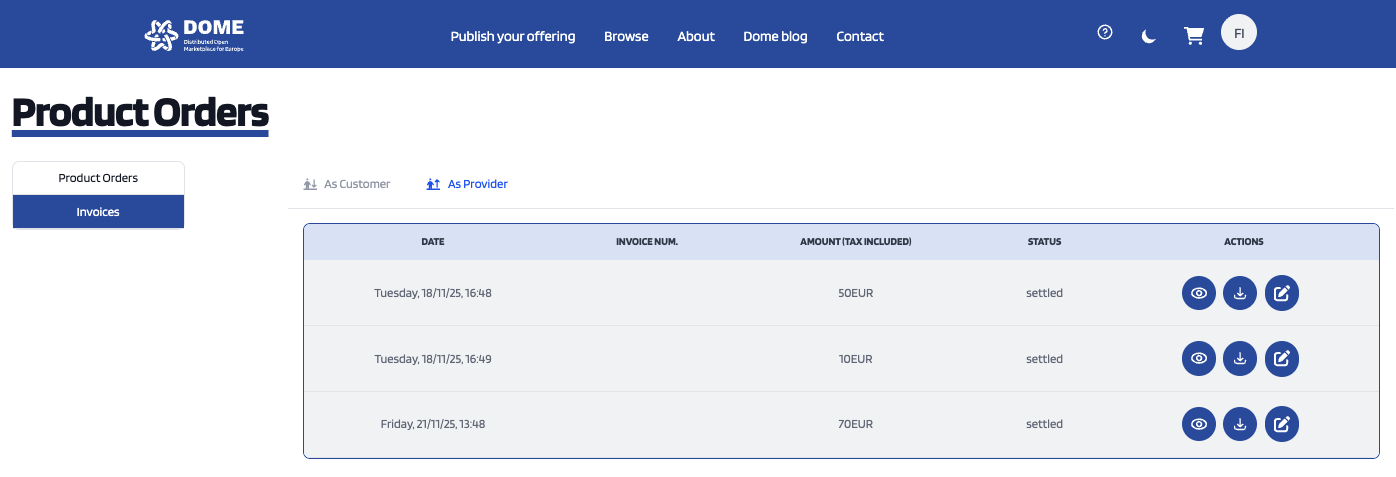
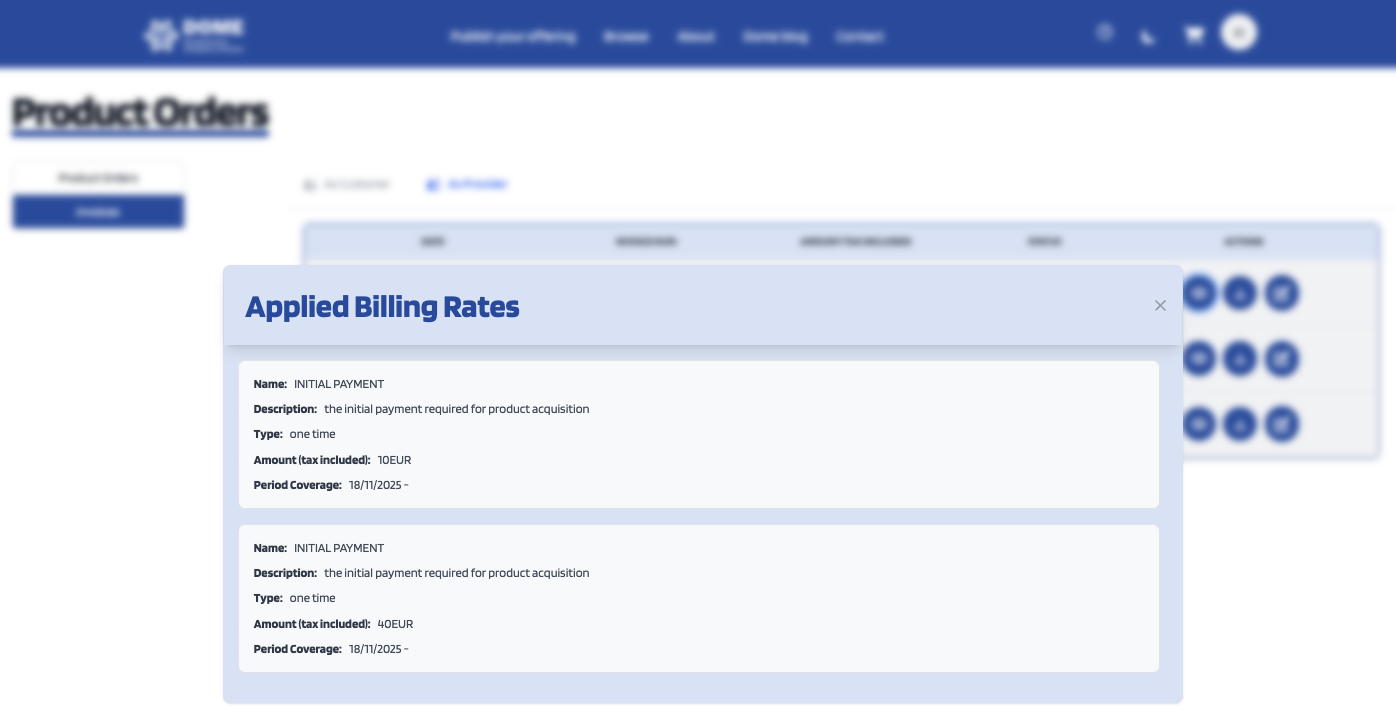
Here you can check the invoice's details by clicking on the eye button under the actions column.
Download the invoice document by clicking on the download button (the button in the middle) under the actions column.