DOME Credential Issuer User Guide
Guide to use the DOME Digital Issuer.
- Introduction
- Login into the Credential Issuer
- Credential Issuance
- Issuance Form: Selecting the Credential Type
- LEAR Credential Employee Issuance
- LEAR Credential Employee Issuance on behalf of another mandator
- LEAR Credential Machine Issuance
- LEAR Credential Machine Issuance on behalf of another mandator
- Gx Label Credentials Issuance
- Obtaining the Credential
- Credentials Management
- Troubleshooting
Introduction
The Credential Issuer is a crucial element in the onboarding process for new users to the DOME Marketplace. This application issues Verifiable Credentials, which are essential for accessing and interacting with the DOME Marketplace. These credentials are issued to users who then use the DOME Digital Wallet to retrieve and store them securely.
At the moment two different types of credential can be issued with the Issuer: LEAR Credential Employee and LEAR Credential Machine. Additionally, Gx-Label Credentials can be issued via API. To learn how to issue each type of credential, consult the Credential Issuance article. To learn more about credential types, see the Verifiable Credentials guide.
Login into the Credential Issuer
Please be aware that, in order to log in to the Issuer, you need a Wallet account with a LEAR Credential Employee that includes the "Onboarding - Execute" power, which only LEAR users and DOME admin users possess.
-
Access the Credential Issuer
-
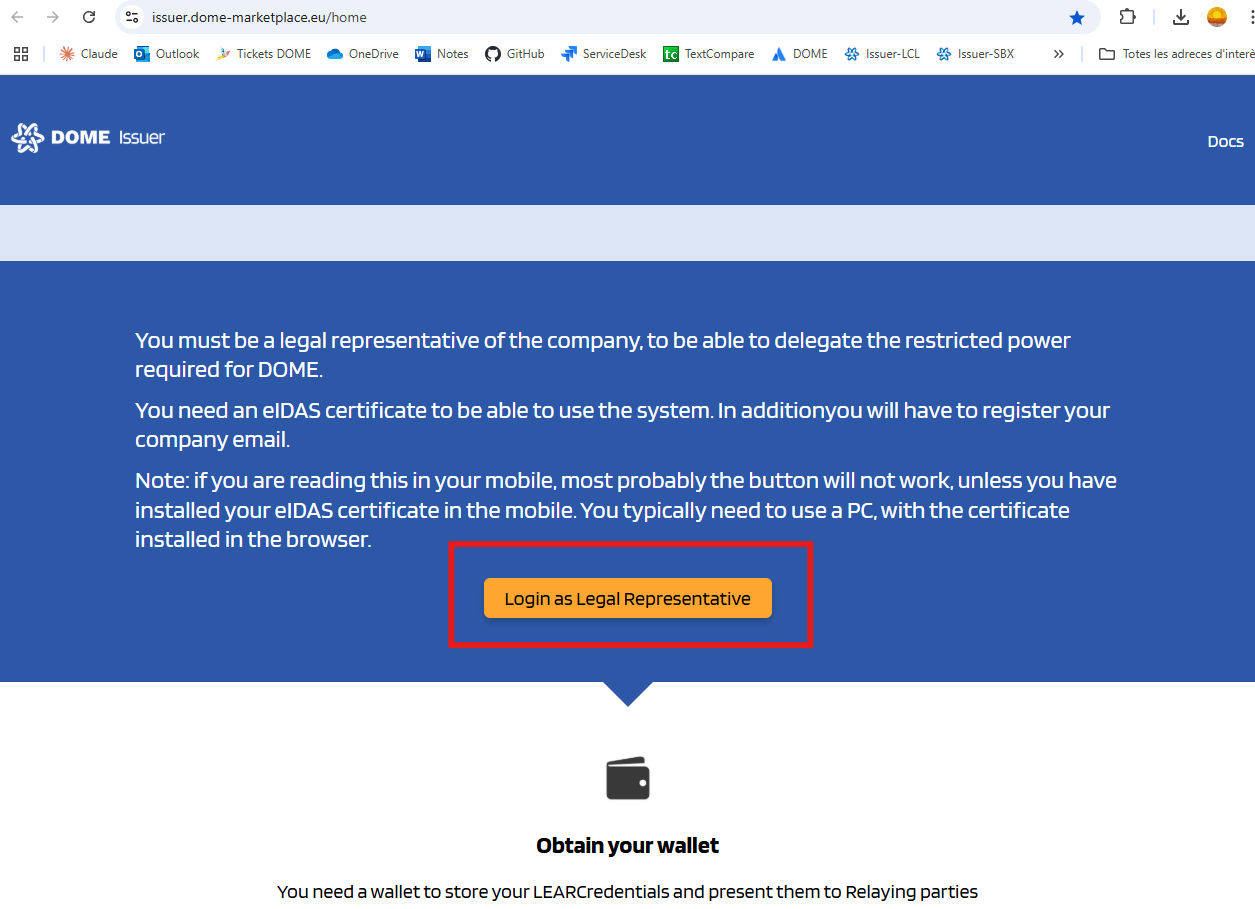
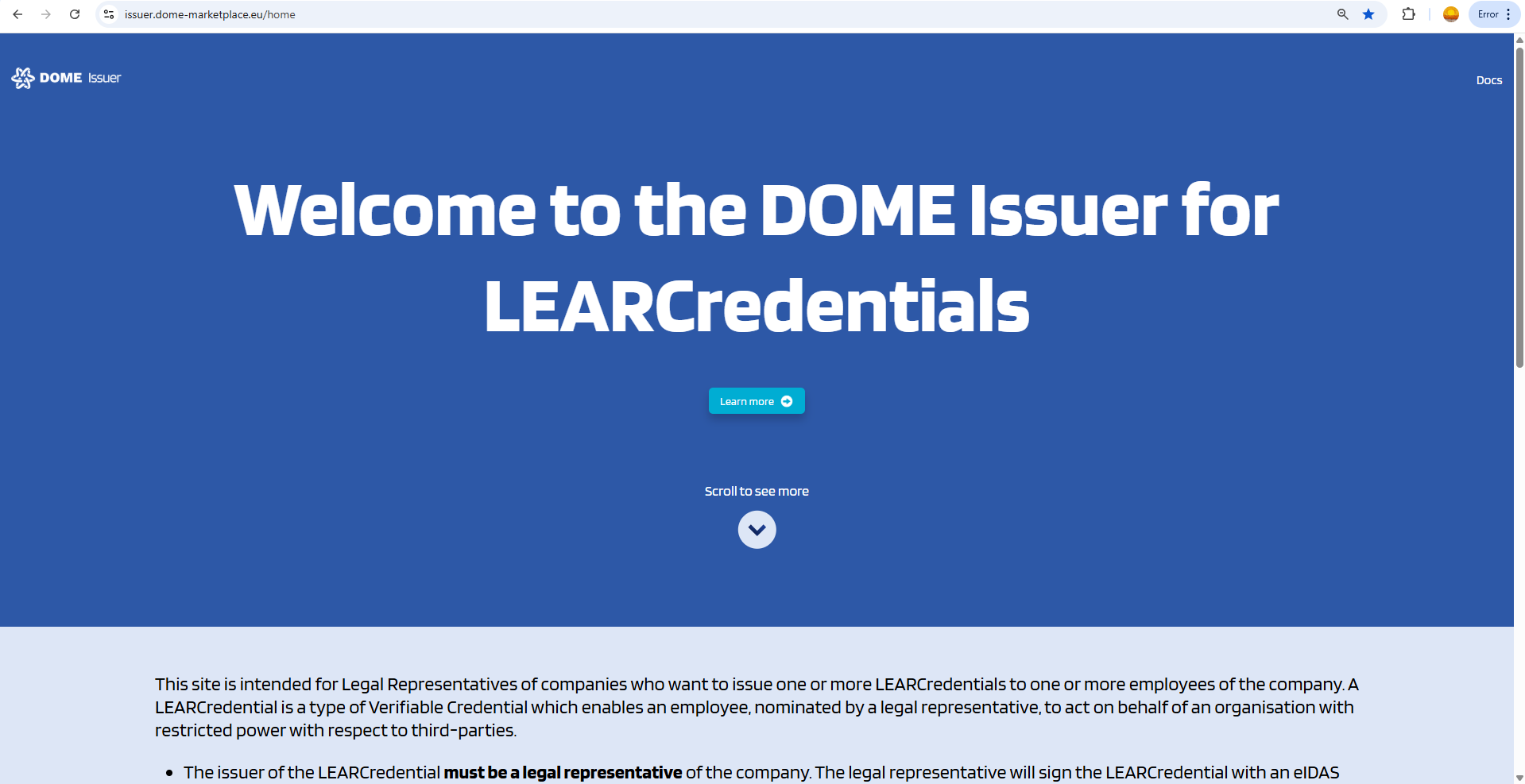
Visit the DOME Issuer by clicking on the following link: DOME Issuer. For a step-by-step login instructions, see this guide.

-
-
Access the Login
-
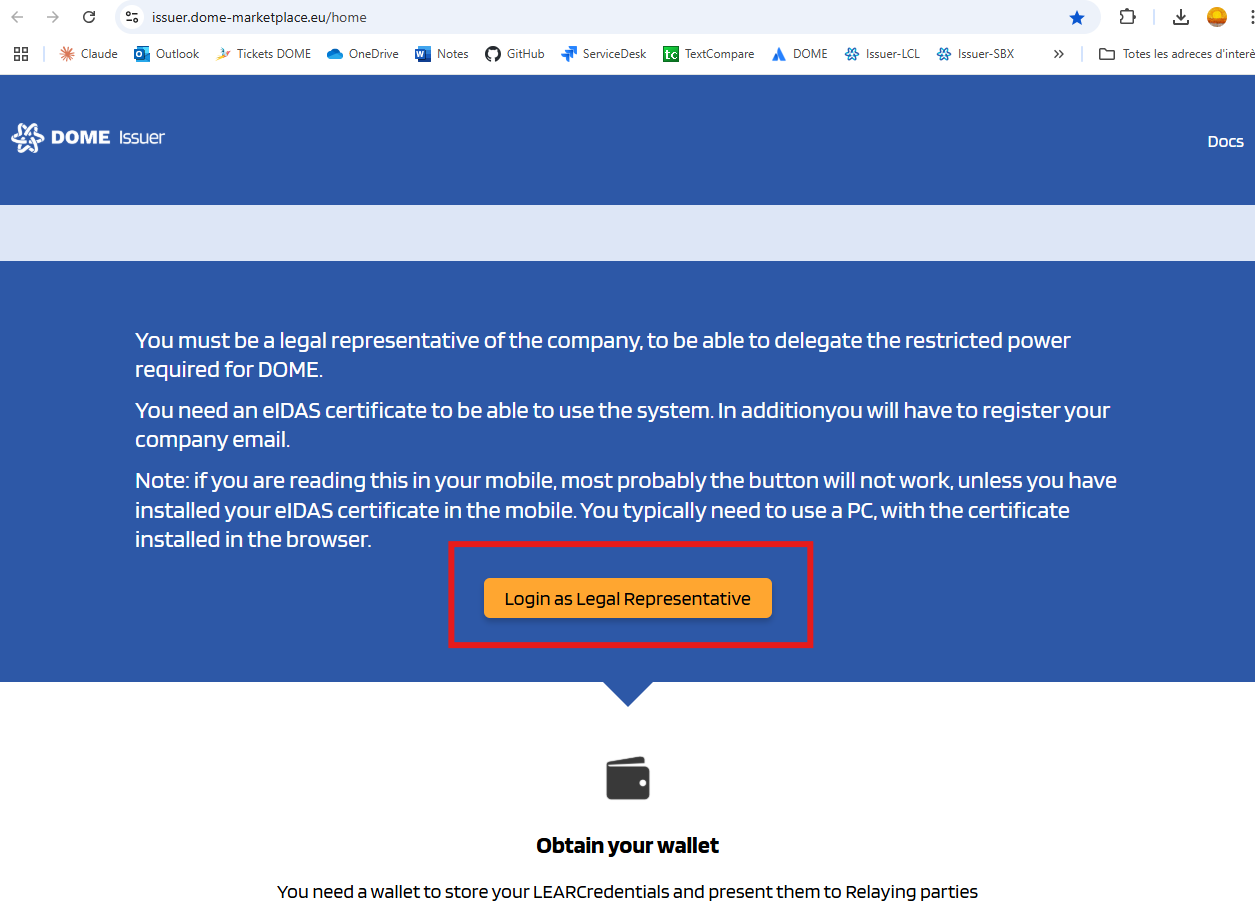
Scroll down to the "Login as Legal Representative" button
-
-
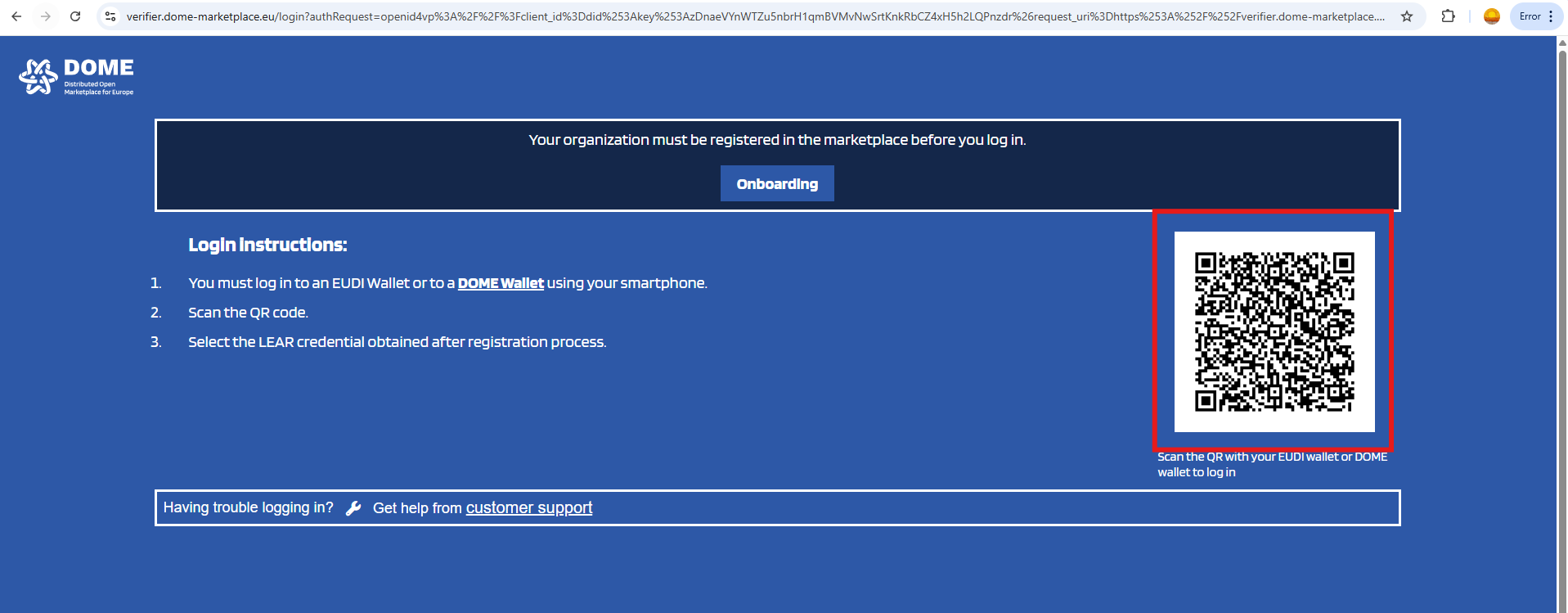
Log In.
-
Scan the QR with the DOME Wallet and send a LEAR Credential Employee with the "Onboarding - Execute" power. In your Wallet, you can see the powers of the credentials by clicking on it.
-
For more details on how to scan a QR with the DOME Wallet, see this guide and also this one.

-
-
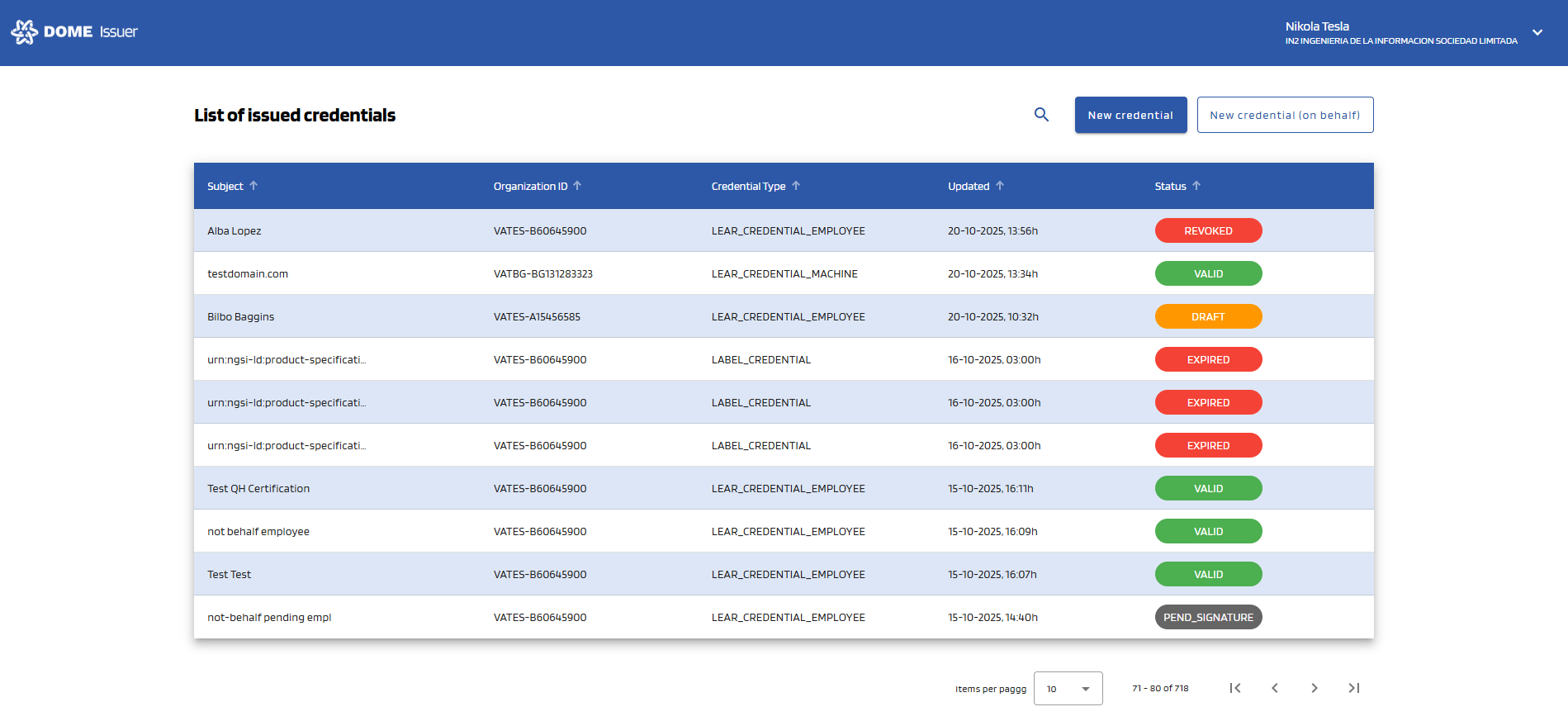
You will enter the issued credentials list view
- In the initial view you can see all the issued credentials by the current user/organization:

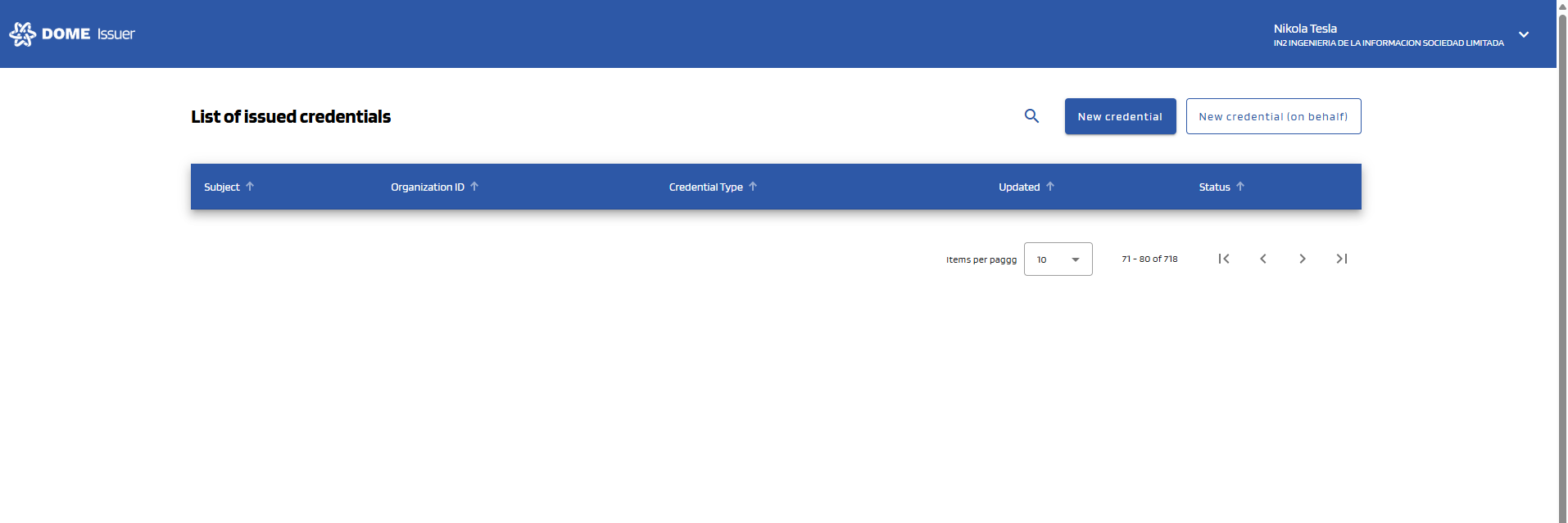
- If your organization hasn't issued any credentials, the table will be empty:

- In the initial view you can see all the issued credentials by the current user/organization:
Credential Issuance
Issuance Form: Selecting the Credential Type
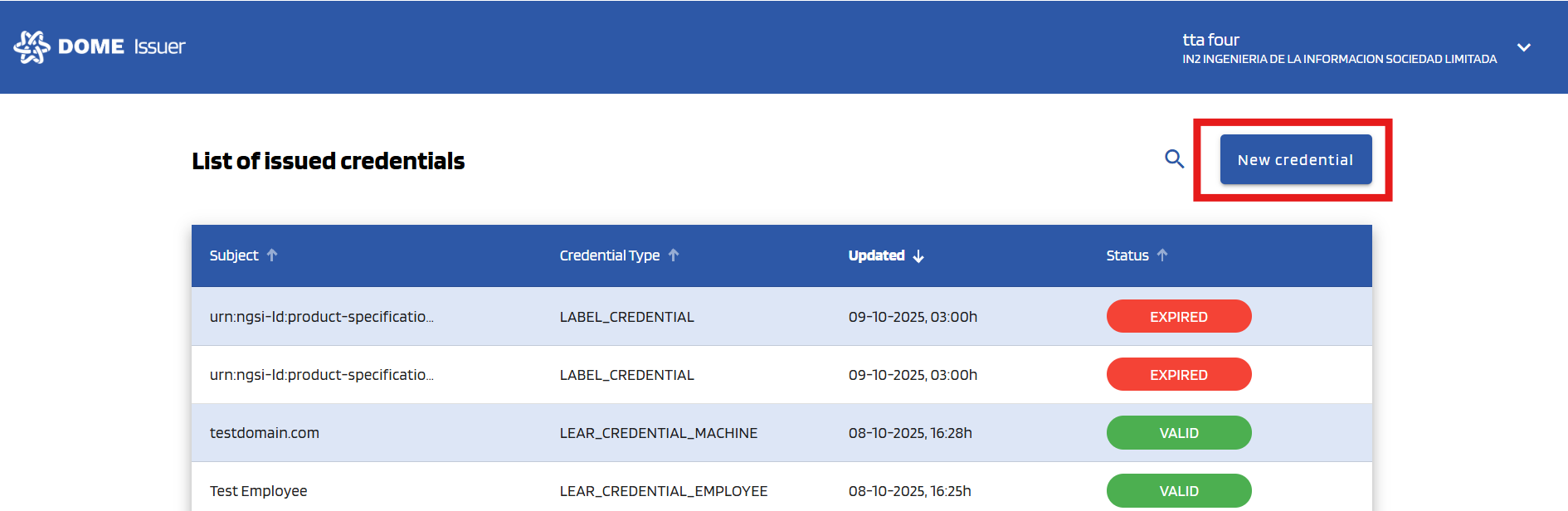
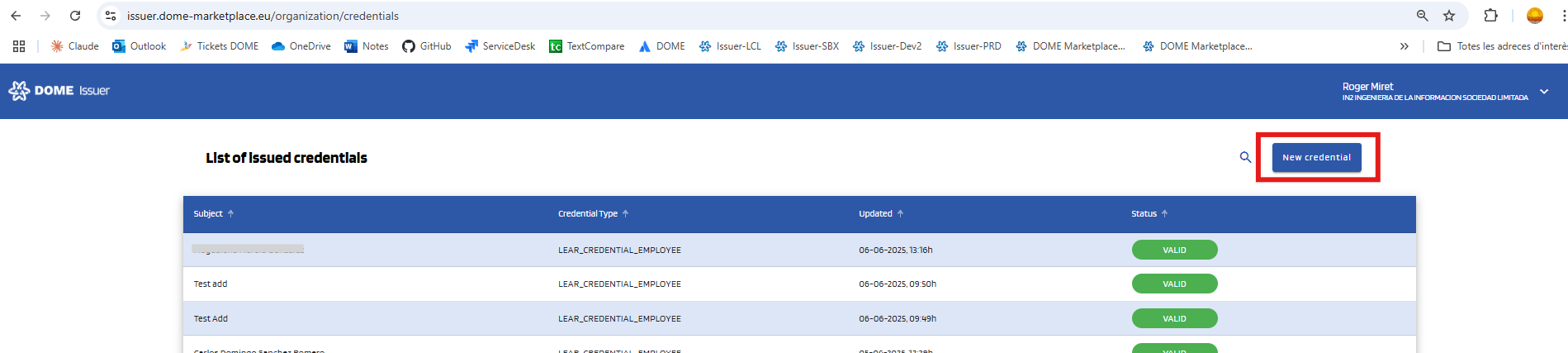
To issue a new credential, click the "New credential" button at the top right corner:
After clicking the "New credential" button, you will be redirected to the Credential Issuance form page. To start, select the type of the credential you wish to issue with the selector:
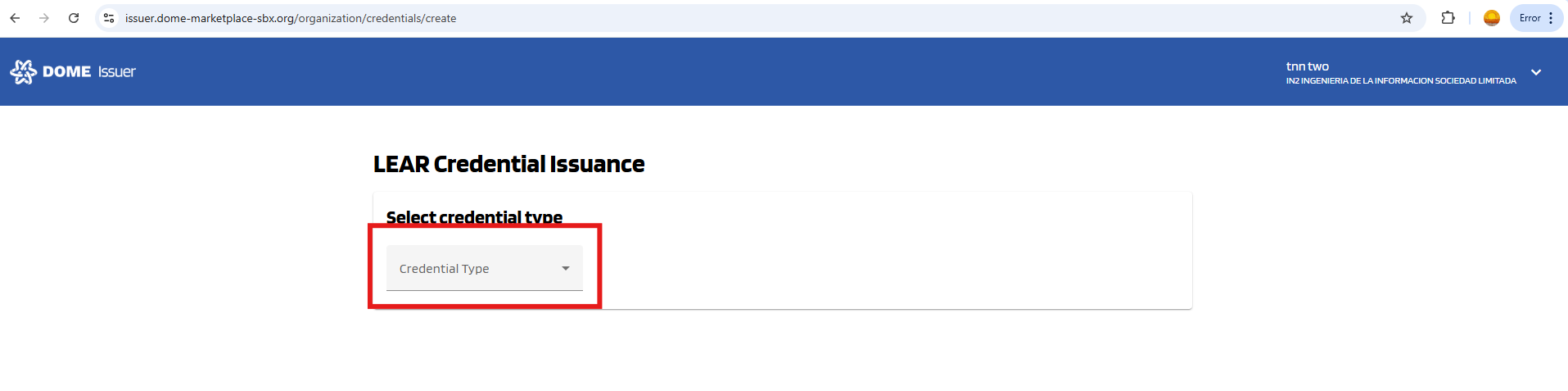
Click on it to see the available credential types:
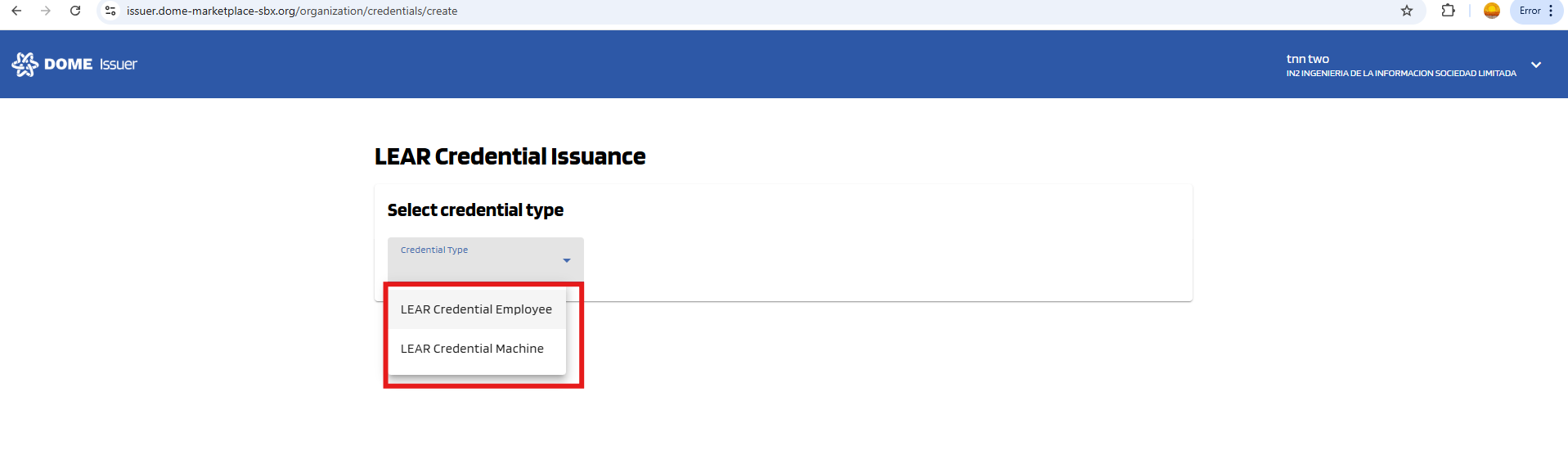
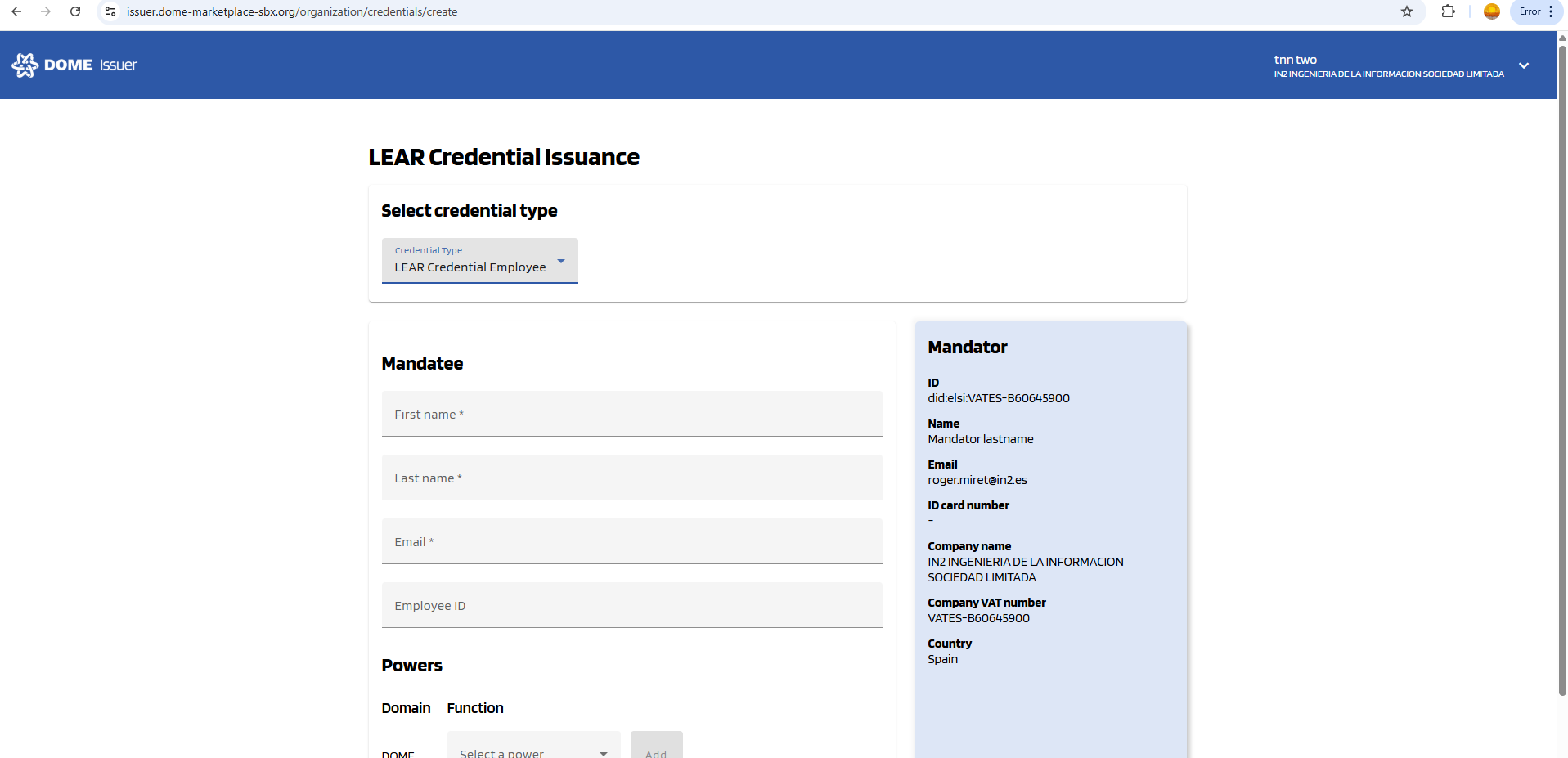
Click on the credential type you need. Then the credential type will be selected and you will see the Credential Issuance Form appear below, according to the selected type. Example for LEAR Credential Employee:
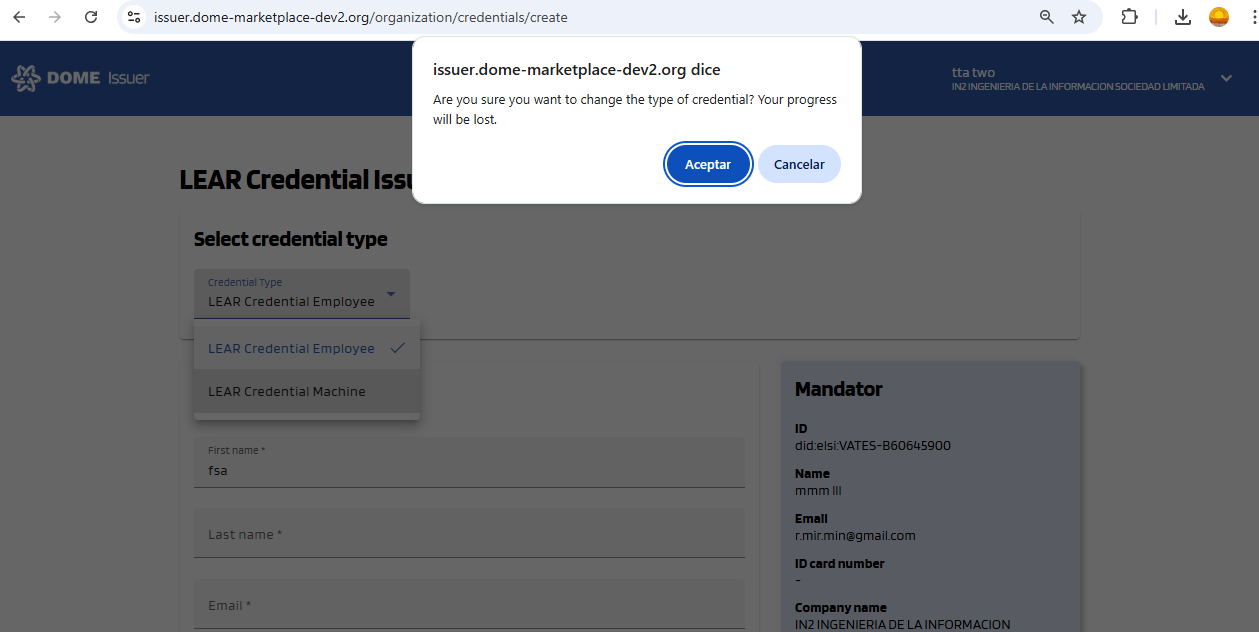
If you switch the credential type after you’ve started filling out the form, your progress will be lost. Normally, before switching, the browser will show an alert asking you to confirm whether you really want to proceed, but this may or may not happen depending on your browser settings.
LEAR Credential Employee Issuance
0. "New Credential" Form
To create a LEAR Credential Employee, click the "New credential" button, at the top right corner of the dashboard page, which will take you to the creation form.
1. Select the "LEAR Credential Employee" type
Select the LEAR Credential Employee type in the selector. Then the corresponding form will be displayed:
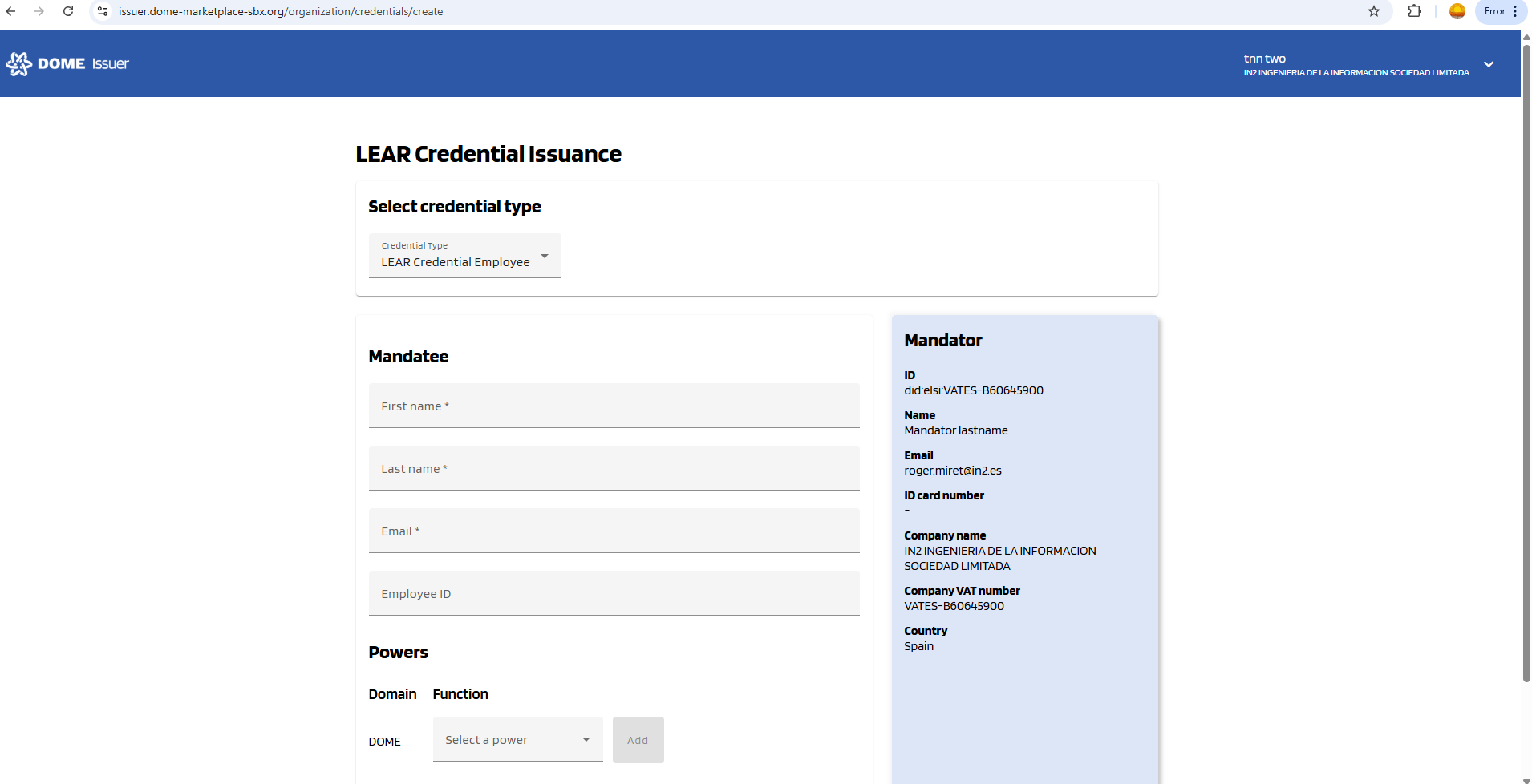
2. Complete the "New Credential" form
Fill all the Mandatee fields of the form, which are marked with a "*" symbol. The fields without "*" are optional --you can left them empty. Below, see an example of filled form.
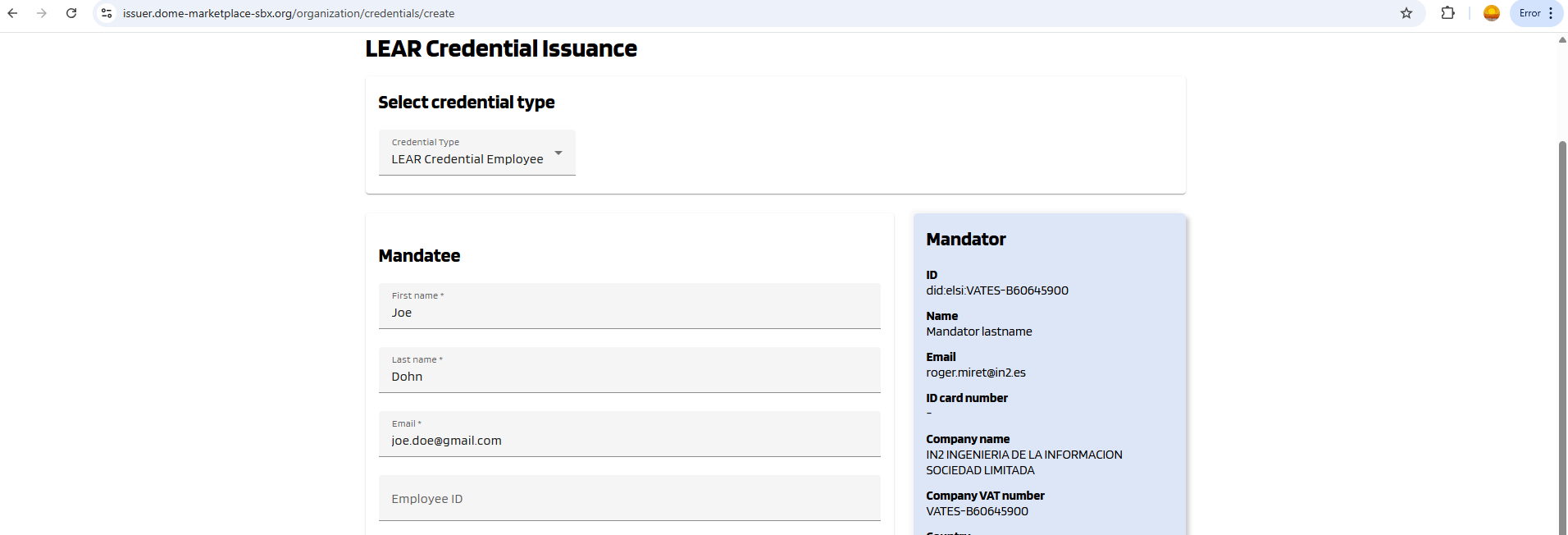
3. Adding Powers to the Credential Subject
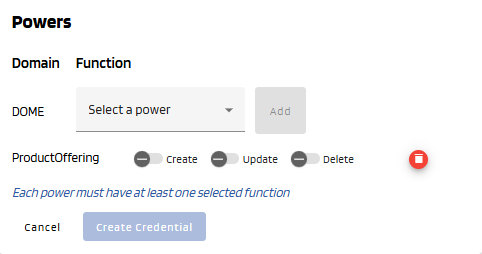
You can add different power using the combo box. Add at least one power by selecting it in the selector and clicking to the "Add" button. For each added power, select at least one action (toggle buttons). In the example below, "ProductOffering" represents a power with the "ProductOffering" function, and "Create", "Update" and "Delete" are the actions that can be included in this power. The "Create credential" button is disabled because the ProductOffering power doesn't have any added actions.
To learn mor about powers, see this guide.
4. Create Credential
Once all mandatory fields all correctly filled, the "Create Credential" button will become brighter, indicating that it can be clicked. Click on it.
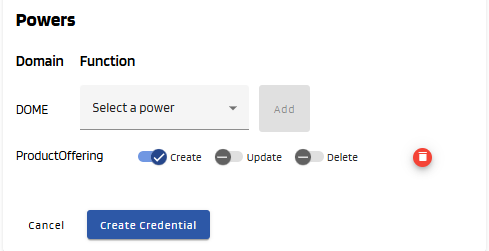
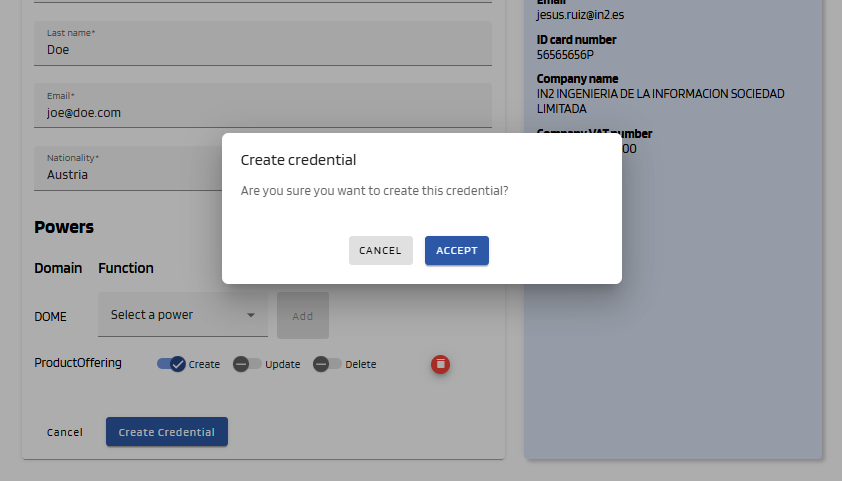
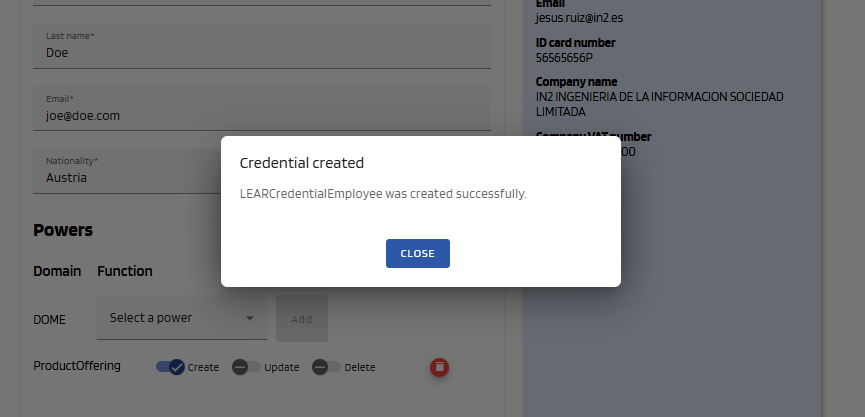
A popup will be displayed to confirm that you want to create the credential. Click "Accept" to create it. If the issuance is successful, a success message will be displayed and you will be redirected to the dashboard page.
5. See the Issued Credential
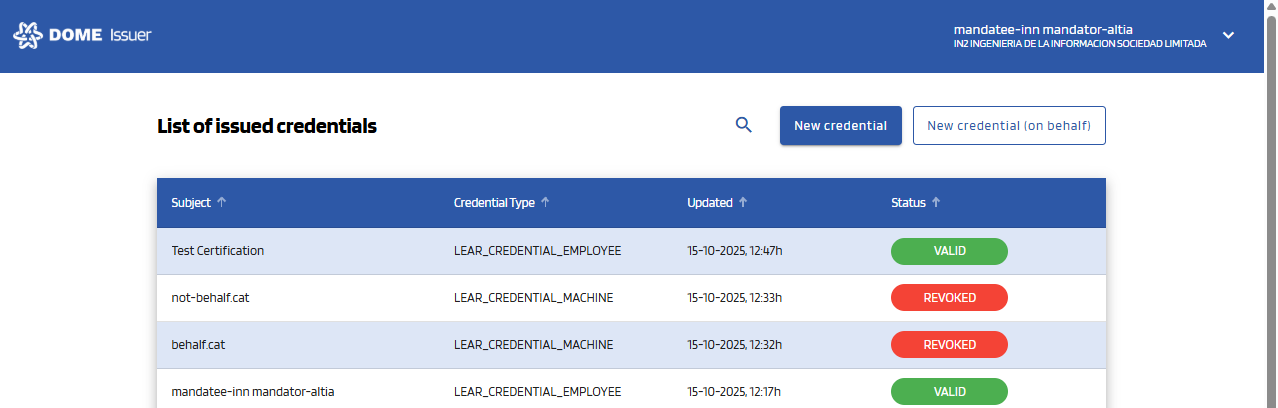
Then you will be redirected to the dashboard and you will see that the Credential you just created has a status of DRAFT. After the user downloads it with the Wallet, it will have a status of VALID (you might have to refresh the page to see it change). For more details, see the Credential Management section.

LEAR Credential Employee Issuance on behalf of another mandator
0. "New Credential" Form
To create a LEAR Credential Employee on behalf of another mandator, click the "New credential (on behalf)" button, at the top right corner of the dashboard page, which will take you to the creation form.
1. Select the "LEAR Credential Employee" type
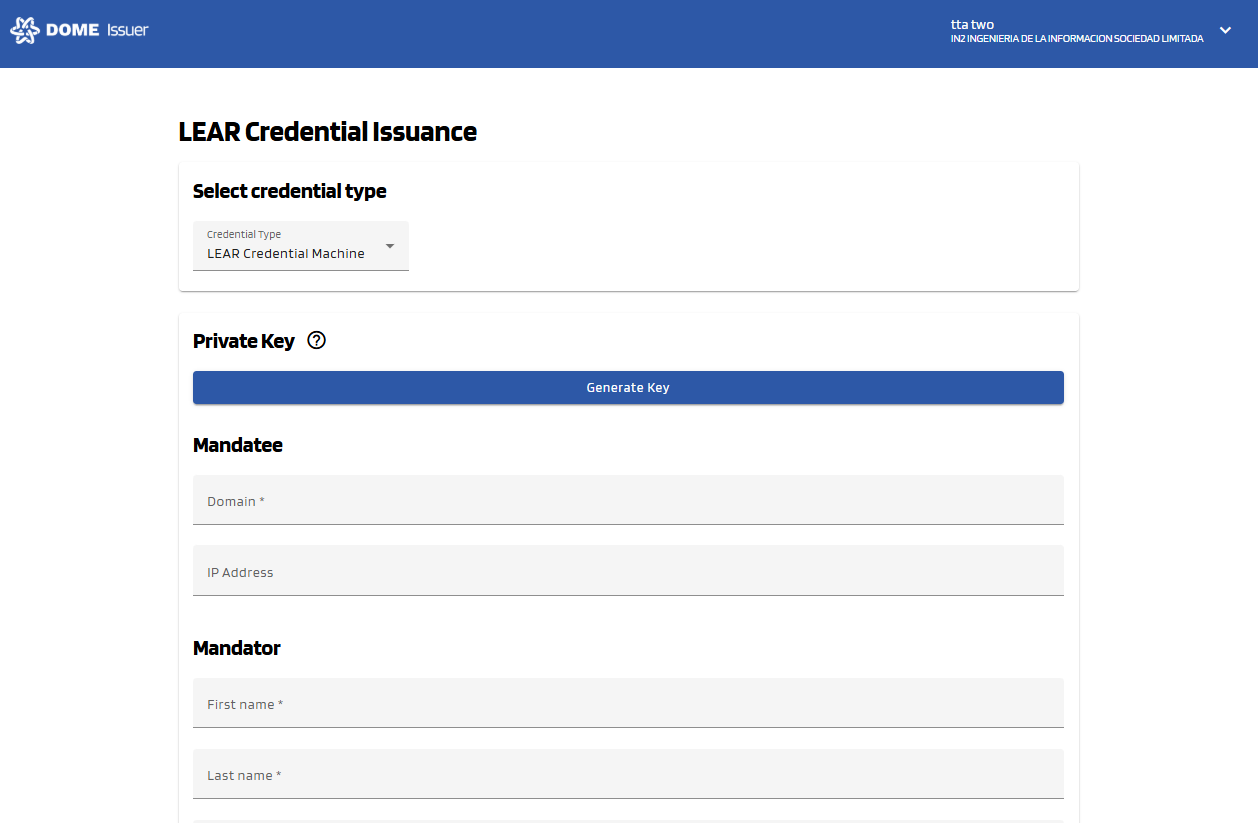
Select the LEAR Credential Employee type in the selector. Then the corresponding form will be displayed:
2. Complete the new credential form
Fill all the Mandatee fields of the form, which are marked with a "*" symbol. The fields without "*" are optional --you can left them empty. Below, see an example of filled form.
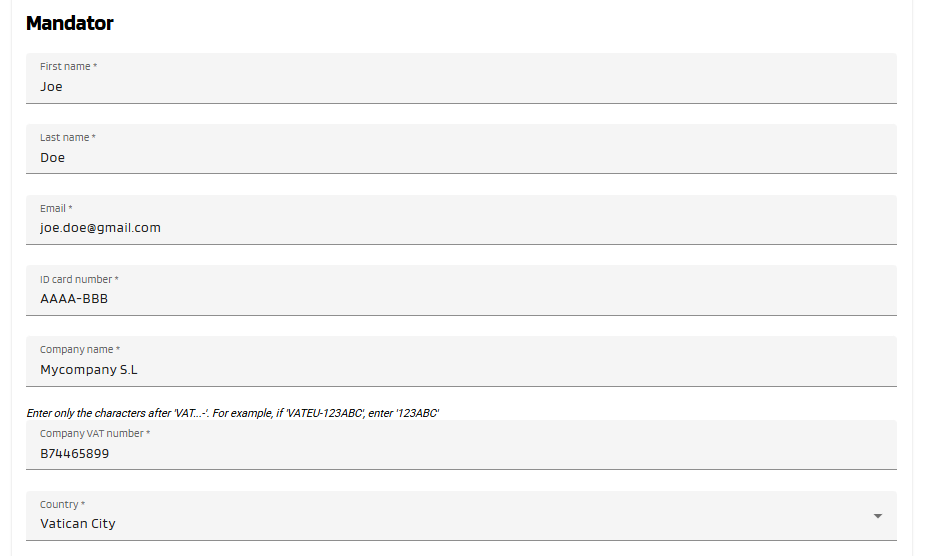
Then fill all the Mandator fields:
3. Adding Powers to the Credential Subject
You can add different power using the combo box. Add at least one power by selecting it in the selector and clicking to the "Add" button. For each added power, select at least one action (toggle buttons). In the example below, "ProductOffering" represents a power with the "ProductOffering" function, and "Create", "Update" and "Delete" are the actions that can be included in this power. The "Create credential" button is disabled because the ProductOffering power doesn't have any added actions.
To learn mor about powers, see this guide.
4. Create Credential
Once all mandatory fields all correctly filled, the "Create Credential" button will become brighter, indicating that it can be clicked. Click on it.
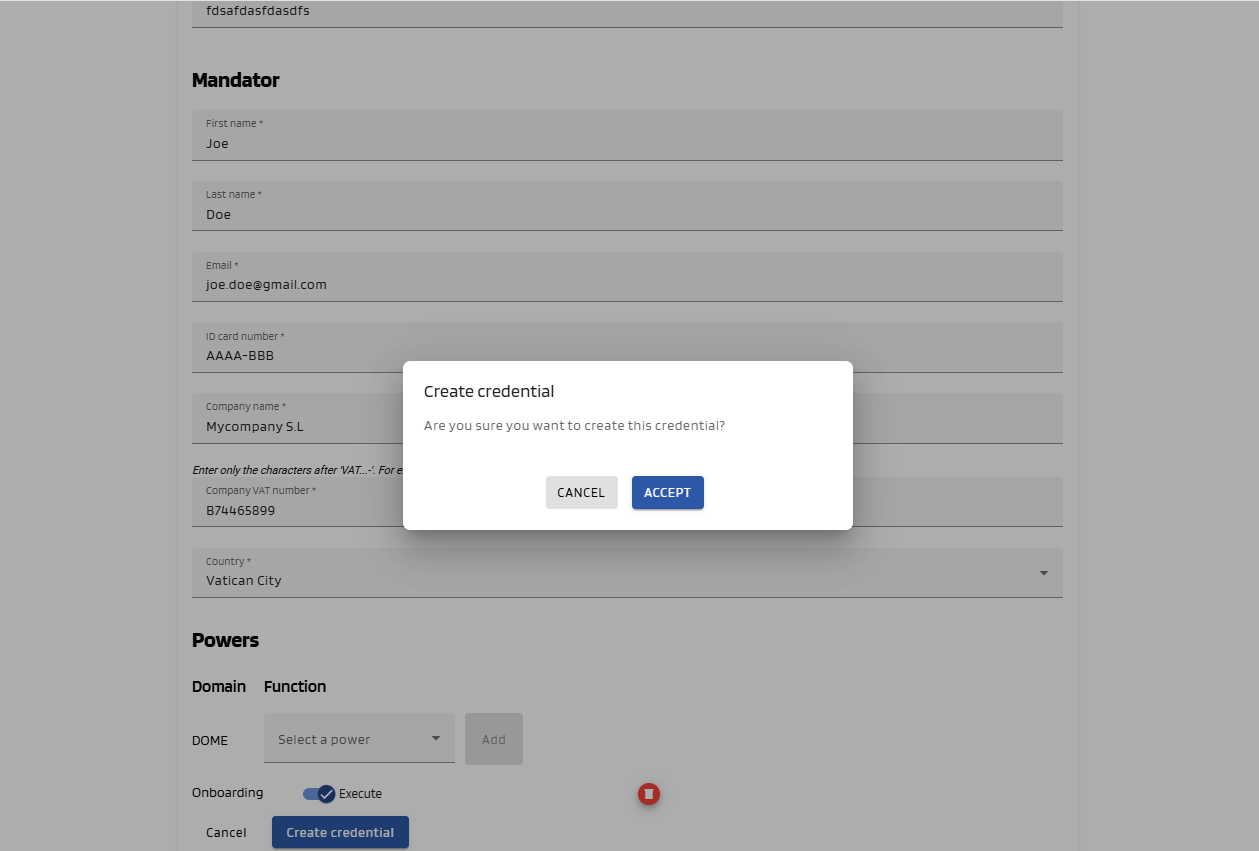
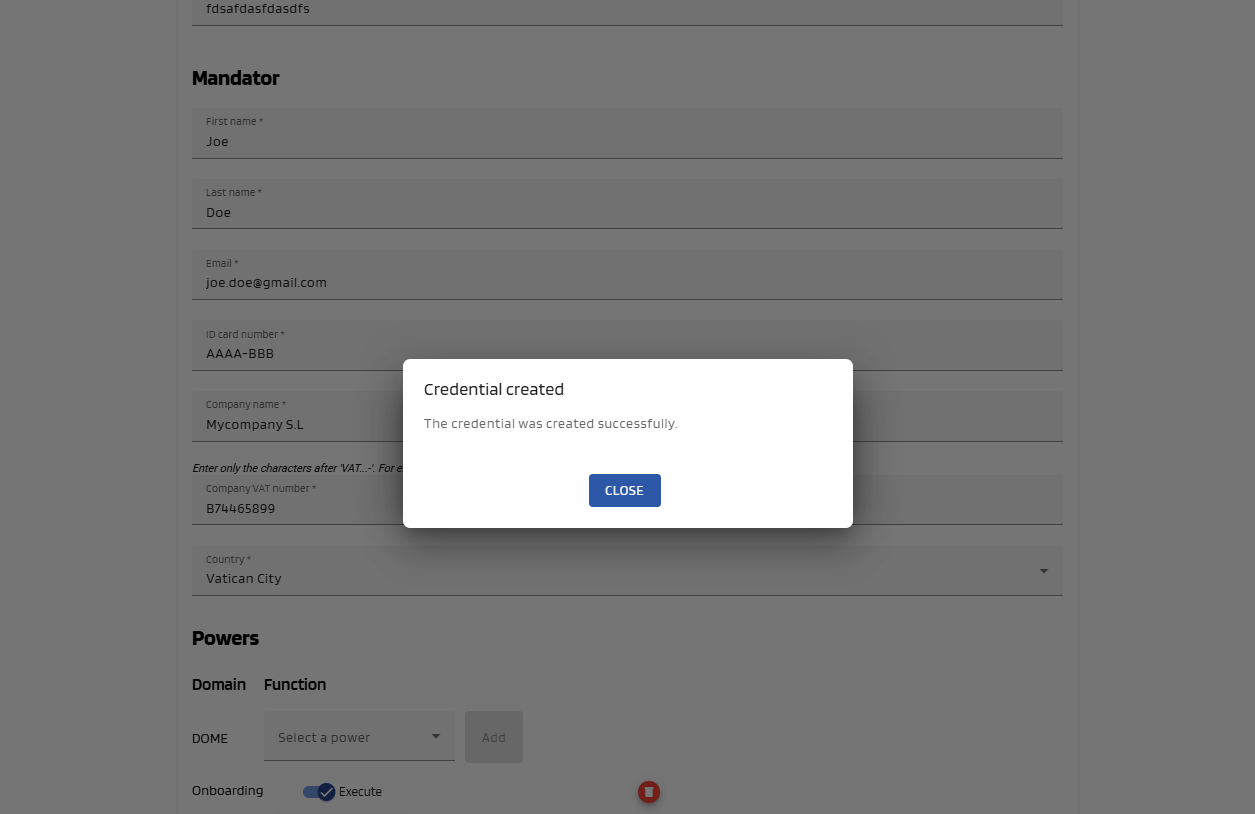
A popup will be displayed to confirm that you want to create the credential. Click "Accept" to create it. If the issuance is successful, a success message will be displayed and you will be redirected to the dashboard page.
5. See the Issued Credential
You will see that the Credential you just created has a status of DRAFT. After the user downloads it with the Wallet, it will have a status of VALID (you might have to refresh the page to see it change). For more details, see the Credential Management section.
LEAR Credential Machine Issuance
0. "New Credential" Form
To create a LEAR Credential Machine, click the "New credential" button, at the top right corner of the dashboard page, which will take you to the creation form.
1. Select the "LEAR Credential Machine " type
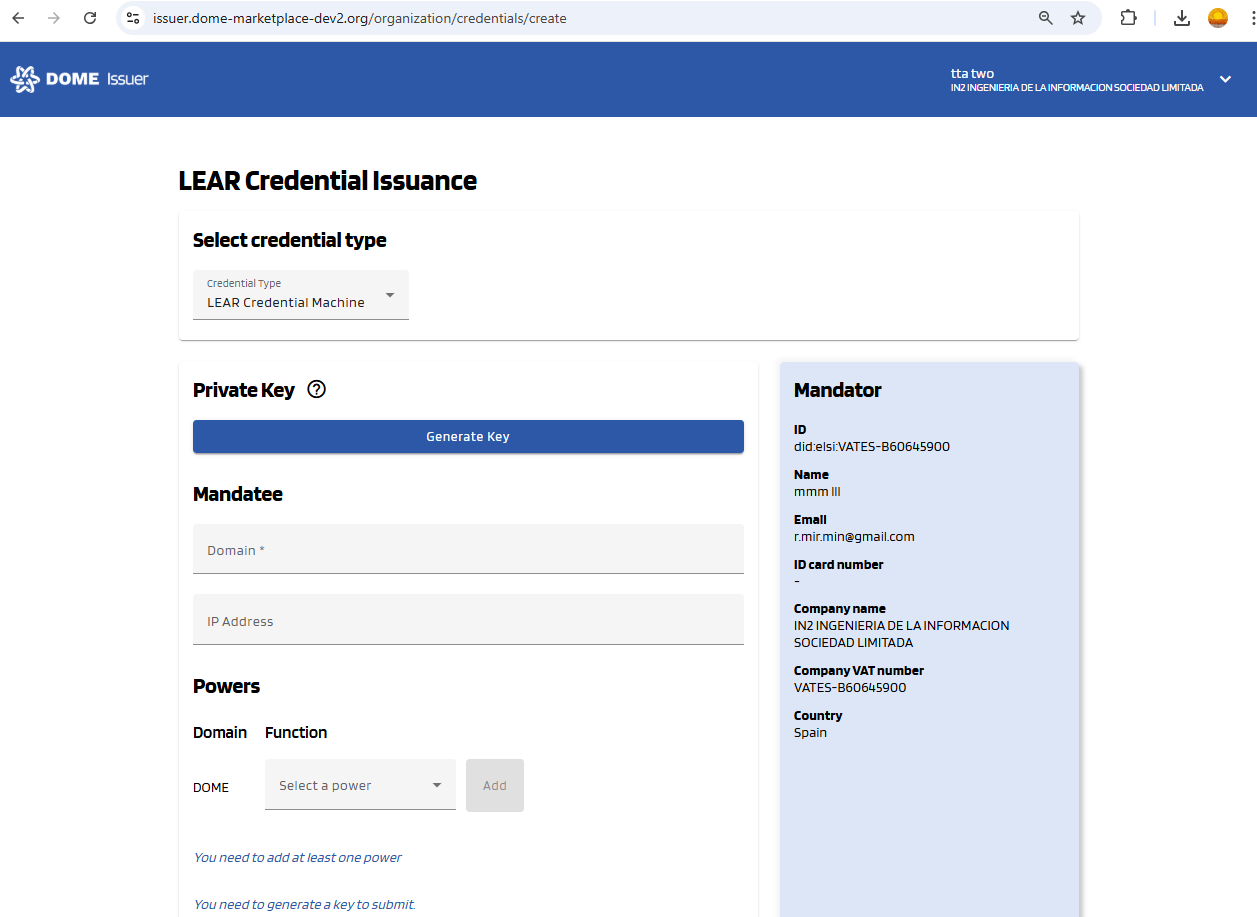
Select the LEAR Credential Machine type in the selector. Then the corresponding form will be displayed:
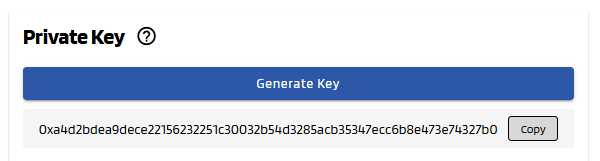
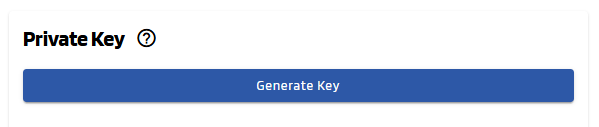
2. Generate and copy the private key
Click on the "Generate Key" button. This will create a private key that you need to copy and store safely, since it is associated to the Mandatee ID (did-key) that will be assigned to your credential. You will need it, for instance, for the Verifier integration. After the credential issuance, there won't be any way to recover it, so store it carefully.
Before generating the private key:
After generating it:
You can generate it as many times as you wish. The private key that you will need in the future will be the one that is set when you issue the credential. Once it is issued, you can see its did-key in the Details view of the Issuer and of the Wallet.
3. Complete the new credential form
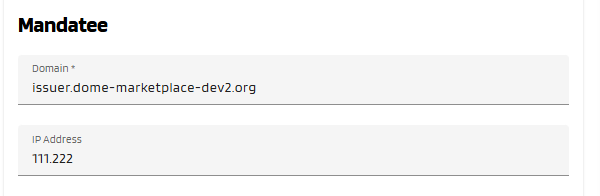
Fill all the Mandatee fields of the form, which are marked with a "*" symbol. The fields without "*" are optional --you can left them empty.
- Domain: the domain of the service that will use this credential machine to identify. Don't use prefixes such as "https://", and make sure you are not using "/" nor any path at the end.
- IP Address (optional): the IP to which the domain points to. If you have an elastic IP, leave this field blank. If you have a fixed IP, you can fill it or not (it is just an informative field).
Below, see an example of filled form.
4. Adding Powers to the Credential Subject
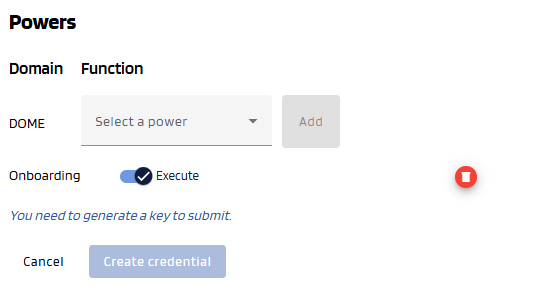
You can add different power functions using the combo box. Each power has one function. Add at least one power (=function) by selecting it in the selector and clicking to the "Add" button. For each added power, select at least one action (toggle buttons). In the example below, "Onboarding" is a function, and "Execute" are actions. The "Create credential" button is disabled because the Onboarding power doesn't have any actions.
To learn mor about powers, see this guide.
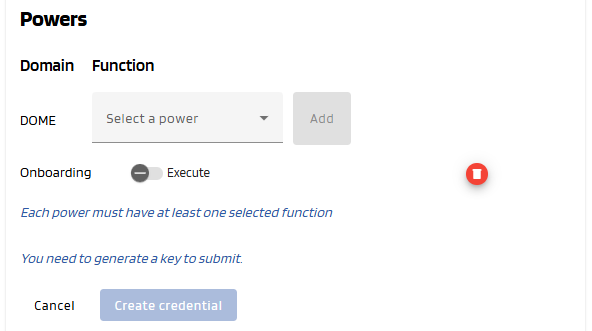
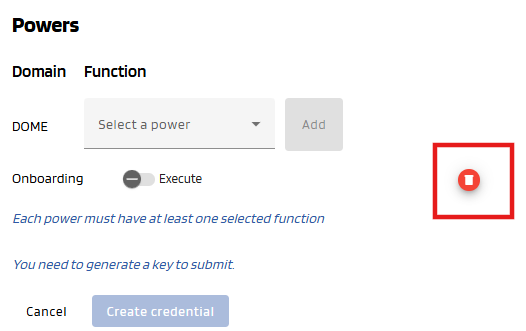
You can delete an added power by clicking to the red bin button at the right:
5. Create Credential
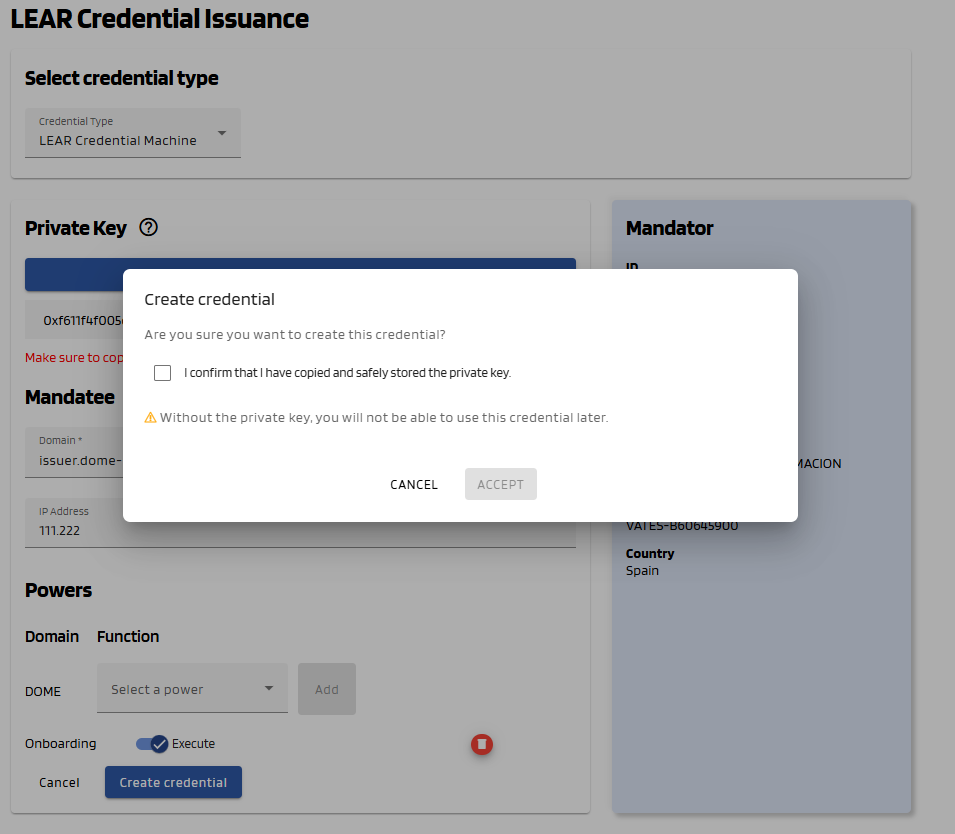
Once all mandatory fields all correctly filled (Private key has been generated, Mandatee filled and Powers added with an action), the "Create Credential" button will become brighter, indicating that it can be clicked. Click on it.
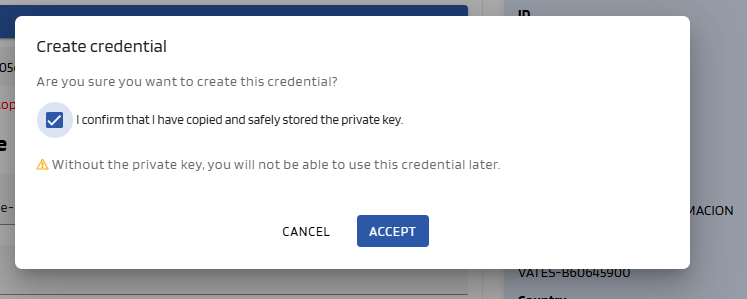
A popup will appear to confirm that you want to create the credential. You will first be asked whether you have copied your private key. Please note that once the credential is issued, it will not be possible to recover the private key, so make sure to store it safely. After doing so, select the confirmation radio button and click "Accept" to proceed. If the issuance is successful, a confirmation message will appear and you will be redirected to the dashboard page.
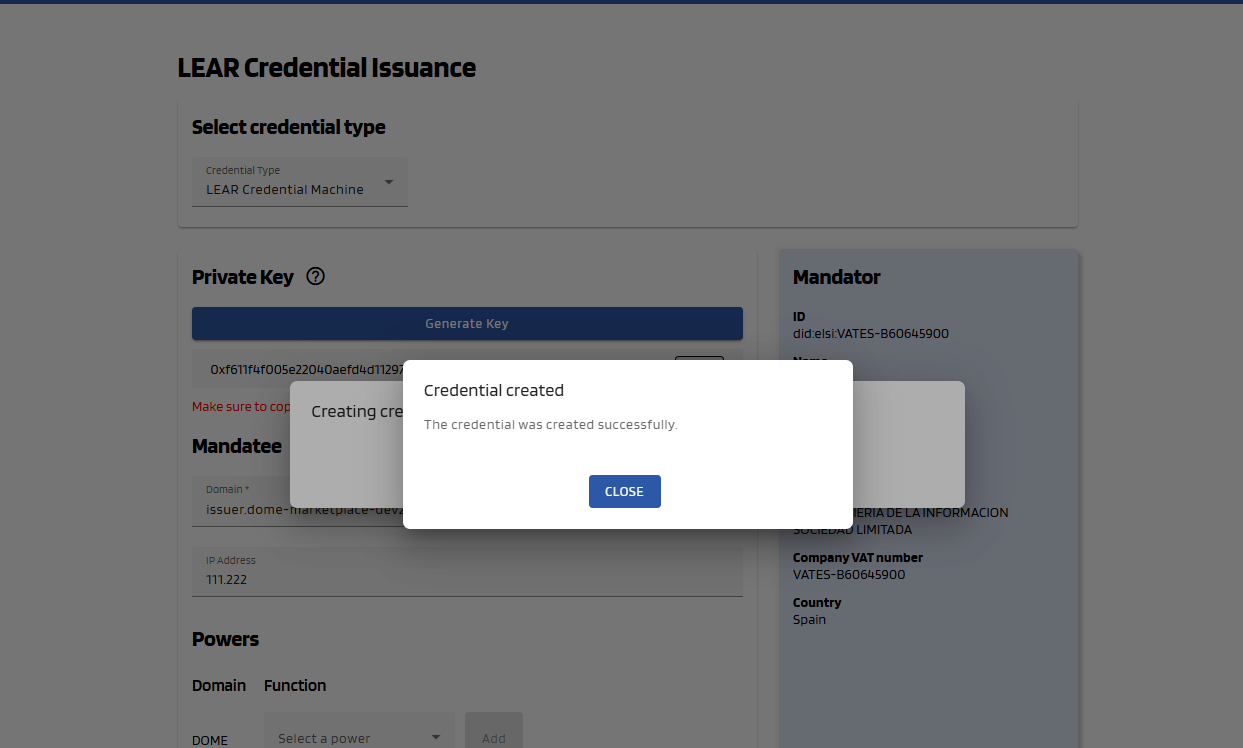
Please be aware that the credential offer will be sent to the mandator email in v2.0.0 and to your email (the one contained in the mandatee of the LEARCredentialEmployee you used to login) in v2.1.0.
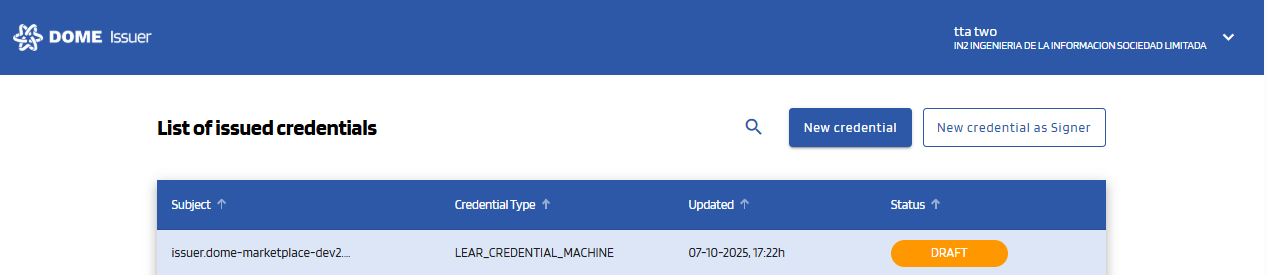
5. See the Issued Credential
You will see that the Credential you just created has a status of DRAFT. After the user downloads it with the Wallet, it will have a status of VALID (you might have to refresh the page to see it change). For more details, see the Credential Management section.
LEAR Credential Machine Issuance on behalf of another mandator
0. "New Credential" Form
To create a LEAR Credential Machine on behalf of another mandator, click the "New credential(on behalf)" button, at the top right corner of the dashboard page, which will take you to the creation form.
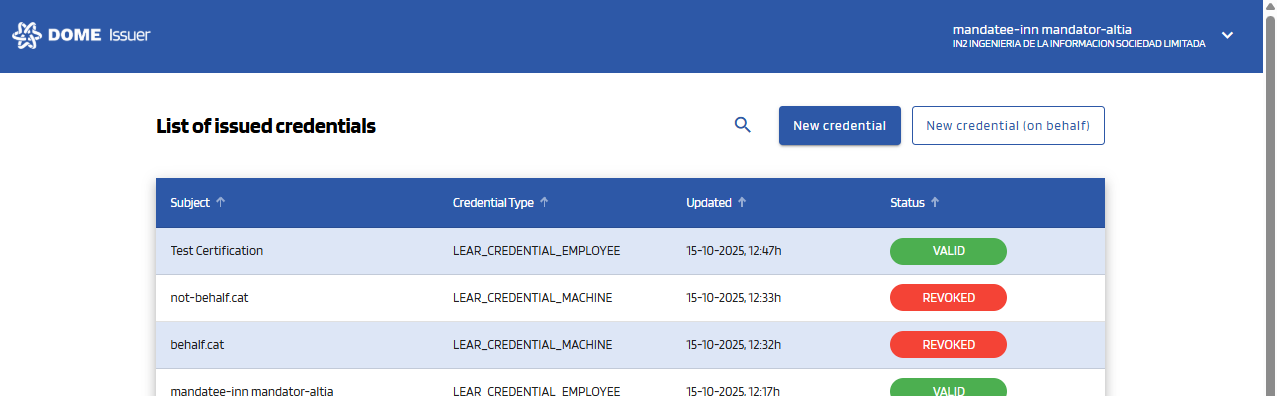
1. Select the "LEAR Credential Machine" type
Select the LEAR Credential Machine type in the selector. Then the corresponding form will be displayed:
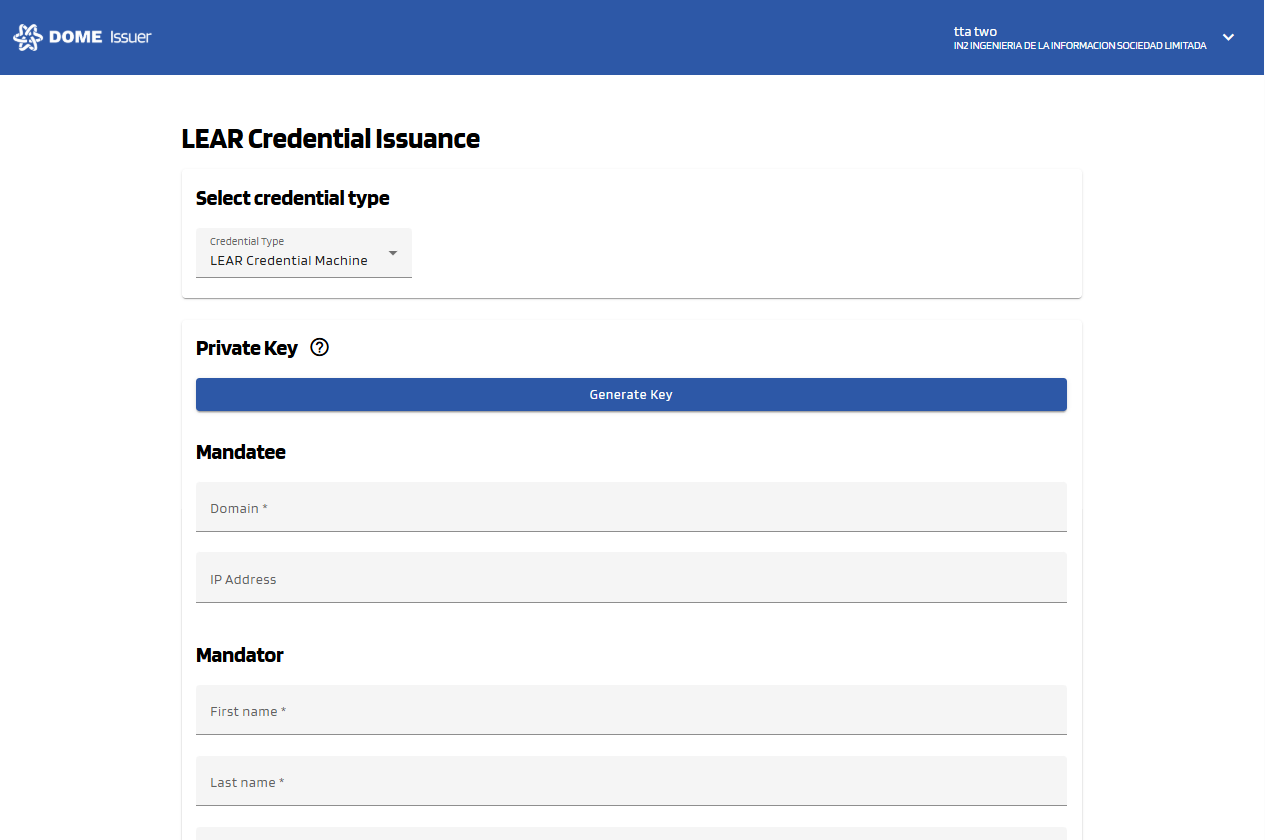
2. Generate and copy the private key
Click on the "Generate Key" button. This will create a private key that you need to copy and store safely, since it is associated to the Mandatee ID (did-key) that will be assigned to your credential. You will need it, for instance, for the Verifier integration. After the credential issuance, there won't be any way to recover it, so store it carefully.
Before generating the private key:
After generating it:
You can generate it as many times as you wish. The private key that you will need in the future will be the one that is set when you issue the credential. Once it is issued, you can see its did-key in the Details view of the Issuer and of the Wallet.
3. Complete the new credential form
Fill all the Mandatee fields of the form, which are marked with a "*" symbol. The fields without "*" are optional --you can left them empty.
- Domain: the domain of the service that will use this credential machine to identify. Don't use prefixes such as "https://", and make sure you are not using "/" nor any path at the end.
- IP Address (optional): the IP to which the domain points to. If you have an elastic IP, leave this field blank. If you have a fixed IP, you can fill it or not (it is just an informative field).
Below, see an example of filled form.
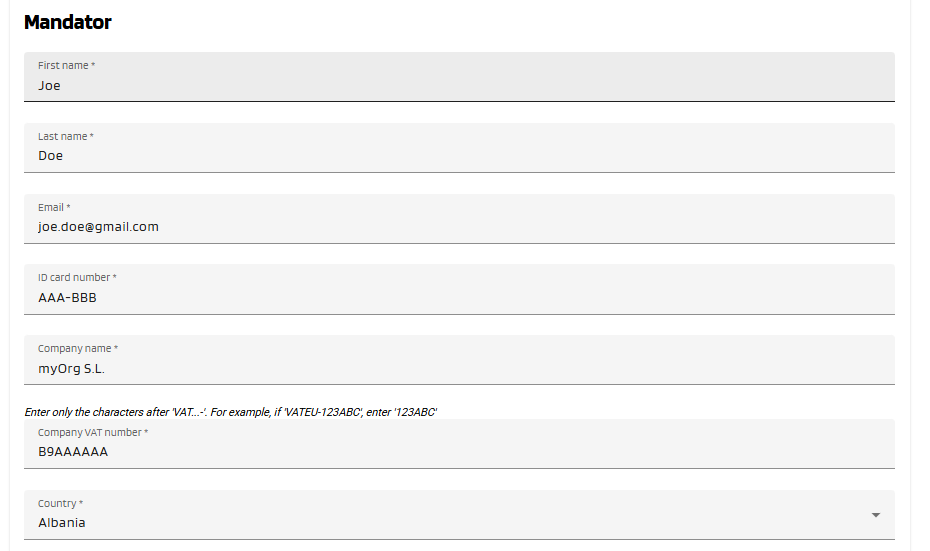
Then fill the Mandator form fields:
4. Adding Powers to the Credential Subject
You can add different power functions using the combo box. Each power has one function. Add at least one power (=function) by selecting it in the selector and clicking to the "Add" button. For each added power, select at least one action (toggle buttons). In the example below, "Onboarding" is a function, and "Execute" are actions. The "Create credential" button is disabled because the Onboarding power doesn't have any actions.
To learn mor about powers, see this guide.
You can delete an added power by clicking to the red bin button at the right:
5. Create Credential
Once all mandatory fields all correctly filled (Private key has been generated, Mandatee filled and Powers added with an action), the "Create Credential" button will become brighter, indicating that it can be clicked. Click on it.
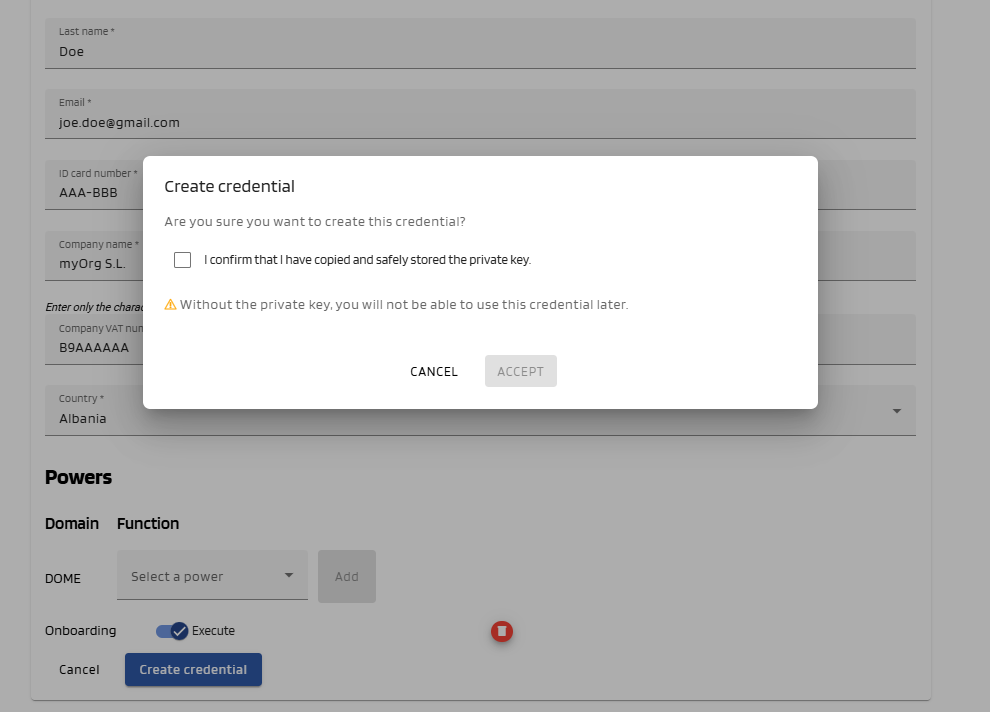
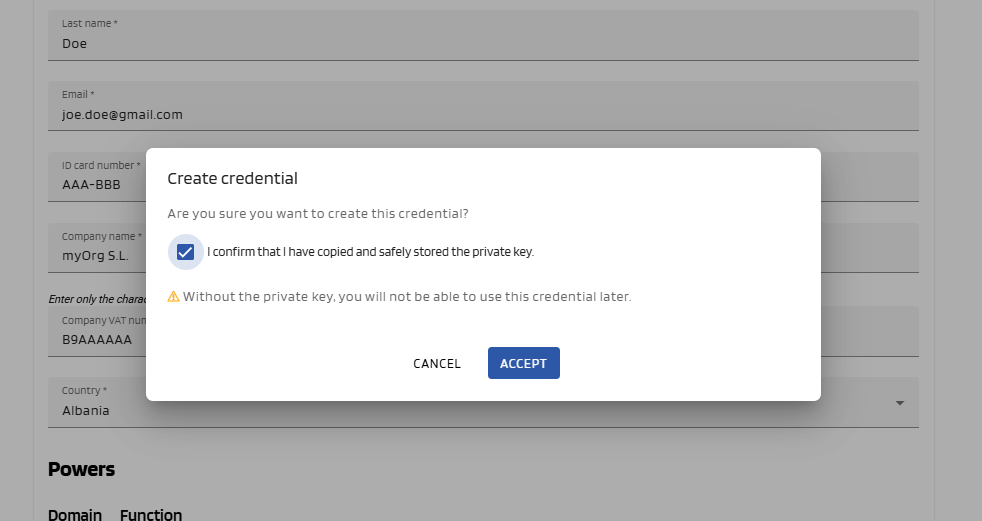
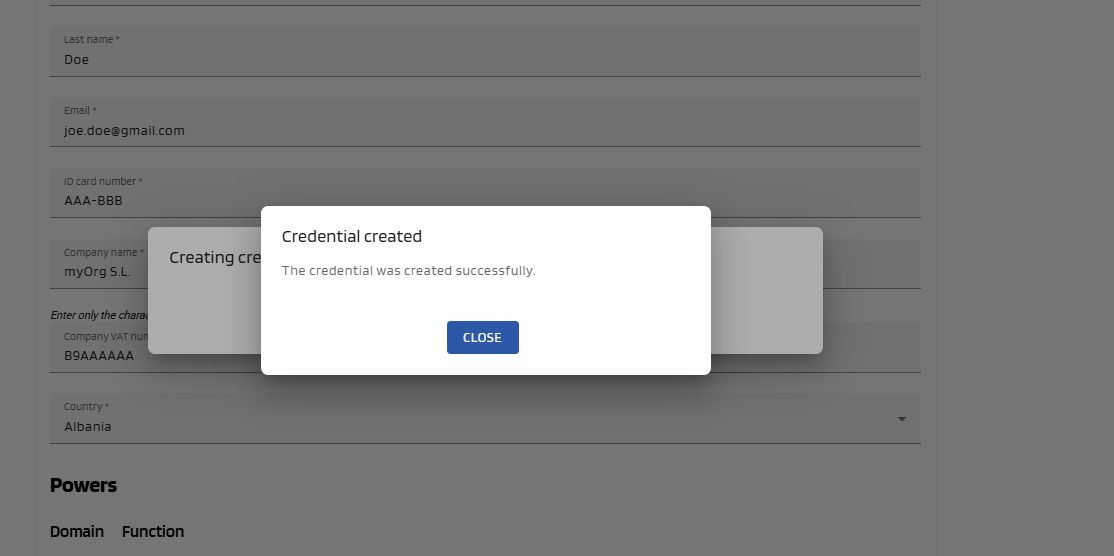
A popup will appear to confirm that you want to create the credential. You will first be asked whether you have copied your private key. Please note that once the credential is issued, it will not be possible to recover the private key, so make sure to store it safely. After doing so, select the confirmation radio button and click "Accept" to proceed. If the issuance is successful, a confirmation message will appear and you will be redirected to the dashboard page.
Please be aware that the credential offer will be sent to the mandator email.
5. See the Issued Credential
You will see that the Credential you just created has a status of DRAFT. After the user downloads it with the Wallet, it will have a status of VALID (you might have to refresh the page to see it change). For more details, see the Credential Management section.
Gx Label Credentials Issuance
At the moment, Label Credentials cannot be issued through the Issuer UI (web interface). However, they can be created via an API request to the issuer service.
Below is an example of how to issue a Label Credential using curl:
curl --location 'https://issuer.dome-marketplace-dev2.org/vci/v1/issuances' \
--header 'Content-Type: application/json' \
--header 'Authorization: Bearer eyJraW....' \
--header 'X-ID-TOKEN: ...' \
--data-raw '{
"schema": "gx:LabelCredential",
"operation_mode": "S",
"format": "jwt_vc_json",
"response_uri": "https://dome-marketplace-sbx.org/admin/uploadcertificate/urn:ngsi-ld:product-specification:6a8476a3-88e5-49de-873b-4ad36ebf6TNN",
"credential_owner_email": "roger.miret@in2.es",
"payload": {
"credentialSubject": {
"id": "urn:ngsi-ld:product-specification:6a8476a3-88e5-49de-873b-4ad36ebf6TNN",
"gx:labelLevel": "BL",
"gx:engineVersion": "1.3.0",
"gx:rulesVersion": "CD25.03",
"gx:compliantCredentials": [
{
"id": "urn:criteria:dp-1",
"type": "gx:DataProtection",
"gx:digestSRI": "sha256-c482dc40dbb262467...ad8578a0466992e82f1d580b"
}
],
"gx:validatedCriteria": [
"https://w3id.org/gaia-x/specs/cd24.06/criterion/P1.2.5",
"https://w3id.org/gaia-x/specs/cd24.06/criterion/P1.1.1"
]
},
"validFrom": "2024-08-22T00:00:00Z",
"validUntil": "2026-08-22T00:00:00Z"
}
}'
Make sure to replace:
After a Gx:Label Credential is issued, it is automatically uploaded to the Marketplace to certify the product identified by the “response_uri” field.
If the upload process fails, the credential holder will receive an email with instructions to manually upload the credential.
Obtaining the Credential
After a credential is issued, the receipee of the credential receives an email with a Credential Offer, which allows them to activate the credential with the DOME Digital Wallet. See this guide for the step-by-step information.
Credentials Management
Credentials Management
If you need to revoke a legacy credential, please see this section.
Dashboard page
The dashboard page is the page you are redirected to right after logging in. You can also access it by clicking to the DOME Logo in the upper left corner.
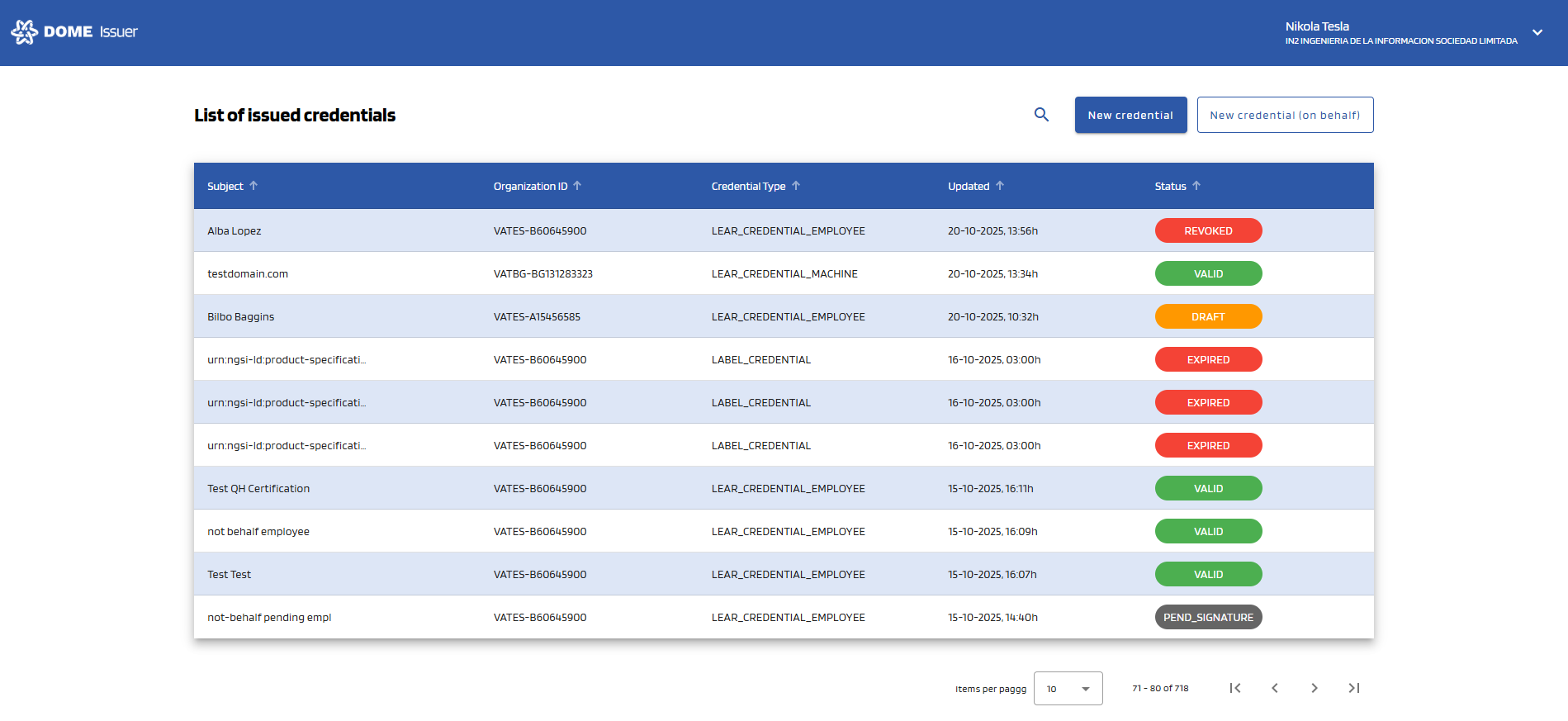
The dashboard page contains a table where each row represents a credential:
- The first column displays the "Subject". For LEAR Credential Employees this corresponds to the Mandatee name. For LEAR Credential Machine, to the Mandatee domain.
- The second colum displays the organization identifier.
- The third column displays the credential type.
- The fourth column displays the last time the credential was updated (for example, when it was activated, or when it was revoked ).
- The fifth column displays the status. See more information about the different statuses below.
You can sort the credentials by clicking on a column header. The sorting order depends on the type of data in that column.
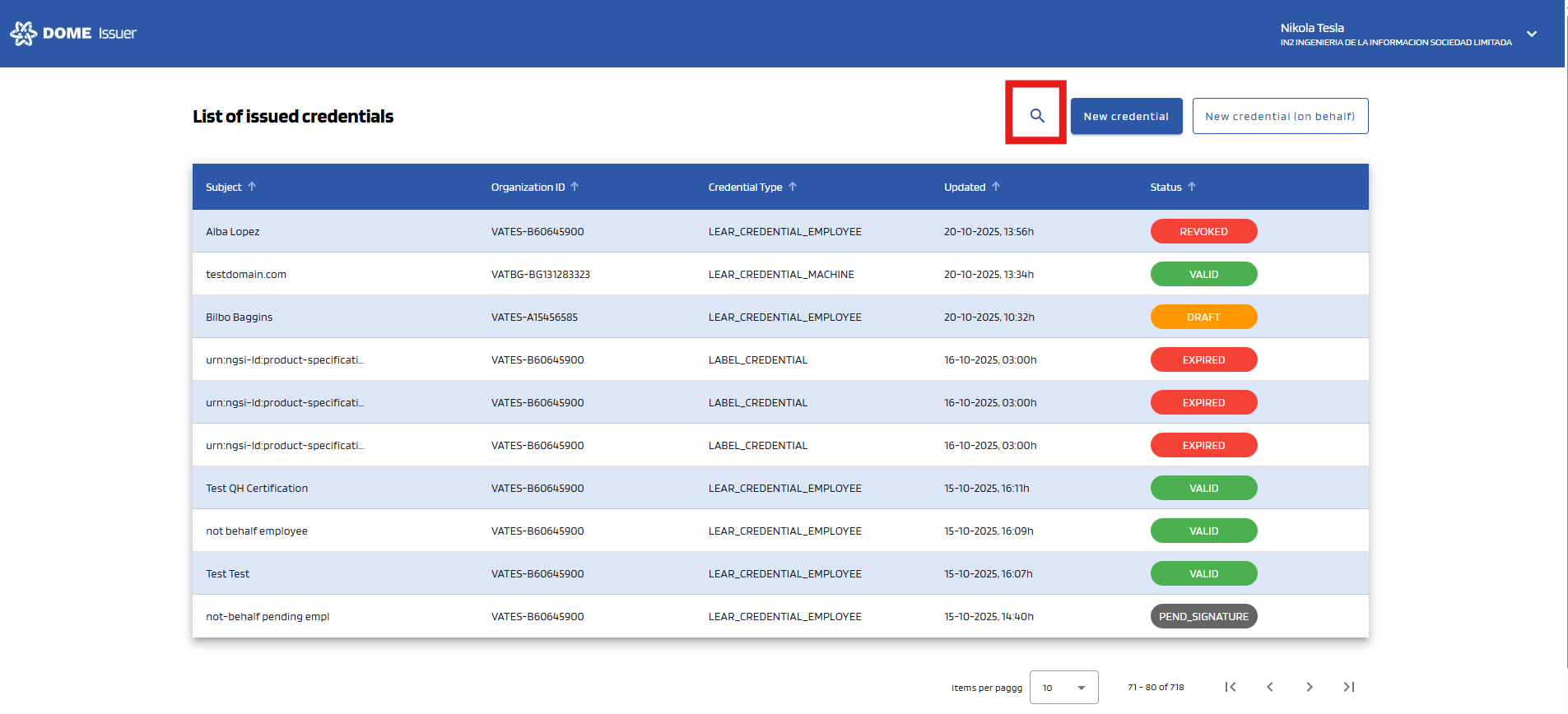
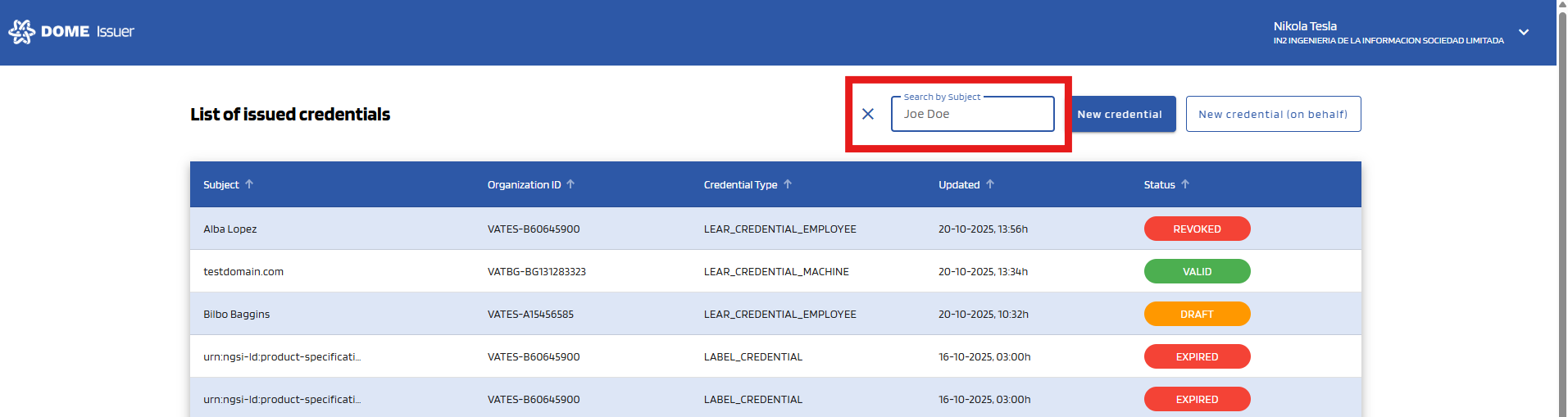
If you need to find one specific credential, you can use the search bar. To open it, click the search icon at the right top:
Credential statuses
In the fourth column the status of the credential is shown inside a coloured ellipse. Only "VALID" credentials are ready to be used in the DOME environment.
DRAFT: the credential has been issued but not activated (the mandatee hasn't added it to the their Wallet)
VALID: the credential has been issued and activated (the mandatee has added it to the their Wallet)
PEND_SIGNATURE: the credential has been issued and activated, but the signature process hasn't been completed, so the credential is still not valid. Look at "Credential Details > Actions" for more information.
EXPIRED: the credential has expired and is no longer valid.
REVOKED: the credential has been revoked and is no longer valid.
Credential details
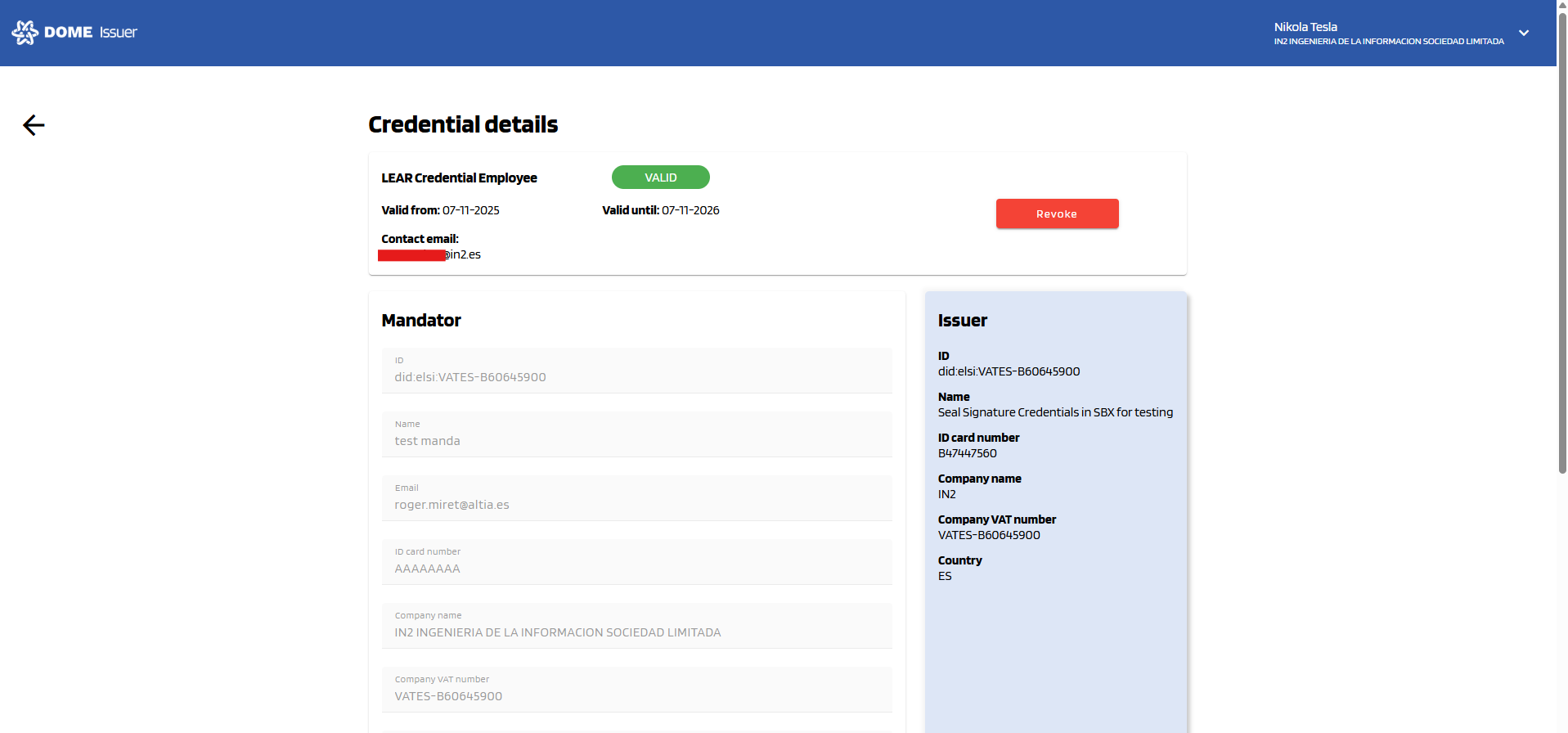
To view the details of a credential, click on its row in the Dashboard table. You will be redirected to the Credential Details page. At the top of it, a box with the basic information of the credential is displayed (Credential type, status, valid from, valid until, contact email --of the credential holder). In some cases, some buttons will also be shown; see the "Actions" section below for more information.
Actions
"Send reminder": sending a new credential offer
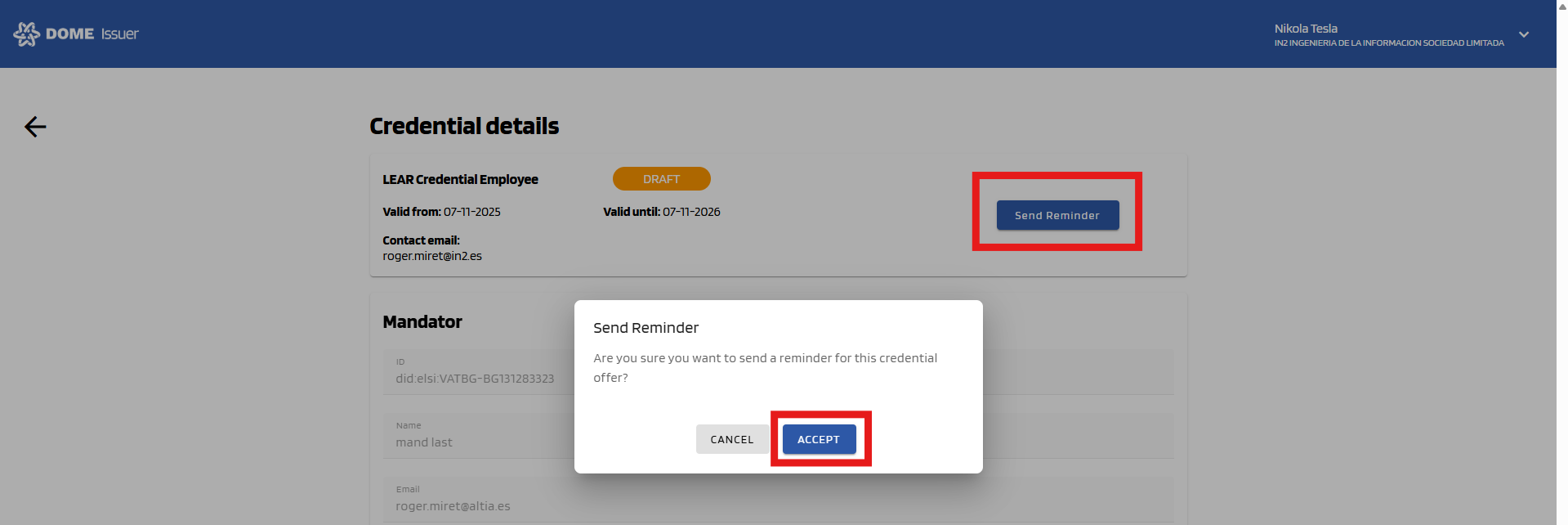
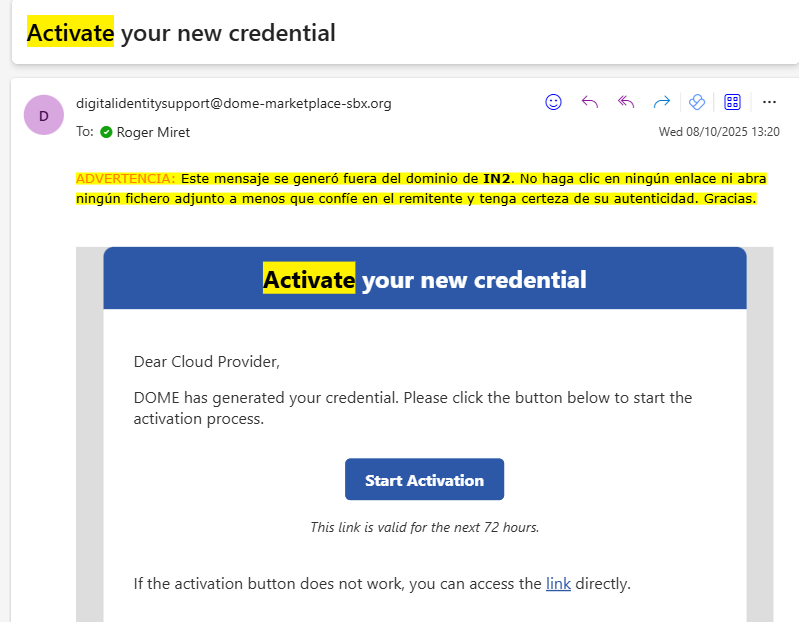
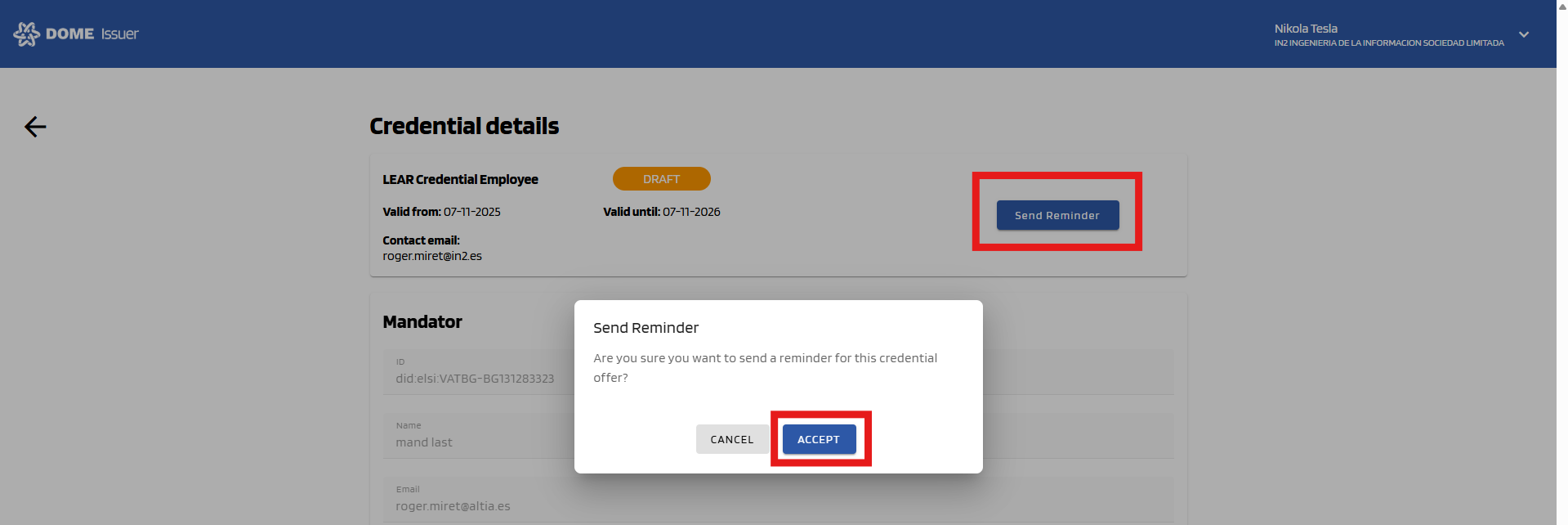
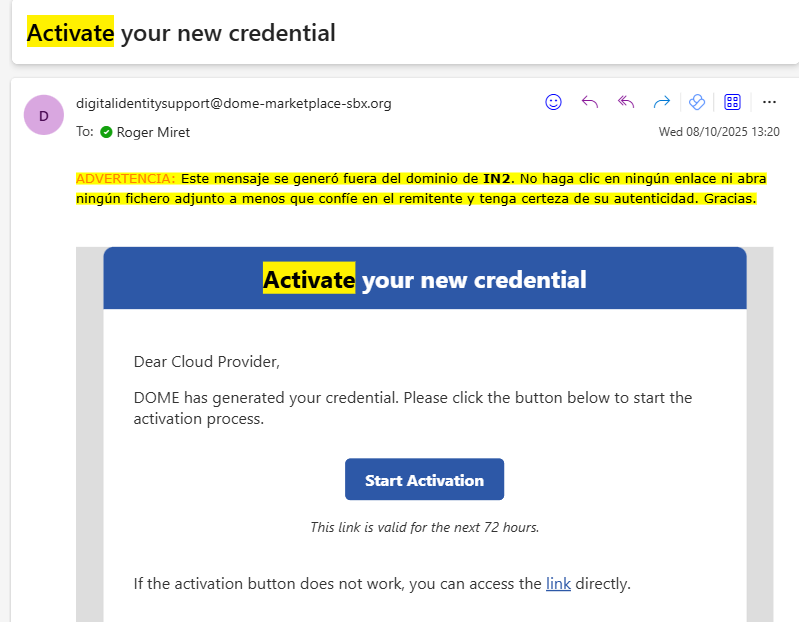
When a credential has status "DRAFT", you will see a "Send reminder" button in the "Actions" box. By clicking this and then confirming, a new email will be sent to activate the credential. Thus, this is useful when the credential offer has expired.
Notice: Clicking "Send reminder" will issue a new credential offer, which will invalidate the previous one. Use this action judiciously.

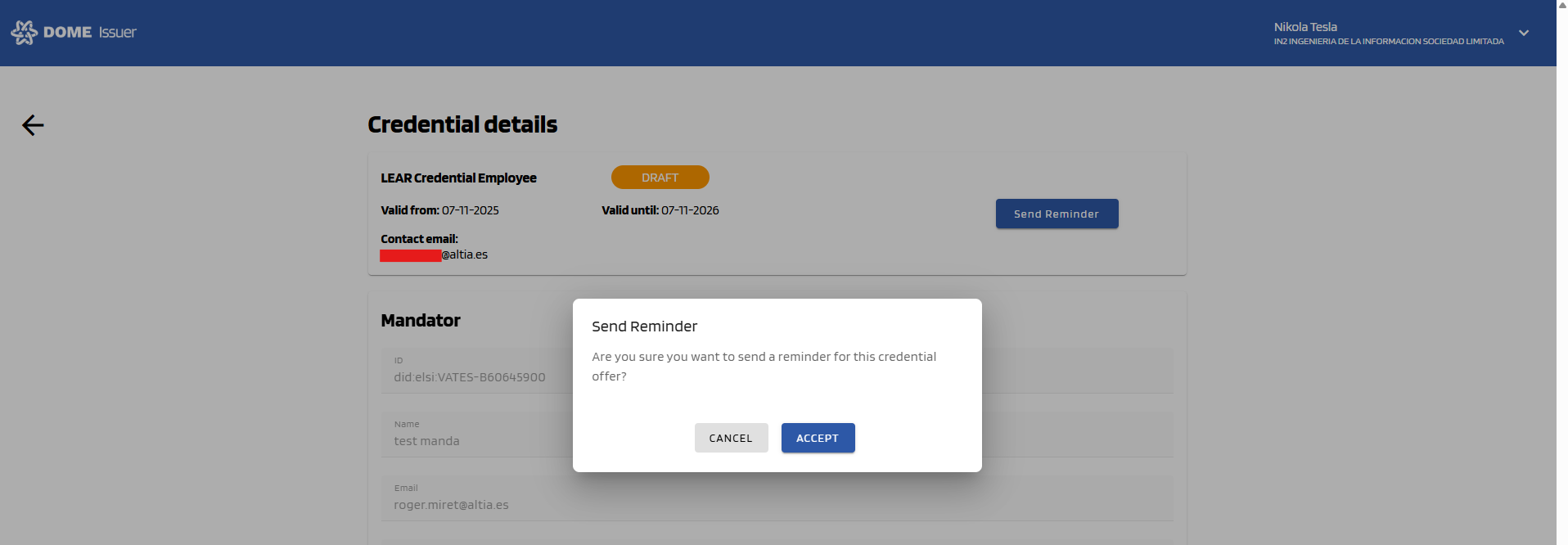
"Sign credential"
Occasionally, a credential might not be signed correctly upon issuance due to the signing service being temporarily unavailable. In such cases, the credential will have a status of "PEND_SIGNATURE", an email notification will be sent to the person responsible for the issuance (or the signing attempt in case of retrying) and a "Sign credential" button will appear in the Actions box.
Click this button and then confirm to sign the credential manually. If the signing process completes successfully, you will see a confirmation message, and the credential status will update to "VALID" once you refresh the page. The credential holder will then receive an email notification.
If you receive an error message instead, please wait a few hours and try again. If the issue persists after several attempts, contact support

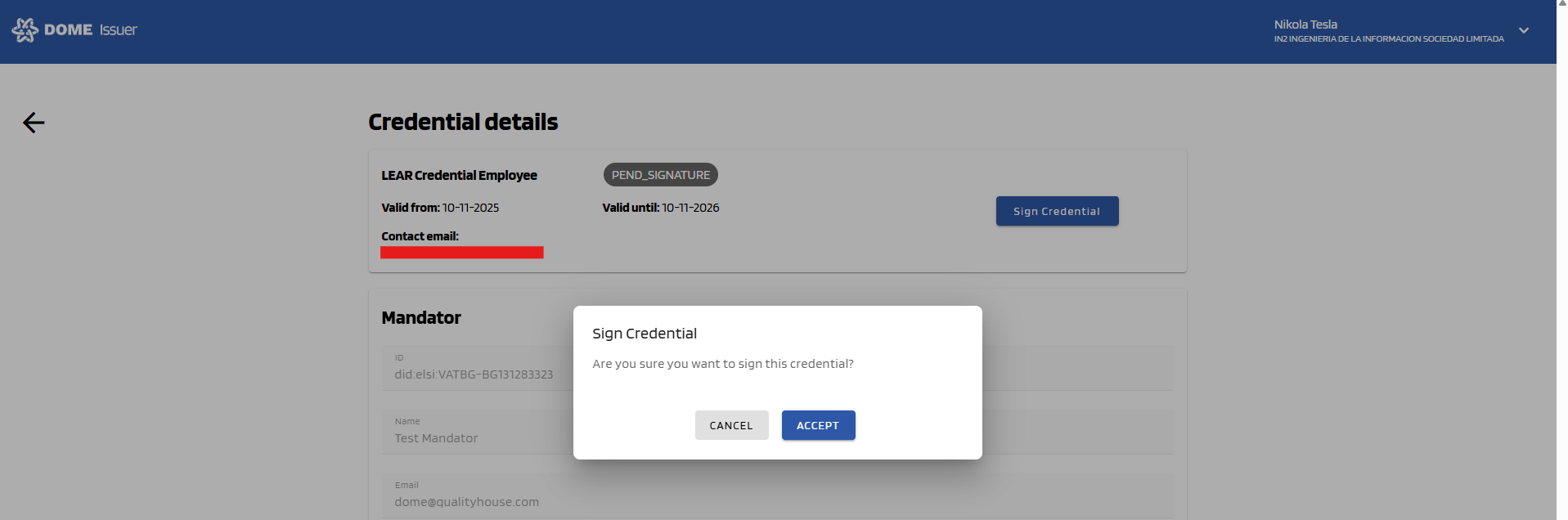
.
"Revoke credential"
When a credential has status "VALID", you will see a "Revoke" button in the "Actions" box. See the "Credential Revokation" page to learn more about it.

Credential Revocation
If you need to revoke a legacy credential, please see section "2. Revoke Credential (legacy)".
1. Revoke Credential (standard)
Once a user activates a credential, its status in the Issuer is set to "VALID"(see the Credentials Management article ). A valid credential can be revoked, which means it will be effectively disabled and can no longer be used for authorization purposes.
To revoke a credential, simply click the "Revoke" button and confirm the action.
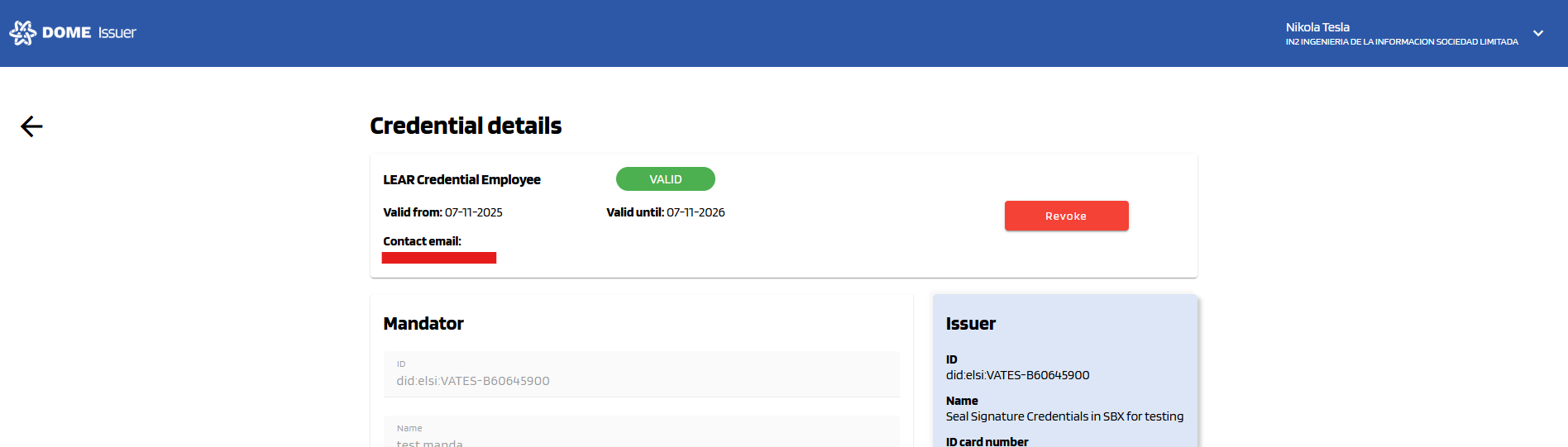

After confirmation, a success message will be displayed, and you will be redirected to the credentials dashboard, where the credential's status will now appear as "REVOKED".

You can also verify the revocation on the credential details page.

2. Revoke Legacy Credential
Old credentials can't be revoked in the way that has been explained in the previous section. Credentials of this type will have the "Revoke button" disabled.

When putting the mouse on it (or clicking on it), a tooltip message will be displayed with a link to the guide you are currently reading.
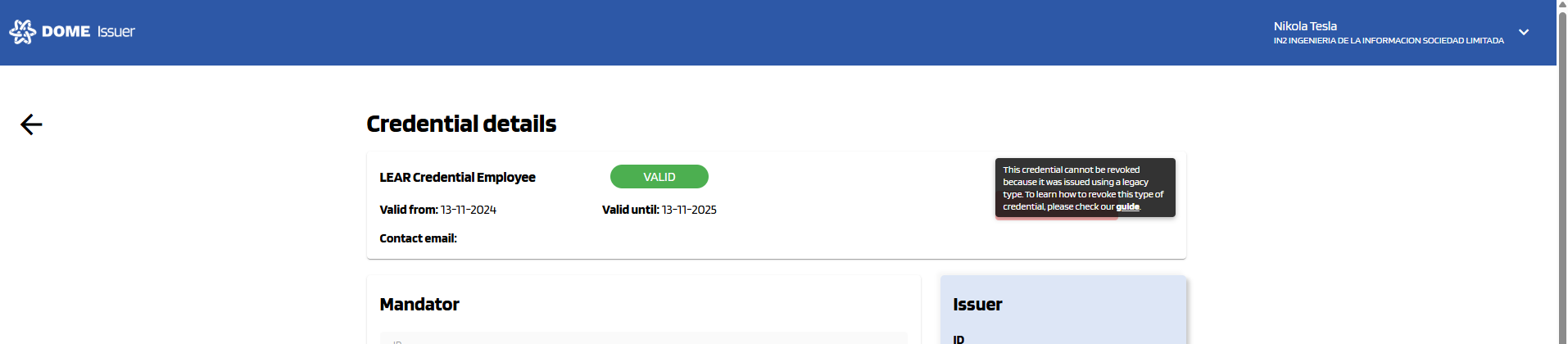
Legacy credentials must be manually added to the Revoked credentials list. Please check the Trust Framework guide to learn how to do so.
Troubleshooting
Expired Credential Offer
-
From the moment of the creation of a new Credential the link for the Credential holder to download the Credential have a lifespan of 72 hours. If the Credential holder didn't download the Credential in that time or fails to do it there is an option to send a fresh e-mail notification to the Credential holder with the instruction and a new functional link to start the process. You can click the row of the corresponding credential to see its details and send the reminder.

-
In the details view click the "Send Reminder" button.
-
The Credential holder will receive the new email notification to start de process again.

Failed signature
Occasionally, a credential might not be signed correctly upon issuance due to the signing service being temporarily unavailable. In such cases, the credential will have a status of "PEND_SIGNATURE", an email notification will be sent to the person responsible for the issuance (or the signing attempt in case of retrying). See the credential management guide to learn how to solve this issue.
Ticketing support system
For any other issues you can contact the technical support team by creating a ticket on ticketing system.