
3. Service Provider Onboarding process
When you enter into the DOME Marketplace homepage, you will be asked whether you want to register as a Provider or as a Customer by clicking the appropriate button .
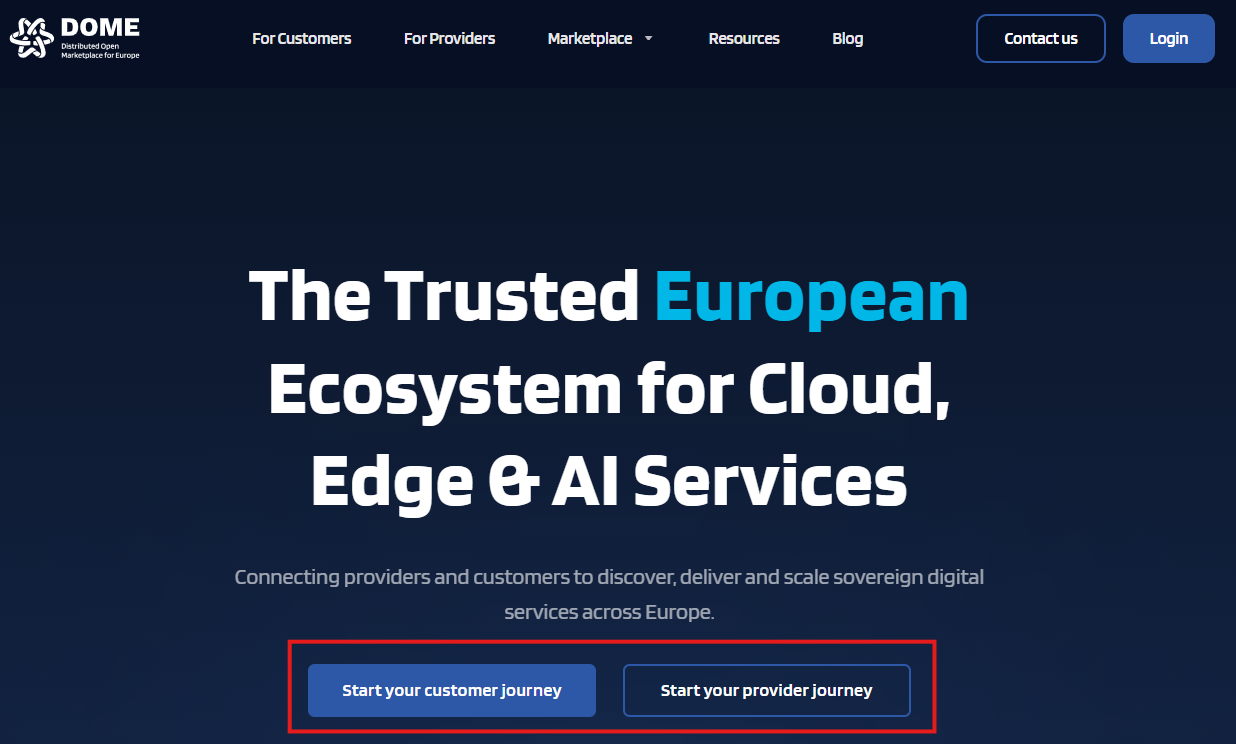
By clicking on the "Start your provider journey" button, you 'll be redirected to the provider landing page, with all the necessary information that a service provider needs to know before the onboarding.

By clicking on the button "Start Provider onboarding", you are redirected to the online onboarding forms where you must enter the information requested.
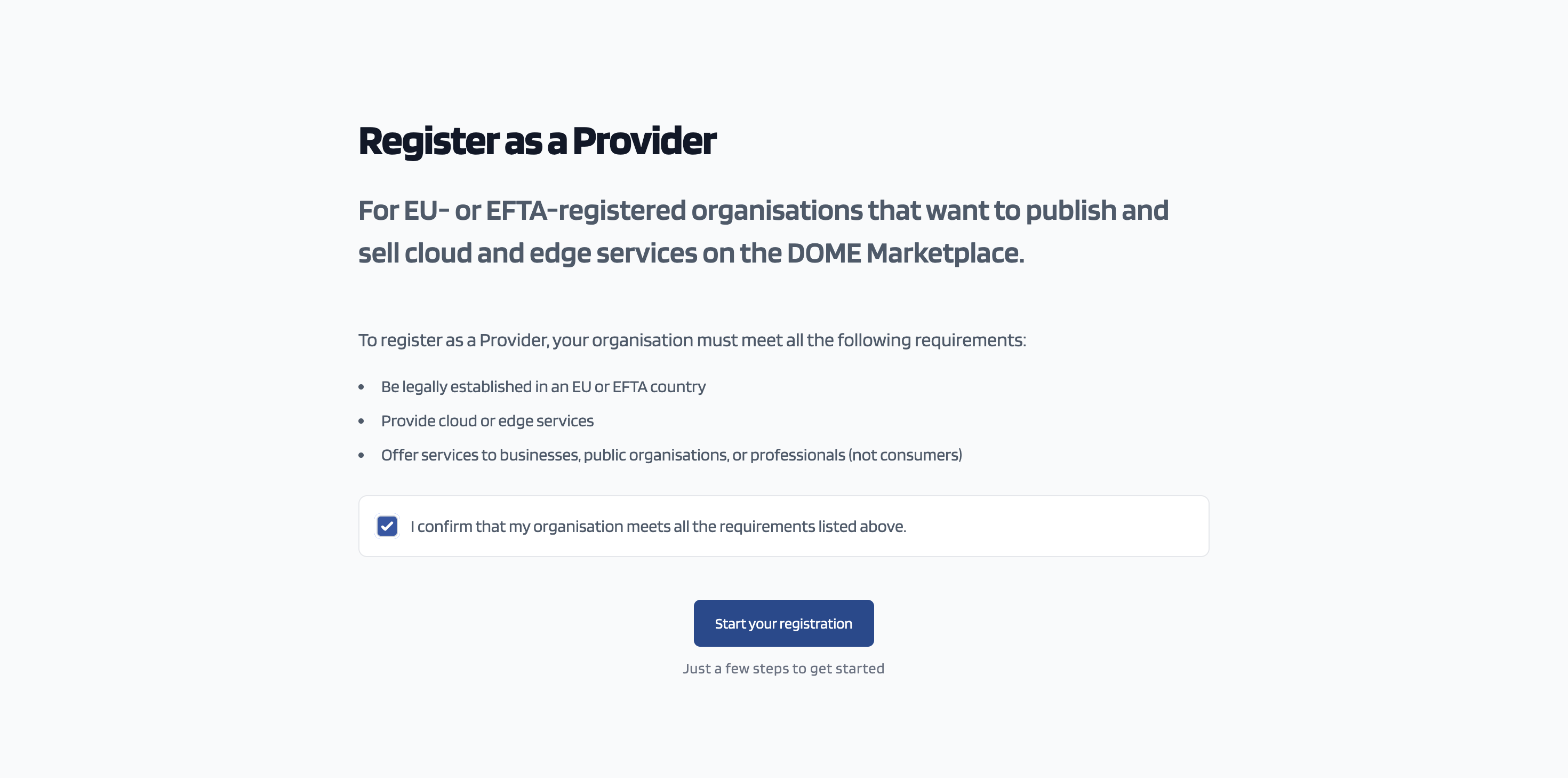
You need to tick the box, confirming that your company is eligible to onboard the DOME Marketplace as a service provider and click on the "Start your registration" button
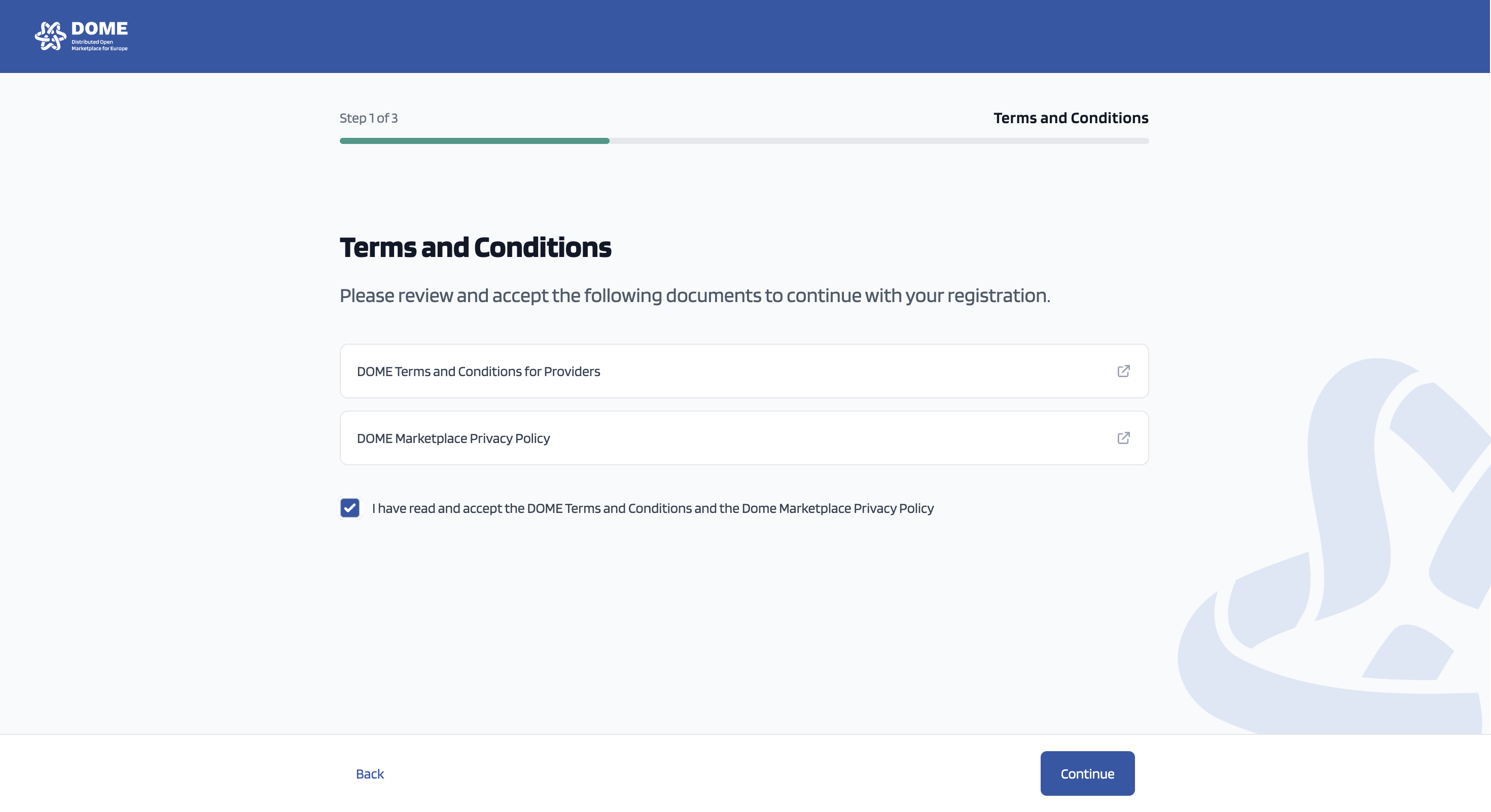
The DOME Marketplace Terms and Conditions for Providers as well as the Privacy Policy are available to read. You need to tick the box confirming that you have read and accepted the content of both documents. Then you click on the "Continue" button.
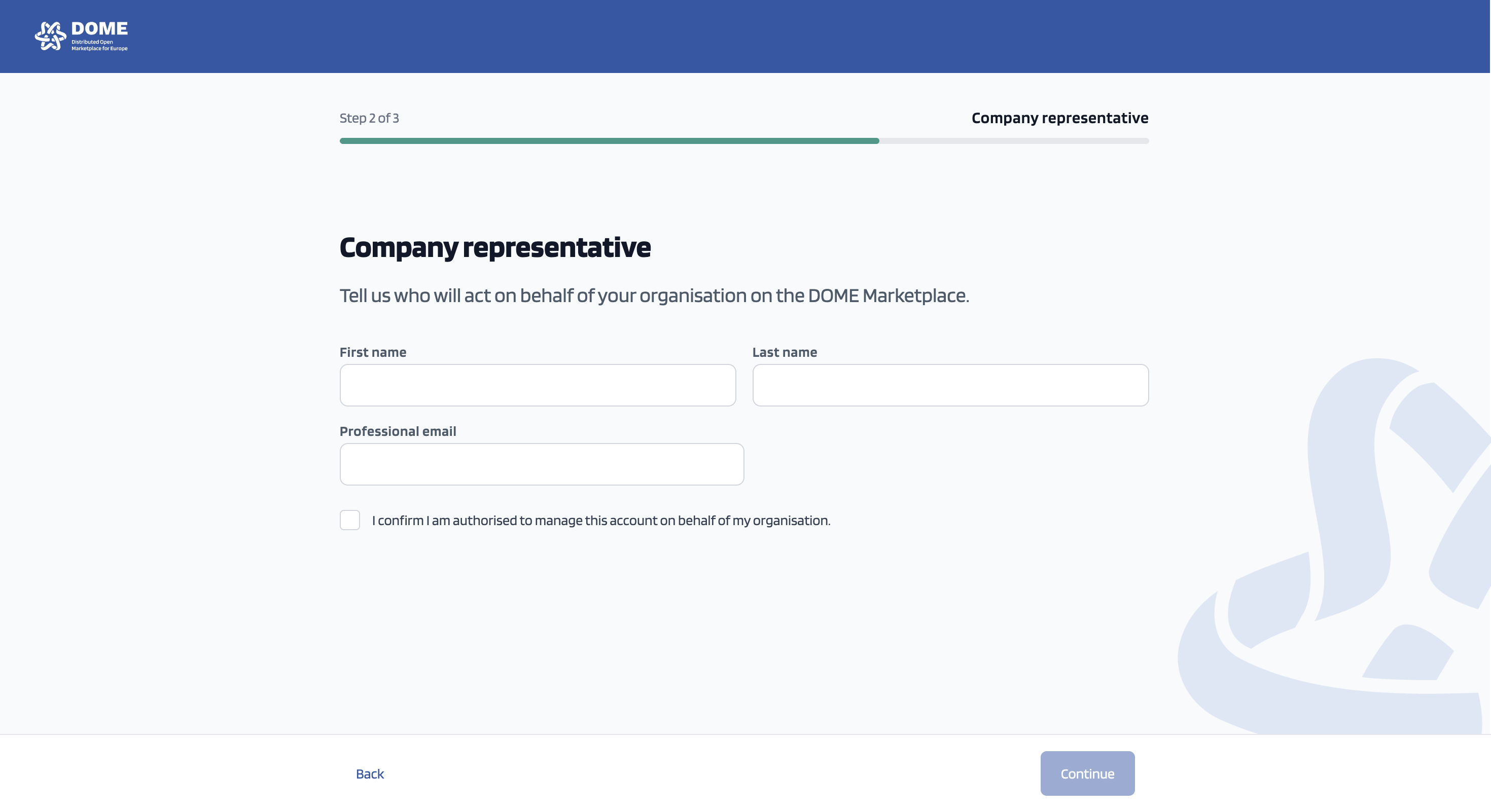
You need to fill in your information in the above screen and tick in the box confirming that you are authorised to act on behalf of your organisation. Then you click on the "Continue" button.
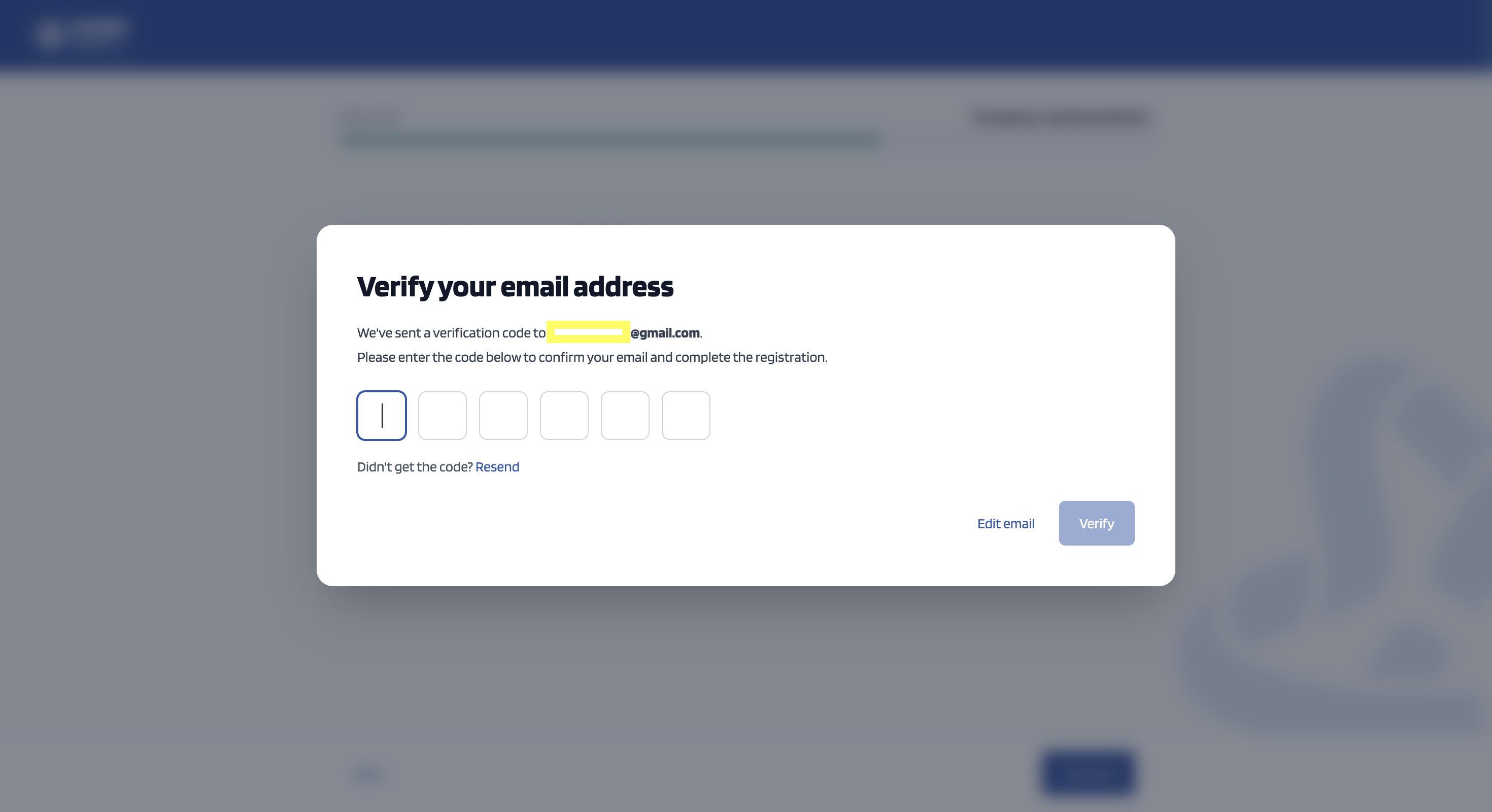
Check your email for the verification code. If you did not get the code - after checking your spam folder ;) , press "Resend". After you fill in the code, click "Verify".
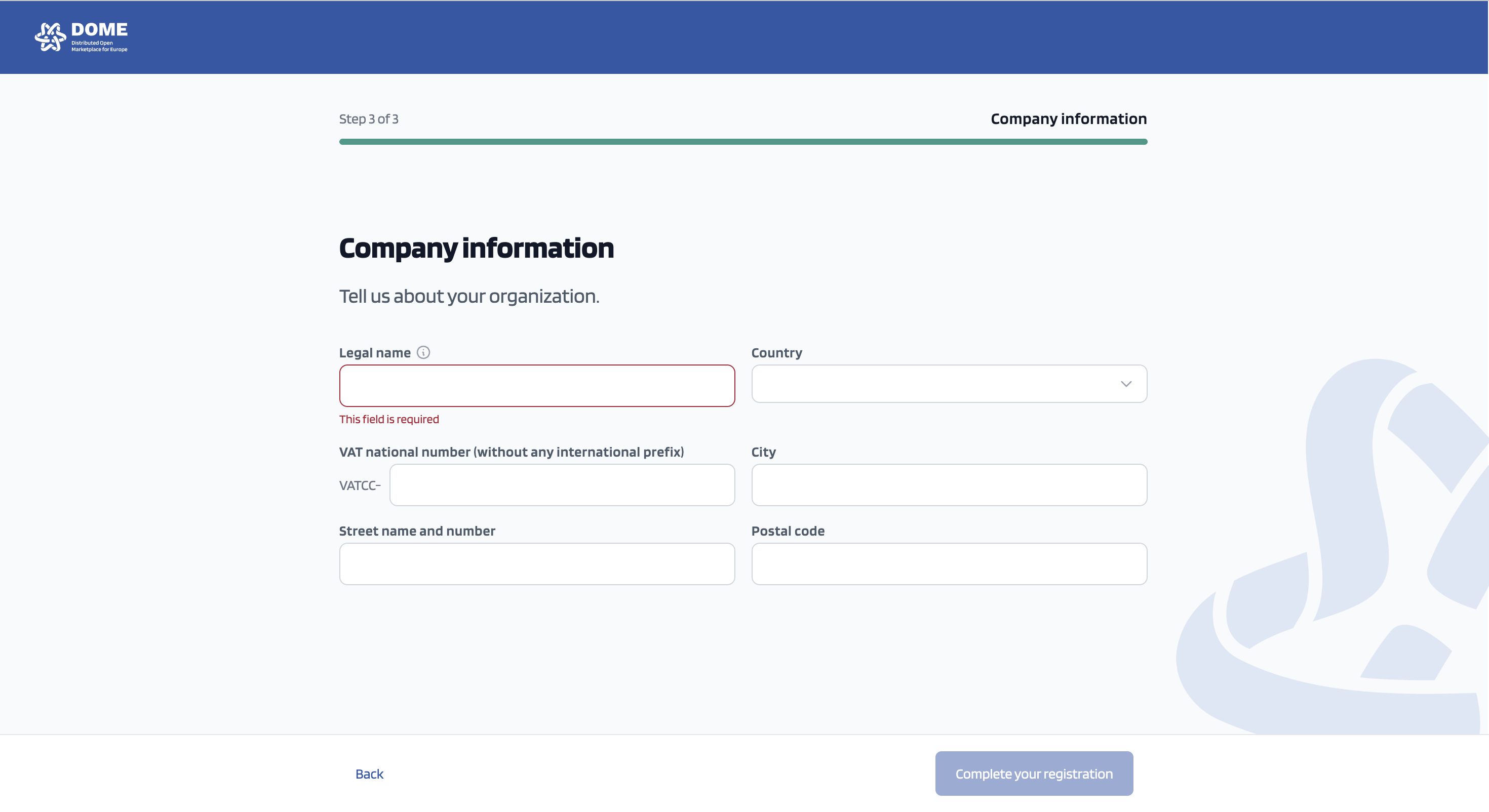
Fill in your company information, and in the VAT field add only the numeric values of your company's VAT id. After this, click on "Complete your registration".
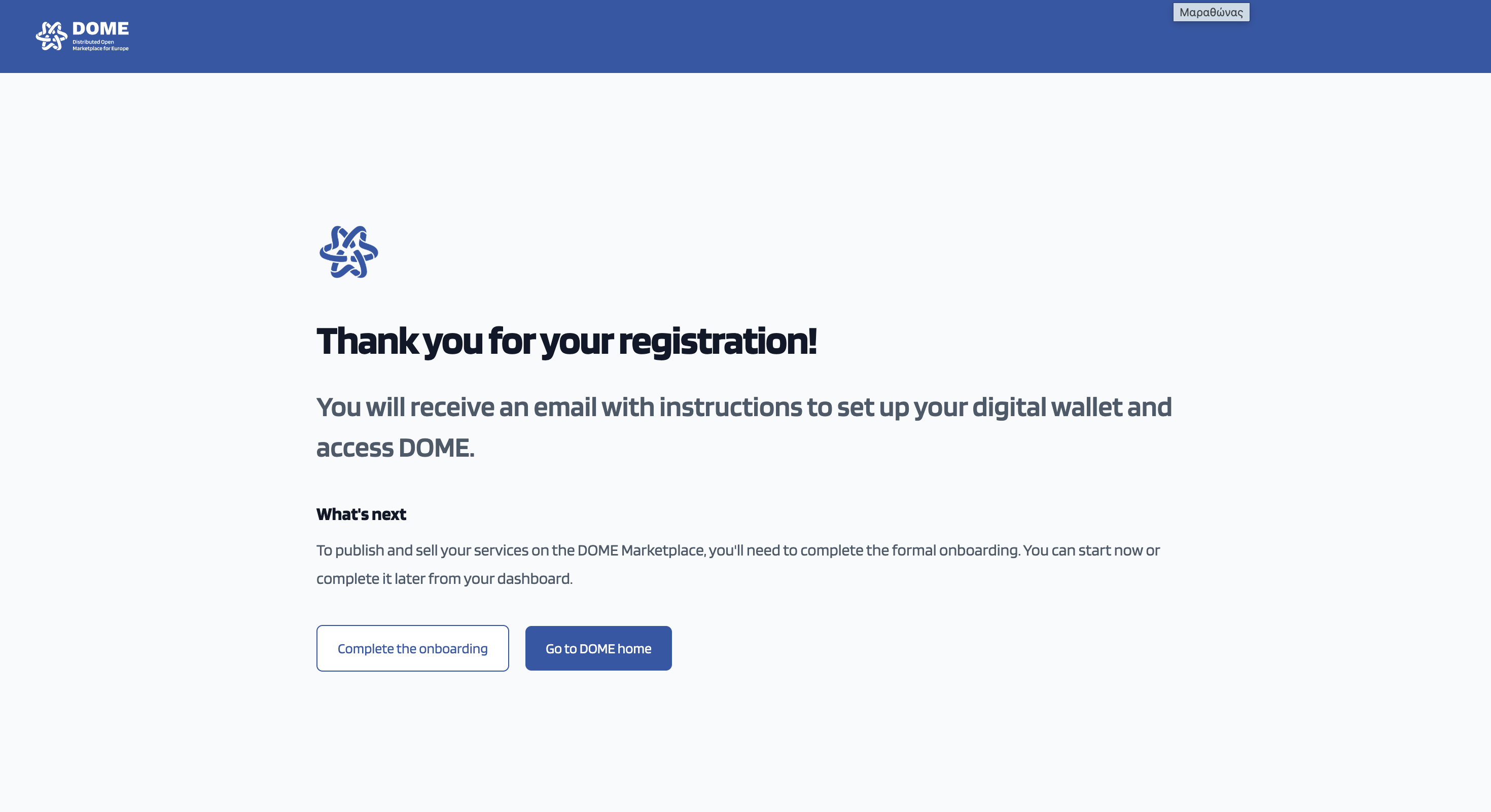
Step 1 of the onboarding is completed!
In order not to lose time, click on complete the onboarding (later you can check for your wallet and credentials ;) Let's remember again which are the eligibility criteria to join DOME as a provider:
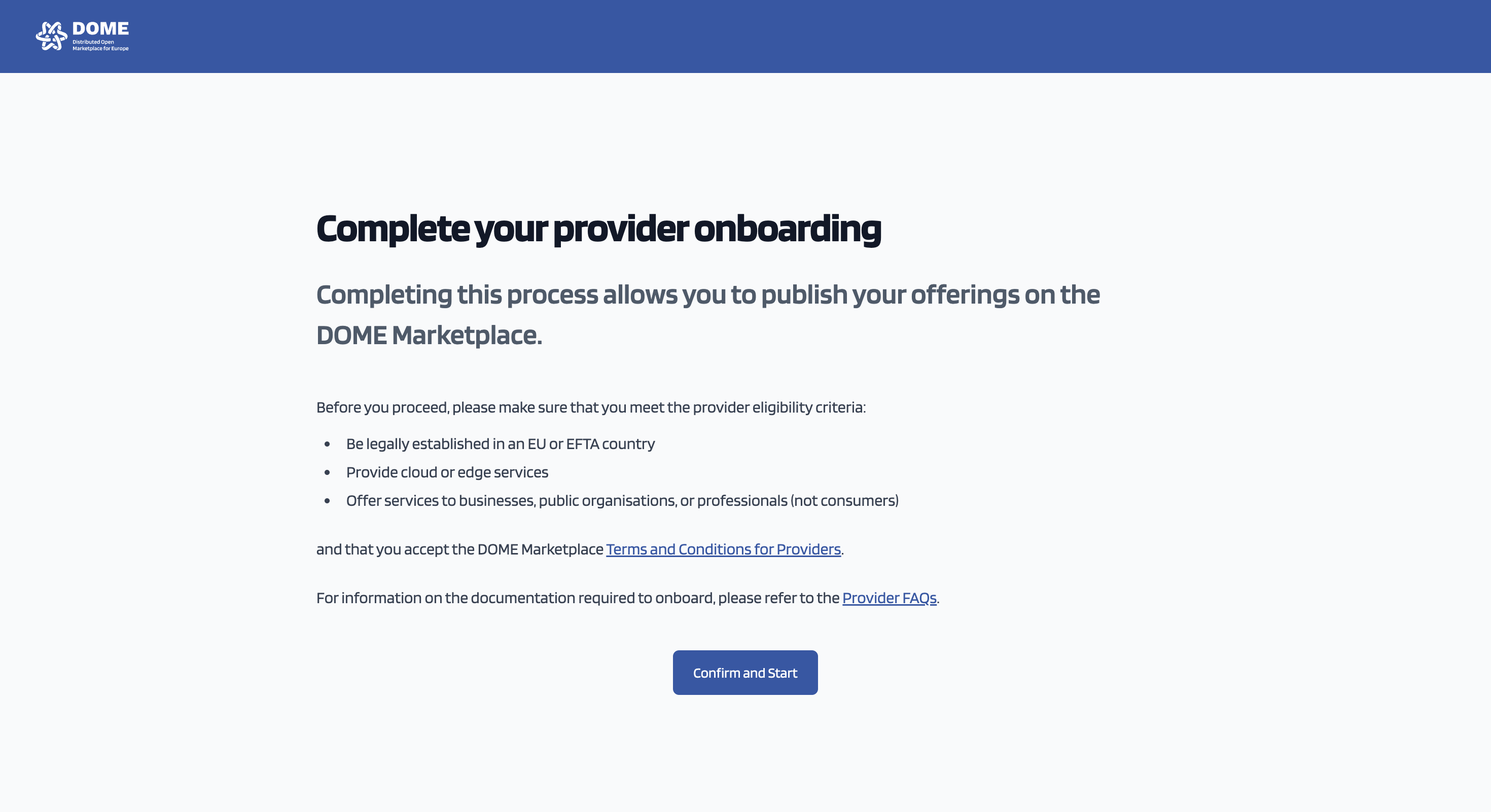
Click on confirm and start
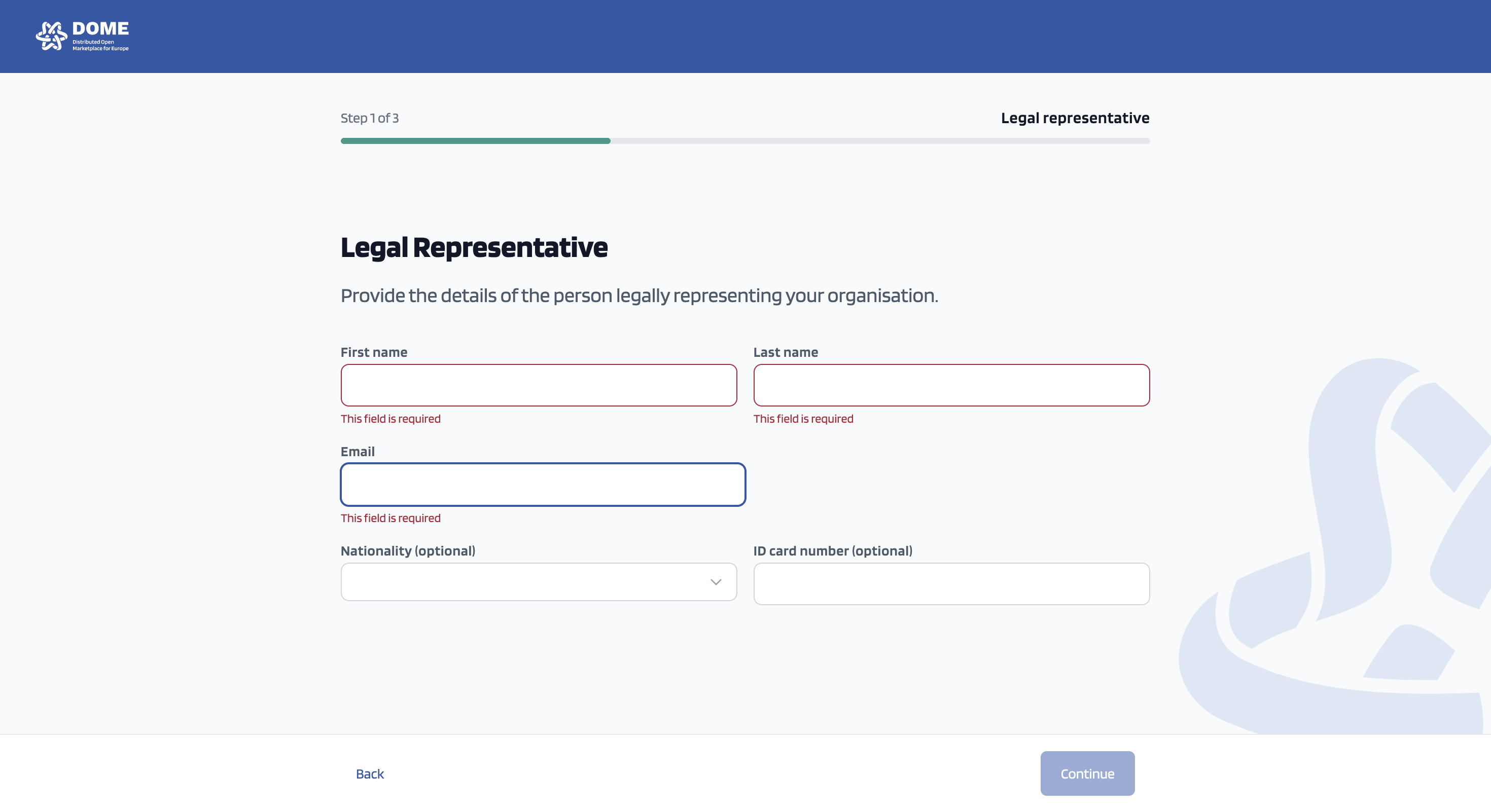
Fill in your company's legal representative information (for example, the CEO)
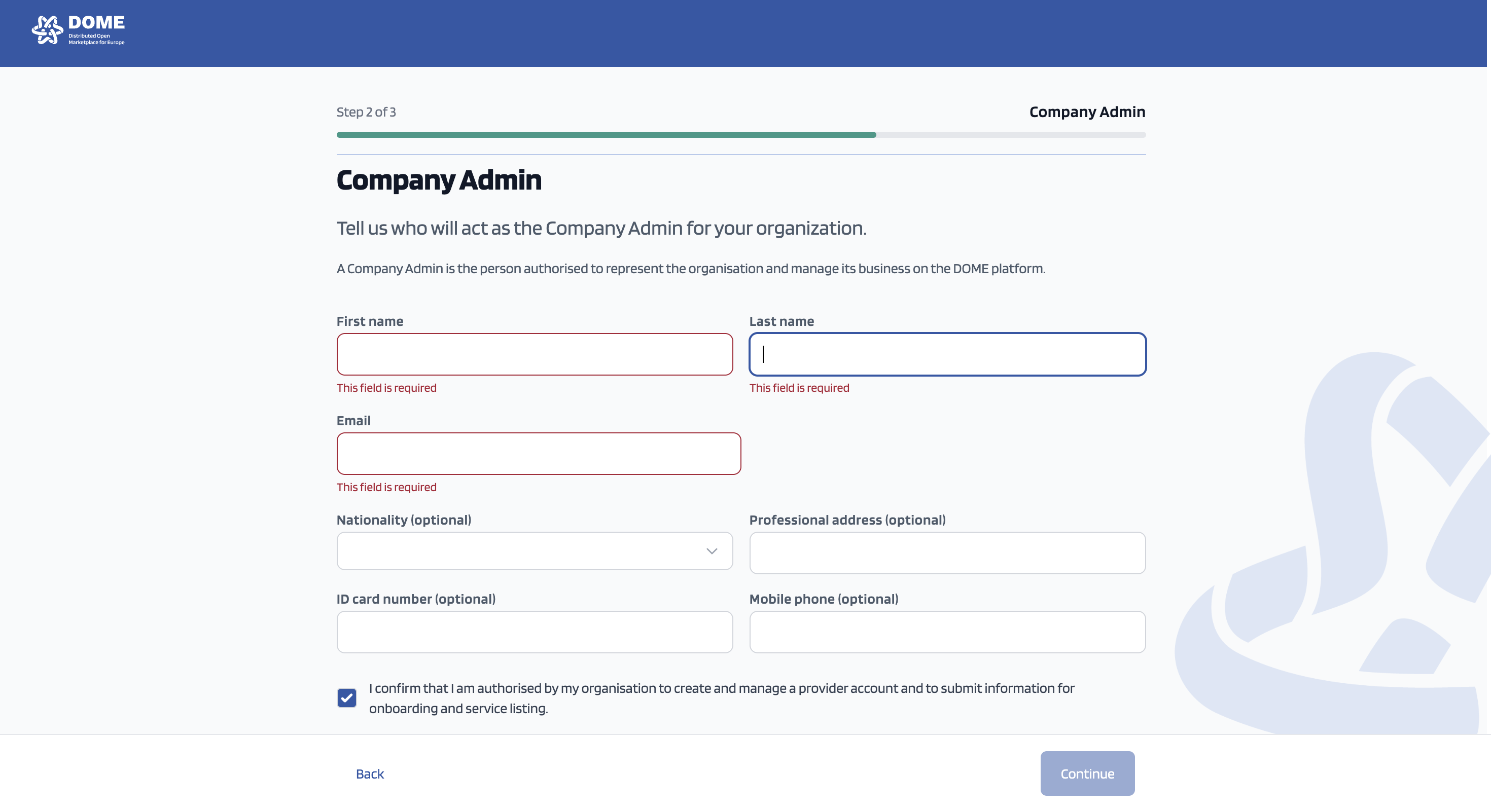
Fill in the information of the person who will be managing your company's account on DOME. This can be the same person as the legal representative.
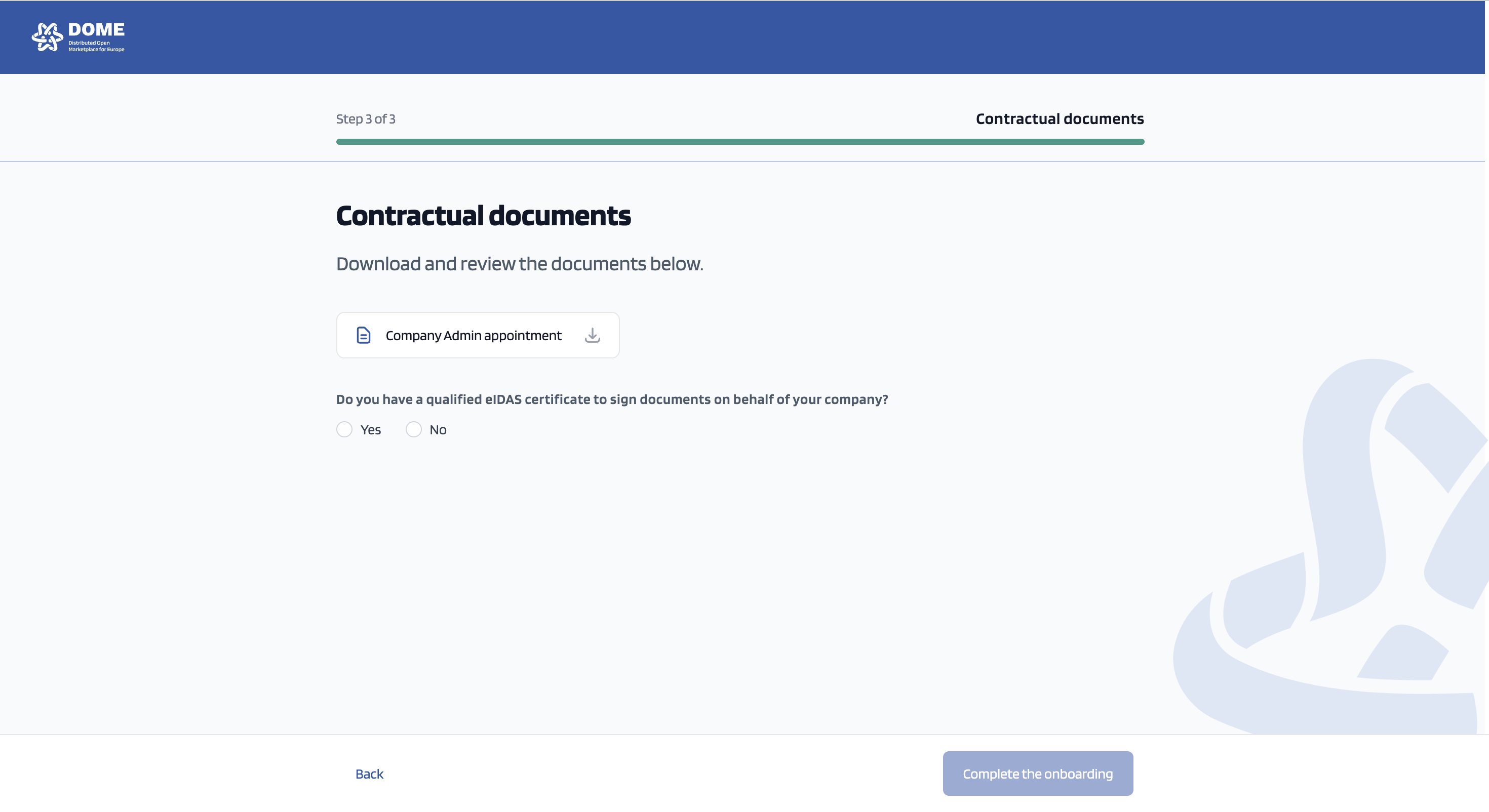
Download the Company Admin Appointment. Does your company have a qualified eIDAS certificate? If yes, use it to sign the document
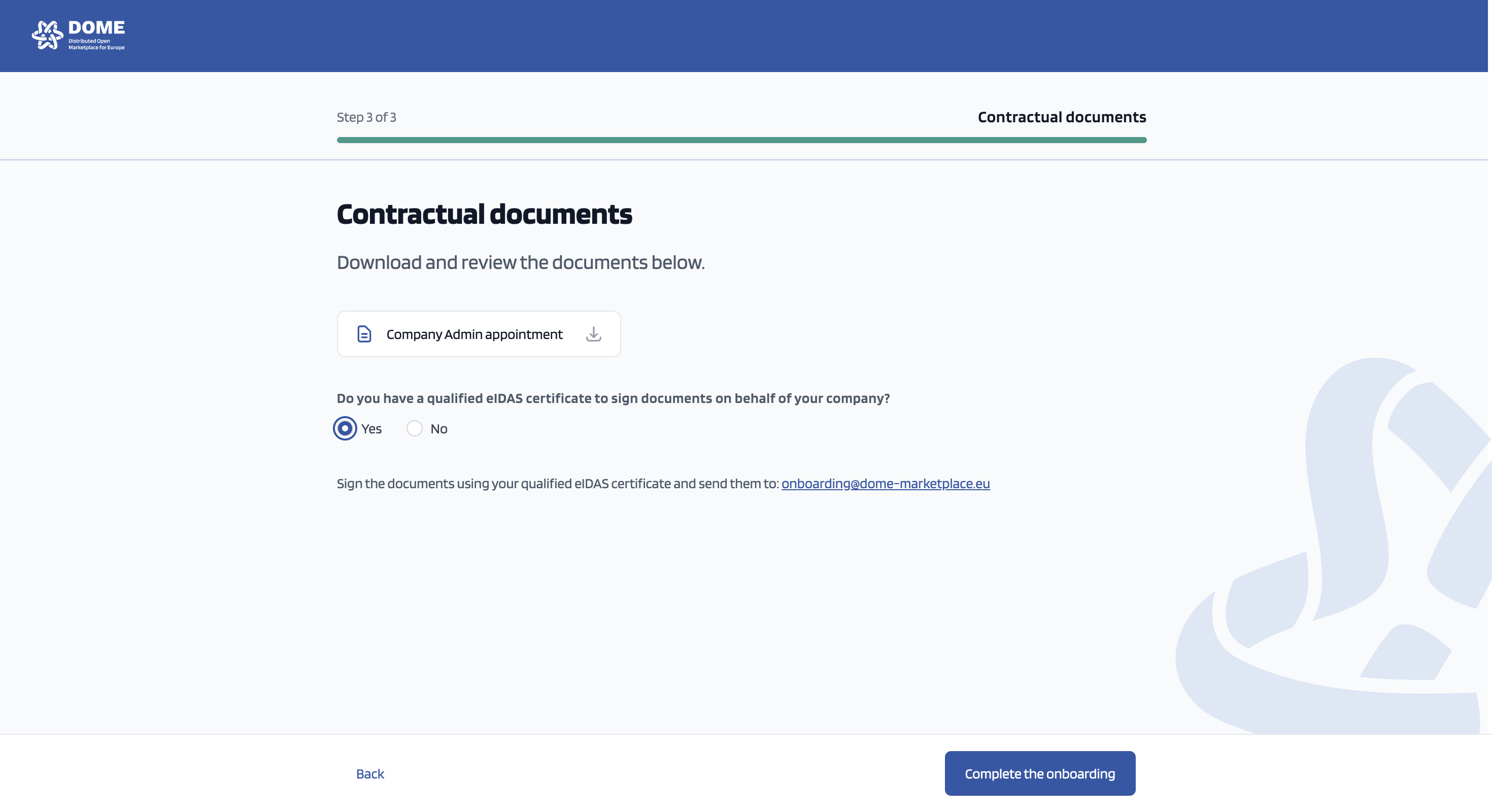
If not, sign the document and check where you have the rest of the documents listed below ;)
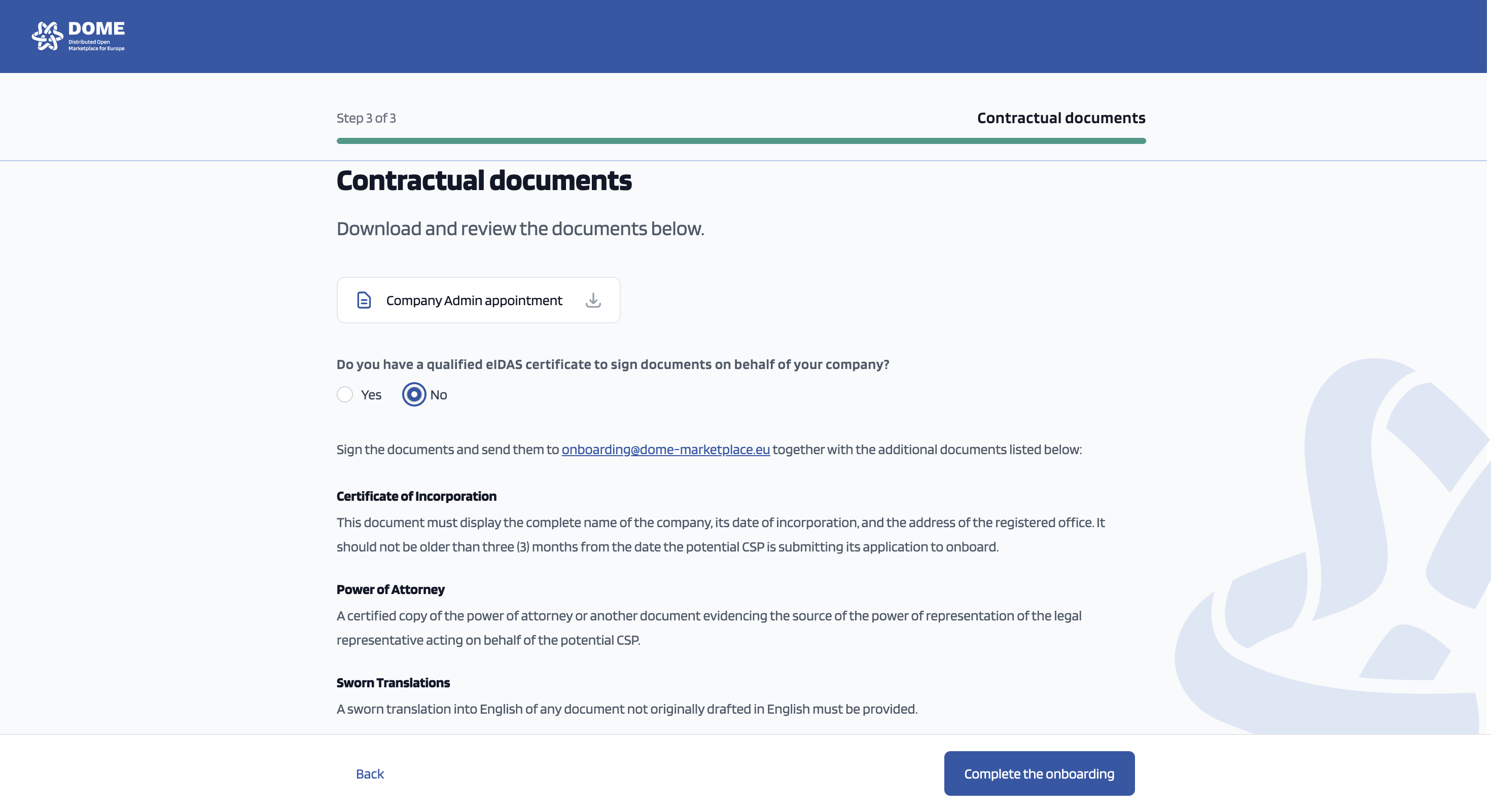
Send The Company Admin Appointment along with the rest of the documentation (if necessary) to onboarding@dome-marketplace.eu! Our legal team will get back to you within a couple of days ;)
Last but not least:
Check your email and click on the button "Start Activation".
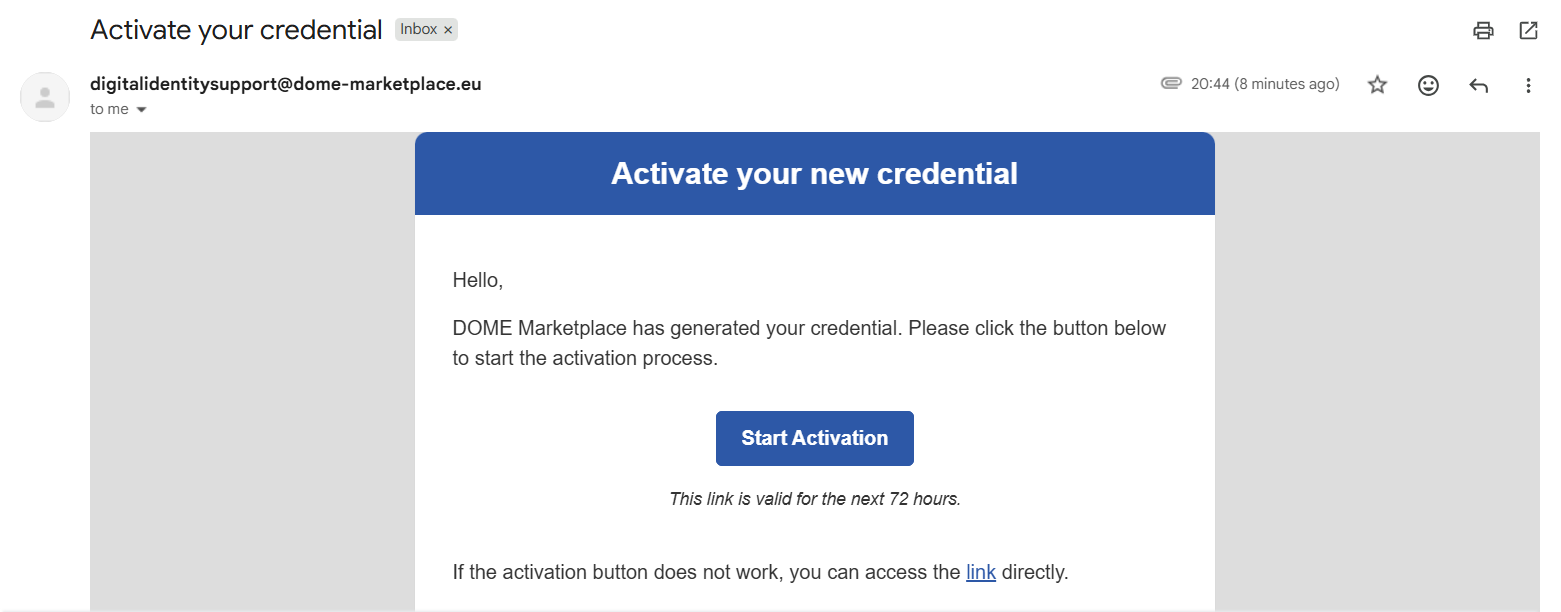
Open your camera to scan the QR code on the screen. If you prefer, you can clink on the Digital Wallet link to access it.
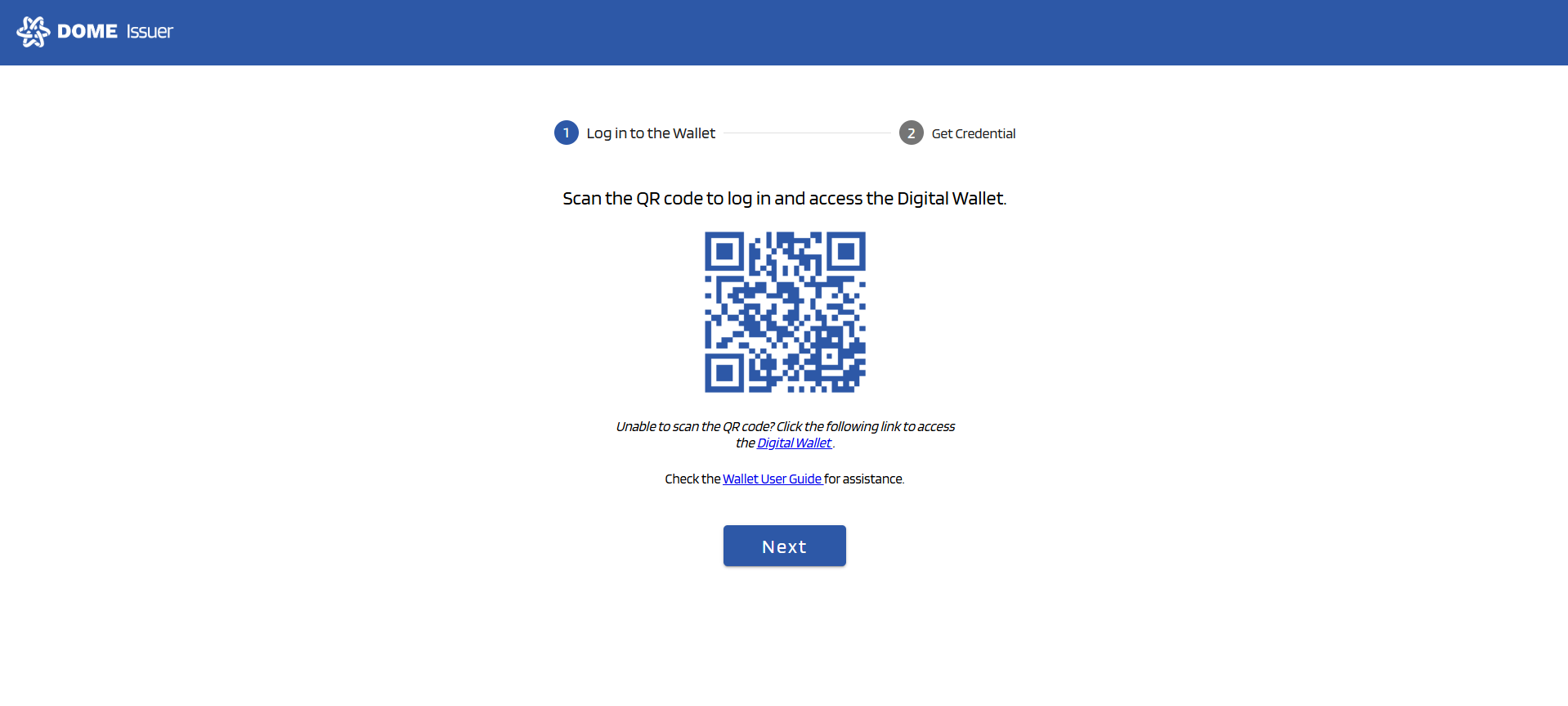
After scanning the QR code with your phone, you are redirected to the DOME Wallet page. As a new user, click on "Register" and enter the required information. After filling in the information, click on "Register" at the end of the screen.
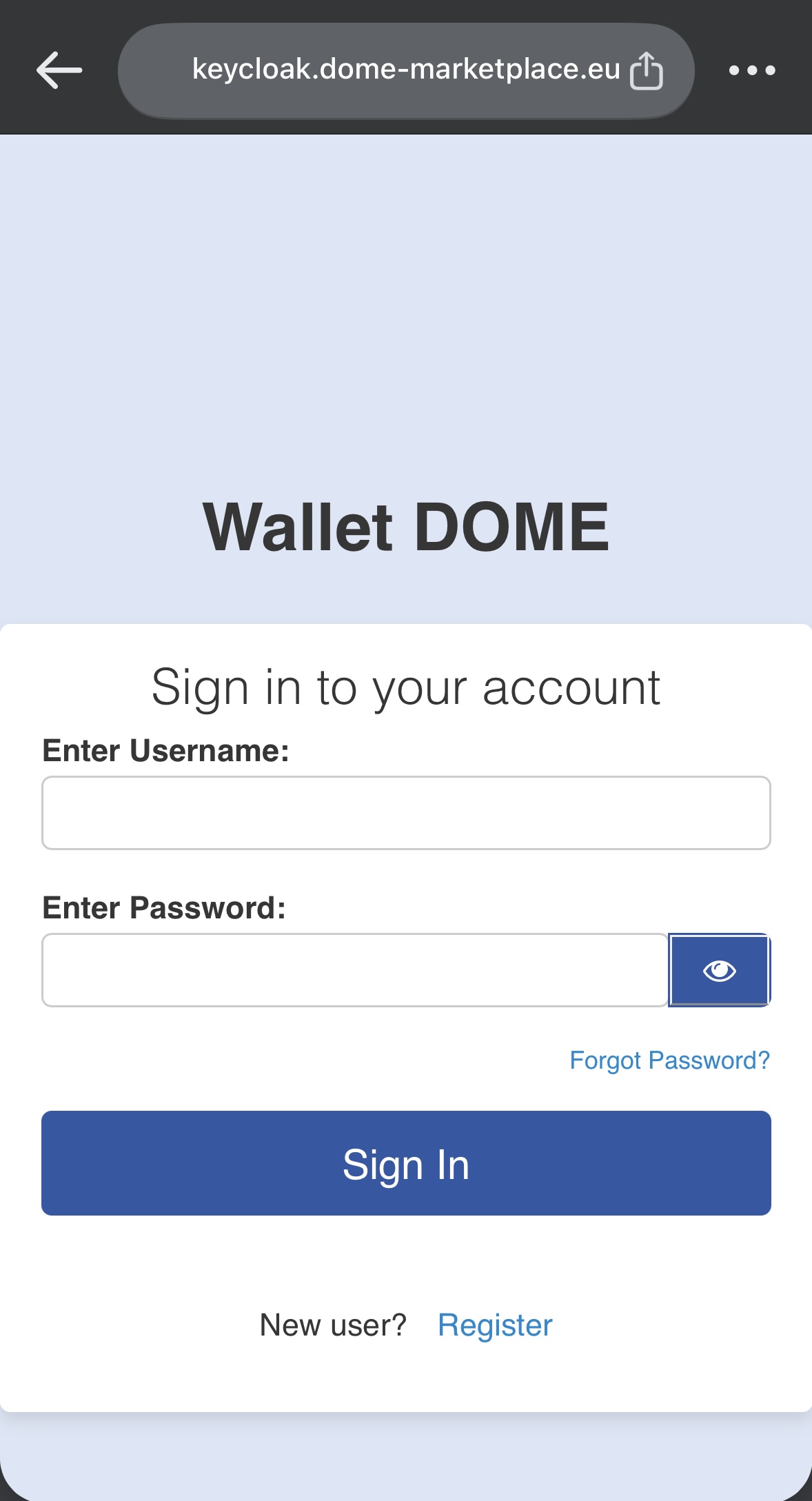
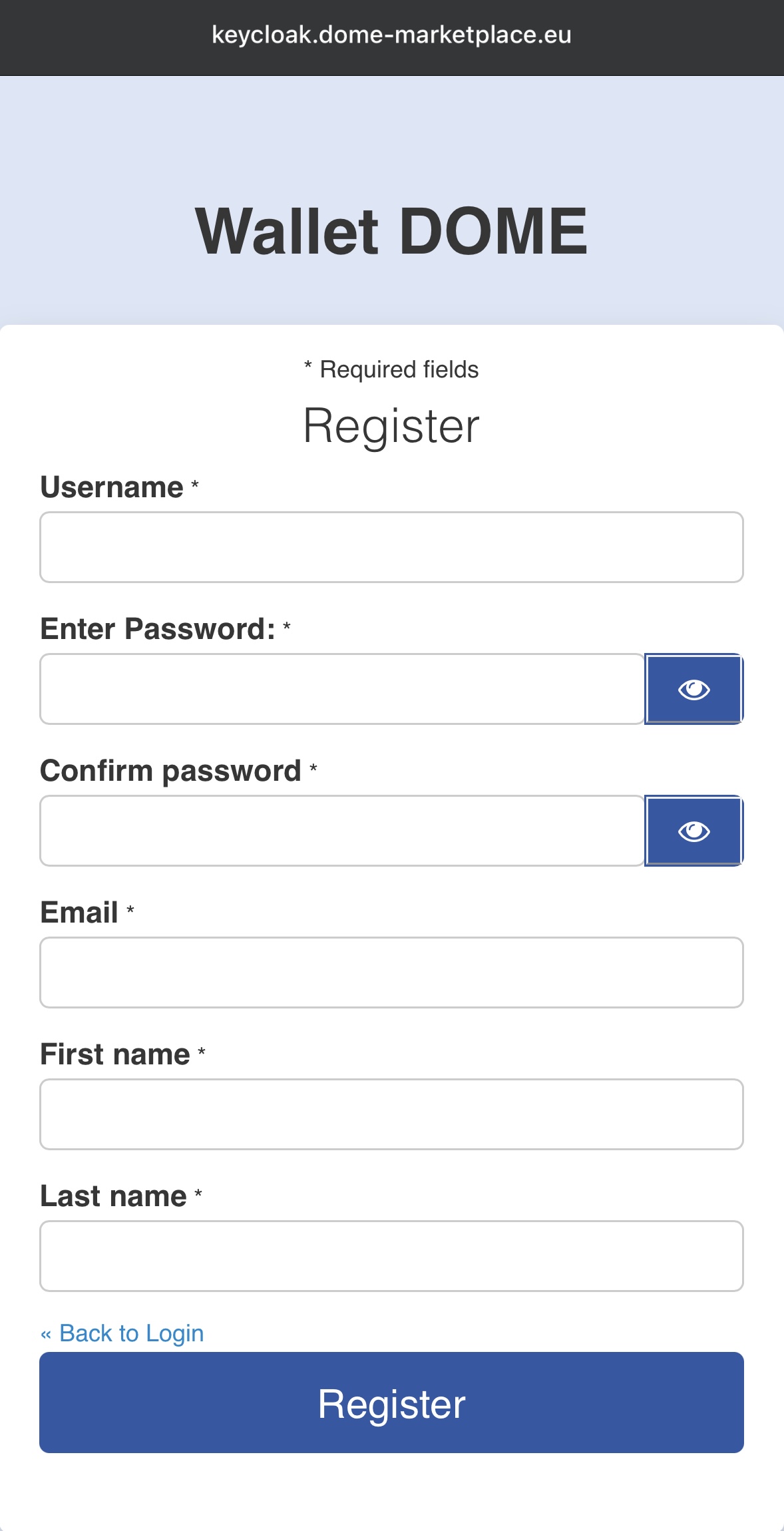
Go back to your PC screen and click on "Next"
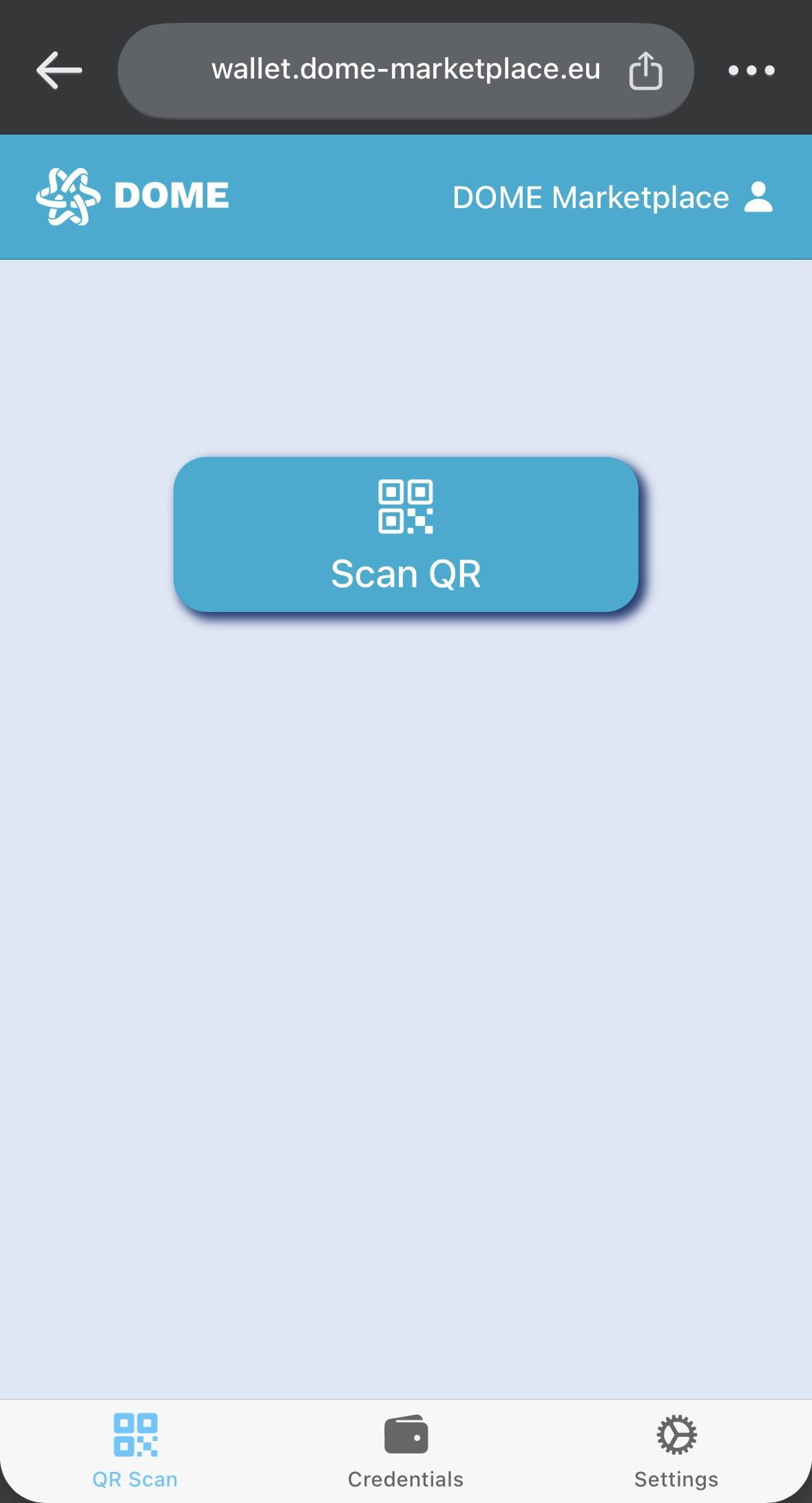
Being logged in on your DOME wallet, use the tab QR scan and scan the QR code on the PC screen
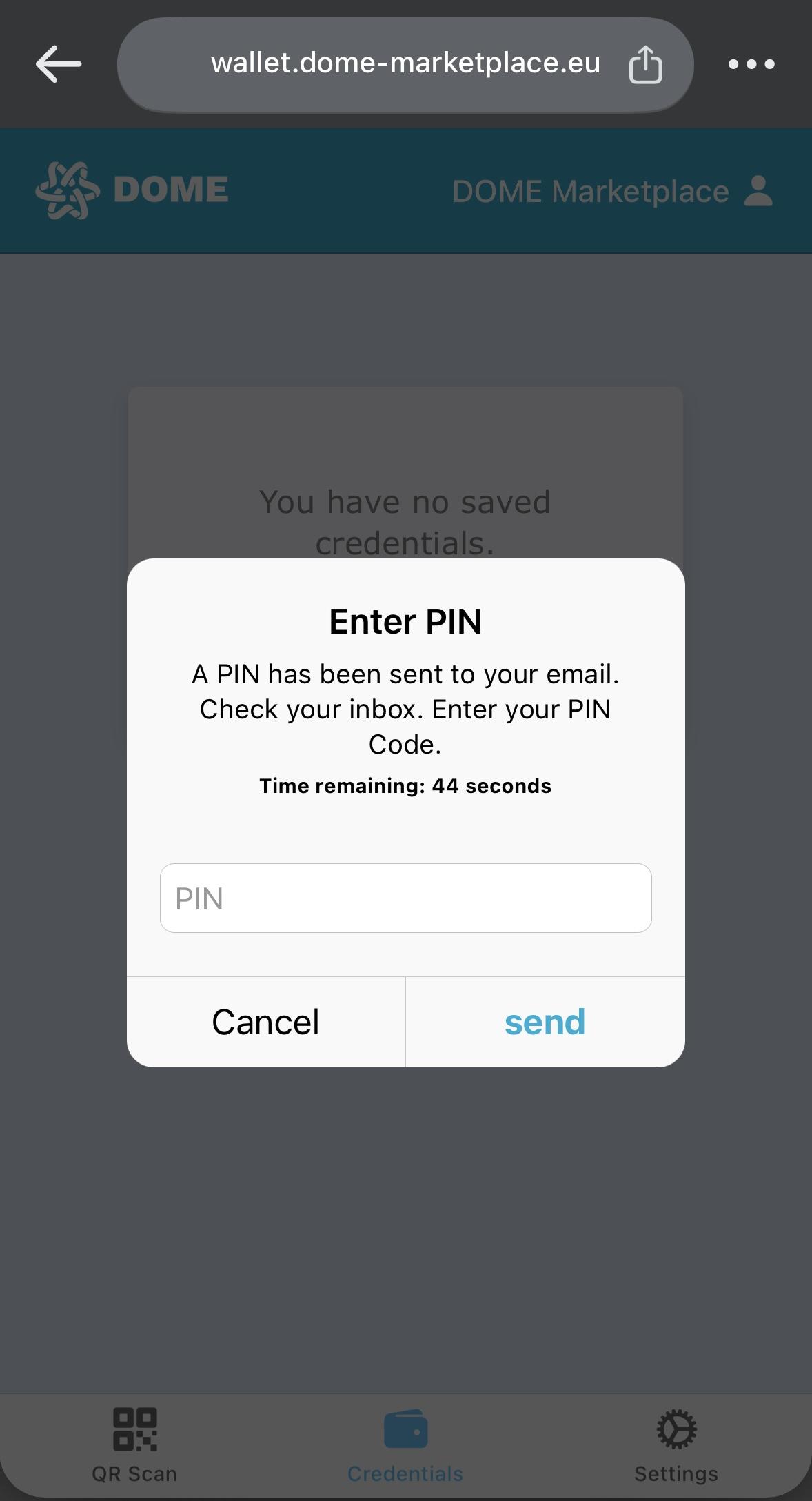
Check your email and enter the PIN you received
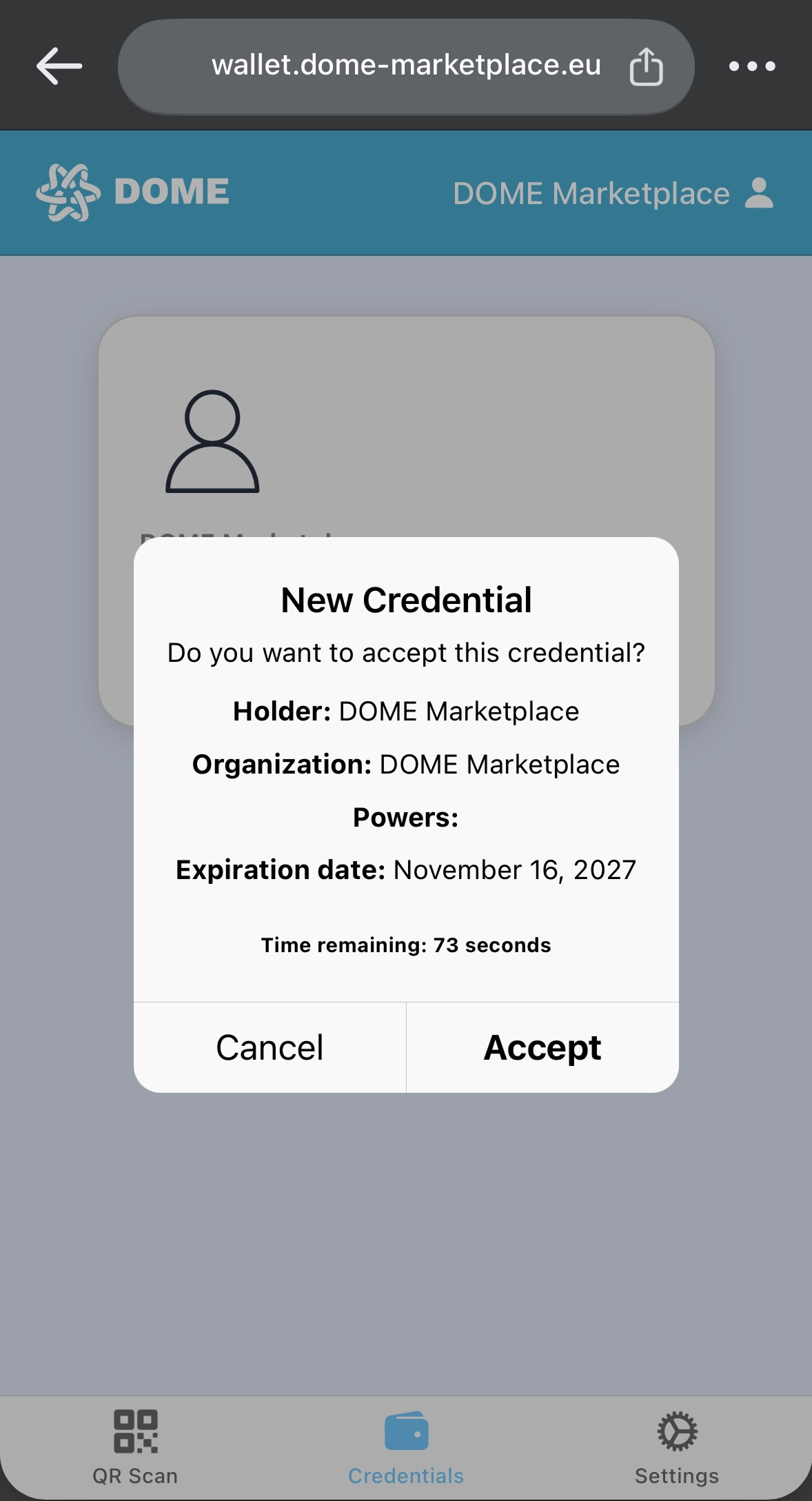
Accept the credential which is now stored in your DOME wallet.