
3. Service Provider Onboarding process
When you enter into the DOME Marketplace homepage, you will be asked whether you want to register as a Provider or as a Customer by clicking the appropriate button .
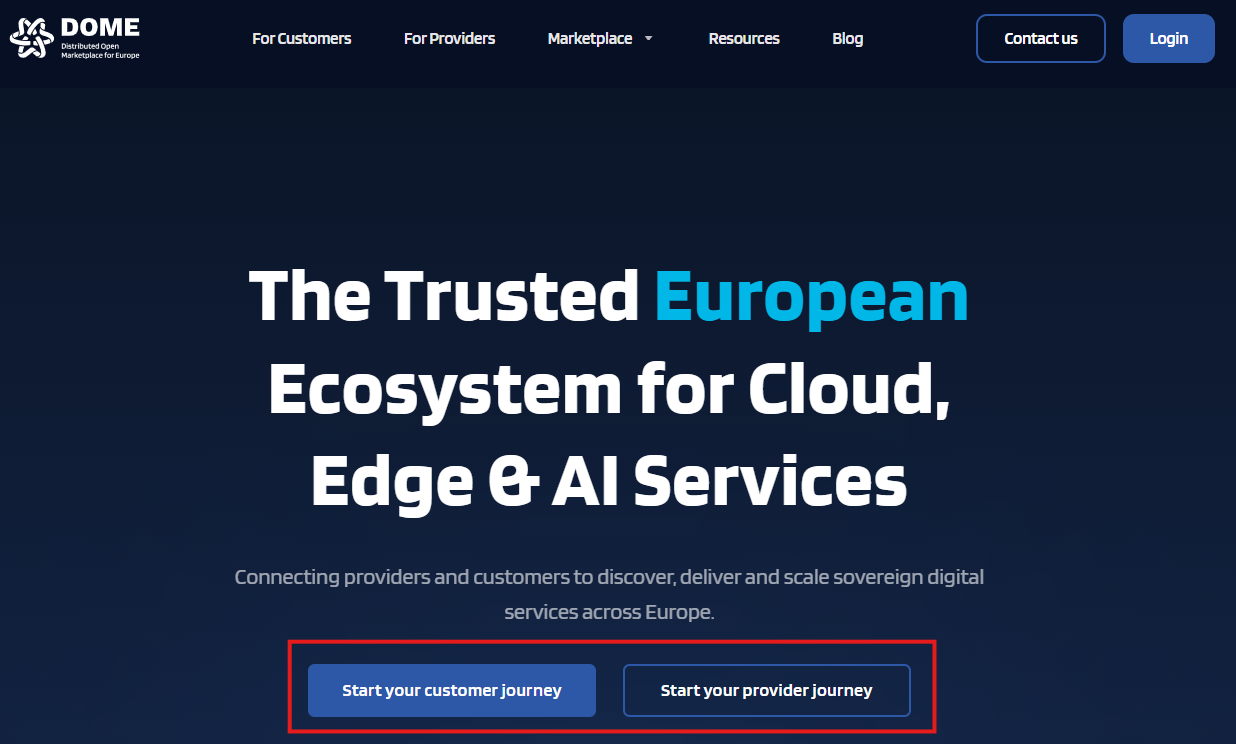
By clicking on the "Start your provider journey" button, you 'll be redirected to the provider landing page, with all the necessary information that a service provider needs to know before the onboarding.

By clicking on the button "Start Provider onboarding", you are redirected to the online onboarding forms where you must enter the information requested.
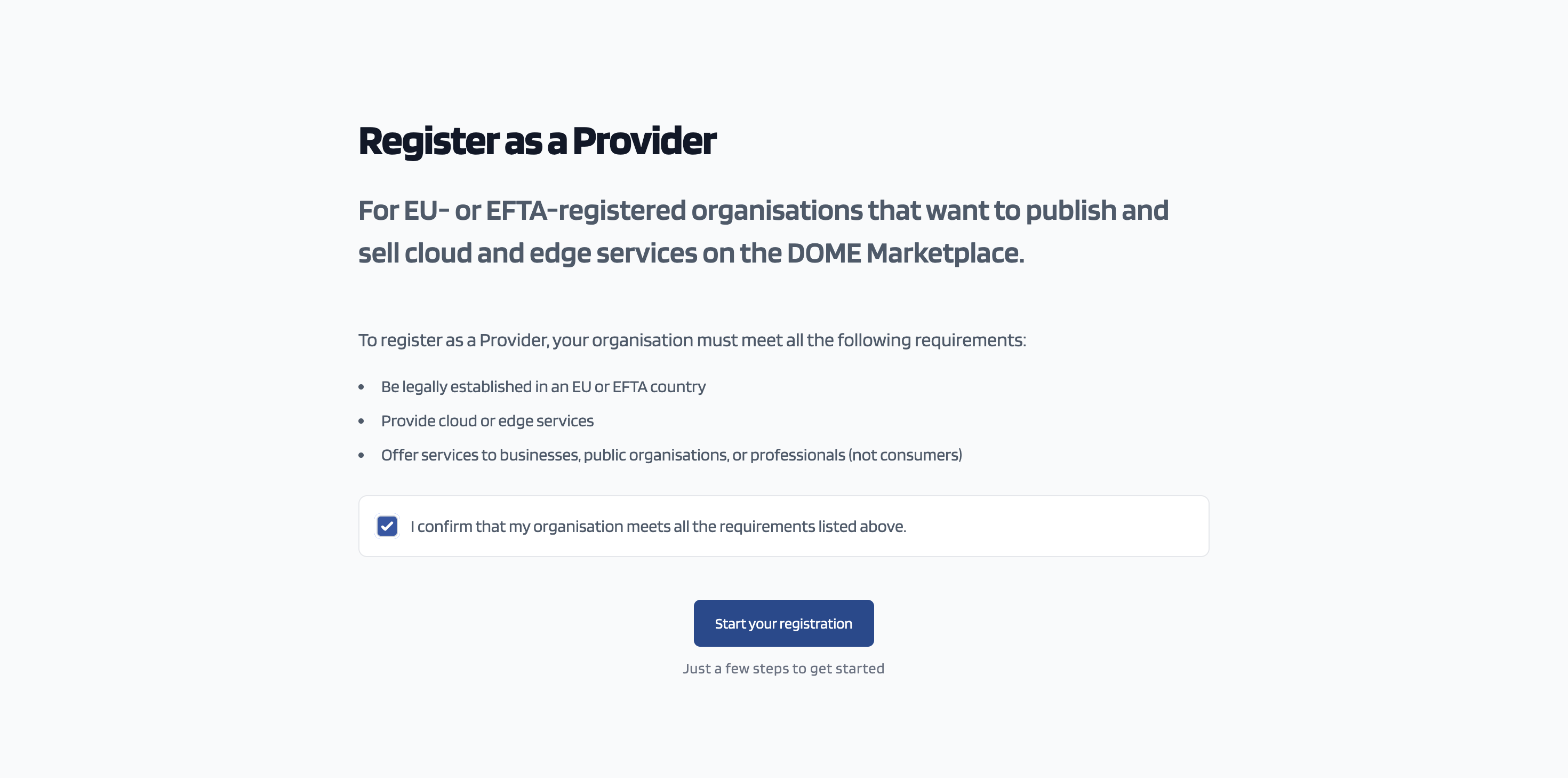
You need to tick the box, confirming that your company is eligible to onboard the DOME Marketplace as a service provider and click on the "Start your registration" button
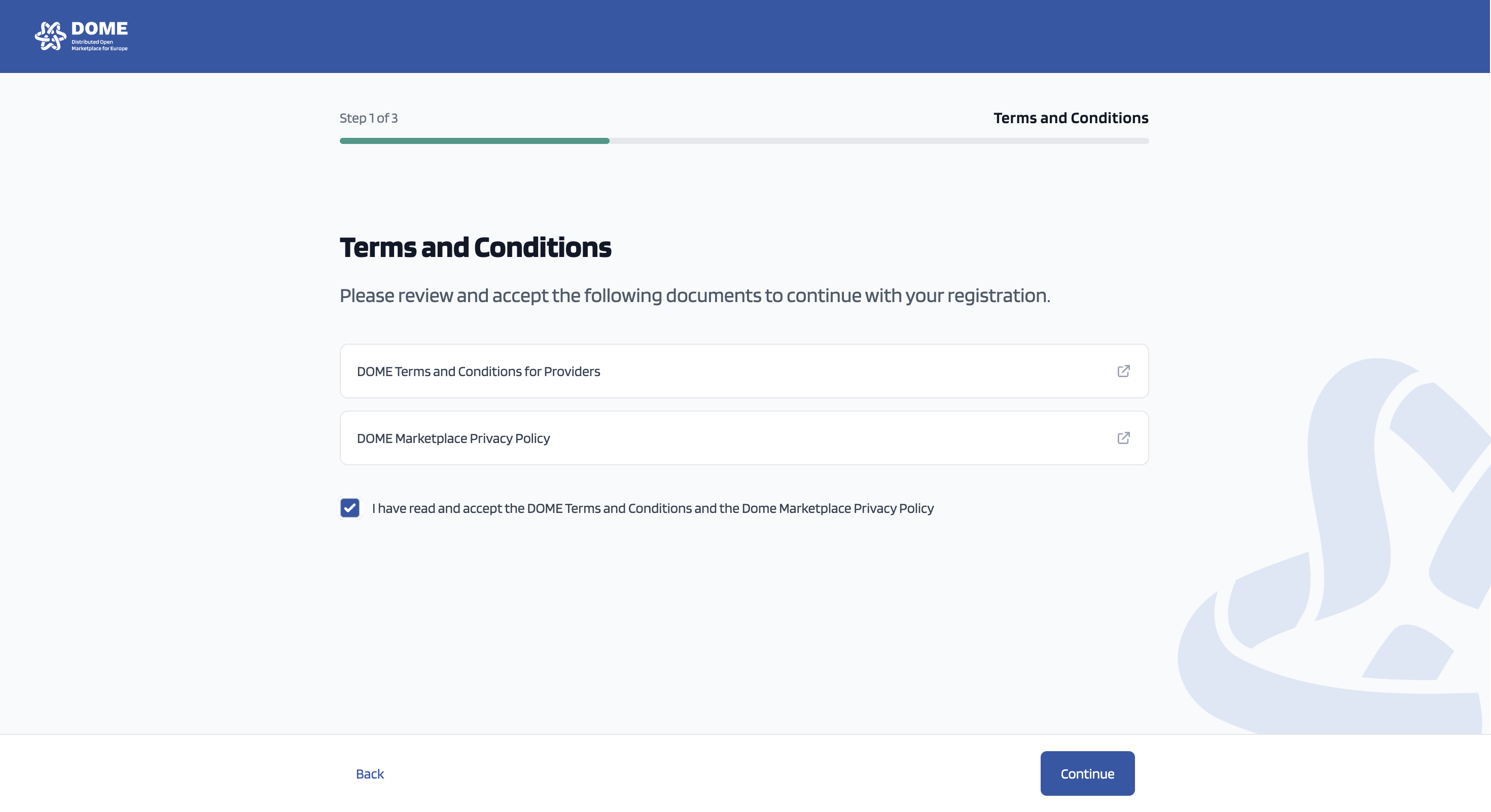
The DOME Marketplace Terms and Conditions for Providers as well as the Privacy Policy are available to read. You need to tick the box confirming that you have read and accepted the content of both documents. Then you click on the "Continue" button.
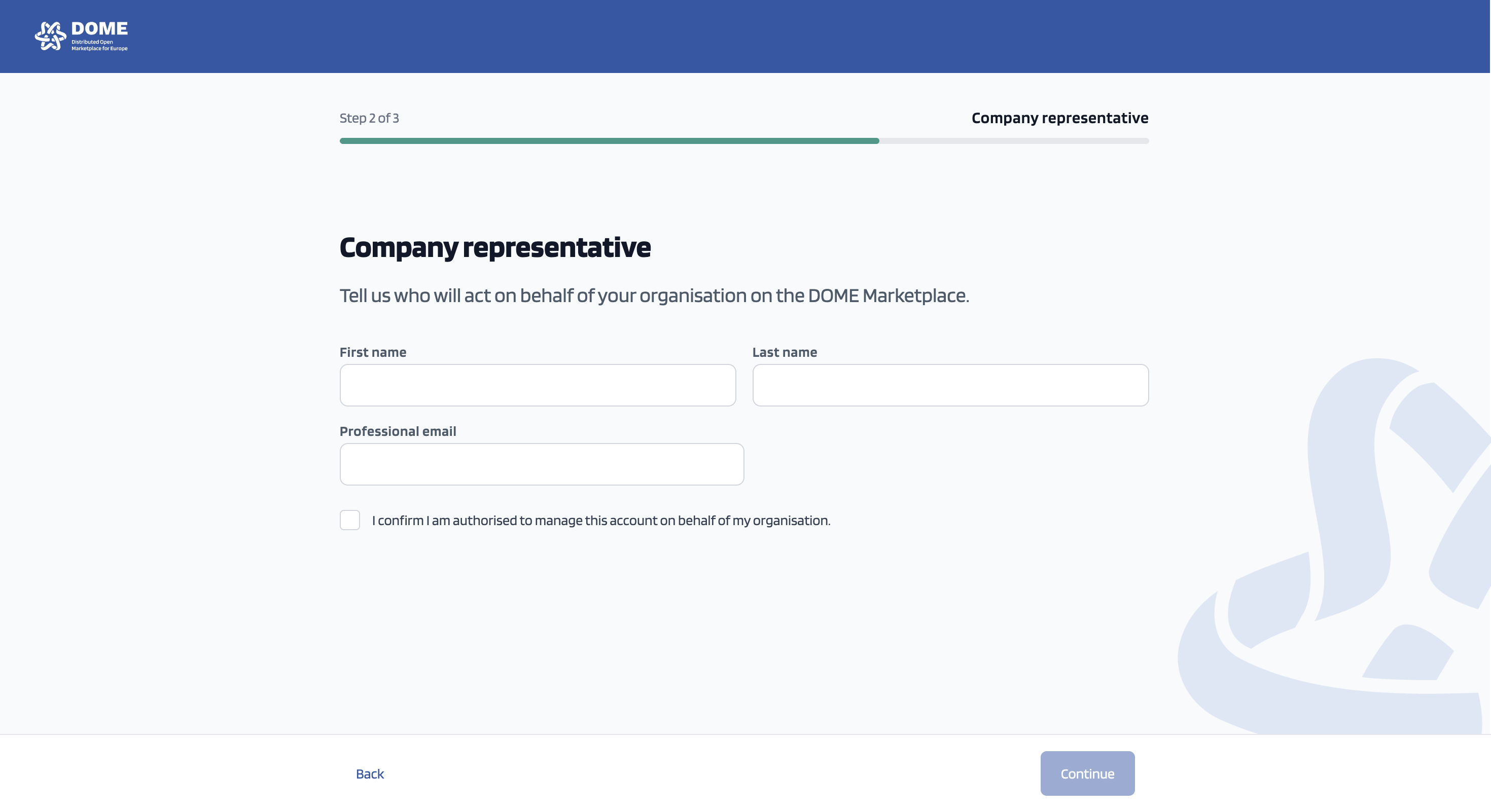
You need to fill in your information in the above screen and tick in the box confirming that you are authorised to act on behalf of your organisation. Then you click on the "Continue" button.
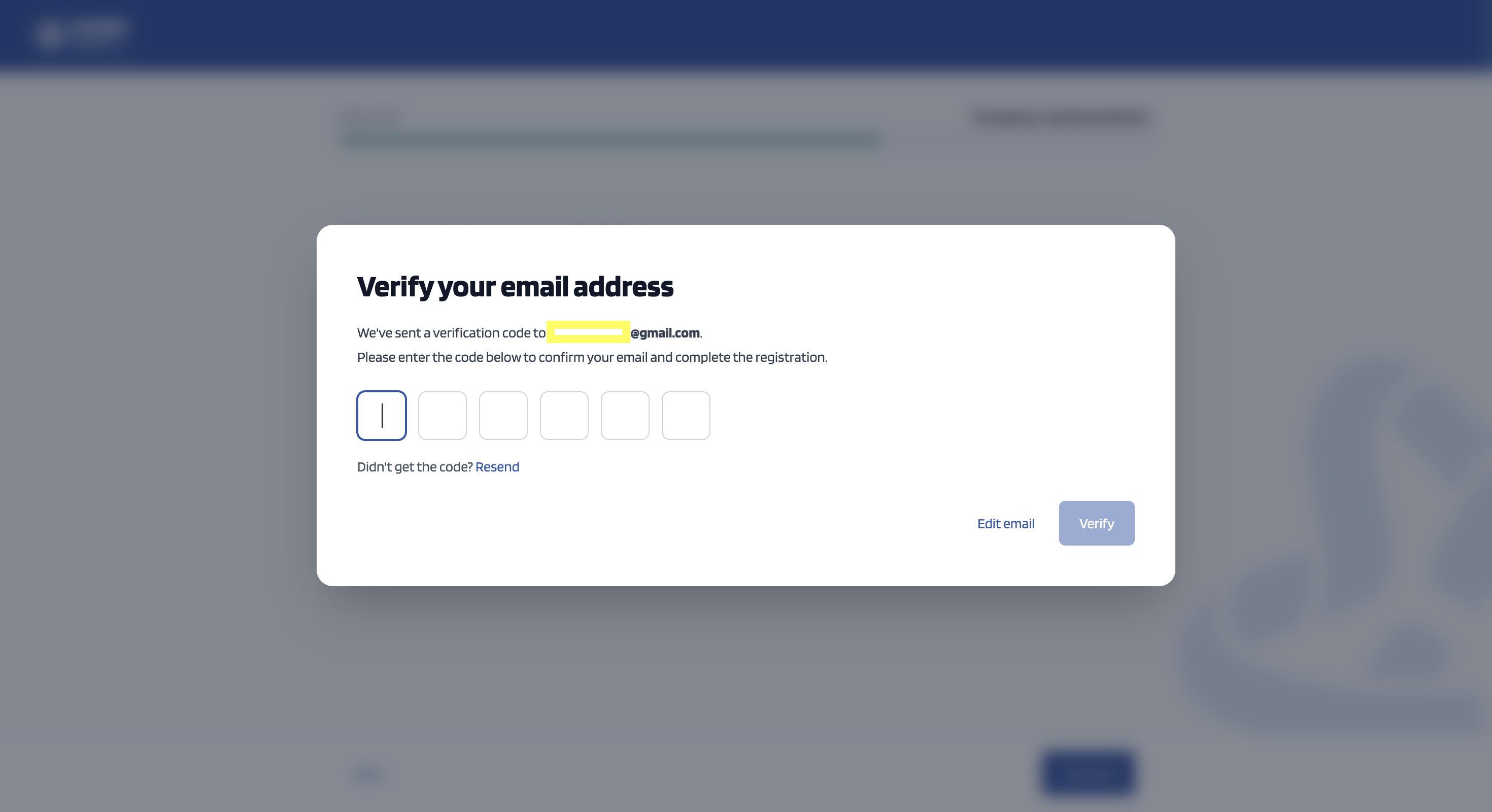
Check your email for the verification code. If you did not get the code - after checking your spam folder ;) , press "Resend". After you fill in the code, click "Verify".
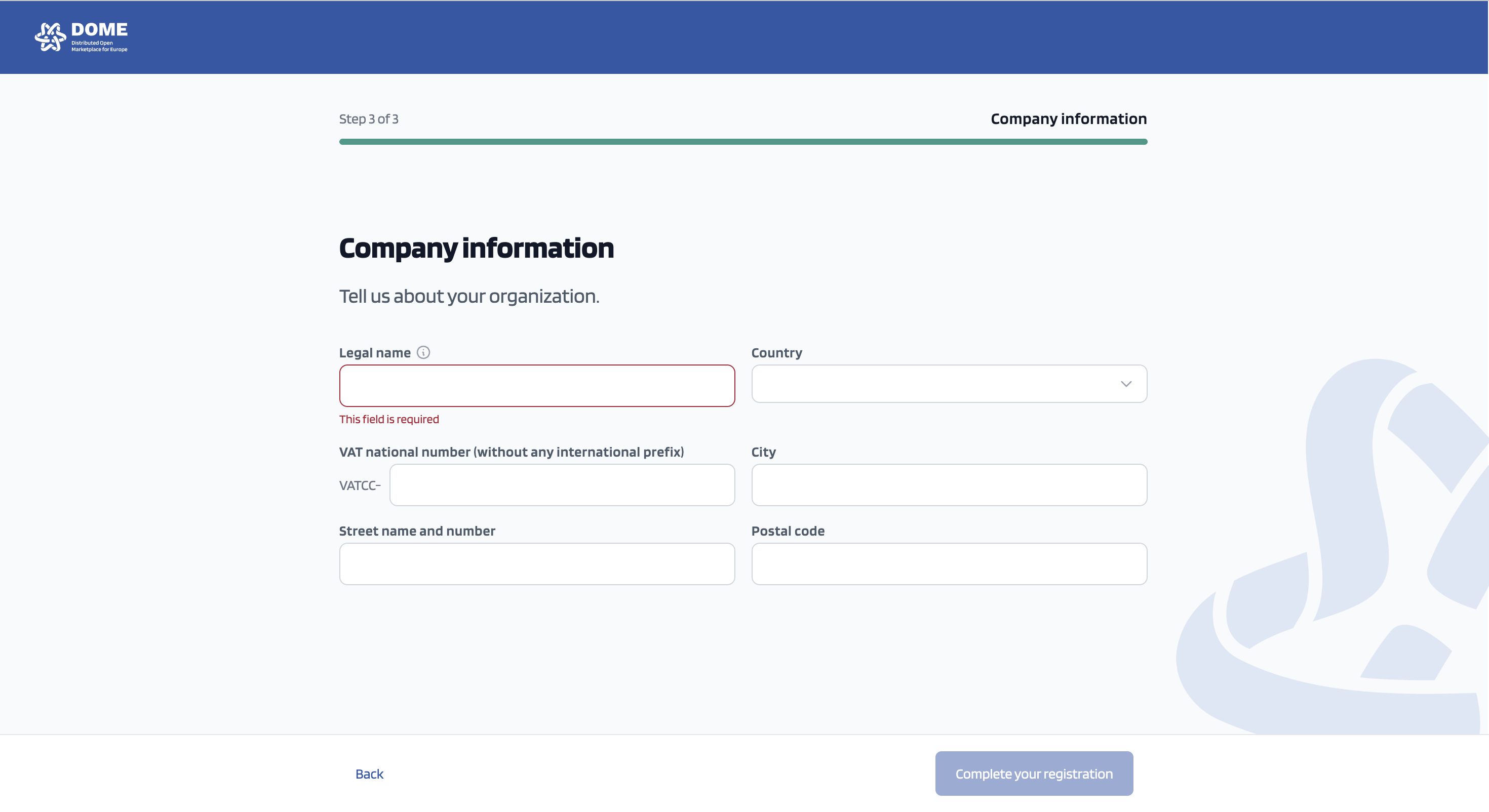
Fill in your company information, and in the VAT field add only the numeric values of your company's VAT id. After this, click on "Complete your registration".
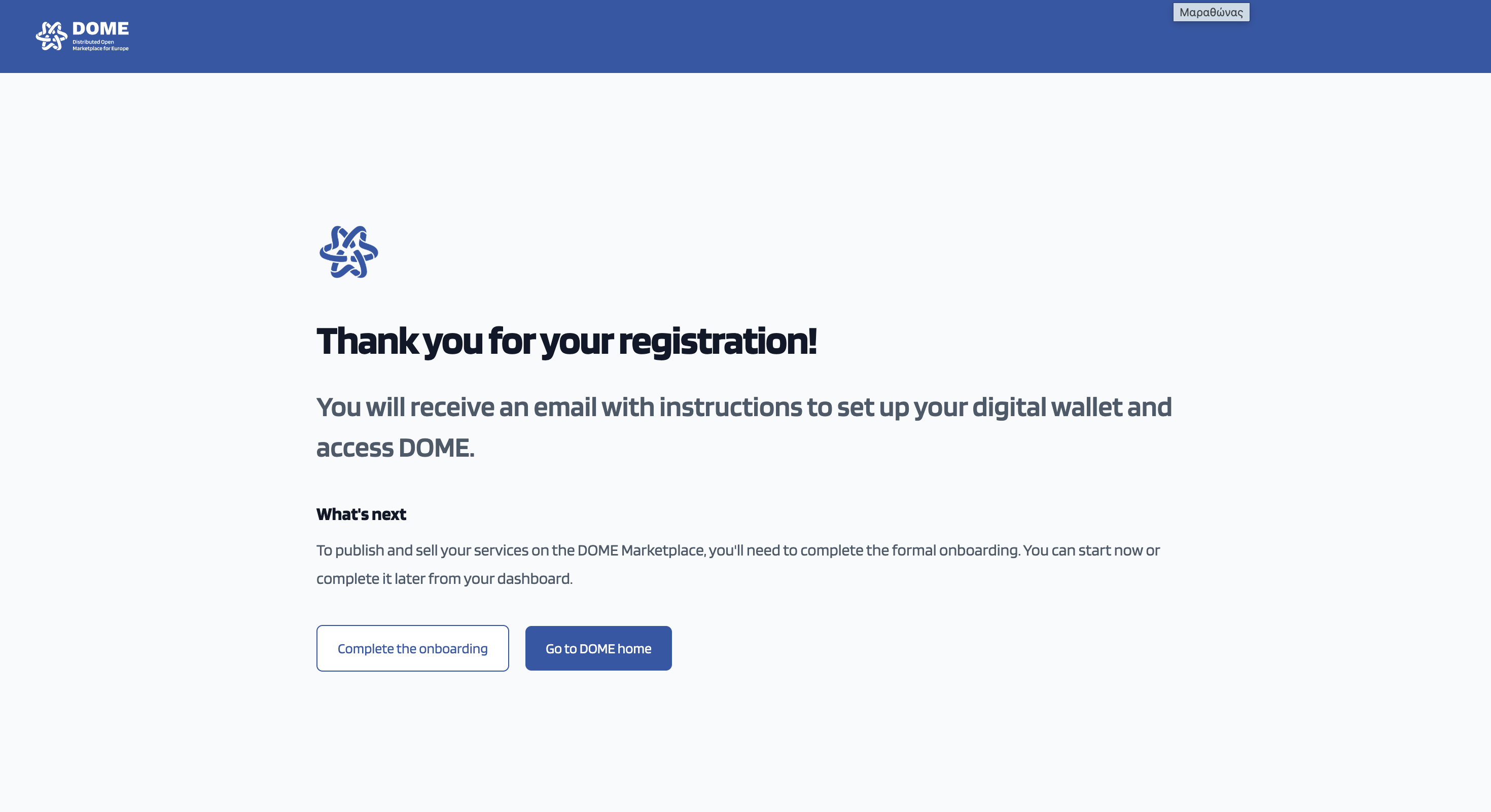
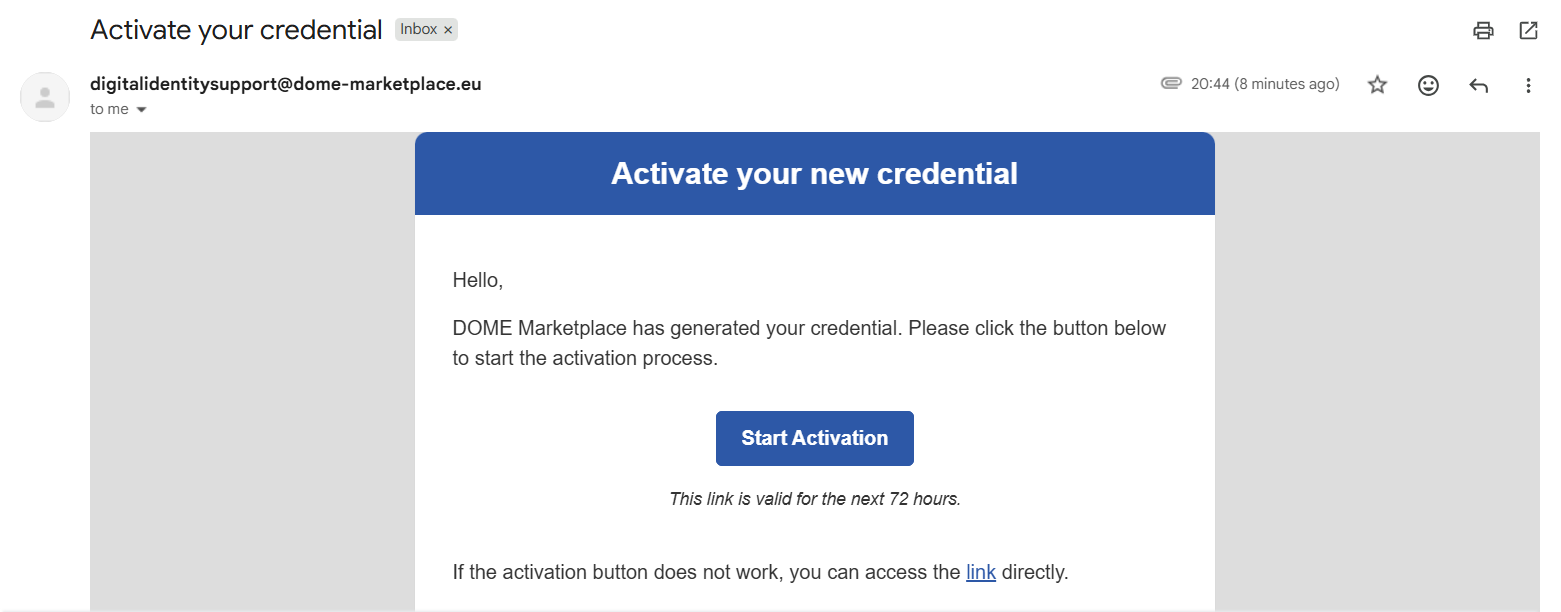
Step 1 of the onboarding is completed! Check your email because you need to download your wallet, activate and store your credential in it. Click on the button "Start Activation".
Open your camera to scan the QR code on the screen. If you prefer, you can clink on the Digital Wallet link to access it.
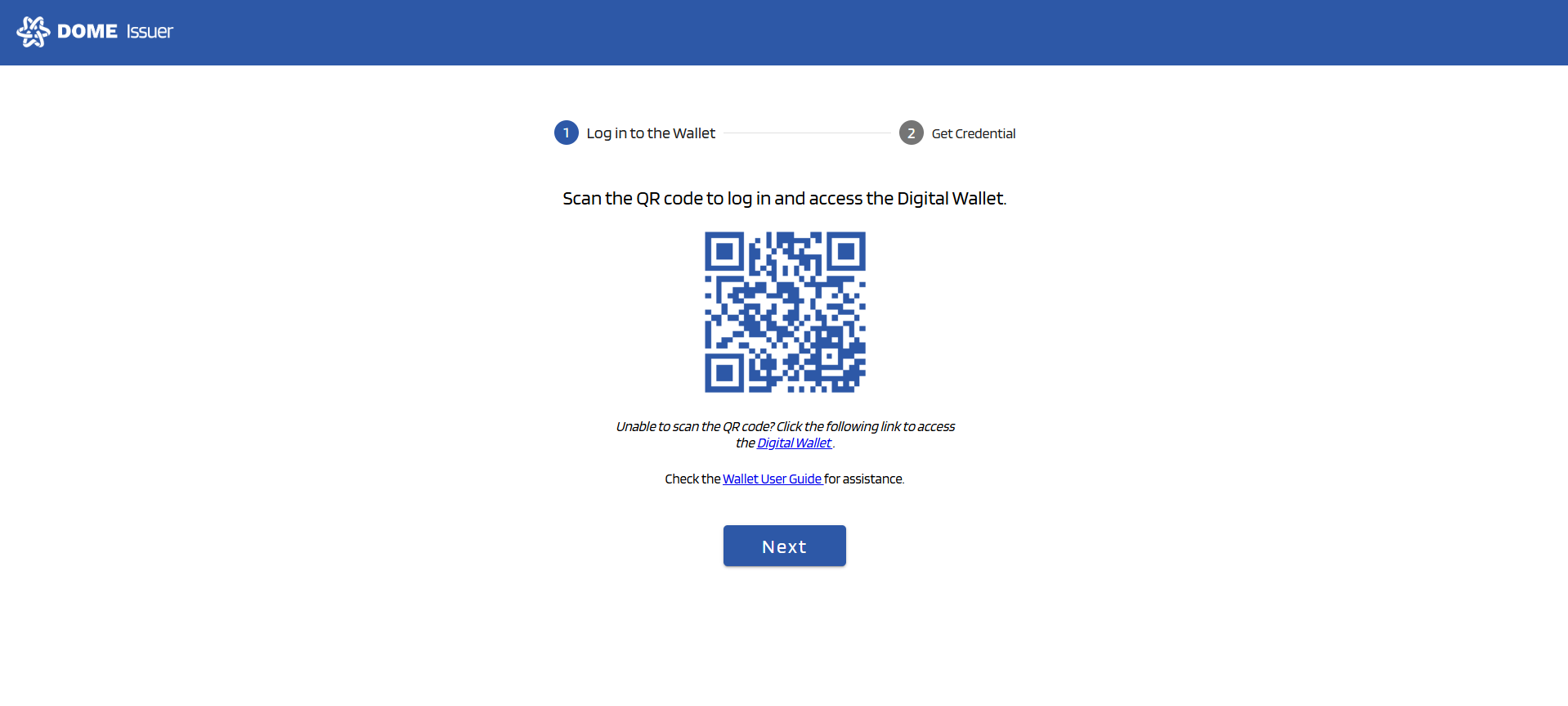
After scanning the QR code with your phone, you are redirected to the DOME Wallet page. As a new user, click on "Register" and enter the required information. After filling in the information, click on "Register" at the end of the screen.
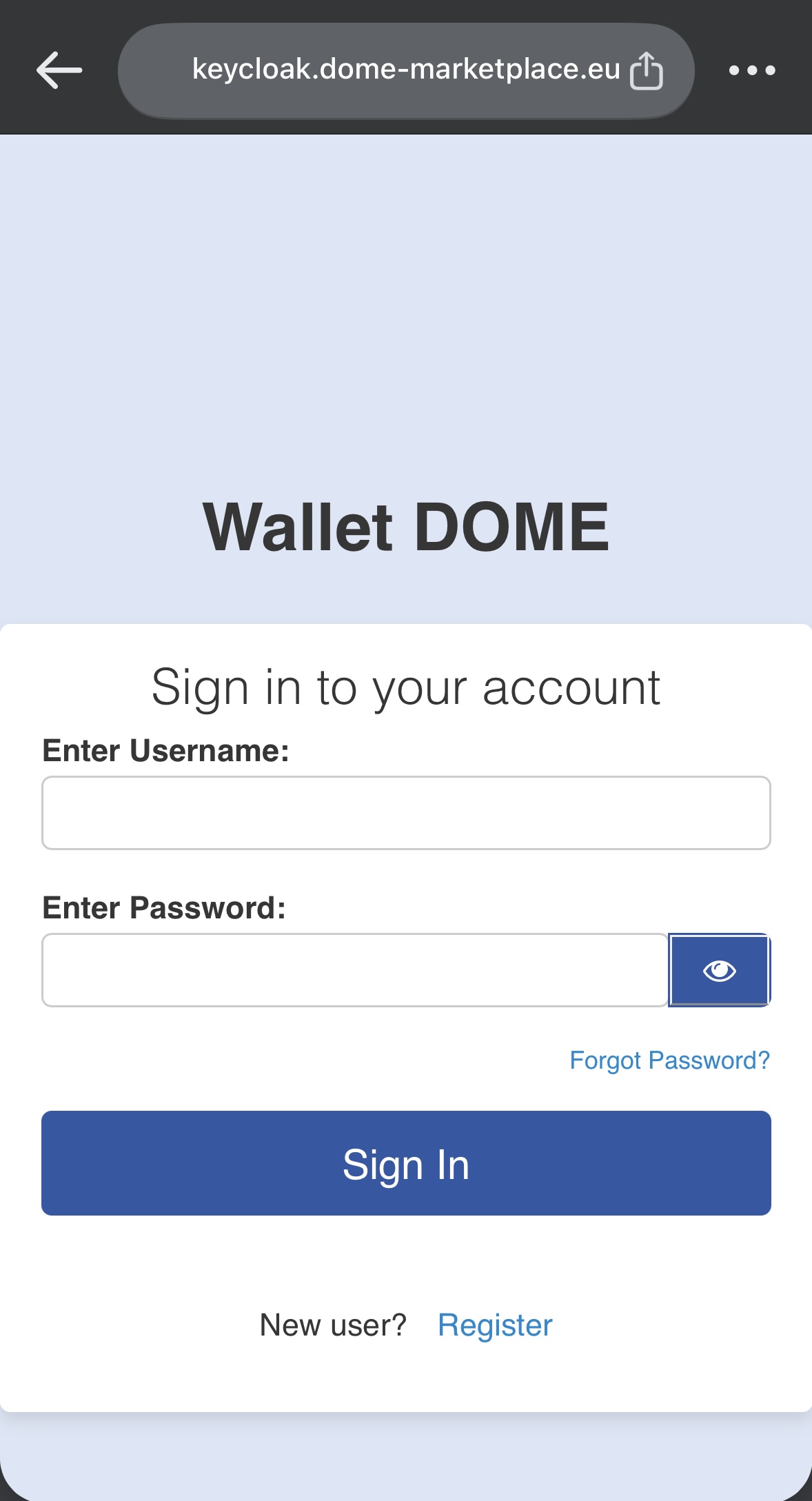
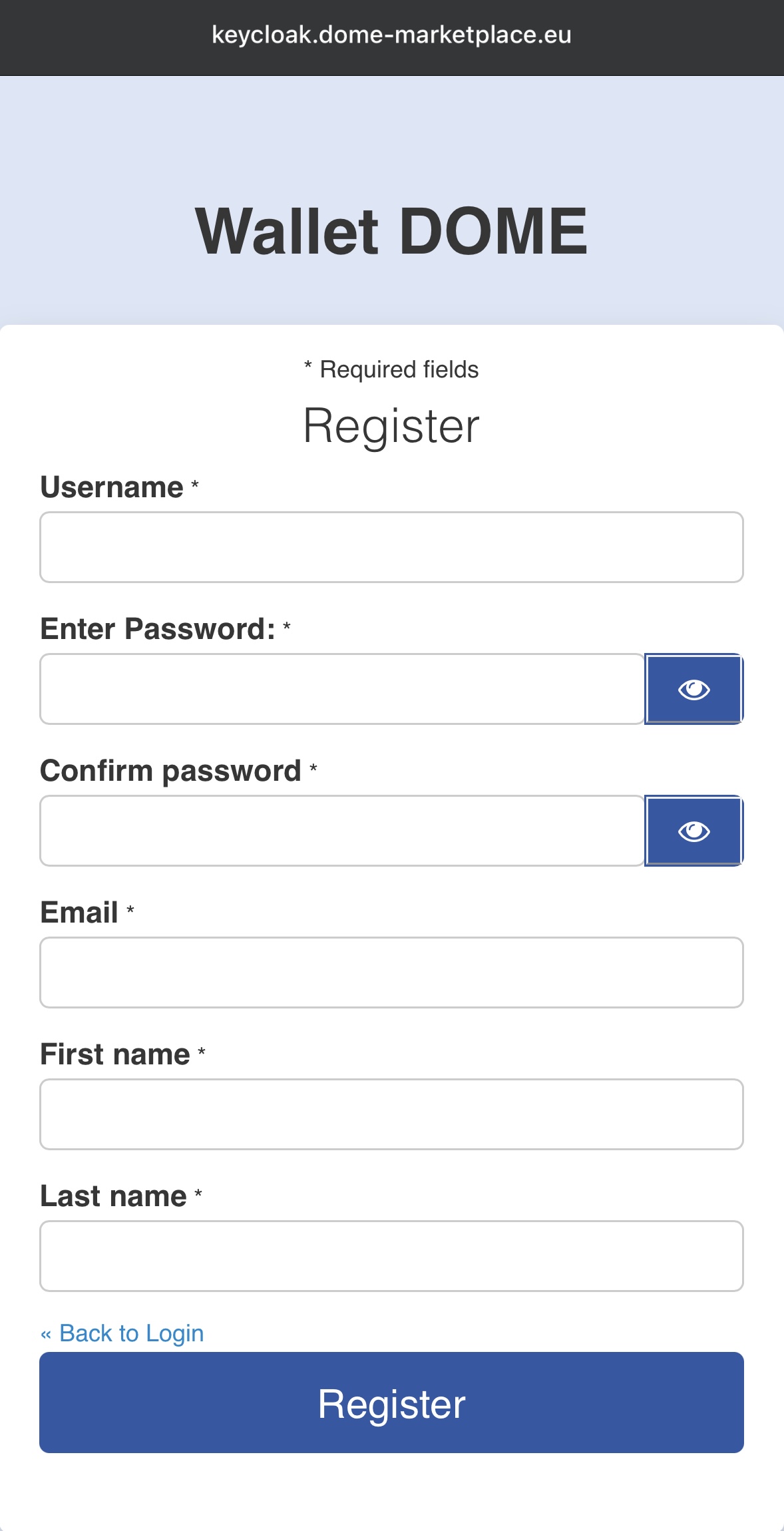
Go back to your PC screen and click on "Next"
Being logged in on your DOME wallet, use the tab
dly refer to the Practical comments to Appointment Of Legal Entity Appointed Reprepentative Form. This document offers practical advice and detailed instructions on how to properly fill out the LEAR form.
Once you have filled in the information requested, when you click the 'Submit and create documents', you will get to another screen where the declarations have been automatically generated with your data.
Please, carefully check all the data you submit before creating the documents to make sure that all the information is correct.
Once you have generated the documents, you must print the Declaration of Honor and the LEAR appointment form.
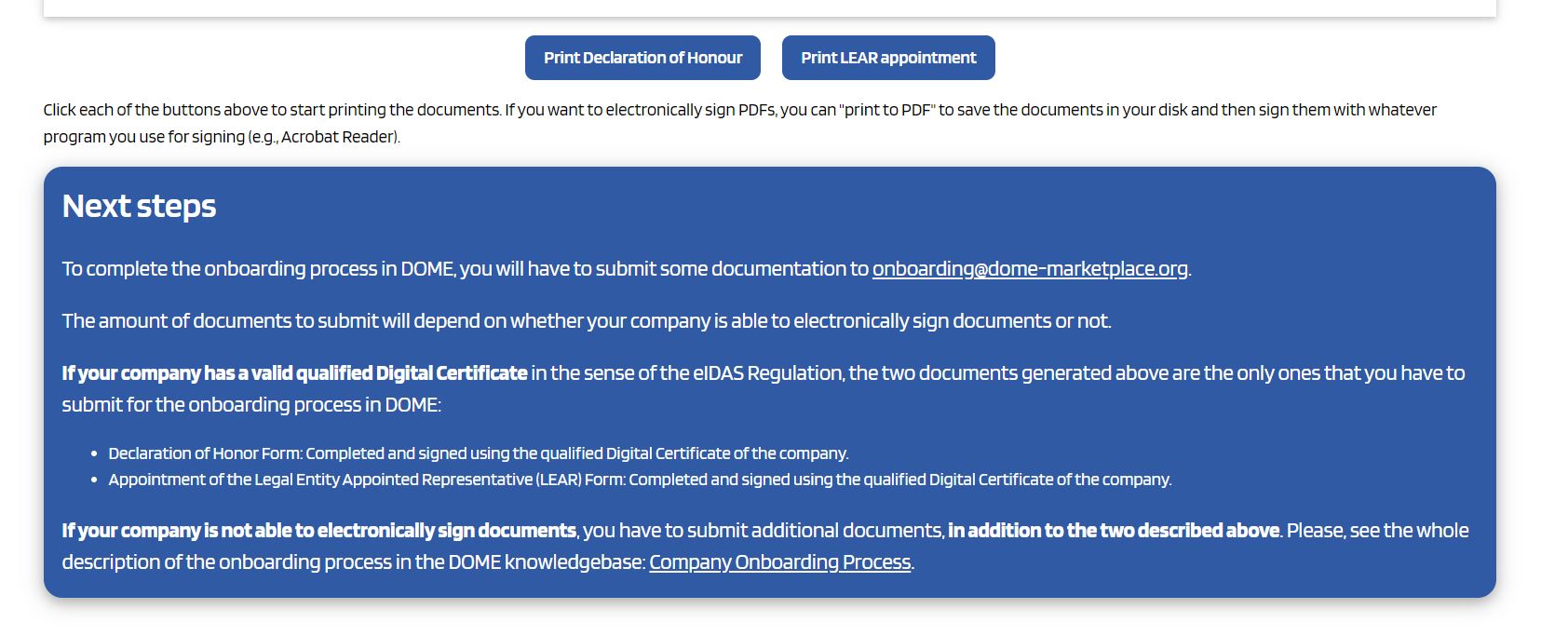
When you have the documents in pdf you will move to the next stage of the onboarding process: the submission of the required documentation and its legal review by the onboarding team of DOME.