# How to: manage User settings
Customers can reach the User Settings page by clicking on the corresponding icon (see the red square in the screenshot below) in the bottom left of the main navigation menu and selecting the "Profile" option.
[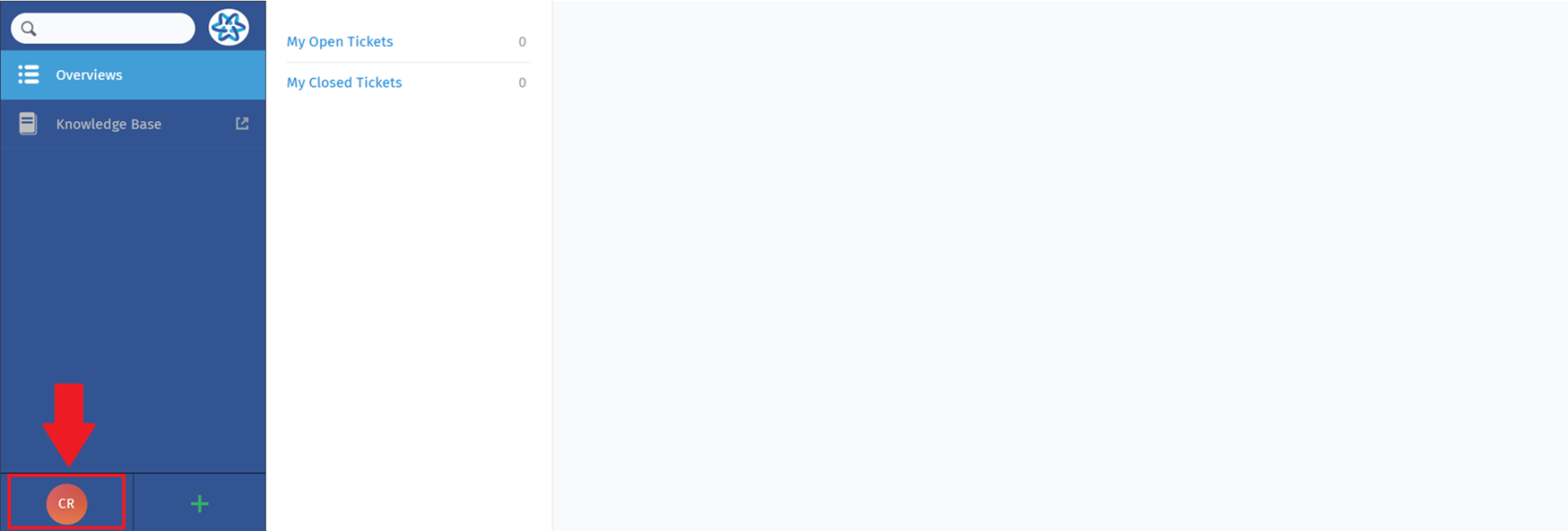](https://knowledgebase.dome-marketplace.eu/uploads/images/gallery/2025-06/immagine-2025-06-13-141638.png)
By clicking on the corresponding option in the "Profile" section, Customers will be able to customize:
- **Language**: Customers can select their preferred language, to interact with the platform in the way most convenient for them.
- **Avatar**: Whether it's an image or an icon, this feature allows customers to visually represent their identity within the system.
- **Linked Accounts**: Customers can link their accounts to other platforms, simplifying the login process and providing a consistent experience across systems. This feature simplifies user interactions and account management.