# Tailored Offering Guide
# Overview
This document is meant to guide users in the various actions that they need to take to create and manage quotes.
Quotes are specific products that don't have a price already listed on the marketplace, one cannot directly purchase these products and to be able to, one must first open a request and undergo a negotiation phase.
##### Lifecycle of a quote
Browse a product offering on the marketplace, click on the button "Request a Quote", fill in the text box and press send, this creates a Quote request.
The quote is then visible in the Quote Dashboard from both the customer and the provider side.
At this point, the only other action that a customer can take on it, is to set a Request Date, a date in which he wants the provider to provide him either the product, or an update at best.
Then the Provider may accept/approve the quote, meaning that he accept the request from the customer and he will work on it.
The provider can then set up an Expected Date, which is the date he expect to be able to provide the product.
Both Request Date and Expected Date gets periodically checked, if the quote goes over the time limit, it gets automatically cancelled.
In the case that both date are present, only the Expected Date gets taken into consideration.
At this point the provider can upload a document with the formalized proposal in PDF.
After it gets uploaded both parties are able to download the document.
Then the last step is for the customer to accept the quote with the proposal.
This concludes the Quote system funcitonality.
At this point the provider can create a tailored Product, that is visible only by the customer, so that the customer is able to put it into the cart and purchase it
##### Chat
At any point once the quote is created, both the customer and provider can send messages to discuss any topic needed.
This chat is tied to the quote and is accessible from the quote inside the dashboard
##### Deleting a quote
At any moment during the negotiation, both parties are able to press a button to cancel a Quote, for example because the provider doesen't want to commit to the request or maybe because the customer doesen't like the proposal and want to interrupt negotiation.
Deleting a quote makes any action on it disabled, but it won't get deleted from the list
# How to create a product available for Quoting
A quotable product offering is different in one aspect of its creation from other products.
The majority of the process to craete a product is unchanged from the normal one, and informations about it can be found here
[Managing orders, products and subscriptions](https://knowledgebase.dome-marketplace.eu/books/managing-orders-products-and-subscriptions)
The key step in creating a quotable product offering is the following
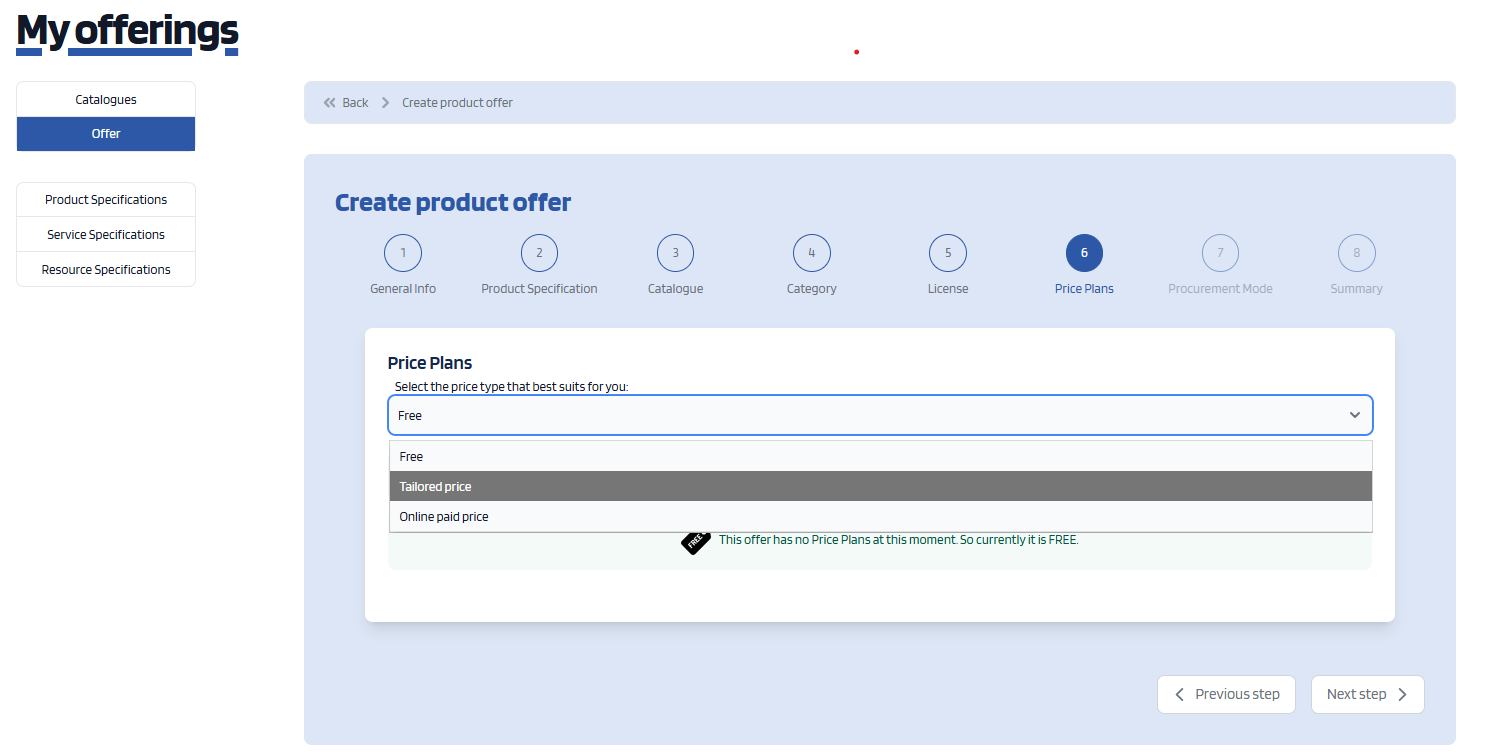
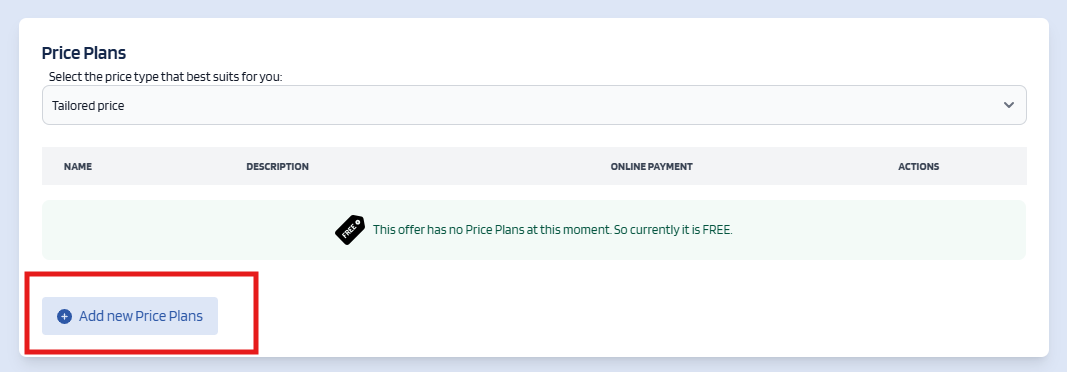
When creating a product offering, at the "Price Plan" step, you need to select " **Tailored price** " , then click on " **Add new Price Plan** " and fill in the details.
This will ensure that your product will display a button "Request a Quote" on it, when viewed in the marketplace
# How to create a Quote
To create, request a Quote, the process is the following
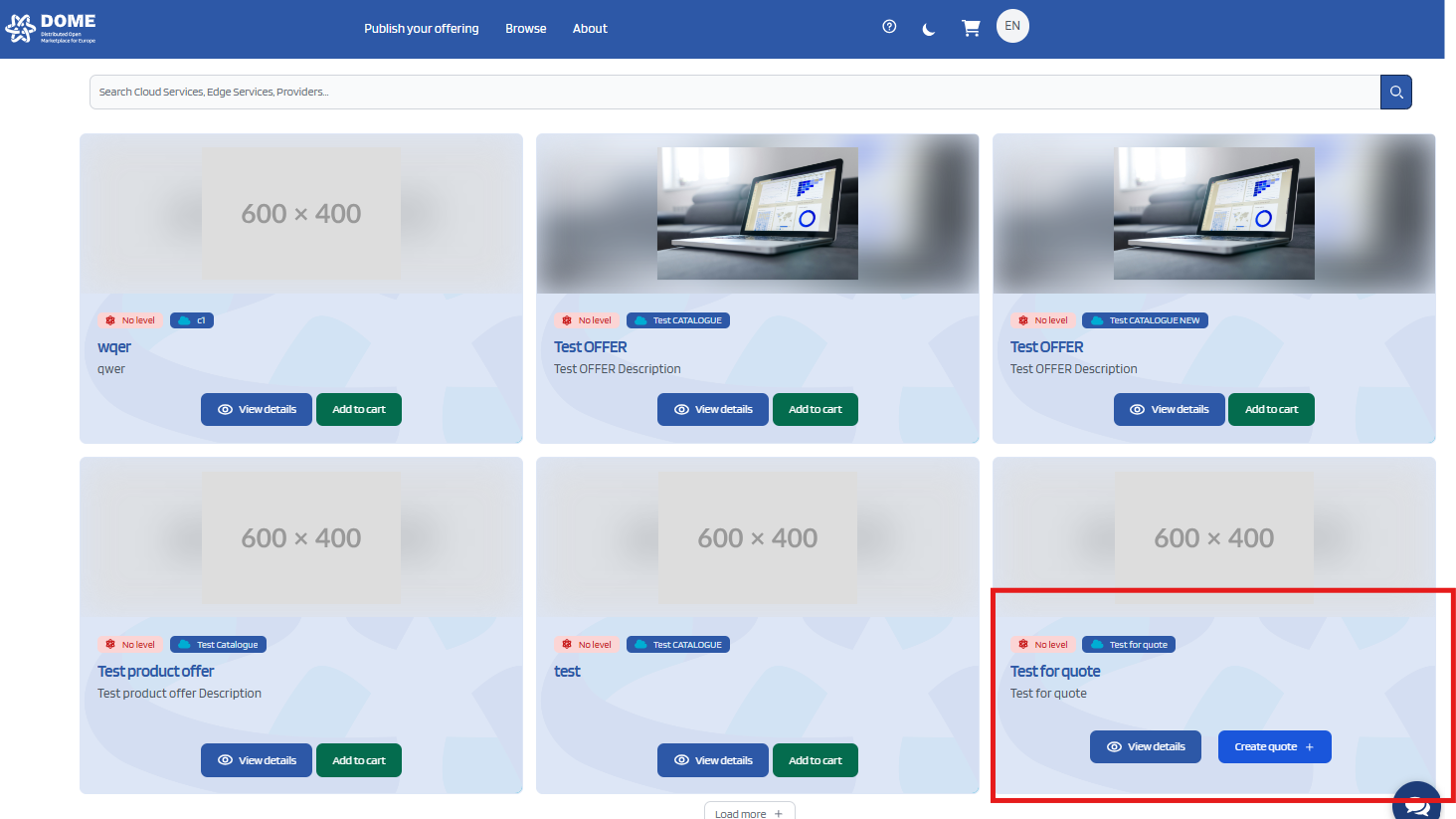
First, look for the product of your choice that displays the button "Create Quote" or "Request a Quote"
This button is present both in the grid list when viewing multiple offerings, or inside the Details of the single offering
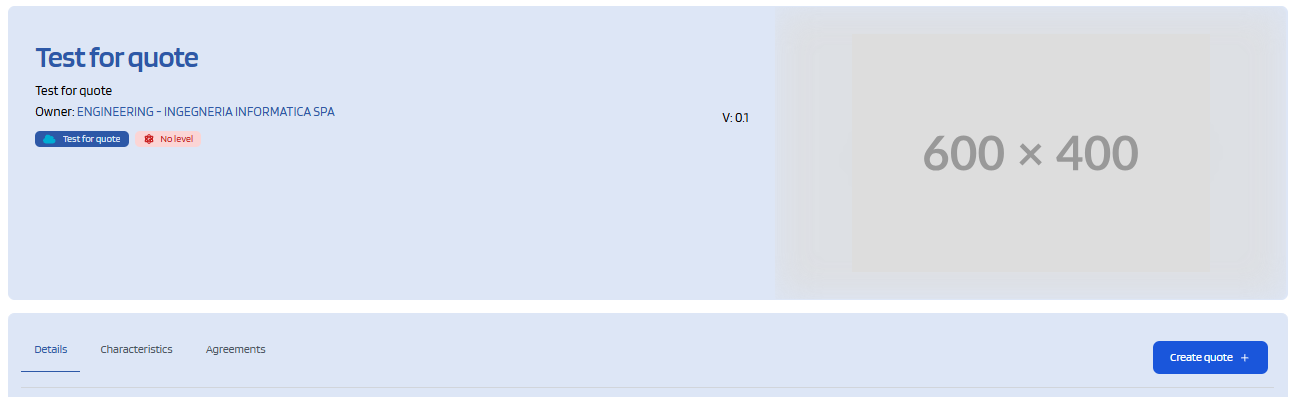
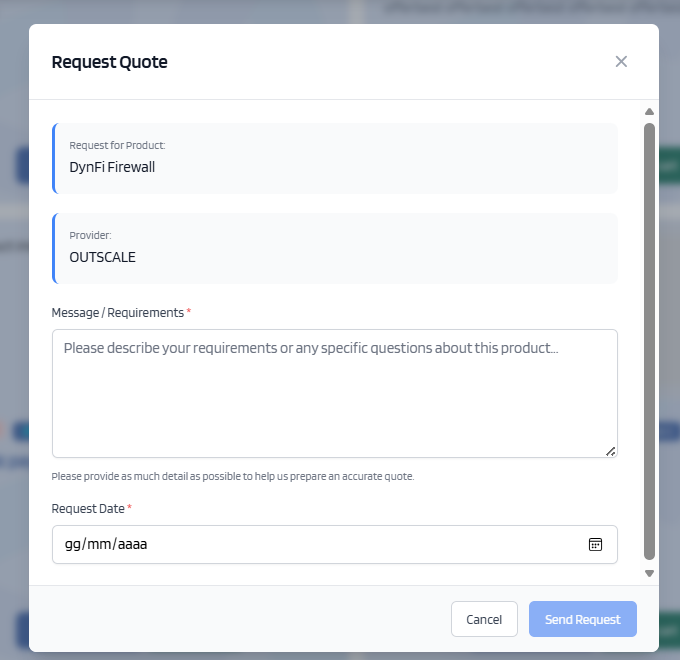
After clicking the button, a window will open that will let you write inside a box. In this box you **must write the details of your request and add the date where you expect the provider to provide an answer to your request**
Once you are done, click the button "Send Request"
This creates a quote, with you as the customer, and the owner of the product as the Provider.
The created quote is then viewable from the quote Dashboard
# Accessing the Quote Dashboard
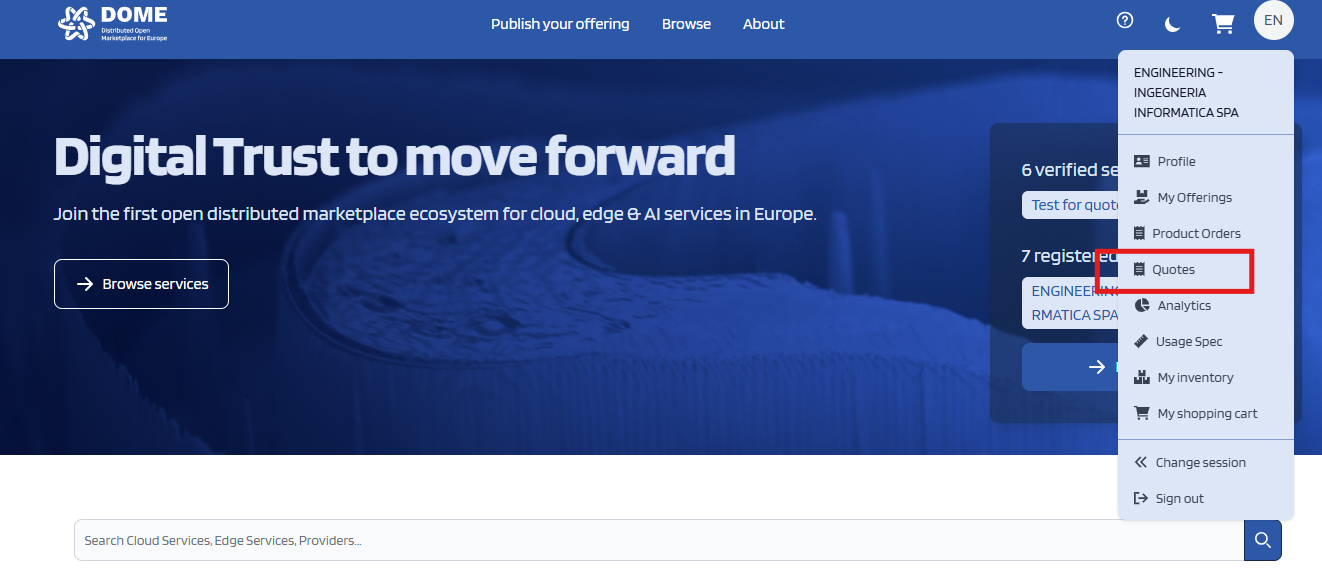
The Quote dashboard is easily accessible at any moment by clicking your profile icon on the top right of the page and clicking on the "Quote" menu voice
# Interacting with a Quote ( as a Customer )
This is a view of the dashboard as a customer
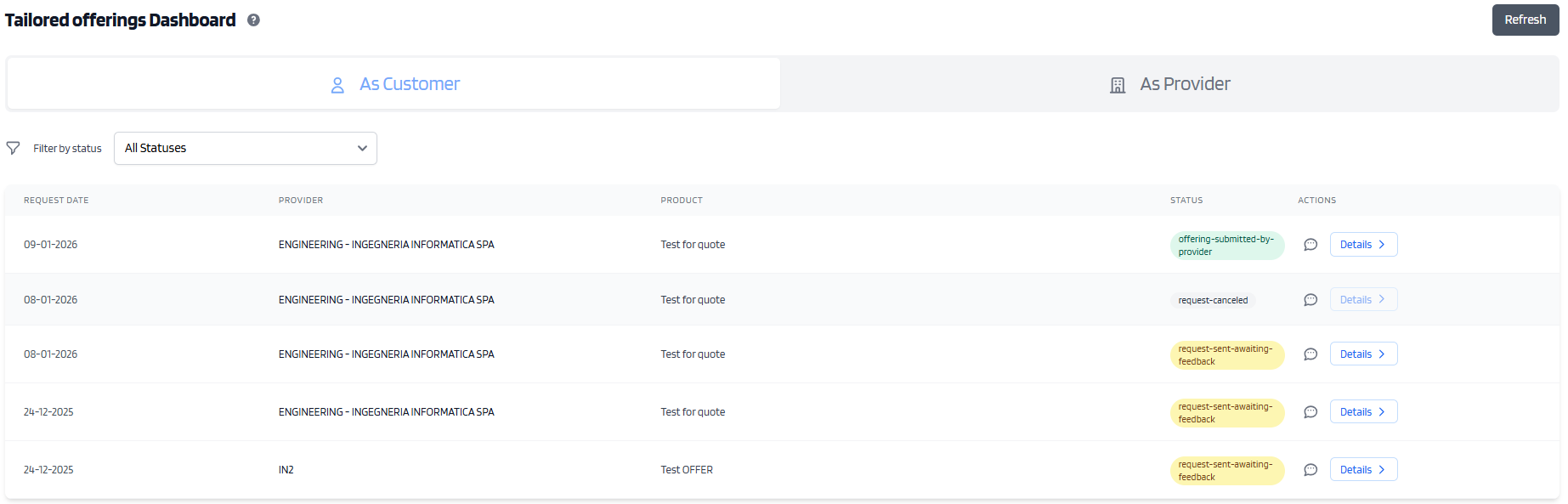
In this view you can see various fields
Request Date - is the Date that has been specified in which a provider must provide an asnwer
Provider - the Denomination of the provider
Product - Denomination of the product sold
Status - The status of the request
Chat bubble - access to the 1on1 chat
Details - Access to the details of the quest and advanced actions
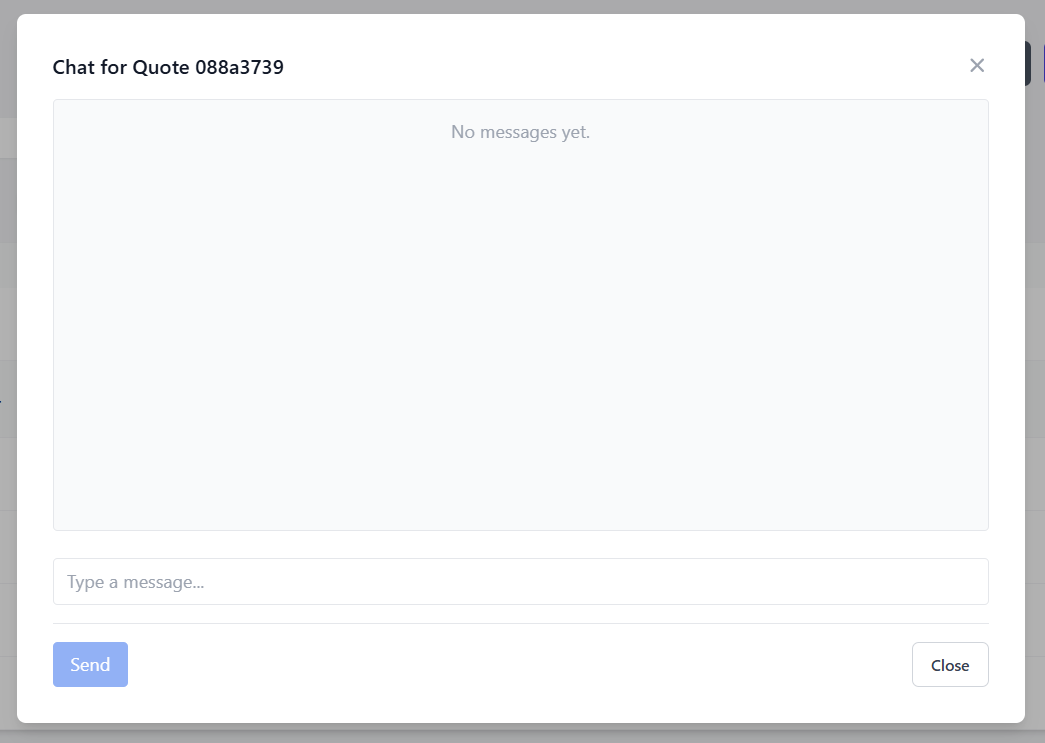
The chat bubble will let you access the chat for the related quote and send messages to the provider
The Details button will open the Quote Details window
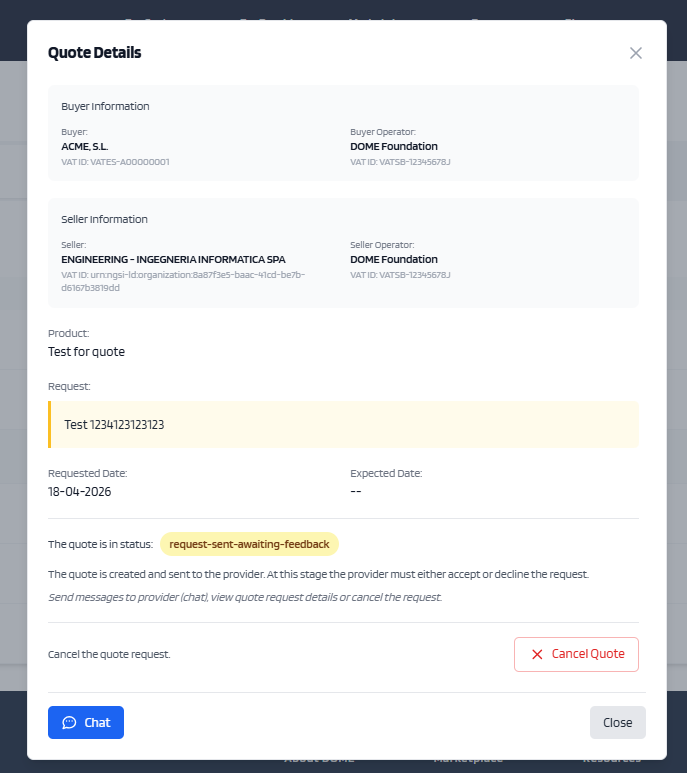
Once the provider has uploaded the PDF document, and the quote is in approved, the quote has new interactions inside the Details Modal

Under the "**Attachments**" Section, you can download the PDF relative to the proposal of the provider
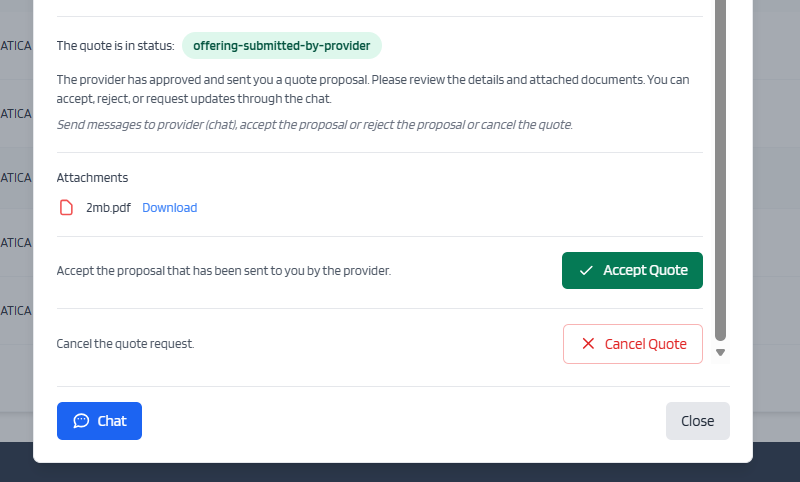
Then clicking **Accept Quote**, will let the Provider know that you accept their proposal and this will formally end the transaction
At any moment, clicking **Cancel Quote** will cancel the quote, and will interrupt any negotiation on it.
All actions on the quote will be disabled.
Any details regarding the transactions or products should be asked and specified using the chat functionality
# Interacting with a Quote ( as a Provider )
This is a view of the Quote Dashboard as a Provider
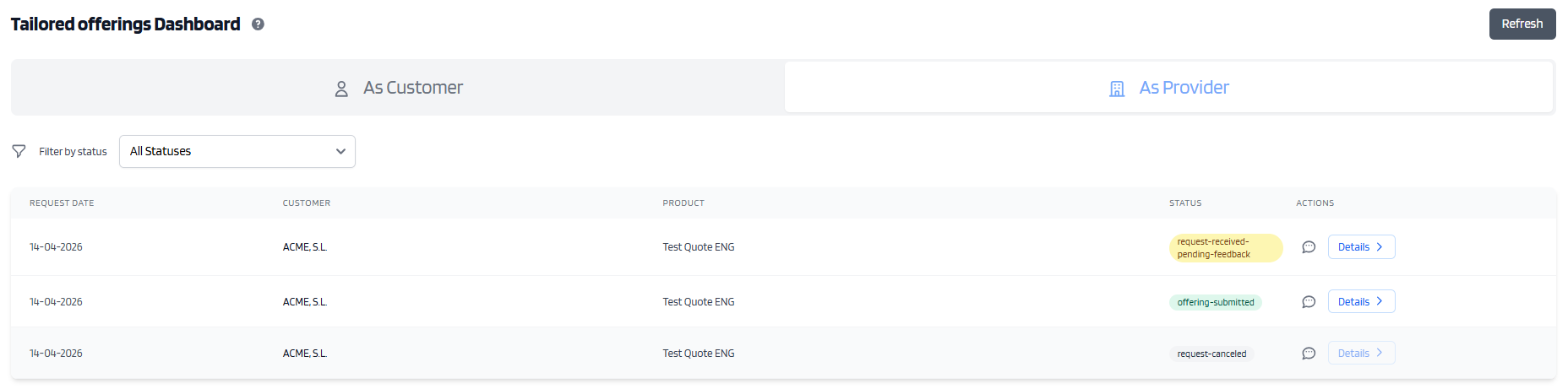
In this view you can see various fields
Request Date - is the Date that has been specified in which you as a provider, must provide an asnwer
Customer - the Denomination of the customer
Product - Denomination of the product sold
Status - The status of the request
Chat bubble - access to the 1on1 chat
Details - Access to the details of the quest and advanced actions
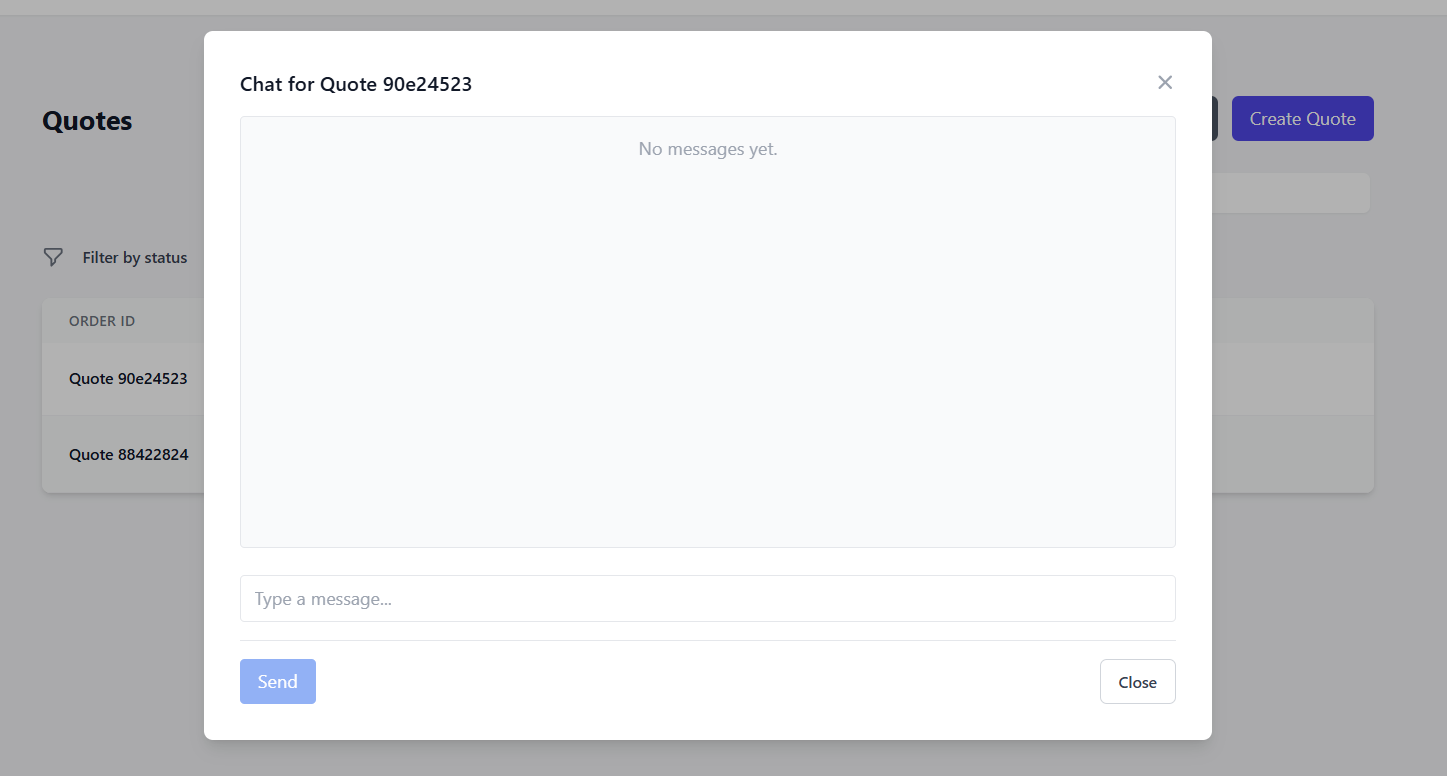
The chat bubble will let you access the chat for the related quote and send messages to the provider
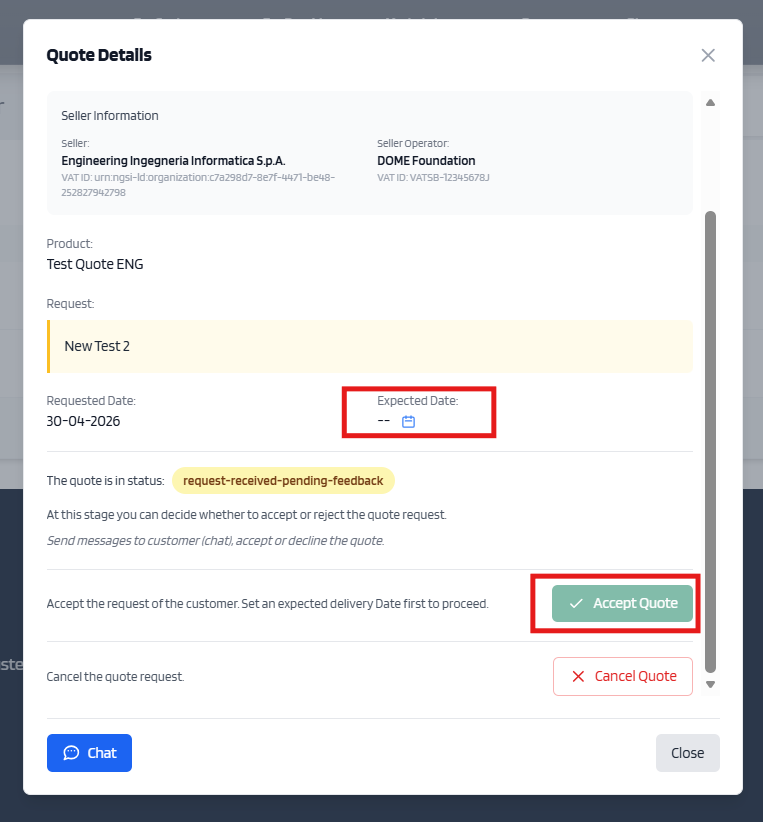
The "Details" button will open the quote details window, where you can see the information about the buyer and seller, the customer's request and various info regarding the reuqest.
Clicking **Accept Quote** will let you accept the request from the customer, meaning that you confirm that you will work on it.
To be able to click the button, you must **first set an expected date.** The Expected Date is the date that you as a provider expect to be able to provide the service requested.
This will also move the status of the quote to "In Progress"
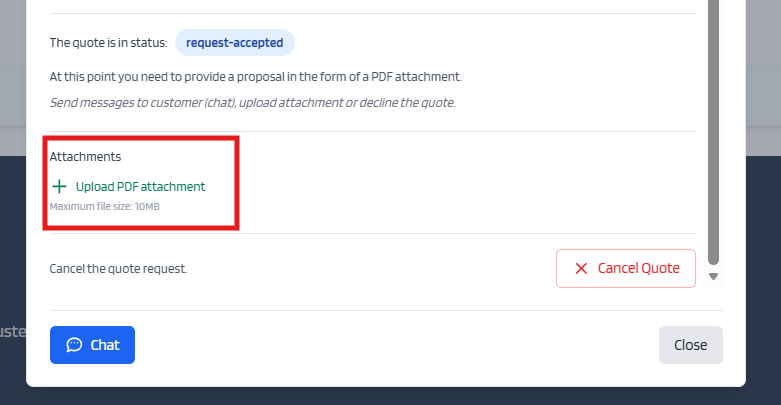
Clicking **Upload PDF Attachment**, will let you add the PDF attachment to the quote with your proposal.
This will also change the status of the quote to "Approved"
Once the PDF is uploaded, you can download it for viewing.
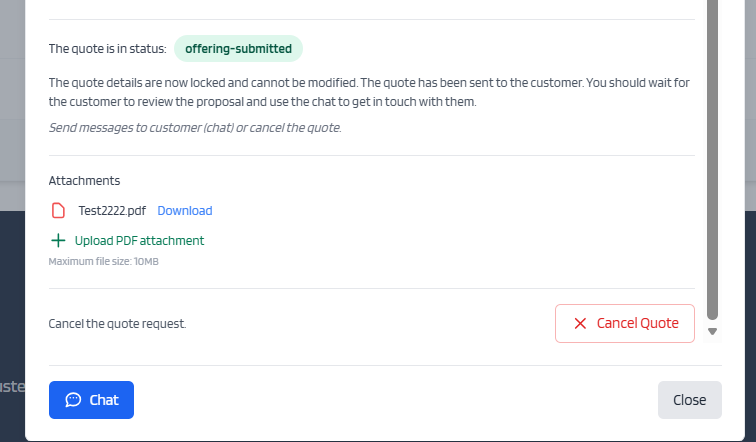
Now as a provider you only have to wait for the customer to accept your proposal.
If an agreement is not immediately reached and the request from the customer changes, if you agree to the new terms of the customer and you need to upload a new PDF document with the changes agreed, simply press again the Green Clip, the new document that you upload will overwrite the old one
At any moment, clicking the **Cancel Quote** button, will cancel the quote, interrupting any negotiation on it.
All actions on the quote will be disabled.
Any details regarding the transactions or products should be asked and specified using the chat functionality.
# Last step
If an agreement is reached, and the customer accept the proposal of the Provider, the scope of the Quote Management is over.
To proceed further and let the customer actually buy the Tailored product, the Provider must create a new copy of its product offering, with the details agreed with the customer and let the customer put the Tailored Item in the cart and buy it.
If needed the chat functionality is left available on a quote that is Finalized and Accepted, so that further coordination between the parties can be had.
For example a last step from the provider, is provide the link to the newly created Tailored Product in the chat to the customer, sto that it can be easiliy found and finally purchased.