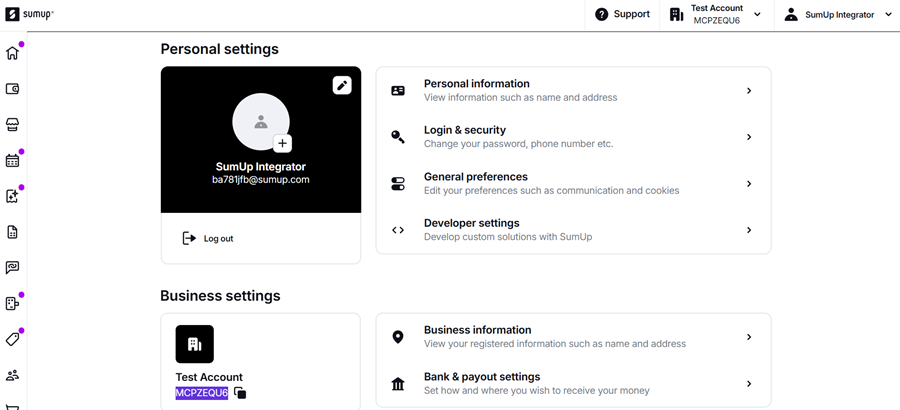
Provider registration for specific Payment Gateways
Stripe API key guide
How to Locate Your Stripe API Keys
Step 1: Log In to the Stripe Dashboard
Go to https://dashboard.stripe.com/login and sign in with your merchant credentials.
Step 2: Go to the 'Developers' Section
Once you're logged in:
1. Click on 'Developers' in the left-hand sidebar.
2. Then click on 'API keys'.
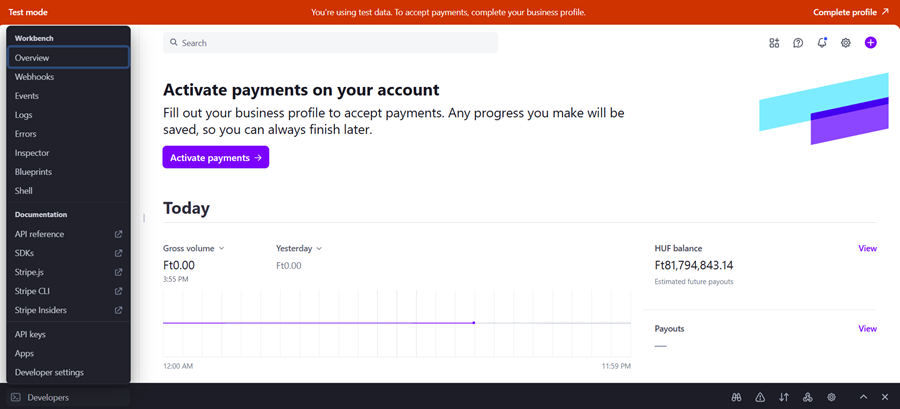
Step 3: View Your API Keys
In the API Keys section, you will see:
- Publishable key (starts with pk_live_)
- Secret key (starts with sk_live_) – use this one when connecting your Product Provider profile with your Stripe account in DOME marketplace.
To reveal the Secret key, click on 'Reveal live key token'. It will only be shown once — copy and store it securely.

Security Tips
- Never expose your secret key in client-side code (like HTML or JavaScript).
- Use environment variables to store keys securely.
- If a key is compromised, rotate it immediately via the dashboard.
For official documentation, visit: https://docs.stripe.com/keys
Barion API key guide
How to Locate Your Barion API Keys
Step 1: Log In to the Barion Dashboard
Go to https://secure.barion.com and sign in with your merchant credentials.
Step 2: Go to the 'Wallet - Access' Section
Once you're logged in:
1. Click on 'Wallet' in the left-hand sidebar.
2. Then click on 'Access'.
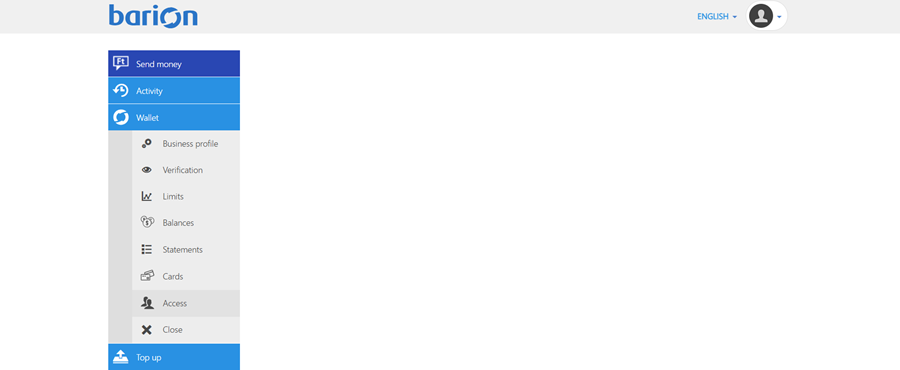
Step 3: View Your API Keys
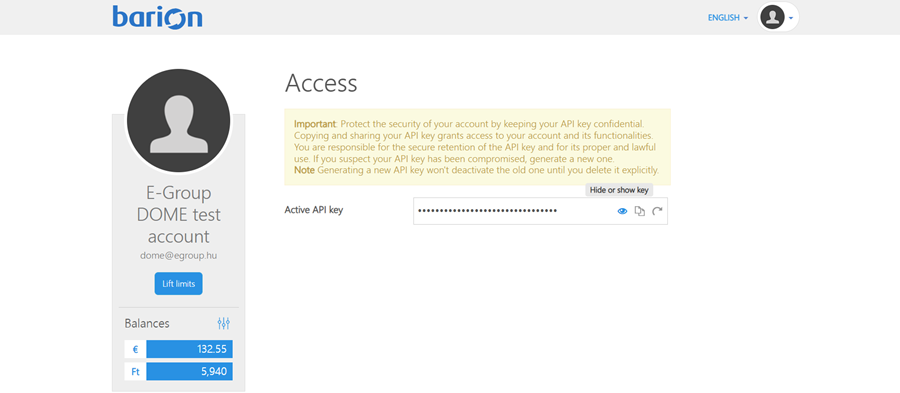
In the Access section, you will see your Active API Key.
To reveal the Active API Key, click on 'Hide or show key'.
Security Tips
- Never expose your secret key in client-side code (like HTML or JavaScript).
- Use environment variables to store keys securely.
- If a key is compromised, rotate it immediately via the dashboard.
For official documentation, visit: https://docs.barion.com/Barion_Shop_Authentication
Sumup API key guide
How to Locate Your SumUp API Key and Merchant ID
Step 1: Log In to the SumUp Developer Dashboard
Step 2: Navigate to the Settings Section
1. Once logged in, click on 'Account' in the top navigation menu.
2. Select 'Settings' from the dropdown menu.
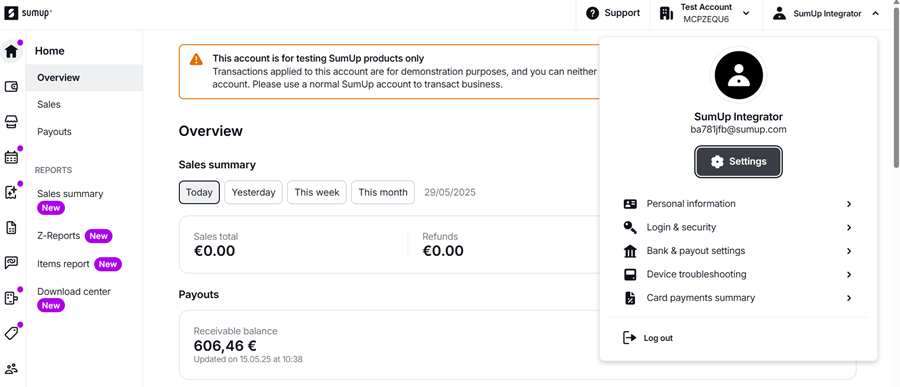
Step 3: Navigate to the For developers – Toolkit section
1. Select 'Toolkit'.

Step 4: Navigate to the API Keys section
1. Select 'API Keys'.

Step 5: Generate or View Your API Key
1. In the API Keys section, you can view existing keys or generate a new one by clicking on 'Create'.
2. Provide a name for your API key and assign the necessary permissions.
3. Click 'Save' to generate the key.
4. Copy the generated API key and store it securely.

Step 5: Locate Your Merchant ID
1. While still in the dashboard, click on 'Account' in the top navigation menu.
2. Select 'Settings' from the dropdown menu.
3. Your Merchant ID will be listed under your account details and also on the top right corner under your account name.