Navigating over the marketplace
- Checking available products and buying
- Checking marketplace's landing information
- Checking DOME's about page
- Contacting DOME's support team
Checking available products and buying
All the available (Launched) offerings appear in the Search page of the website, so they can be seen by customers.

Customers can search offerings by keyword using the provided search bar and filter the shown offerings by category using the categories dropdown and choosing the wanted ones.

Customers can open a small review of the offer by clicking on View Details.


If you want to access offer's full information you can click on View Details in the shown modal or just clicking on the image of the offer's main card. This will lead you to the offer's detail view. In it is shown the general info about the offering and its included product, its compliance profile, the price plans of the offering, the characteristics of the product, the product's attachments, product's license and the existing relationships.

Additionally, customers can select a specific catalogue of offerings. In order to do that they should click the Browse button on the main website's header and then on its Catalogues subsection. In this view the existing catalogues will appear a list of cards, you can access to one specific catalogue by clicking on its card (e.g. click on "Computing Services" catalog). This will lead you to a search view with the same behavior as the main one explained before but filtered by the catalog shown on its breadcrumb.


Furthermore, if you want to buy a product you should click on Add to cart button. This will show a drawer where you can select the price plan that best fits for you and preview a simulation of the final price that you will pay.

Checking marketplace's landing information
Customers can also check the information provided on the website's home page.
The main navigation provides access to dedicated sections for customers, providers, the marketplace, and the company blog. The primary call-to-action buttons allow users to start either a customer journey or a provider onboarding journey, guiding them toward the most relevant platform experience.

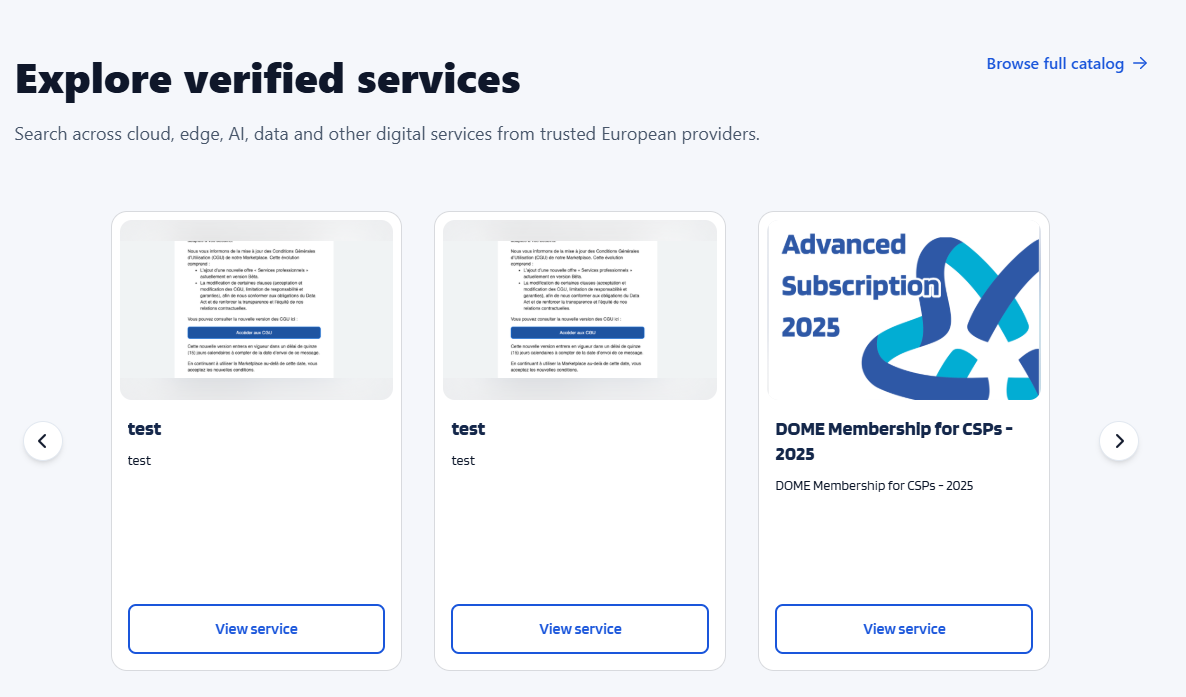
The next thing on the Home page allows users to explore verified services available on the DOME marketplace. Services are presented in a carousel format, displaying key information such as the service name, description, and preview image. Users can navigate through the catalog using the carousel controls, access the complete catalog via the “Browse full catalog” link, or open individual service pages through the “View service” button to learn more about a specific offering.
Checking DOME's about page
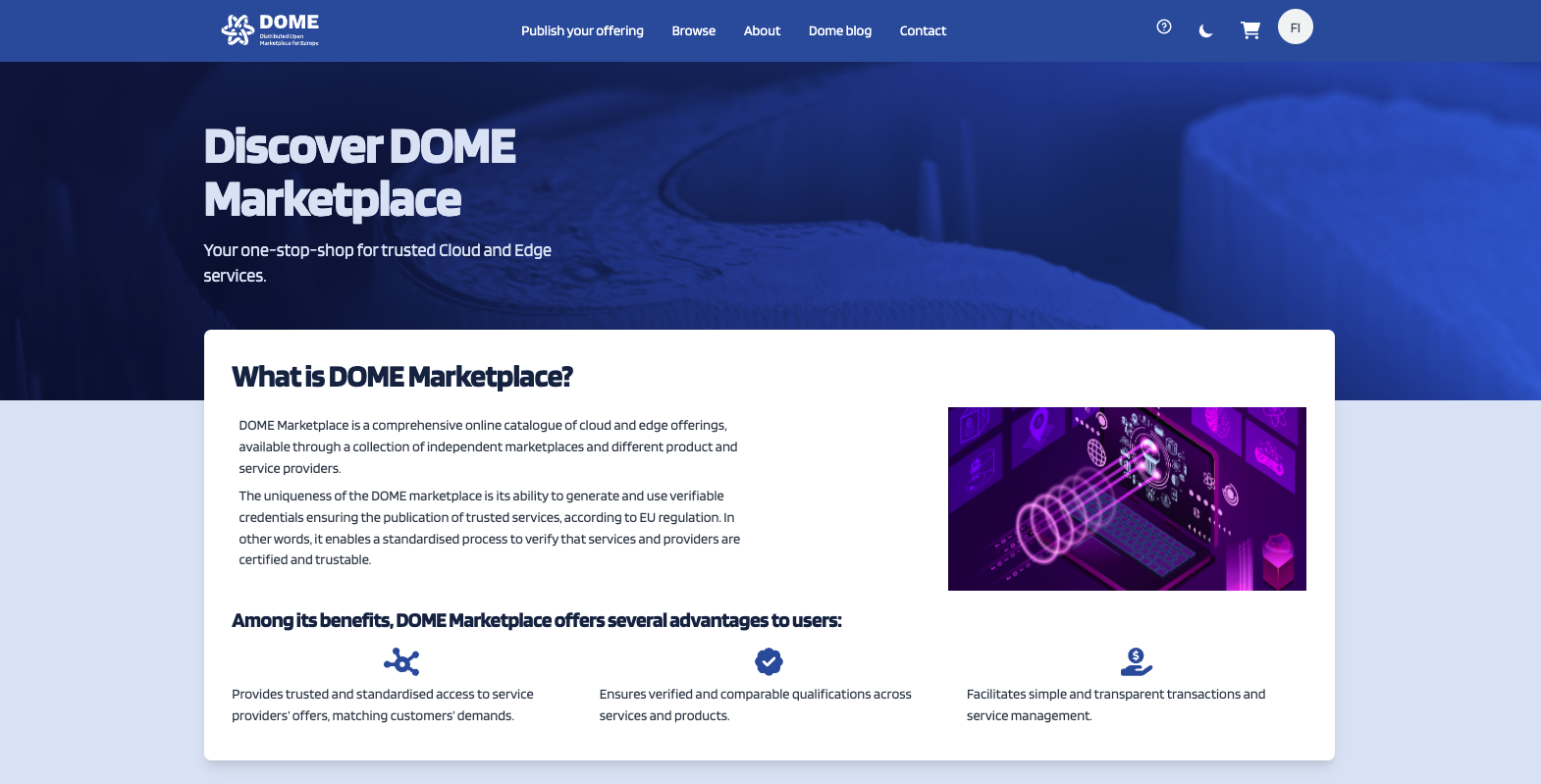
If the user wants to know further information about the Marketplace they can check DOME's about page by clicking on the "About" button shown at the header of the website.
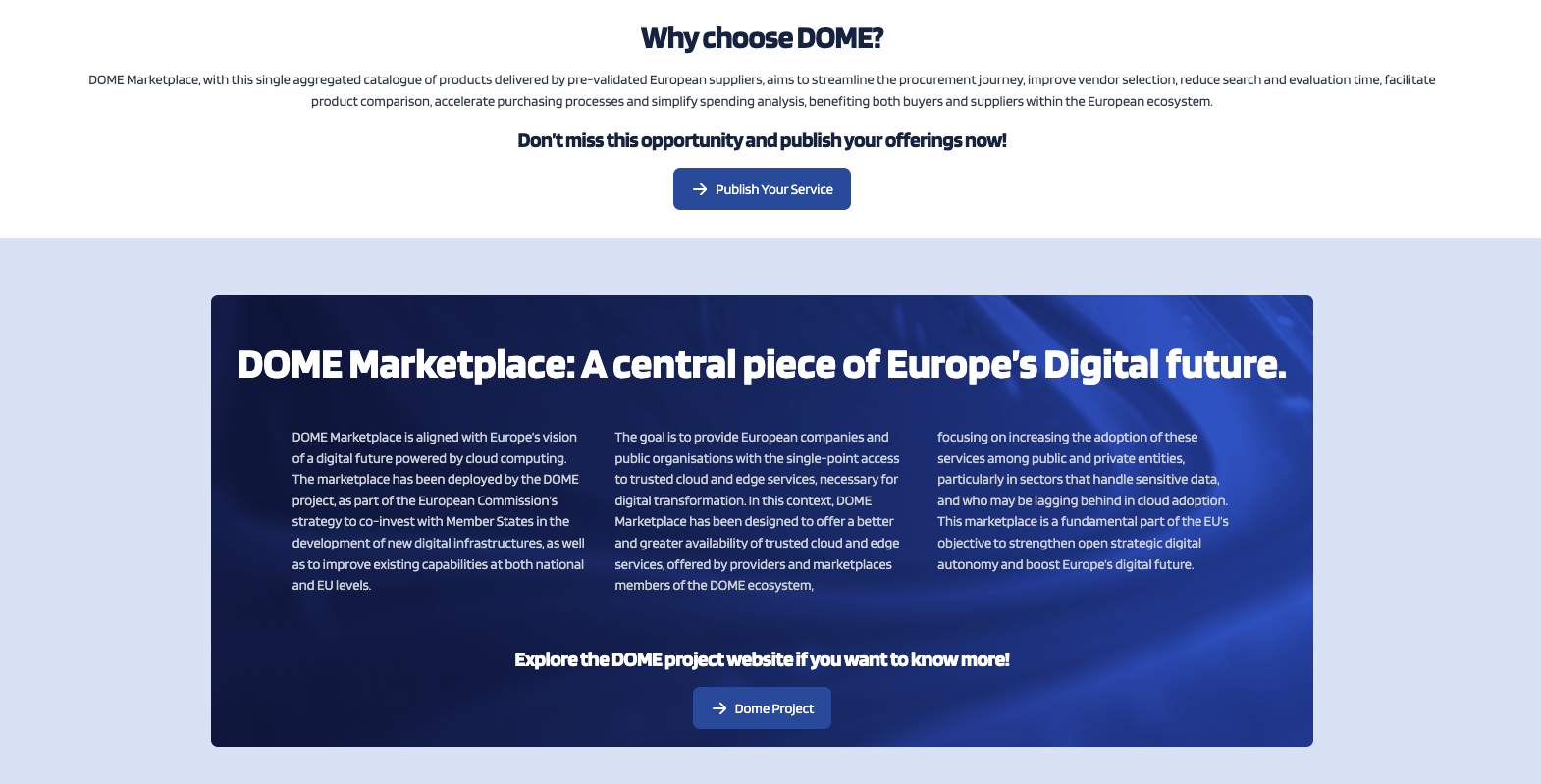
On this section the user can find a brief description of what is DOME Marketplace, its benefits and several reasons of why choosing DOME.
Contacting DOME's support team
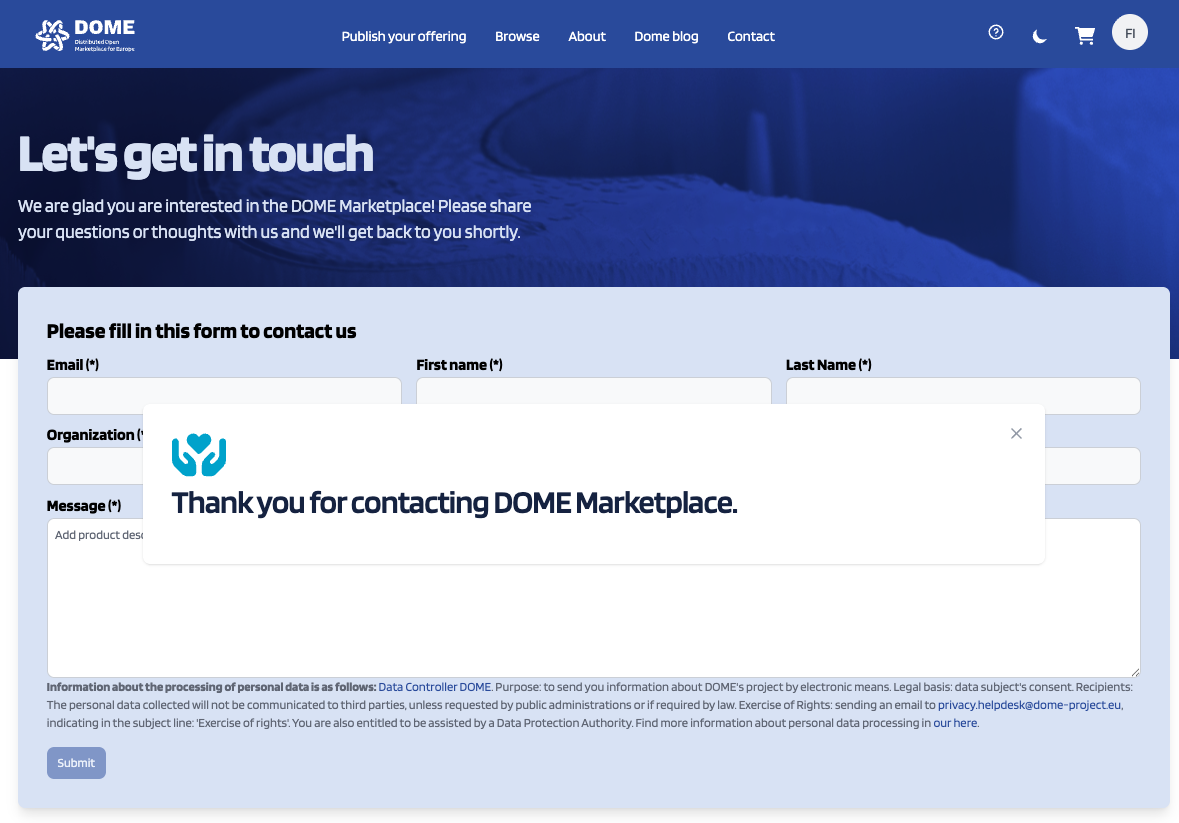
In order to ask any type of question to DOME's support team you can access the official contact form by clicking on Contact placed on the header of the website. The following form is shown, where you should fill every field and submit your inquiries.
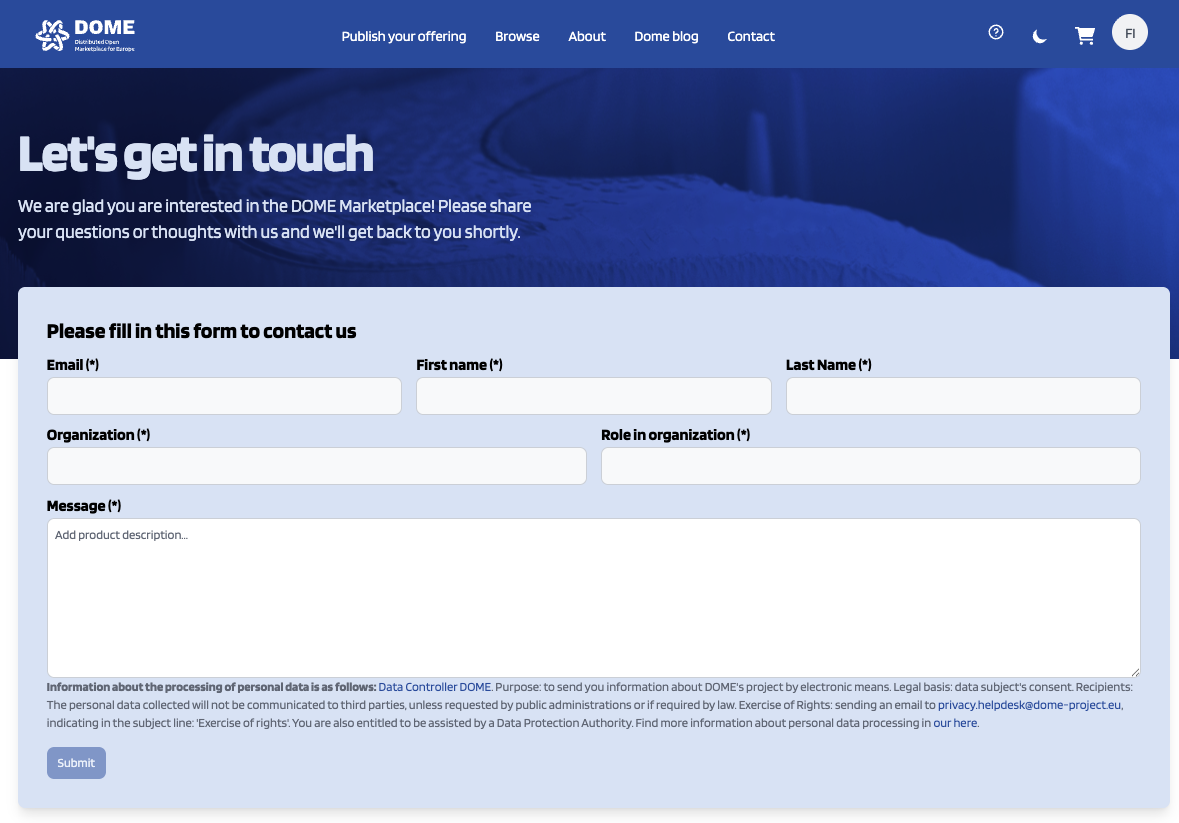
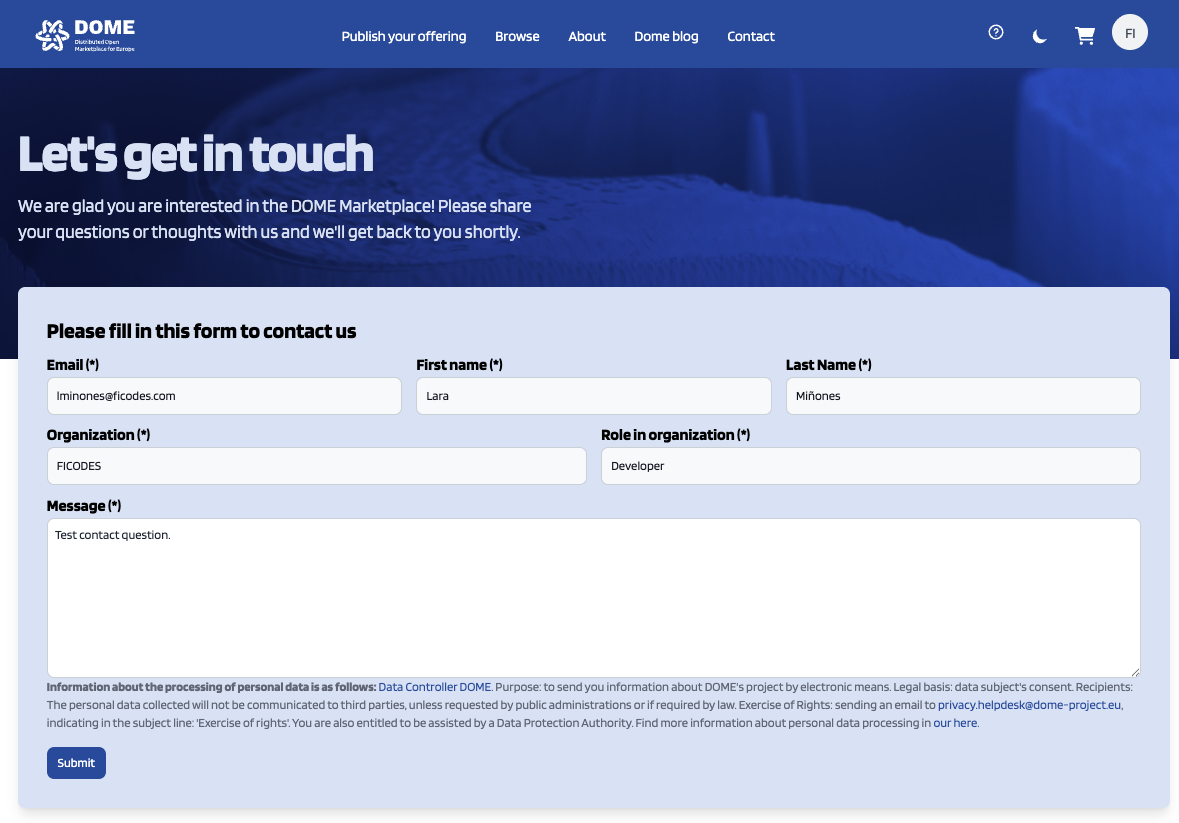
Once you've clicked on submit your email application in your computer will popup with the information that you've filled shown and the proper receiver set. Finally you'll see a gratitude message on the marketplace. As soon as the support team is available they'll answer you and you'll receive an email with your inquiries solved.