Logging in with Verifiable Credentials
Logging in with LEAR Credential Employees: step by step
Introduction
LEAR Credential Employees are Verifiable Credentials that enable access to various systems and features within the DOME environment.
Each credential grants specific permissions, referred to as its “power.”
For example:
-
To log in to the DOME Issuer, a credential with “Onboarding – Execute” power is required.
-
To log in to the DOME Marketplace, you can use a credential with either “Onboarding – Execute” or “ProductOffering” power.
(Each power unlocks different capabilities within the Marketplace.)
👉 To learn more about available powers, see this guide.
Some applications only accept Verifiable Credentials for login (for example, the Issuer). Other services allow login using either traditional credentials or Verifiable Credentials (for example, the Certification Service).
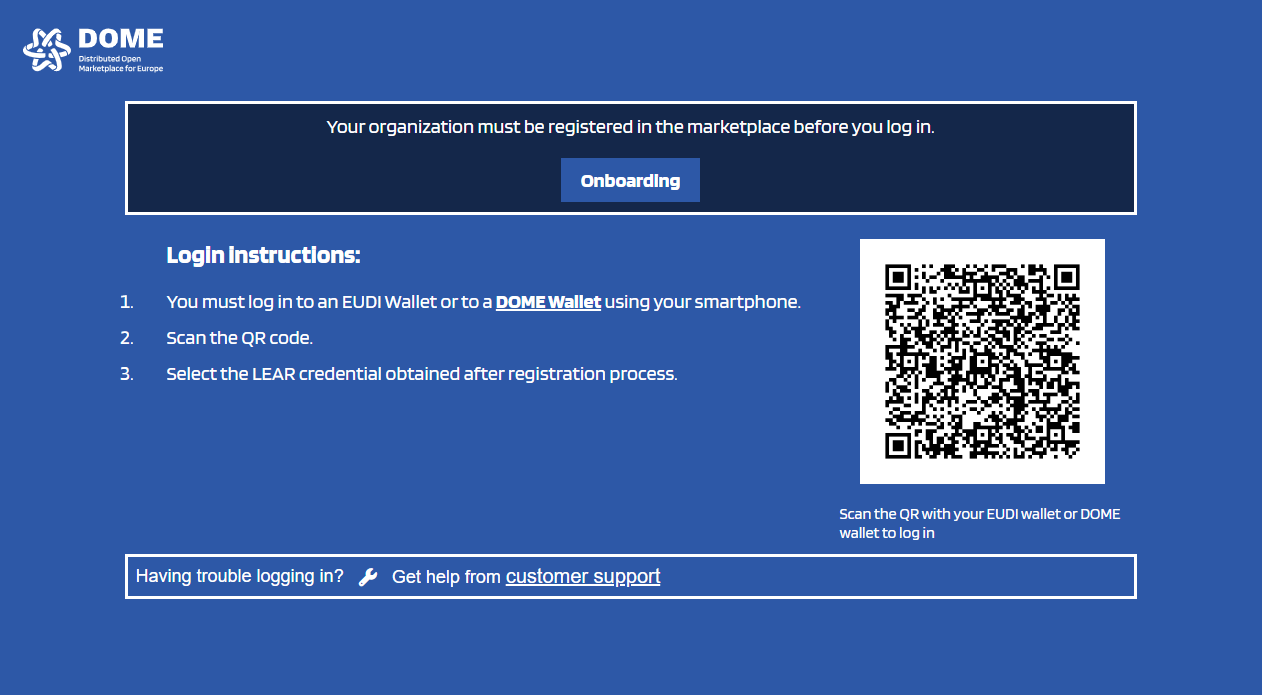
In both cases, a page displaying a QR code for login can be accessed.
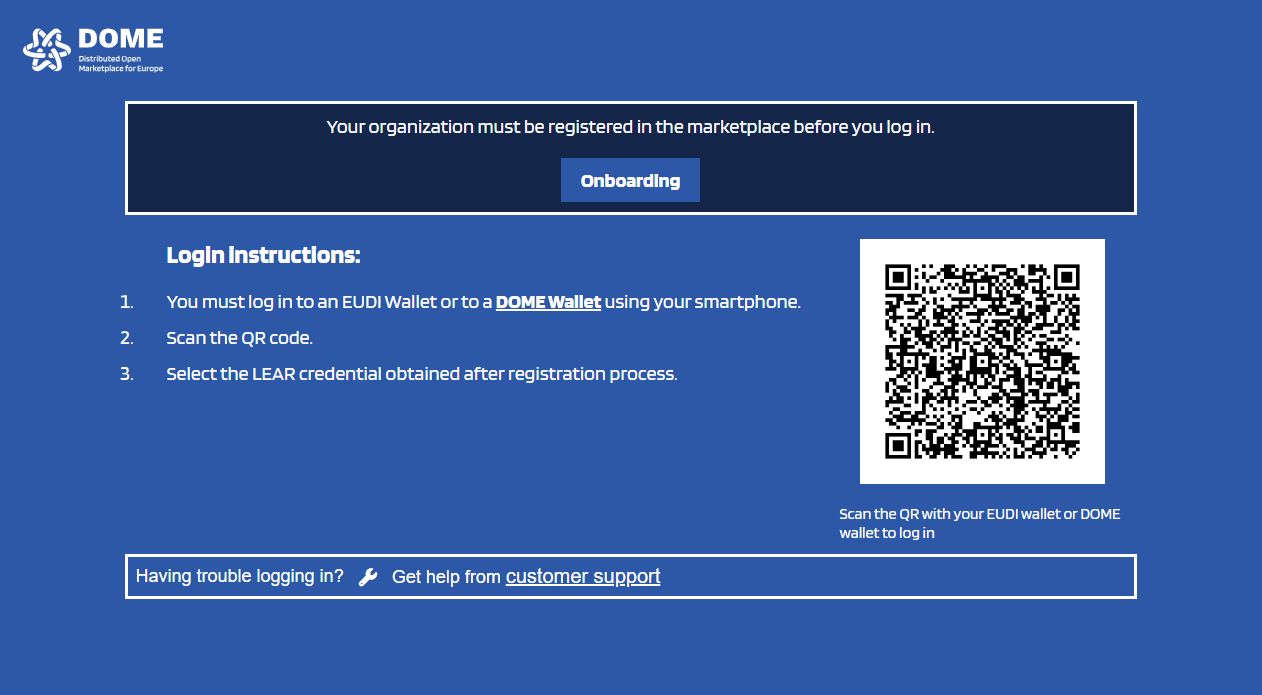
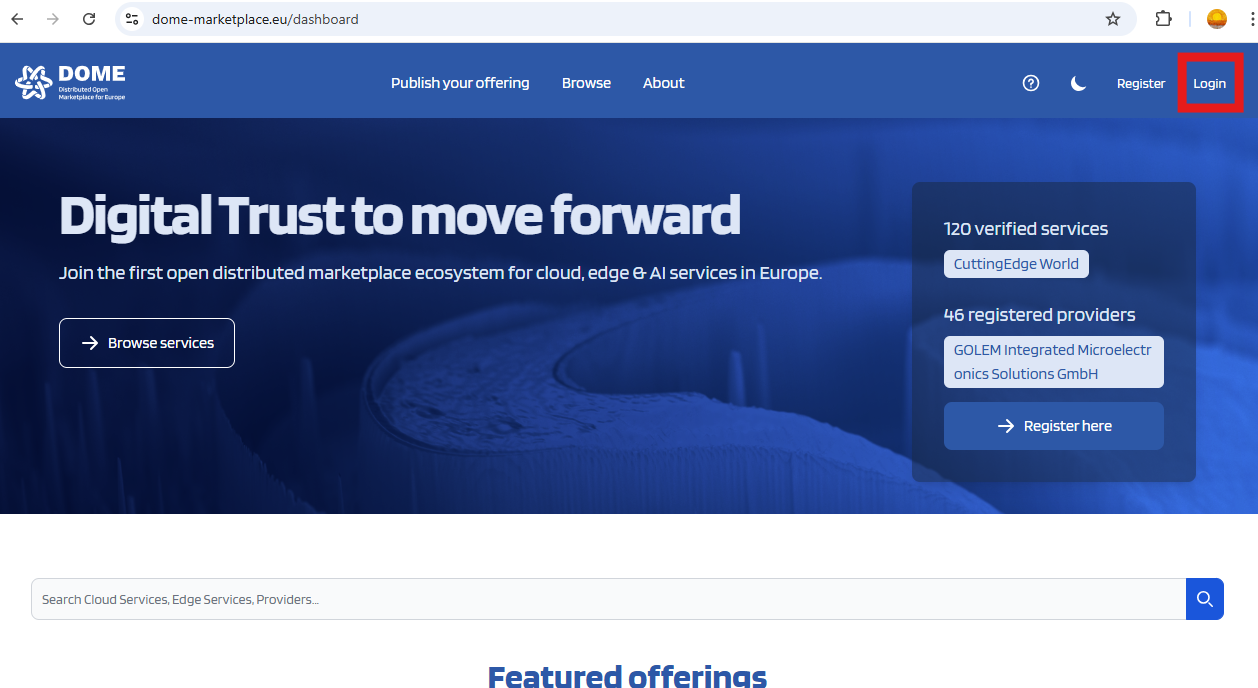
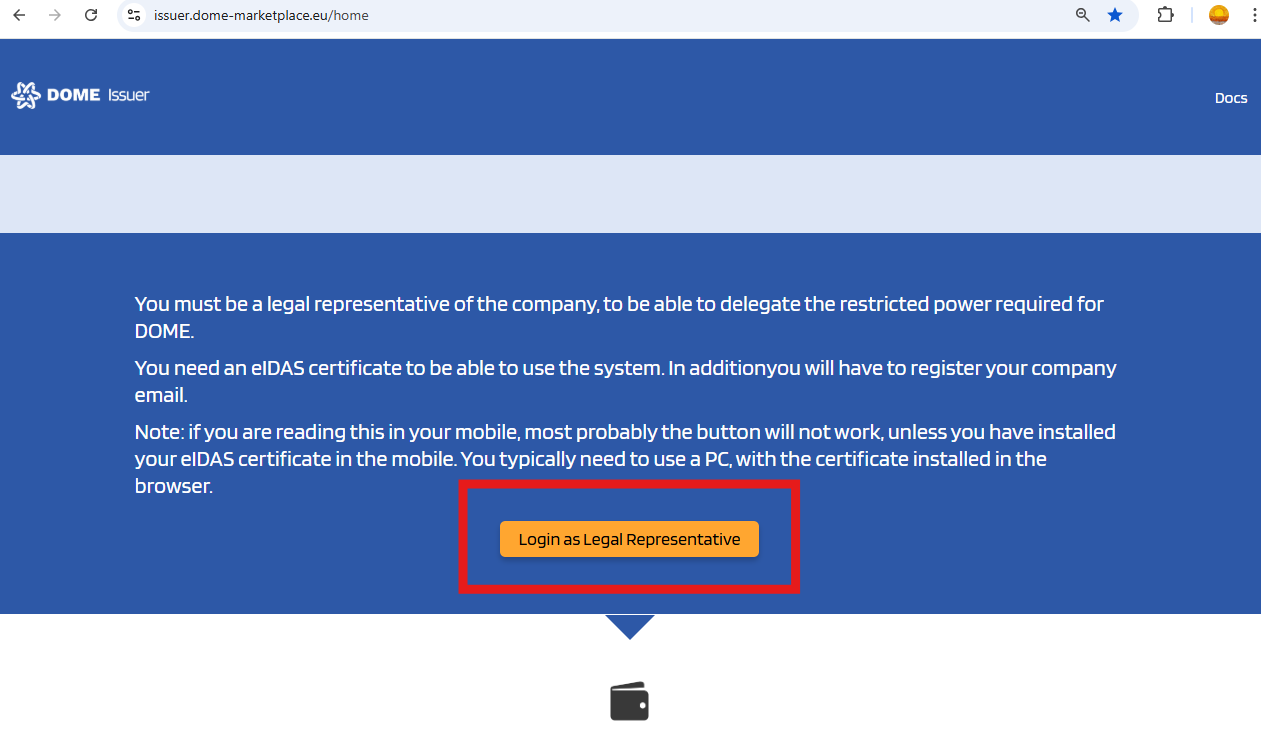
Tipically, you will need to look for a button/ navigation link with a text such as "Login", "Login with Verifiable Credentials", "Continue with DOME", "Login as Legal Representative". If you have trouble finding the Verifiable Credentials login page, please refer to the specific guide for that application.
Example DOME Marketplace:
Example DOME Issuer:
Follow the Step-by-Step guide below to complete the process.
Requirements
Before starting, make sure you have:
-
A device with internet access — used to open the service’s login page.
-
A second device with a camera — typically your mobile phone. It should also have internet access.
-
A Wallet account.
-
A valid credential in your Wallet with the required power . If you don't have a valid credential (either because your credentials have expired or because you just don't have one yet), the LEAR of your company needs to issue one for you. If you are the LEAR of a company which hasn't completed the onboarding process, please see this guide. If you are the LEAR and your credential has expired, open a ticket in the Support Ticketing System.
Step by step
-
Sign in to your Wallet account on the device with a camera.
-
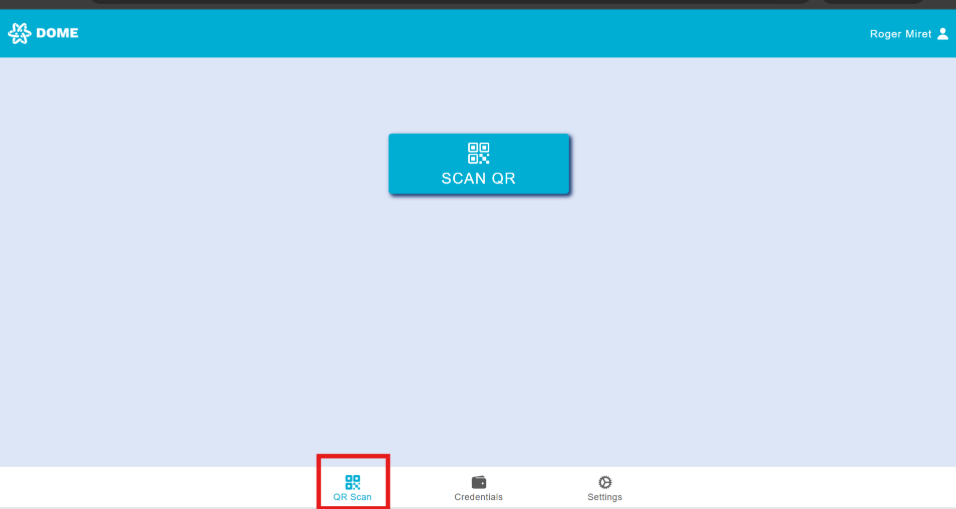
Go to the “QR Scan” tab (the app usually navigates there automatically after loggin in) and tap the “SCAN QR” button.

-
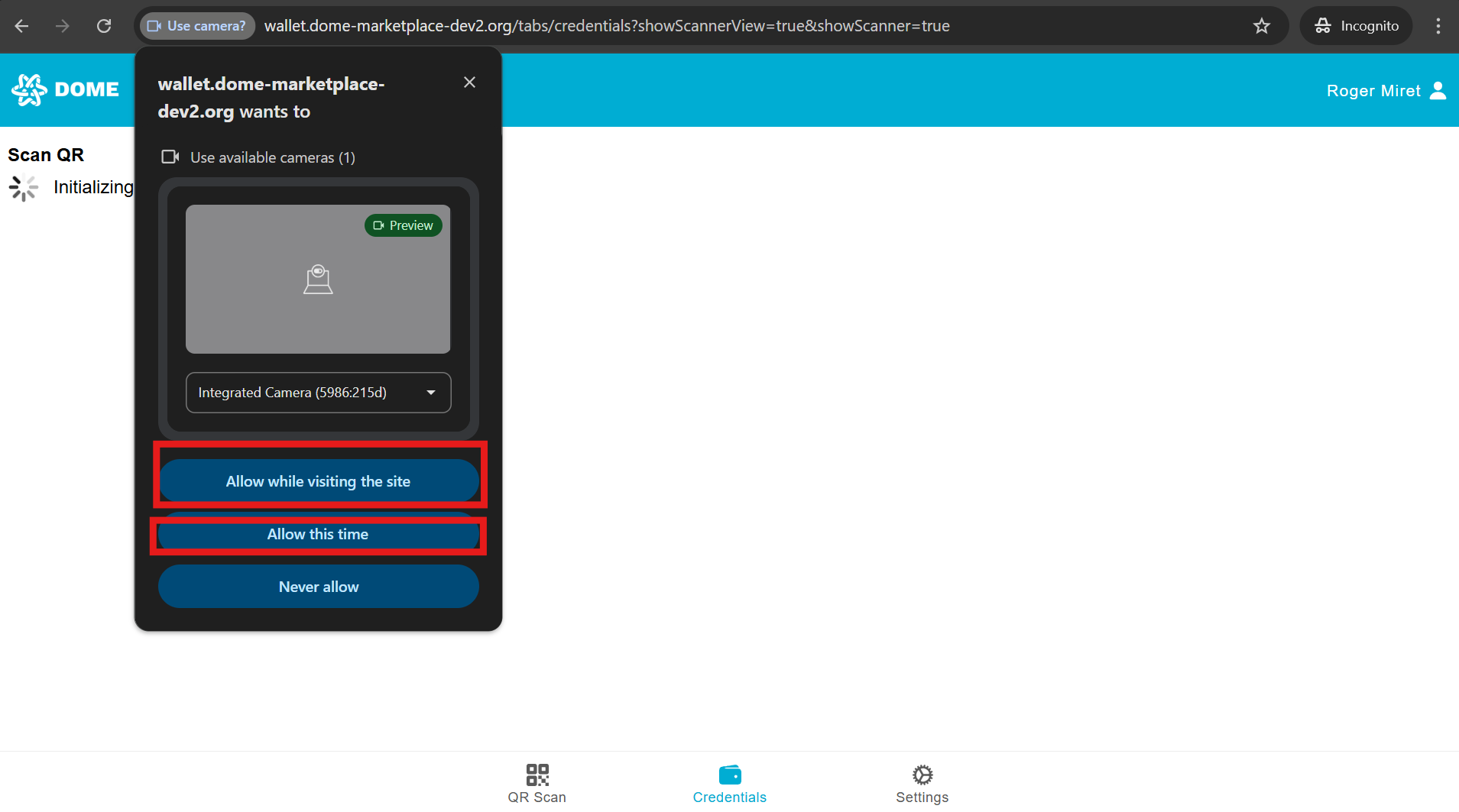
The camera will open; allow permissions if prompted.

-
-
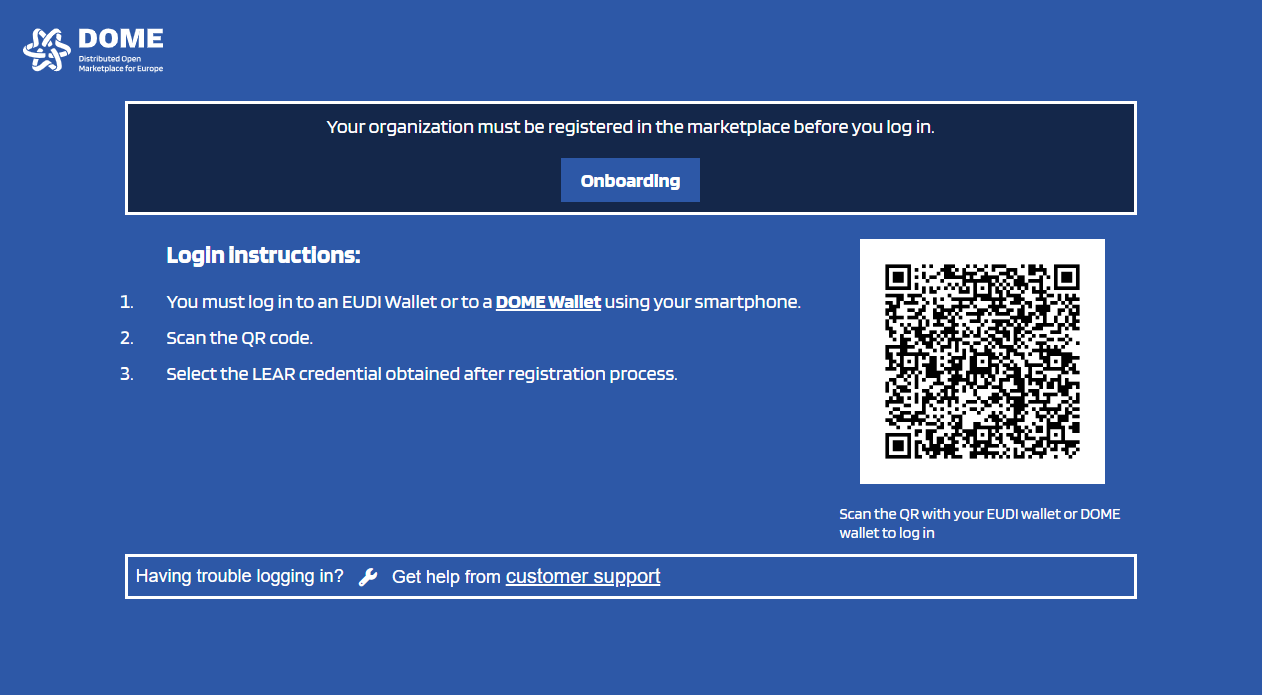
On your other device, open the QR login page of the service you wish to access. If you have trouble finding the Verifiable Credentials login page, please refer to the specific guide for that application.
-
Scan the QR code with your Wallet app.
-
If more than one minute passes after opening the page, it will expire, and you’ll be redirected to the landing page. Simply reopen the QR login page.
-
-
If scanning takes longer than expected, check lighting conditions. Poor lighting is the most common cause of scanning issues.
-
See the "Troubleshooting" section below.
-
-
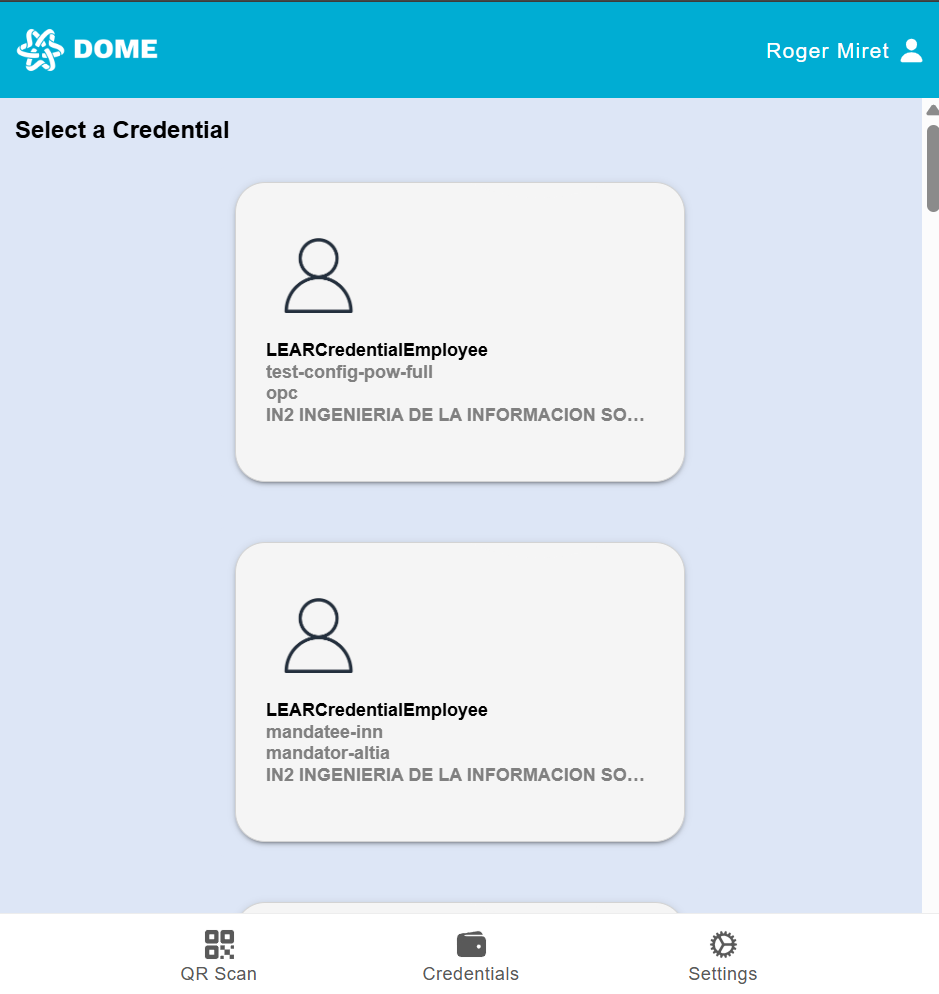
After scanning, your Wallet will display the list of available credentials. You can scroll down in case you have multiple available credentials.
-
Select the credential you want to use by clicking or tapping on it. Please make sure you choose one that has the appropriate power to log in to the desired application.

-
-
Once selected, a popup message “Credential sent successfully” will appear.
-
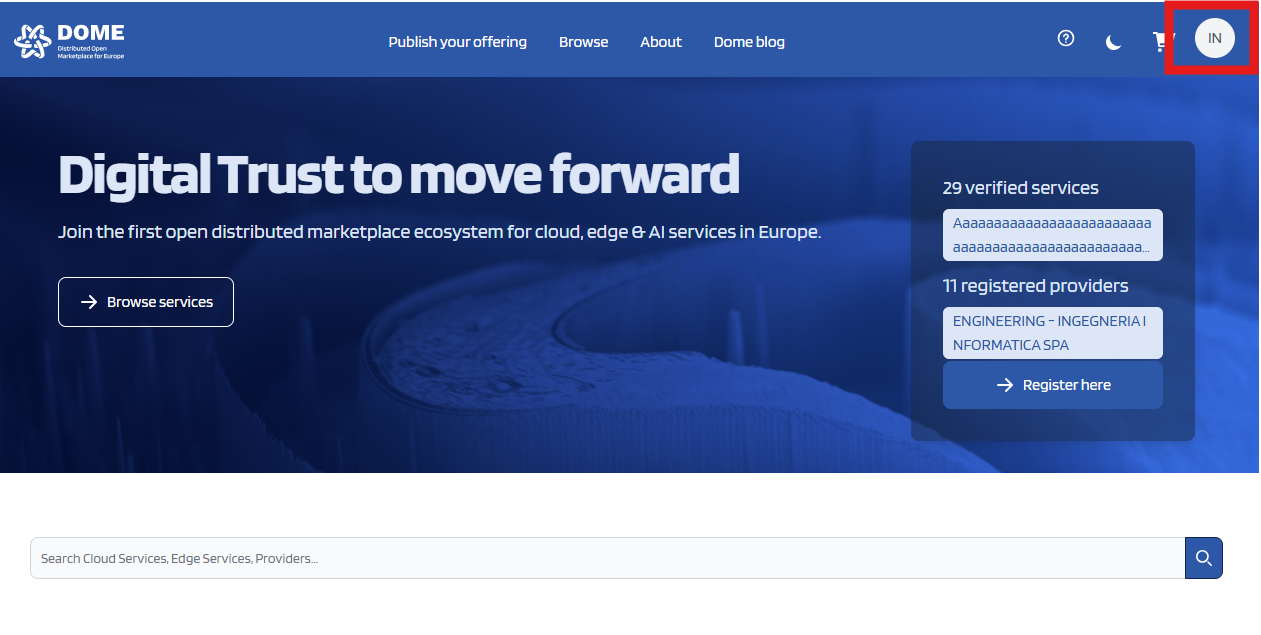
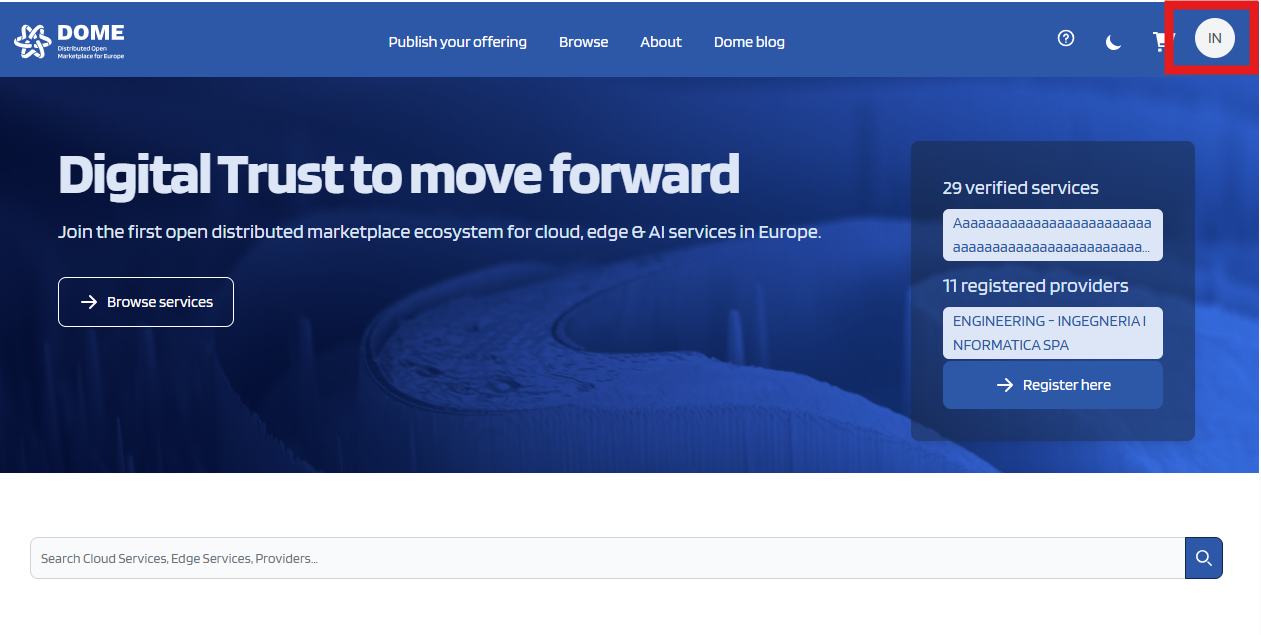
If the login is successful, you’ll be automatically signed in to the service. Tipically, you will know that you are logged in because at the right-top corner there will be a reference to your credential "mandatee" name or "mandator organization" name. Example for Marketplace:
-
-
If you receive an error, refer to the Troubleshooting section below.
Troubleshooting: common issues
-
QR not scanning:
Check the Wallet troubleshooting guide. Ensure there is enough light and your camera lens is clean. -
Expired QR page:
The QR login page is valid for 1 minute. After that, you’ll be redirected to the landing page.
If you scan the QR just before it expires, you may see an error. In that case, navigate to the landing page and open the QR login page again.
⚠️ Do not reload the expired page — it won’t generate a new QR code. -
QR reused or incomplete process:
Each QR code can only be scanned once. If you start the process but don’t complete it (for example, you cancel the credential selection or an error occurs), the QR expires.
To try again, go back to the landing page and reopen the QR login page.
⚠️ Reloading the page will not work.