# DOME Digital Wallet User Guide
# Introduction to the DOME Digital Wallet
The **DOME Digital Wallet** is a key application for managing your digital identity within the DOME Marketplace ecosystem. It allows you to **obtain, store, and use Verifiable Credentials** that grant access and permissions across DOME applications.
Through the Wallet, users can securely manage their credentials, sign in to DOME applications, and scan QR codes for credential issuance or verification.
If your company is joining the DOME ecosystem for the first time, the [**Onboarding Guide**](https://knowledgebase.dome-marketplace.eu/books/company-onboarding-process-guide-for-cloud-service-providers-csp/chapter/onboarding-guidelines) explains how the Legal Entity Appointed Representative (LEAR) obtains the initial company credential.
Once your LEAR has issued your employee credential, follow the [**Obtaining Verifiable Credentials**](https://knowledgebase.dome-marketplace.eu/books/obtaining-the-verifiable-credentials) to retrieve it in your Wallet.
To learn how to sign in to DOME applications using your credentials, refer to the [**Login Guide**](https://knowledgebase.dome-marketplace.eu/books/logging-in-with-verifiable-credentials).
You can access the Wallet directly by visiting [**DOME Digital Wallet**](https://wallet.dome-marketplace.eu/).
# Registering on the DOME Digital Wallet
- **Access the Digital Wallet**:
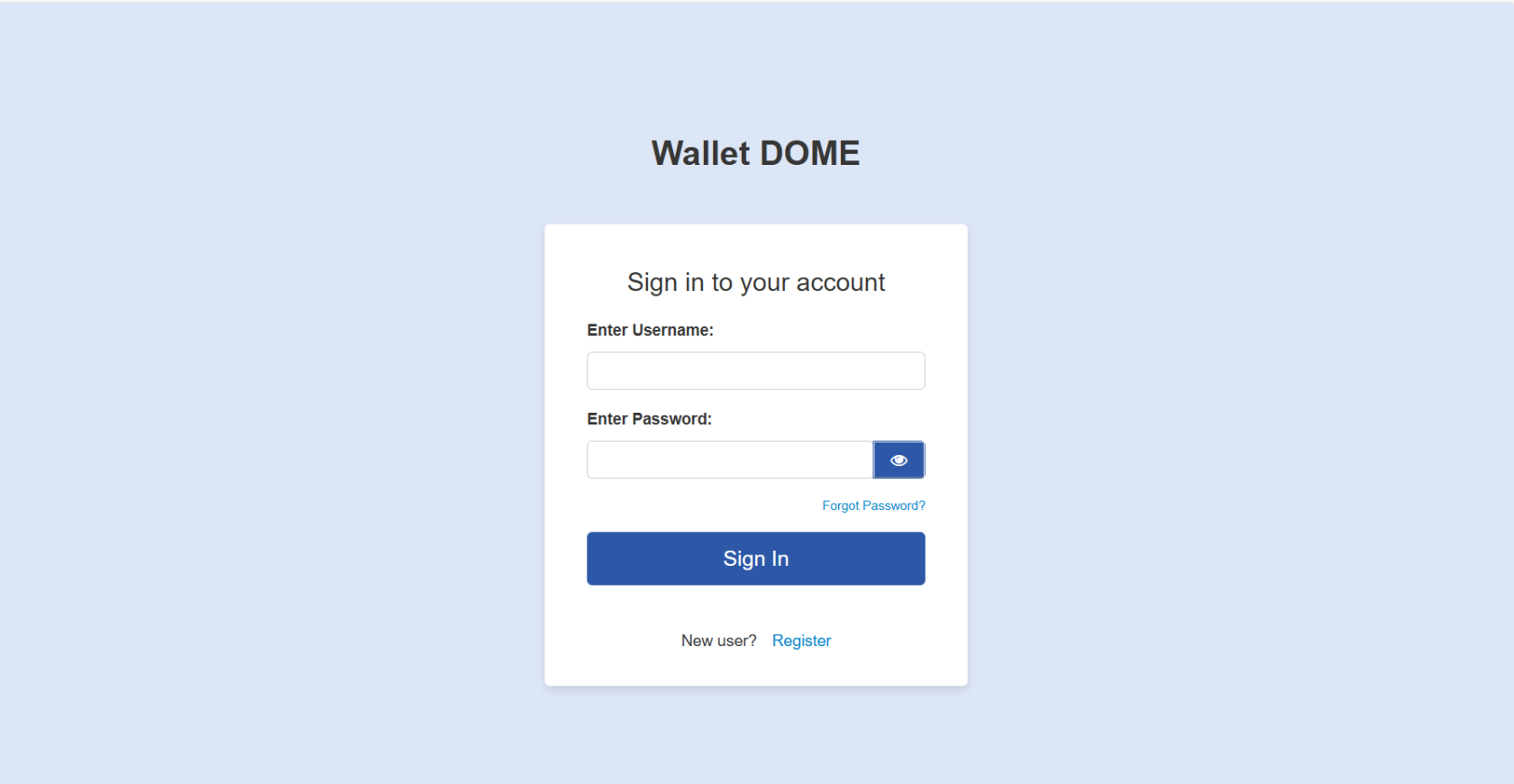
- Navigate to the [DOME Digital Wallet](https://wallet.dome-marketplace.eu) homepage and click on the "Register" button to begin the registration process.
[](https://knowledgebase.dome-marketplace.eu/uploads/images/gallery/2025-10/image.png)
- **Complete the Registration Form**:
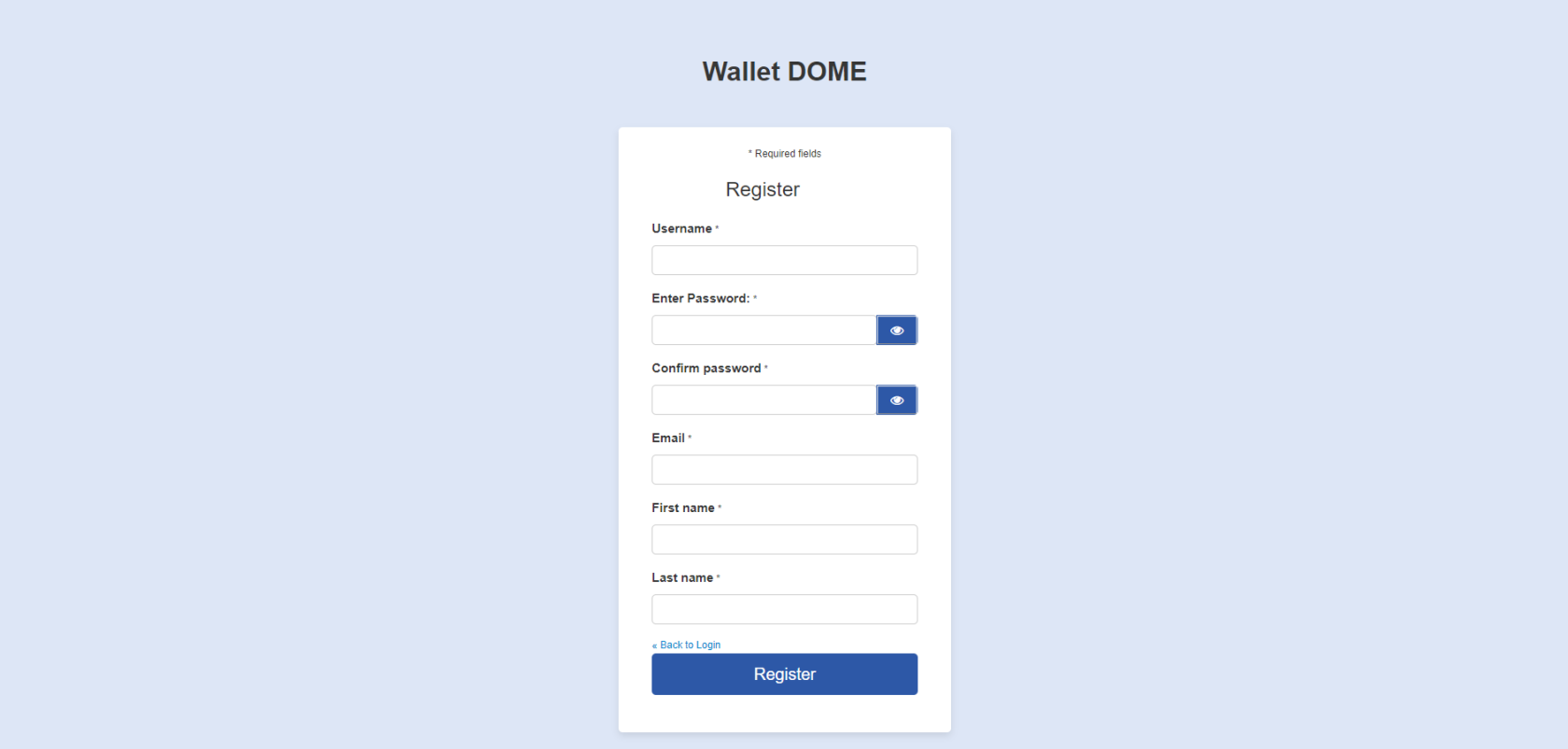
- Fill out the form with the requested data.
[](https://knowledgebase.dome-marketplace.eu/uploads/images/gallery/2025-10/ad6image.png)
- **Email Validation**:
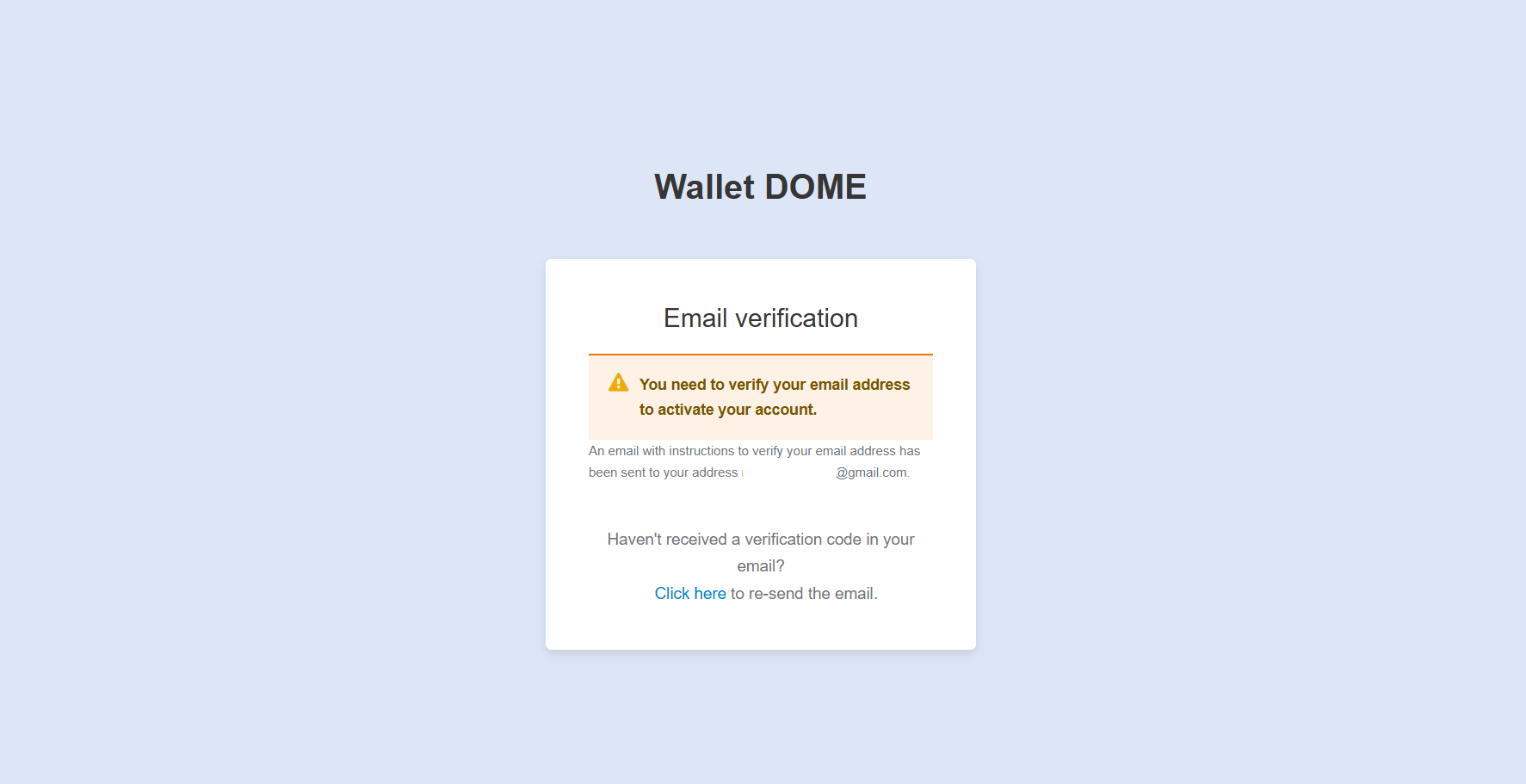
- Check your email for a verification link. Click on this link to validate your email address.
[](https://knowledgebase.dome-marketplace.eu/uploads/images/gallery/2025-10/gGximage.png)
- **Successful Registration**:
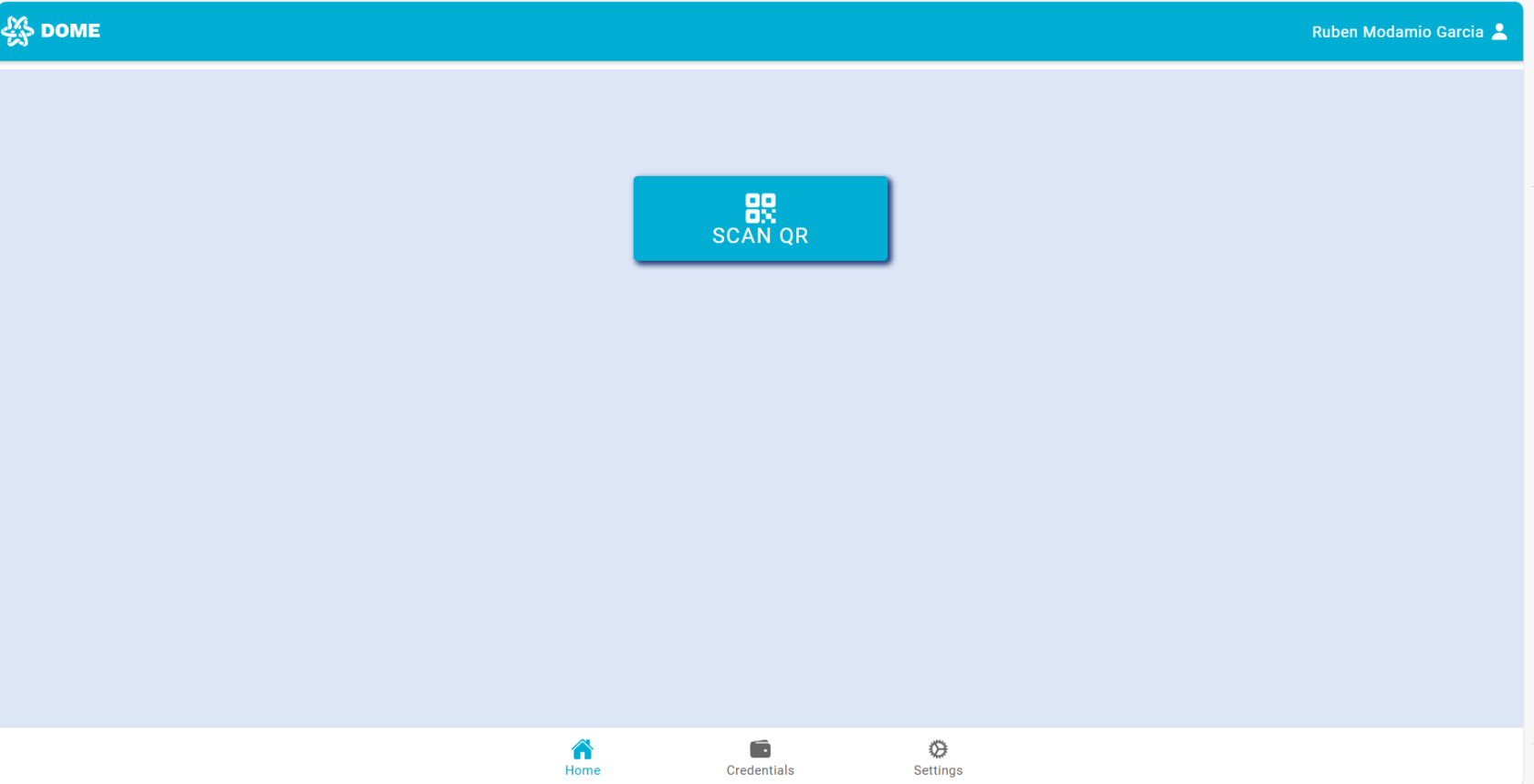
- Once you complete those steps you will get log into the wallet with your account
[](https://knowledgebase.dome-marketplace.eu/uploads/images/gallery/2025-10/SoBimage.png)
# Forgot Password Process
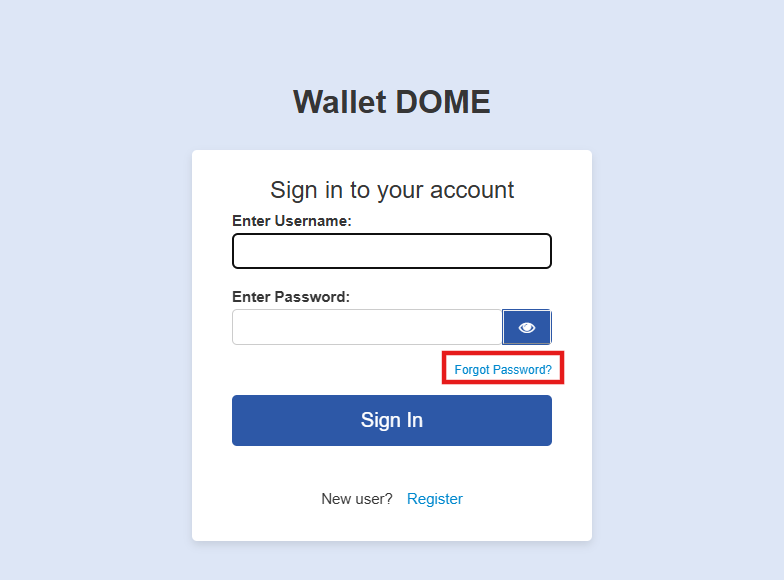
- **Access the Forgot Password Link**:
- On the login page, click the 'Forgot password' link if you cannot remember your password.
[](https://knowledgebase.dome-marketplace.eu/uploads/images/gallery/2025-11/Y2fimage.png)
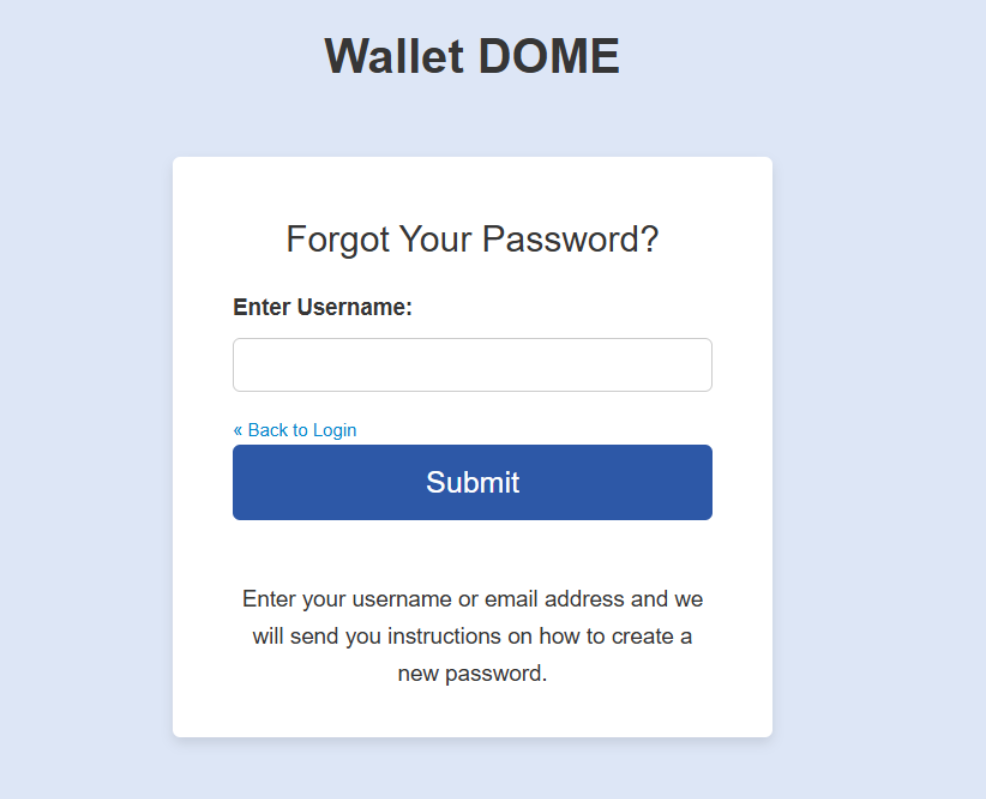
- **Submit Your Email Address**:
- Enter your registered email address where prompted to receive a password reset link.
[](https://knowledgebase.dome-marketplace.eu/uploads/images/gallery/2025-11/8Qjimage.png)
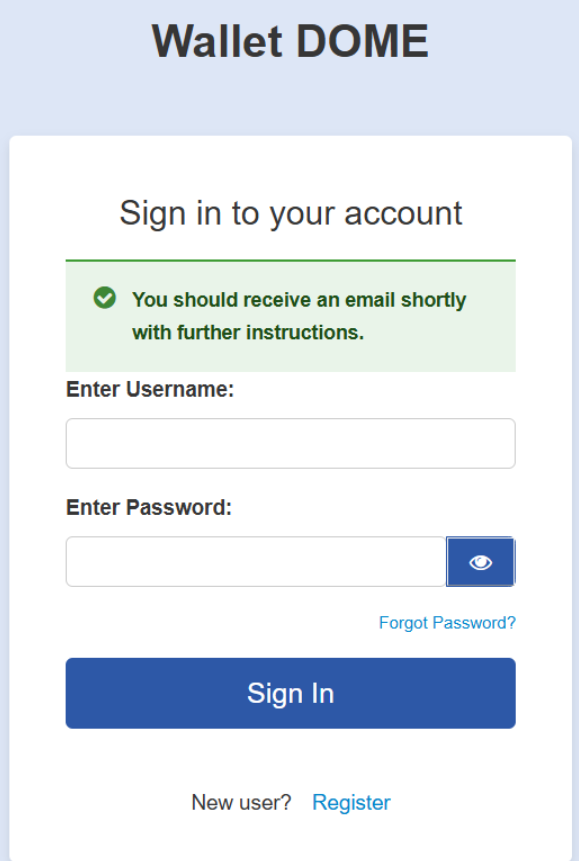
- **Confirmation Message**:
- After submitting your email, you will see a message confirming that an email has been sent to you with the reset link.
[](https://knowledgebase.dome-marketplace.eu/uploads/images/gallery/2025-11/wMHimage.png)
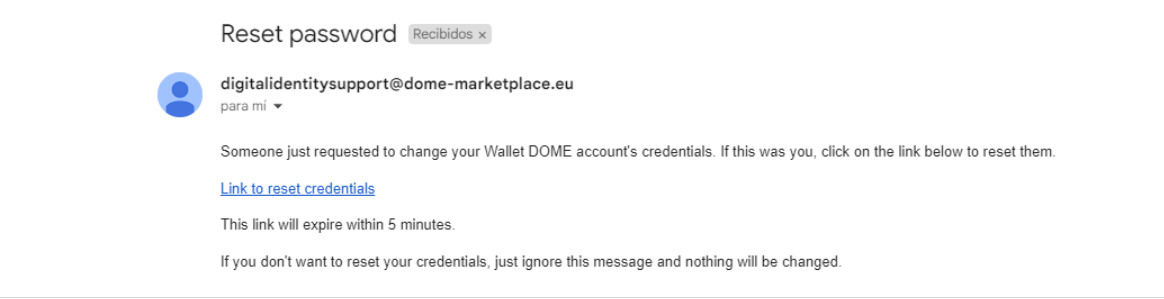
- **Check Your Email**:
- Open your email to find the password reset message. Click the link provided within the email to proceed with resetting your password.
[](https://knowledgebase.dome-marketplace.eu/uploads/images/gallery/2025-11/fJGimage.png)
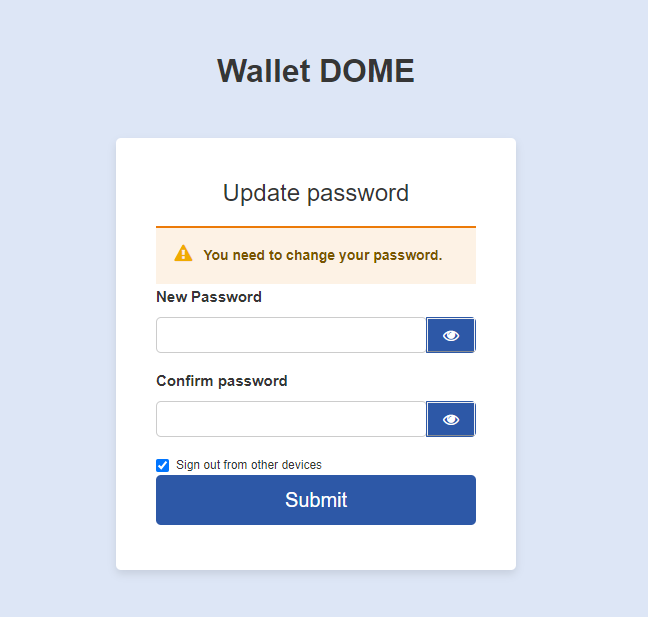
- **Reset Your Password**:
- Follow the link from your email to a secure page where you can enter a new password.
[](https://knowledgebase.dome-marketplace.eu/uploads/images/gallery/2025-11/3cFimage.png)
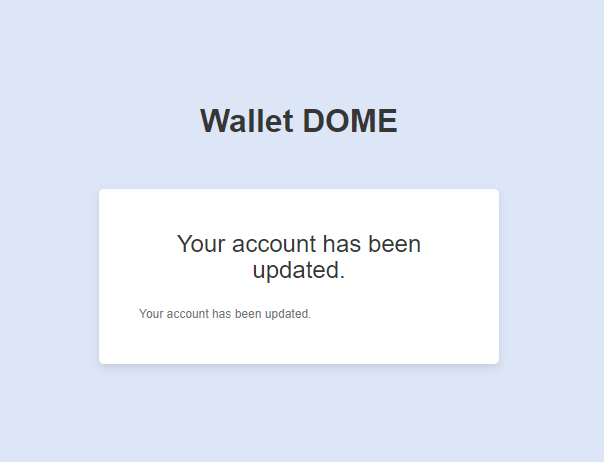
- **Confirmation of Password Reset**:
- Once you have successfully reset your password, you will receive a confirmation on the screen indicating that your password has been changed.
[](https://knowledgebase.dome-marketplace.eu/uploads/images/gallery/2025-11/cJ2image.png)
# QR Scan: credential obtention and presentation (login)
### QR Scan Functionality
- **General Use**: The QR Scan function is used to scan QR codes provided by a third party, which can trigger processes for **obtaining** or **presenting** credentials (see below). To initiate a scan, press the 'Scan QR' button to deploy the camera.
[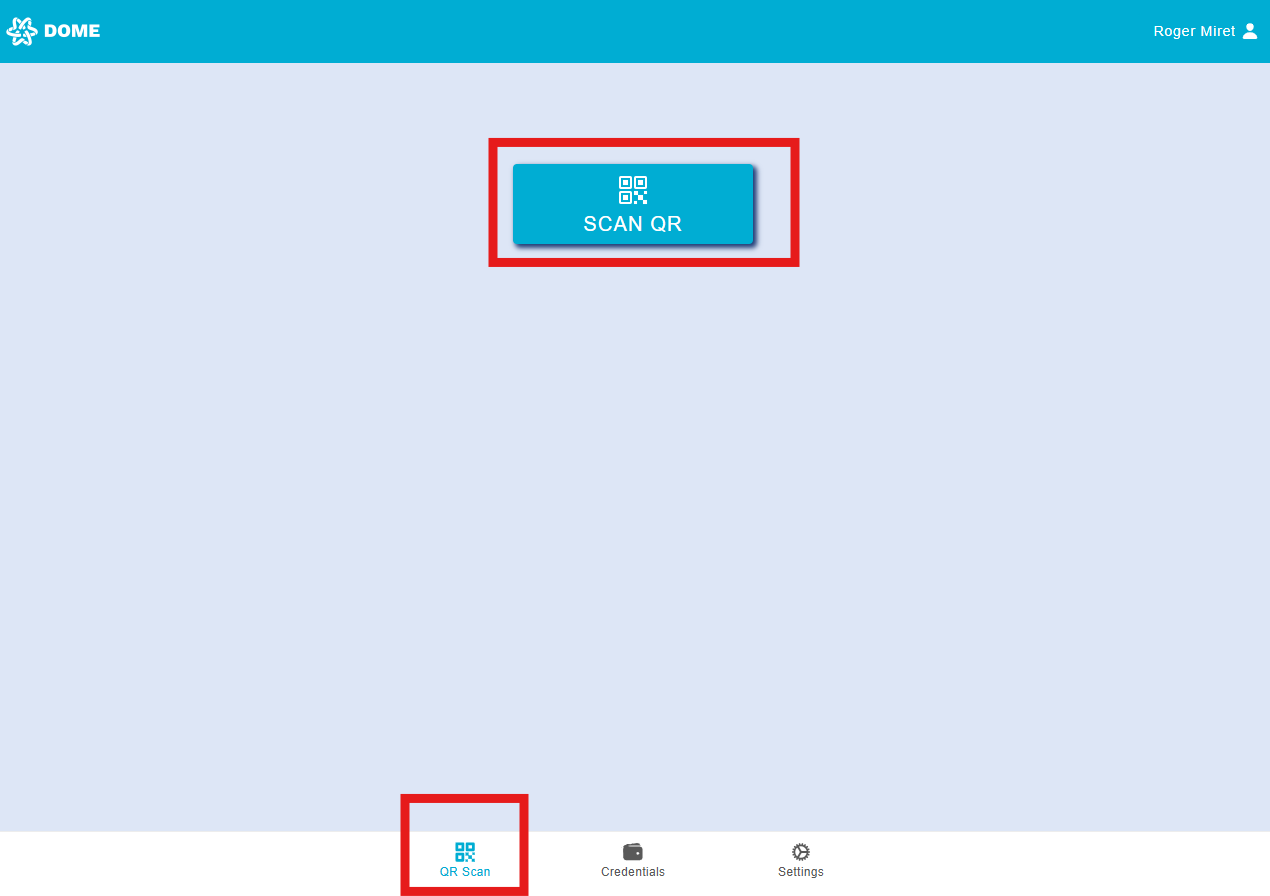](https://knowledgebase.dome-marketplace.eu/uploads/images/gallery/2025-11/2KYimage.png)
- **Scanning Process**: After pressing the 'Scan QR' button, align the QR code within the camera to scan it. This will trigger the specific process linked to the QR code. If you scan a QR which is not recognized as belonging to the DOME environment, an error message will be shown.
### Credential Obtaining Process
- For step-by-step instructions about the complete process of obtaining a credential in the DOME environmnt, check this detailed [guide](https://knowledgebase.dome-marketplace.eu/books/obtaining-the-verifiable-credentials)
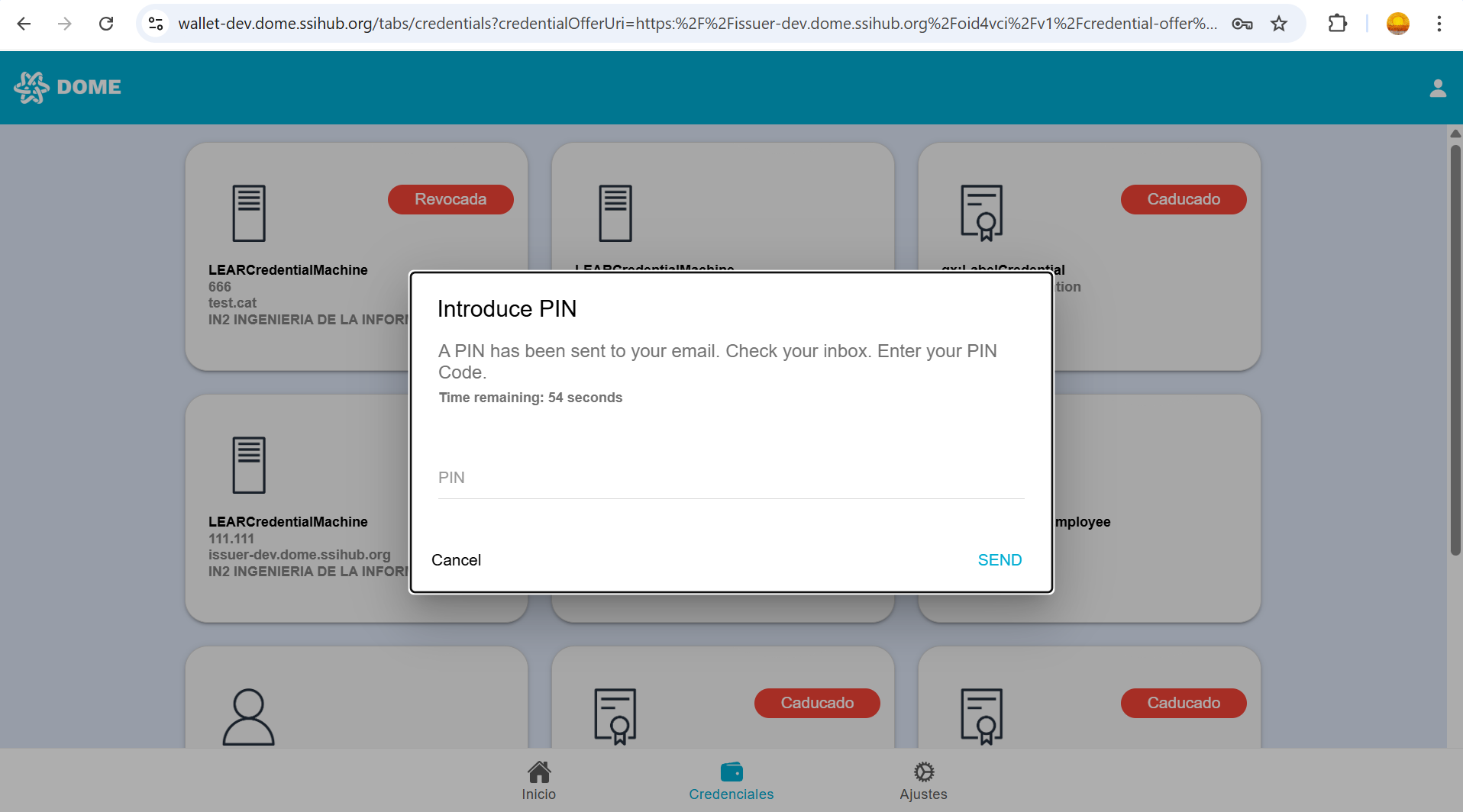
- If the credential obtaining process includes PIN verification (used for additional security), you will be prompted to enter a PIN code after scanning the QR code. The PIN will be sent to you through a communication channel specified by the issuer. Currently, the DOME issuer delivers this PIN code via email.
[](https://knowledgebase.dome-marketplace.eu/uploads/images/gallery/2026-01/EjKimage.png)
### Credential Presentation Process: logging in
- In most cases, the **Presentation Process** occurs as part of a login procedure. For more information, refer to the [**Login Guide**](https://knowledgebase.dome-marketplace.eu/books/logging-in-with-verifiable-credentials).
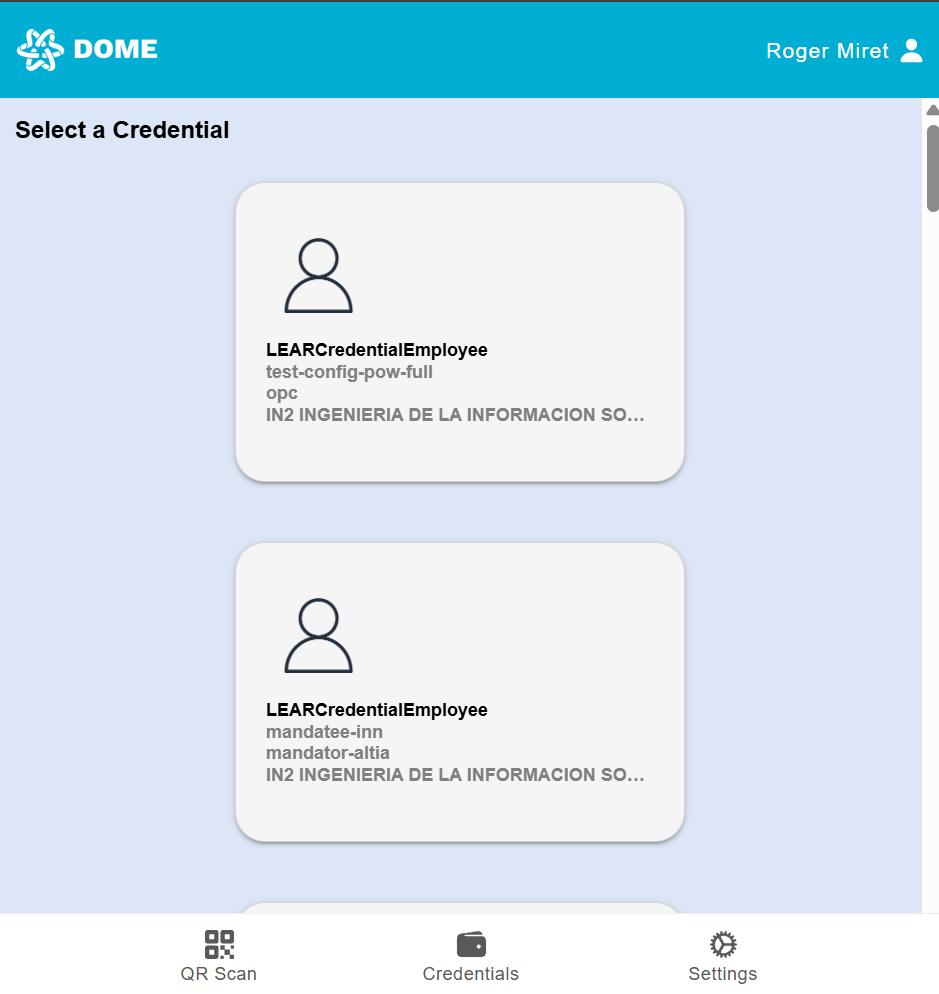
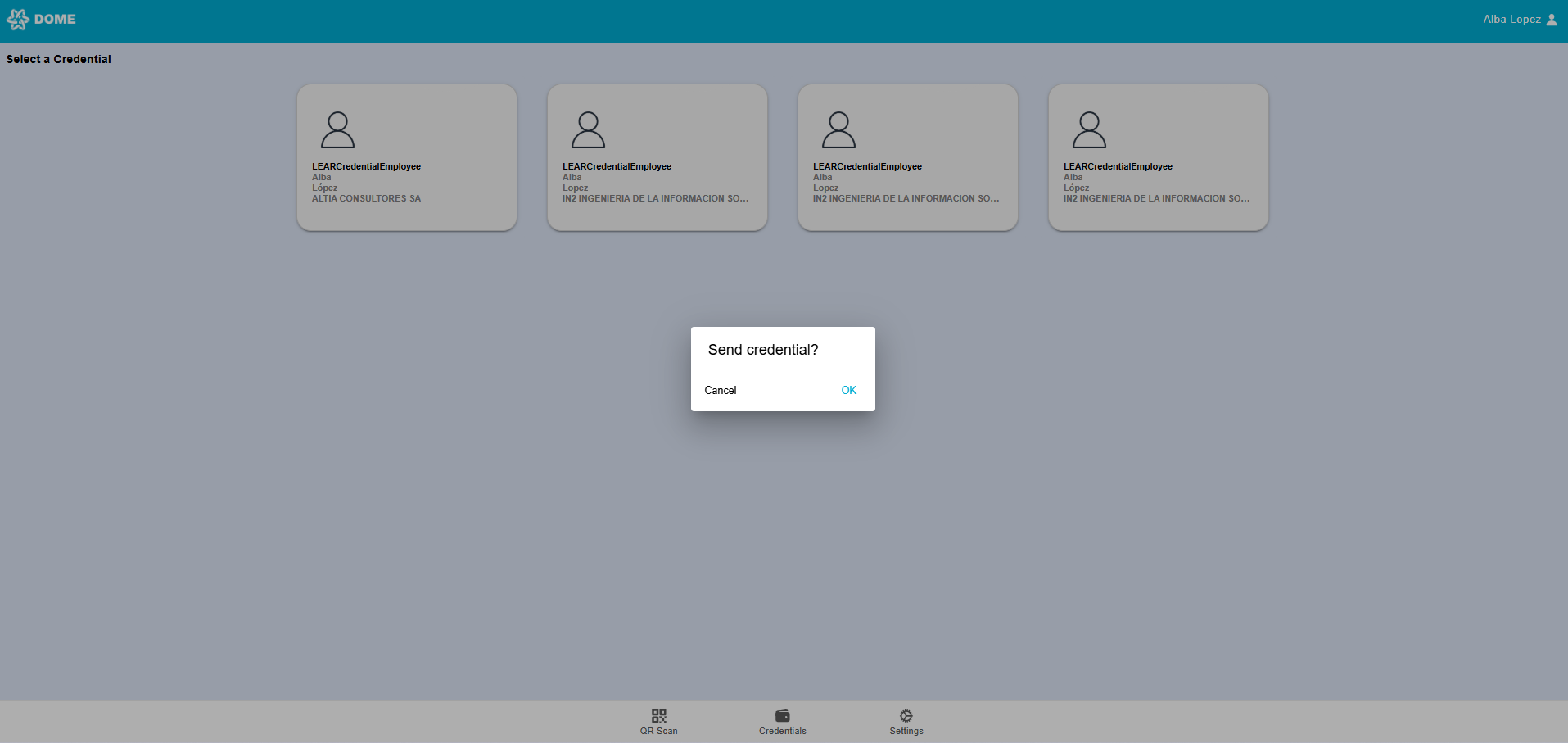
- When a credential presentation is required (for example, when logging in to the DOME Marketplace), the Wallet automatically displays all available credentials that match the type needed for the transaction or verification. Select the appropriate credential you wish to present by clicking or tapping on it, and confirm the action. If the presentation is successful, a confirmation pop-up will appear indicating that the transaction or verification has been completed successfully.
- [](https://knowledgebase.dome-marketplace-dev2.org/uploads/images/gallery/2025-11/8hyimage.png)
[](https://knowledgebase.dome-marketplace.eu/uploads/images/gallery/2025-12/crQimage.png)
# Credential Management
### See your credentials
- In the "Credentials" tab you can see all the credentials that have been added to your wallet account. Access it by clicking or tapping on the "Credentials" button below.
[](https://knowledgebase.dome-marketplace-dev2.org/uploads/images/gallery/2025-11/ZE6image.png)
- To learn more about credentials and their different types, see [this guide](https://knowledgebase.dome-marketplace.eu/books/verifiable-credentials-overview/page/verifiable-credential-types).
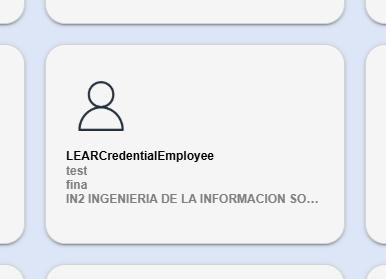
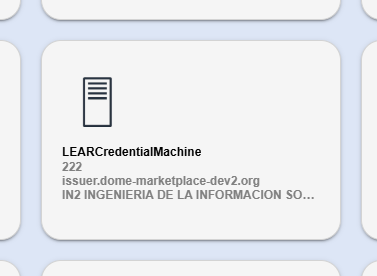
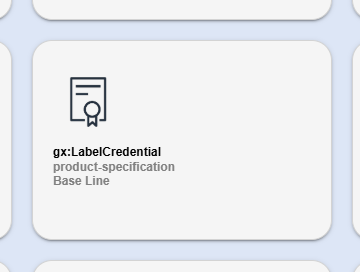
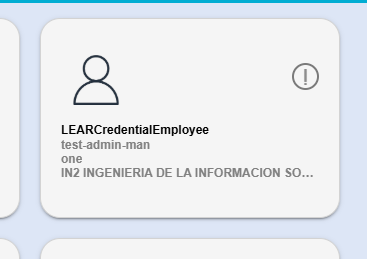
- Each type of credential has a different icon and displays different information. For example, LEAR Credential Employees display the credential type, the name of the mandatee and the mandator Company name, while LEAR Credential Machine display the IP and the domain and the mandator Company name .
- Example of LEAR Credential Employee:
[](https://knowledgebase.dome-marketplace-dev2.org/uploads/images/gallery/2025-11/803image.png)
- Example of LEAR Credential Machine:
[](https://knowledgebase.dome-marketplace-dev2.org/uploads/images/gallery/2025-11/5qLimage.png)
- Example of Gx:Label Credential:
[](https://knowledgebase.dome-marketplace-dev2.org/uploads/images/gallery/2025-11/I36image.png)
#### Credential status
- **Valid**: After adding a credential to your Wallet, it will normally appear with the “VALID” status. Valid credentials have no special icons or labels.
- **Pending signature**: If a signature error occurs during the activation process, the credential remains in “Pending Signature” status and cannot be used. These credentials are marked with an icon showing a circle containing an exclamation mark (!).
- When the signature fails, your LEAR will receive a notification and will have to [sign the credential manually](https://knowledgebase.dome-marketplace.eu/books/dome-credential-issuer-user-guide/page/credentials-management).
[](https://knowledgebase.dome-marketplace-dev2.org/uploads/images/gallery/2025-11/DCpimage.png)
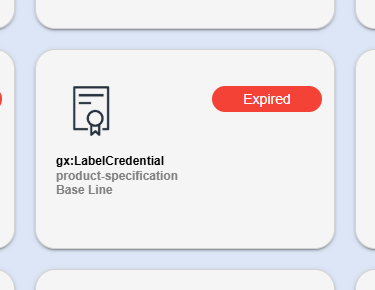
- **Expired**: Each credential has a defined validity period. Once this period ends, the credential becomes expired and can no longer be used. To get a new credential, contact the LEAR of your company; if you are the LEAR, open a ticket to the[ support ticketing system](https://ticketing.dome-marketplace.eu/) to ask for a new credential. Expired credentials are marked with a red ellipse labeled “EXPIRED.”
[](https://knowledgebase.dome-marketplace-dev2.org/uploads/images/gallery/2025-11/4RRimage.png)
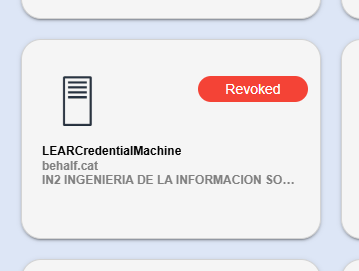
- **Revoked**: Your company’s LEAR can revoke a credential, immediately preventing its use. Revoked credentials are also displayed with a red ellipse labeled “REVOKED.”
[](https://knowledgebase.dome-marketplace-dev2.org/uploads/images/gallery/2025-11/aThimage.png)
To learn more about statuses, check the [Issuer guide](https://knowledgebase.dome-marketplace.eu/books/dome-credential-issuer-user-guide/page/credentials-management).
### See Credential details
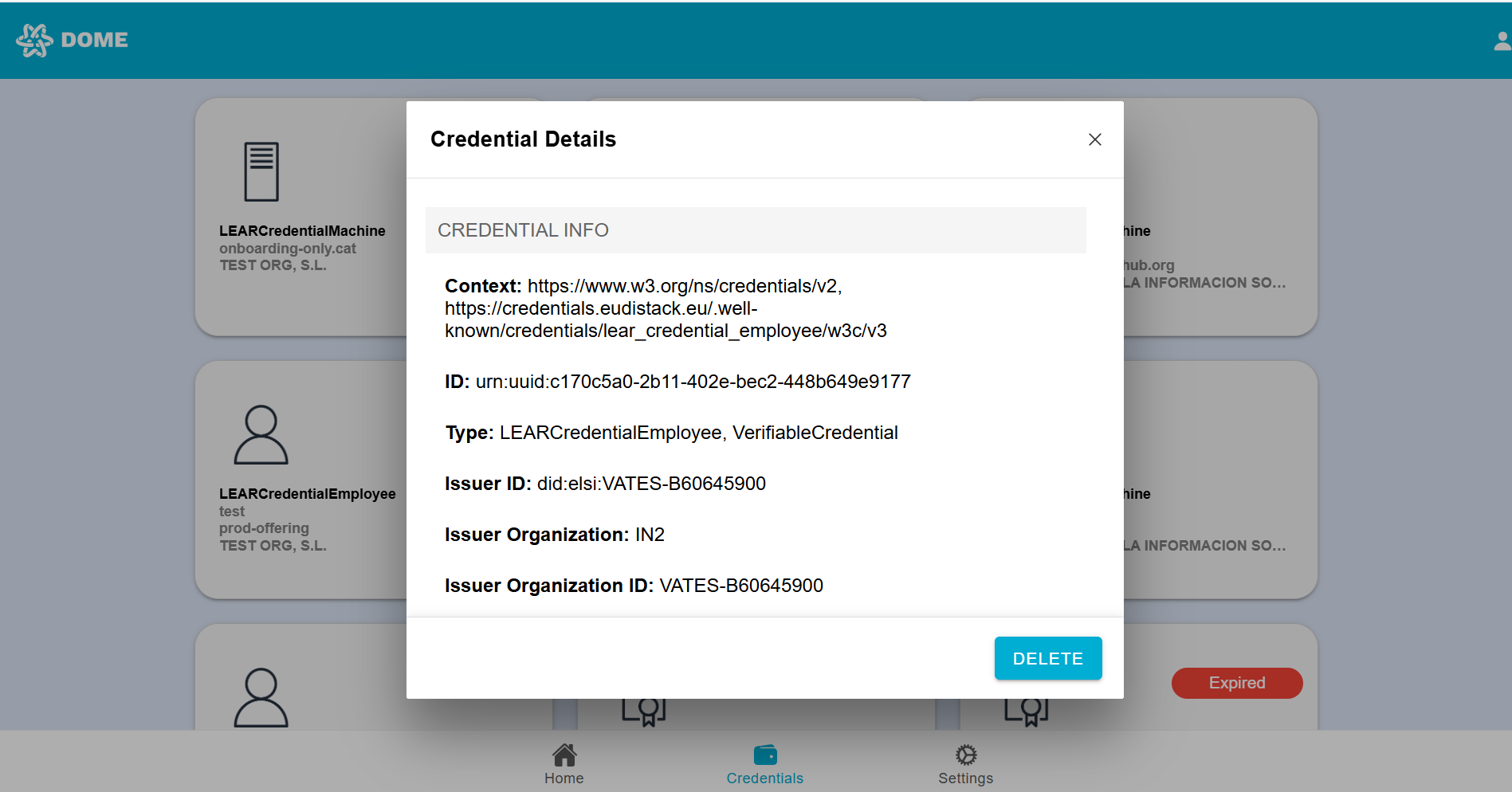
By clicking on a credential card, you can view all the credential details. Details sections differ according to the credential type.
[](https://knowledgebase.dome-marketplace-dev2.org/uploads/images/gallery/2025-10/7d9image.png)
### Export Credential
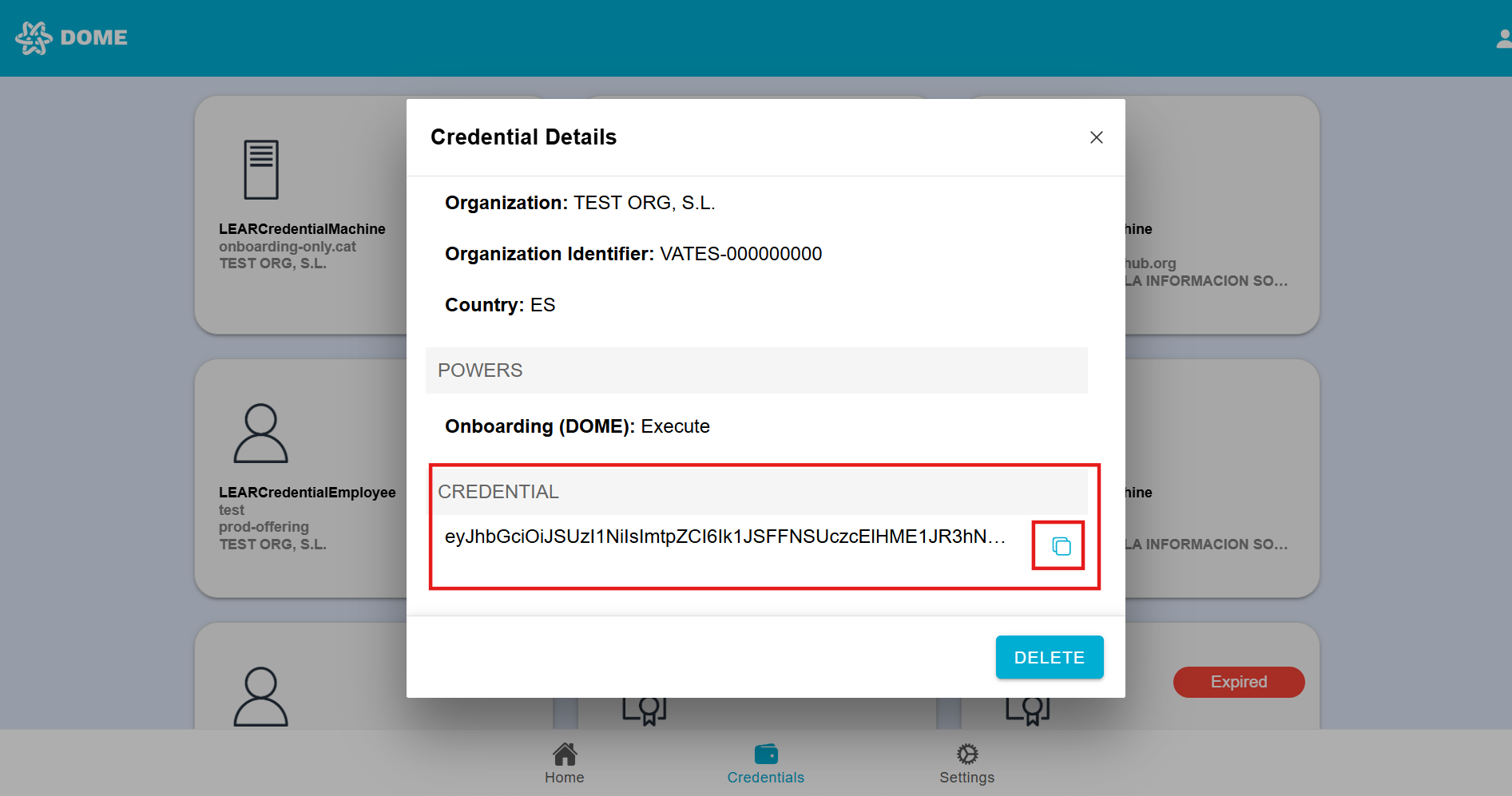
- Some type of credentials (LEAR Credential Machine, Label Credential), allow exporting the credential in JWT format. Access the credential details by clicking on the card and then scroll to the bottom. Here you will find the "Credential" section with the JWT. Click on the button to copy it to the clipboard.
[](https://knowledgebase.dome-marketplace-dev2.org/uploads/images/gallery/2025-10/LTeimage.png)
### Delete Credential
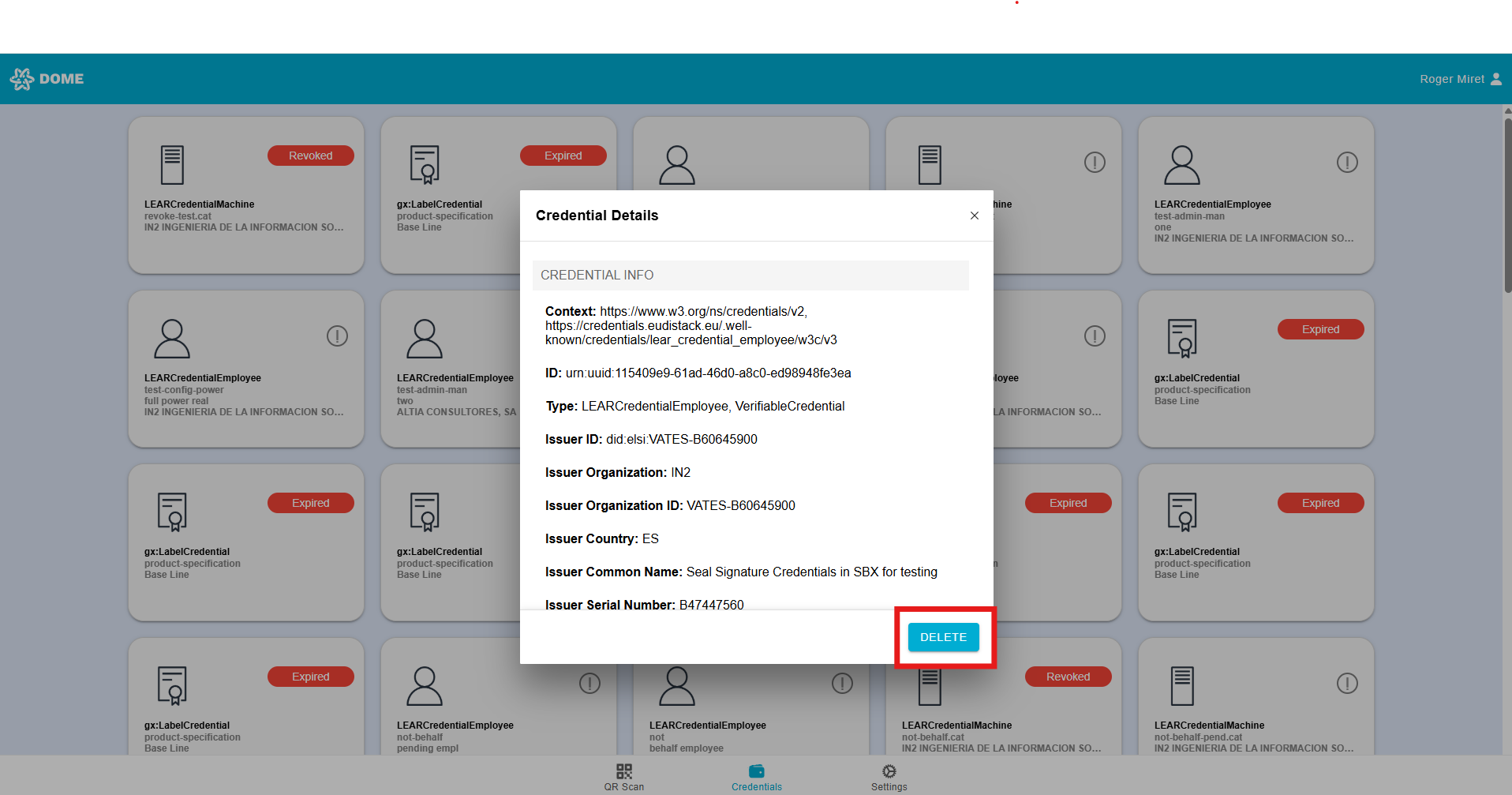
If you choose to delete a credential, access the credential details by clicking on the card and click on the "Delete" button that con find in the bottom right corner. Be aware that once a credential is deleted, it cannot be recovered, so you must obtain a new one through the [issuance process](https://knowledgebase.dome-marketplace.eu/books/company-onboarding-process-guide-for-cloud-service-providers-csp/page/6-generation-of-lear-verifiable-credentials) if needed.
[](https://knowledgebase.dome-marketplace-dev2.org/uploads/images/gallery/2025-11/BaQimage.png)
# Wallet Settings
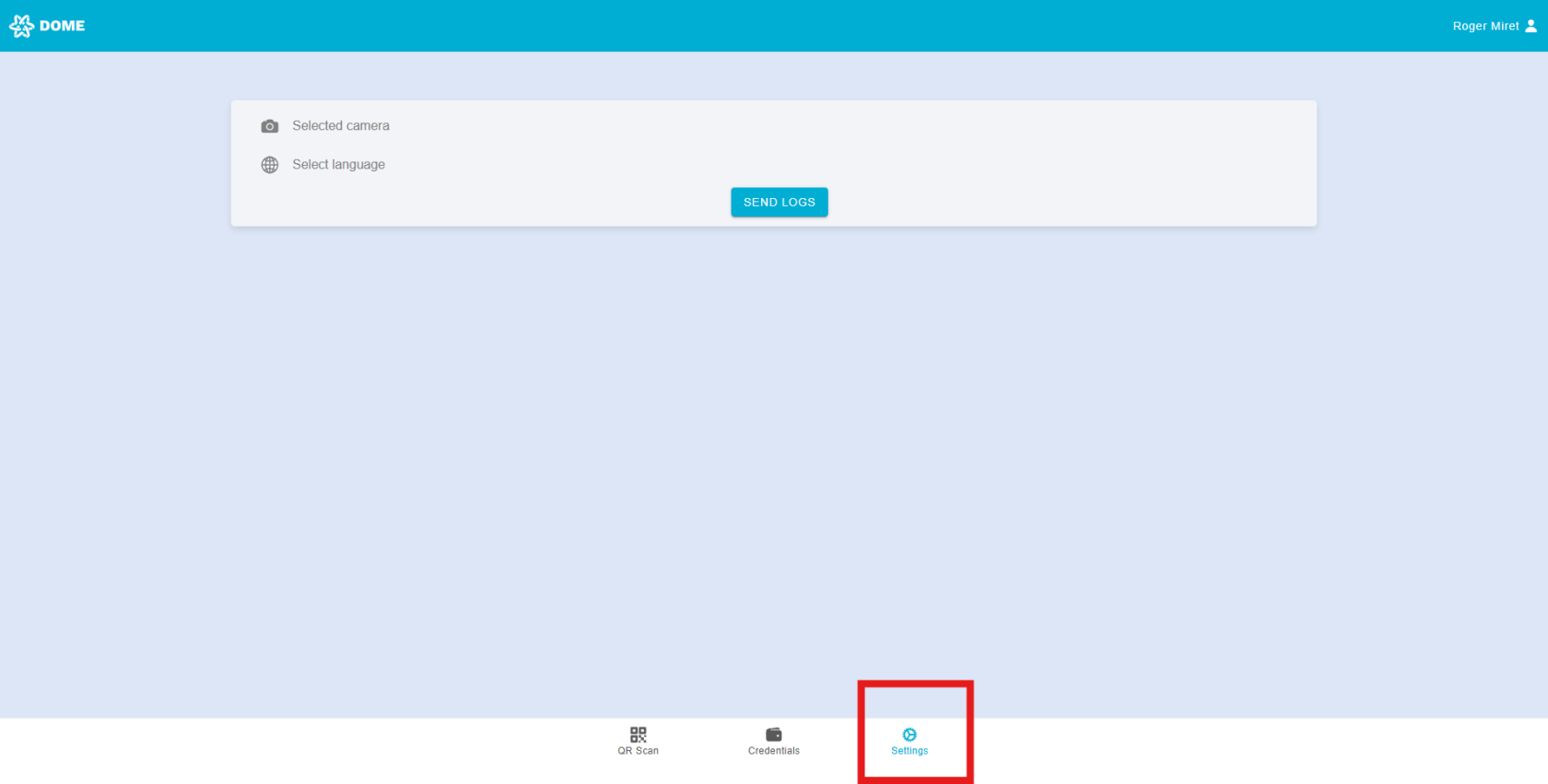
You can access the "Settings" tab by clicking or tapping on the "Settings" button below:
[](https://knowledgebase.dome-marketplace.eu/uploads/images/gallery/2026-01/kwYimage.png)
### Select camera
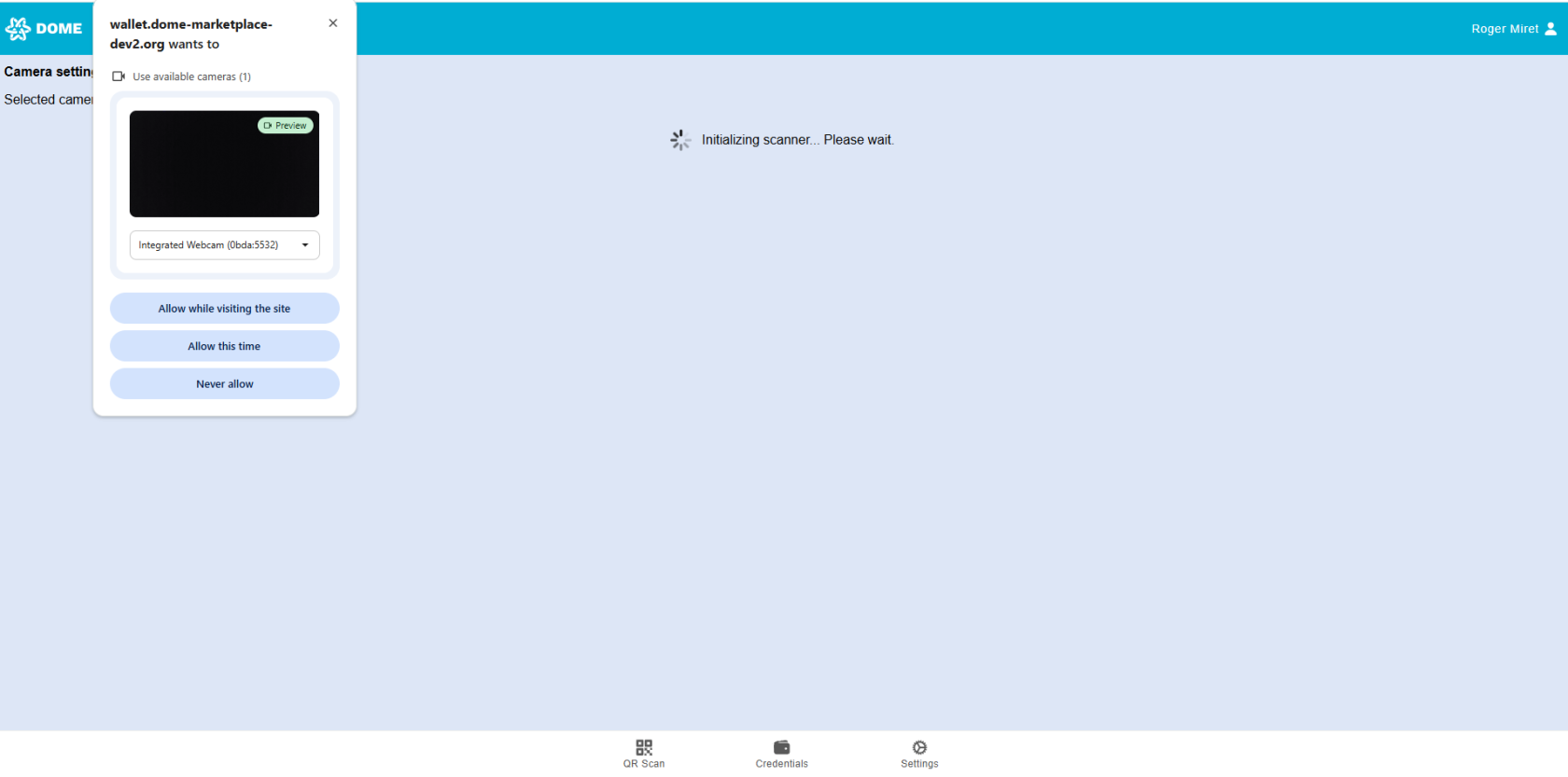
You can choose which camera the Wallet should use. If prompted, make sure to grant the necessary permissions.
[](https://knowledgebase.dome-marketplace.eu/uploads/images/gallery/2026-01/uDIimage.png)
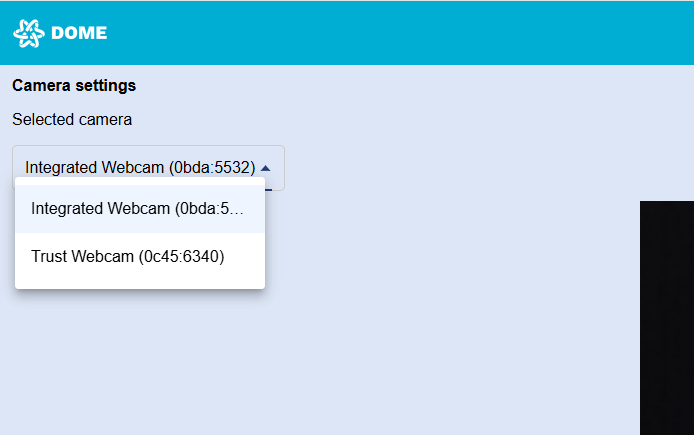
By deploying the selector you will see all the available cameras on your device. After a small loading time, the selected camera will be set.
[](https://knowledgebase.dome-marketplace-dev2.org/uploads/images/gallery/2025-11/VWnimage.png)
### Select language
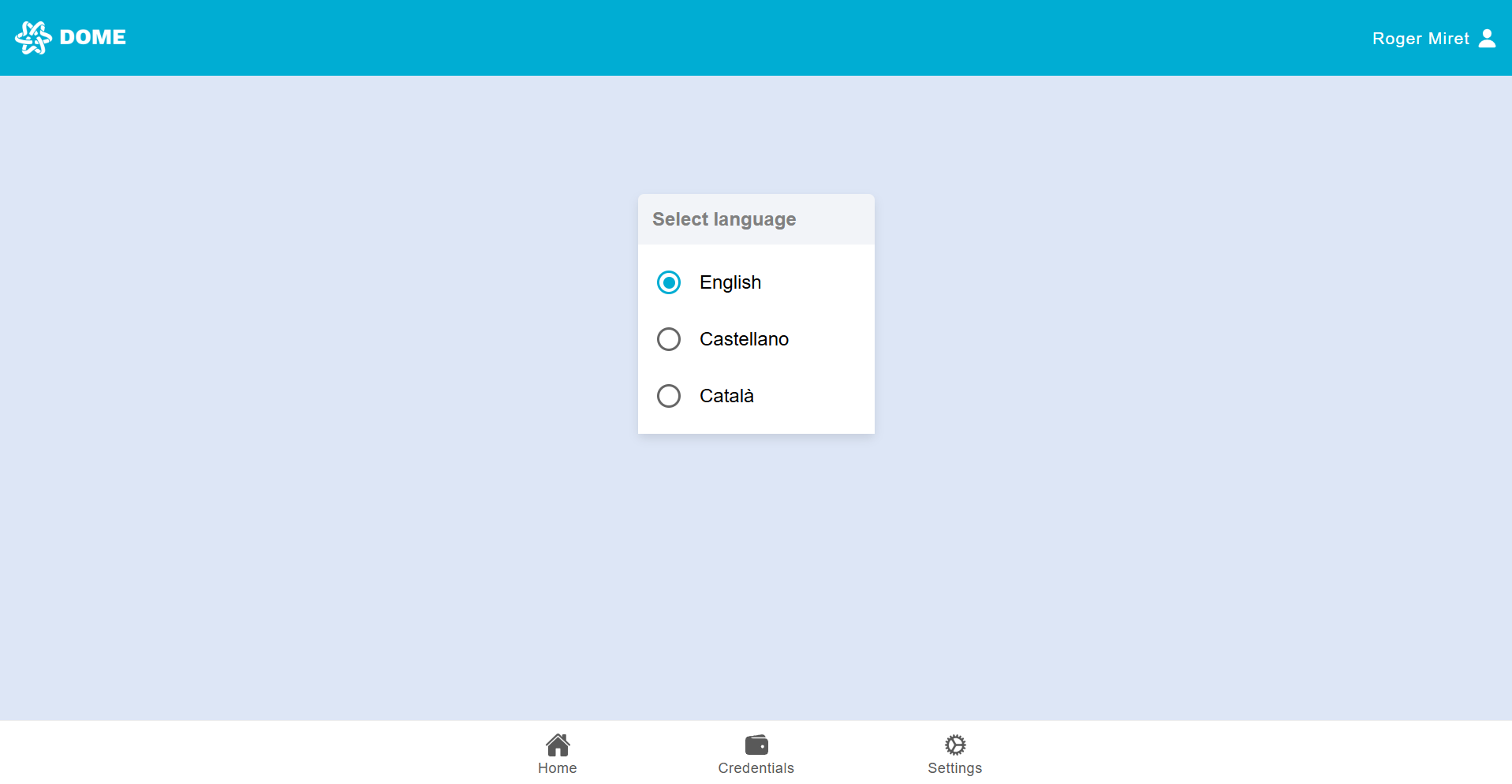
**Changing Language**: You can change the language of the wallet interface by going to the settings and selecting your preferred language. Currently, the wallet supports English, Spanish, and Catalan.
[](https://knowledgebase.dome-marketplace-dev2.org/uploads/images/gallery/2025-10/CH1image.png)
# Troubleshooting Common Issues
### Expired Credential
Each credential has a defined validity period. Once this period ends, the credential becomes expired and can no longer be used. Expired credentials are marked with a red ellipse labeled “EXPIRED.”
[](https://knowledgebase.dome-marketplace-dev2.org/uploads/images/gallery/2025-11/4RRimage.png)
To get a new credential, contact the LEAR of your company; if you are the LEAR, open a ticket to the[ support ticketing system](https://ticketing.dome-marketplace.eu/) to ask for a new credential.
### Camera Not Activating for QR Scan
If the camera does not activate when you attempt to use the **Scan QR** function, follow these troubleshooting steps to resolve the issue:
#### Navigate to Settings
- Within the DOME Wallet app, navigate to the **Settings** section. [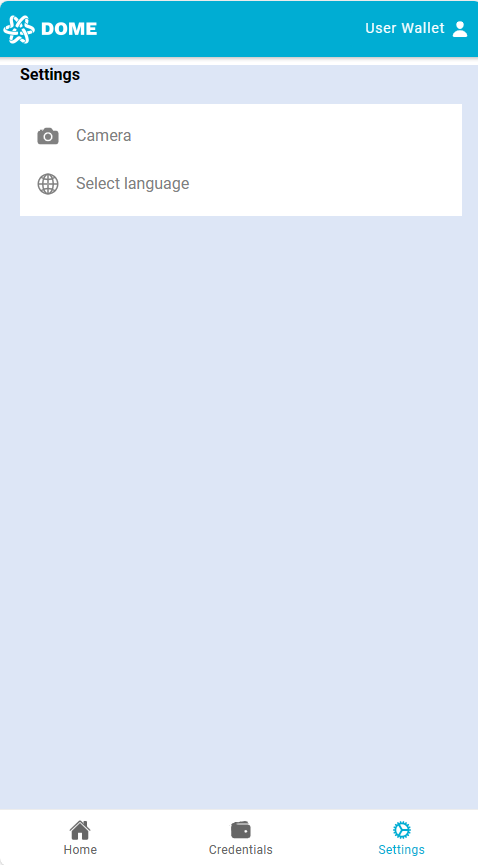](https://knowledgebase.dome-marketplace.eu/uploads/images/gallery/2025-11/nPjimage.png)
#### Access Camera Settings
- Find and select the **Camera** option to configure your camera settings. [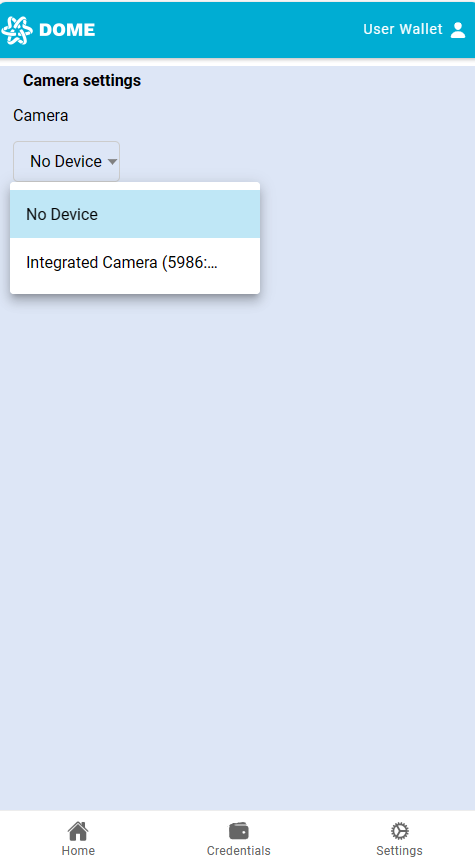](https://knowledgebase.dome-marketplace.eu/uploads/images/gallery/2025-11/hL7image.png)
#### Select Your Camera
- Choose your preferred camera for QR scanning. If you have more than one camera, you may need to select which one to use. [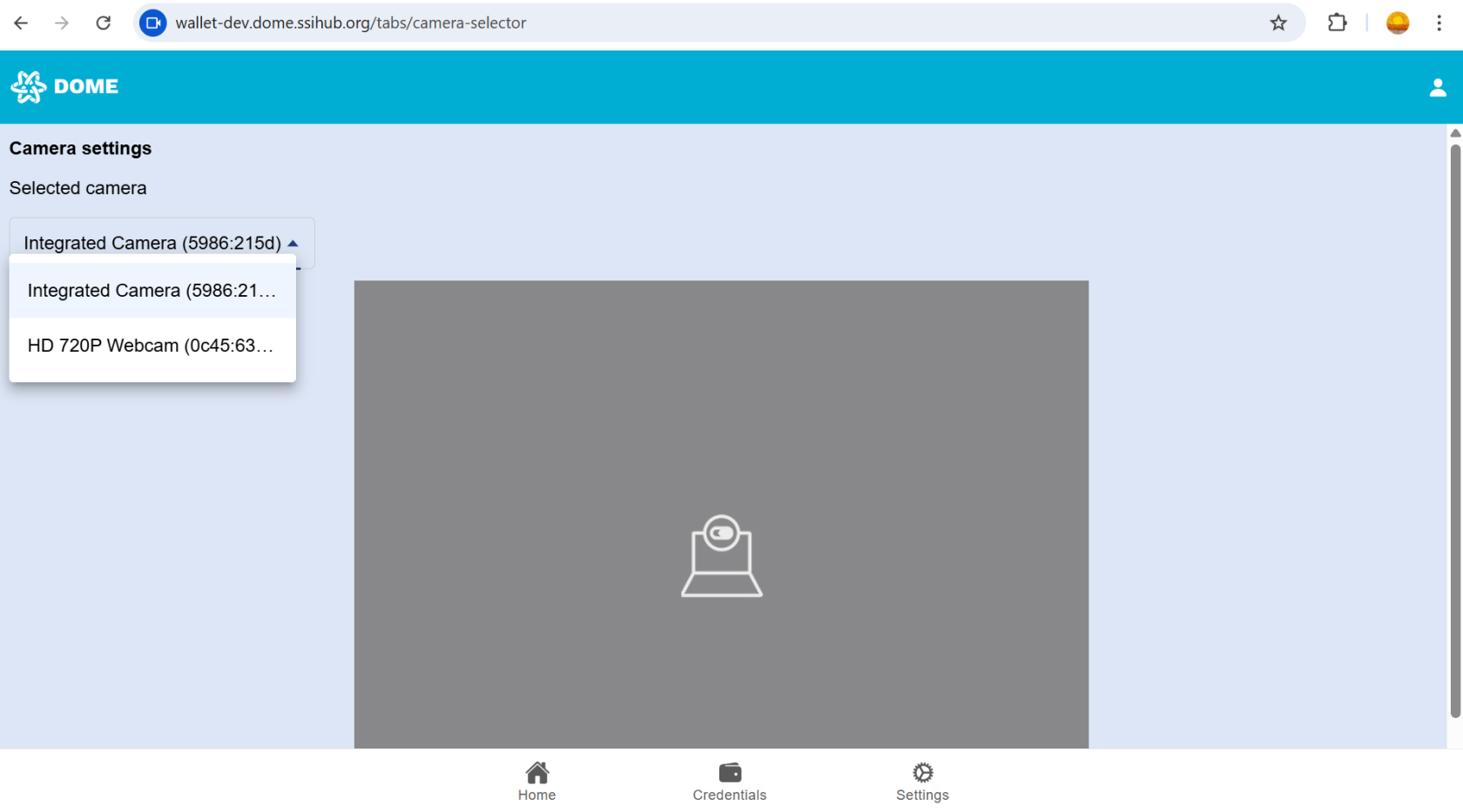](https://knowledgebase.dome-marketplace.eu/uploads/images/gallery/2025-11/8Bsimage.png)
#### Ensure Camera Permissions are Enabled
- Make sure the DOME Wallet app has the necessary permissions to access the camera in your device's settings.
- On Android: Go to Settings > Apps > Your Browser Permissions and ensure the Camera permission is enabled.
- On iOS: Go to Settings > Privacy > Camera, find Your Browser and ensure the toggle is enabled.
#### Retry QR Scan
- Return to the home screen and try to scan the QR code again.
#### Reset Camera Permissions (Optional)[](https://github.com/DOME-Marketplace/wallet-guide/tree/initial-wallet-guide#reset-camera-permissions-optional)
- If the issue persists, you can try resetting your camera permissions:
- Go to your device's App Permissions settings.
- Find the DOME Wallet app and remove the camera permissions.
- Reopen the app and grant camera permissions again when prompted.
#### Restart Your Device[](https://github.com/DOME-Marketplace/wallet-guide/tree/initial-wallet-guide#restart-your-device)
- If the problem continues, try restarting your device. This can refresh system processes that may be preventing the camera from functioning correctly.
#### Update Your Browser[](https://github.com/DOME-Marketplace/wallet-guide/tree/initial-wallet-guide#update-your-browser)
- Ensure that you are using the latest version of your browser. Check your app store for any available updates, as newer versions may include fixes for known issues.
#### Check for System Updates[](https://github.com/DOME-Marketplace/wallet-guide/tree/initial-wallet-guide#check-for-system-updates)
- If your device's operating system is outdated, it may cause compatibility issues. Check for any available system updates in your phone's settings and install them if necessary.
#### Contact Support[](https://github.com/DOME-Marketplace/wallet-guide/tree/initial-wallet-guide#contact-support)
- If none of these steps resolve the issue, you may need to open a [ticket ](http://ticketing.dome-marketplace.eu/)for further assistance.
By following these steps, you should be able to resolve any issues with the camera not activating for QR code scanning.